 Emily CarterPrinter Drivers
Introduction
A printer printing gibberish needs one key isolation test: print a Windows test page. If that page is readable, investigate the original document or application; if it also prints gibberish, investigate the printer driver or printer setup. Whole pages of random symbols, code-like text, or commands usually point to the print-job, driver, or setup path, while only a few wrong characters, fonts, or symbols point more strongly to the document, application, or font rendering.
Quick Diagnosis
| What you see | Likely path |
|---|---|
| Windows test page is readable, but one document prints gibberish | Document or print-job issue |
| Windows test page is readable, but every document from one application fails | Application-specific issue |
| Windows test page also prints gibberish | Driver or printer setup issue |
| The problem began after a new PC, Windows reinstall, driver change, or printer reconnection | Check the exact-model driver |
| The printer continuously outputs random characters or code | Cancel the queue, then send only one Windows test page |
| Only individual characters, fonts, or symbols are wrong | Check the document, application, or fonts |
Quick Method Comparison
| Method | When to use | Diagnostic result | User effort |
|---|---|---|---|
| Clear queue + Windows test page | First step or repeated gibberish jobs | Separates document/app issues from setup issues | Low |
| Check application/document | Test page is normal; one app or document fails | Identifies document-specific or app-specific output | Low |
| Correct driver reinstall | Test page is gibberish or multiple apps fail | Restores an exact-model driver setup | Medium |
| Fionn Printer Driver | Suspected printer-driver issue and a guided workflow is preferred | Scans for available driver repair or installation | Low |
Method 1: Clear the Print Queue and Print a Test Page
When to use
Start here for any unreadable output, especially when the printer keeps feeding pages after a job was cancelled. The Windows test page is not merely a check: it is the diagnostic boundary for the remaining methods.
- Open Settings > Bluetooth & devices > Printers & scanners .
- Select the affected printer and open its print queue.
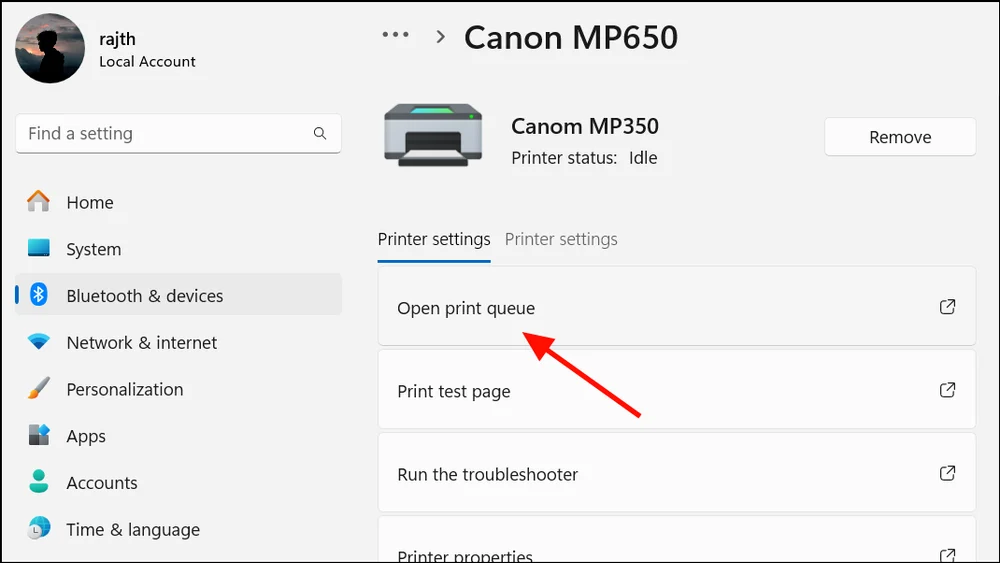
- Cancel all pending jobs. If pages are continually printing gibberish, do not repeatedly send test documents.
- Open the printer's properties or settings and send one Windows test page.
If the Windows test page is readable, do not reinstall the printer immediately; continue to Method 2. If the test page also contains random characters or code-like text, continue to Method 3.
Method 2: Check the Failing Application or Document
When to use
Use this path only when the Windows test page is readable. One failing document while other documents in the same app work is likely document-specific. Every document failing in one app while other apps work is more likely application-specific.
- Create a simple new document in the affected application.
- Select the same printer in that application's print dialog.
- Print the simple document and compare it with the original document.
- Reset unusual application print settings if the simple document also fails.
- Use the application's official repair or support guidance if every document from that application fails.
If only certain fonts, characters, or symbols are incorrect while the page otherwise prints normally, investigate the document, application, or fonts rather than moving straight to a driver reinstall.
Method 3: Reinstall the Correct Printer Driver
When to use
Use this method when the Windows test page also prints gibberish, multiple applications fail, or the issue began after changing PCs, reinstalling Windows, changing a driver, or reconnecting the printer.
- Record the printer's exact model and confirm your Windows version.
- Remove the current printer from Settings > Bluetooth & devices > Printers & scanners if a clean reinstallation is appropriate.
- Get a driver intended for that exact model from Windows or the printer manufacturer's official support source.
- Install the driver and re-add the printer using the supported setup.
- Print one Windows test page.
- Print one normal document after the test page is readable.
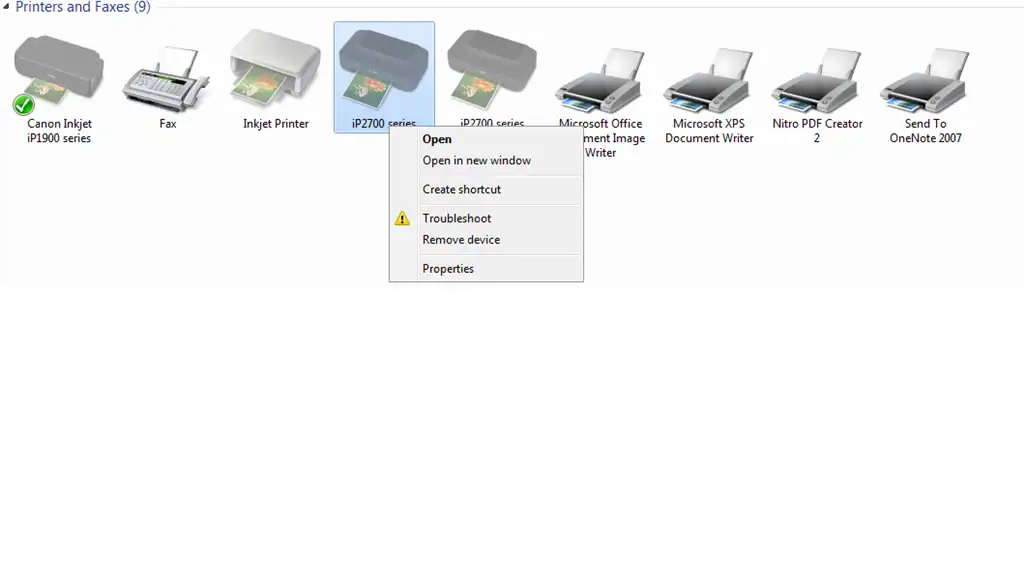
Some drivers use printer languages such as PCL or PostScript. A mismatched or incompatible driver can send data the printer does not interpret correctly, appearing as commands, code-like text, or random characters. Return to the same sequence: exact printer model, compatible driver, then test-page verification.
Method 4: Check Printer Driver Issues with Fionn Printer Driver
When to use
Use this Windows workflow when the Windows test page also prints incorrectly, a driver issue is suspected, and you want guided scanning and available driver repair or installation. If the test page is normal and only one document or app fails, Method 2 is the better starting point.
- Launch Fionn Printer Driver and click “Scan Now” to scan your computer for printer drivers and related issues.

- Wait while Fionn Printer Driver scans your system for installed printers, drivers, and common printer issues.

- After the scan finishes, click “One-Click Fix” to automatically install or repair the required printer driver.

- Wait for the repair to finish and confirm that the printer issue has been fixed successfully.

If Fionn repairs a printer-driver finding, print a Windows test page again and then test one normal document. A successful driver repair does not prove that the original document or application is healthy.
Conclusion
Start by clearing pending jobs and printing one Windows test page. A readable test page shows that the printer and driver path can produce readable output, so focus next on the document or application. A gibberish test page points instead to the printer setup or exact-model driver. Reinstall the correct driver when that path is indicated, or use Fionn Printer Driver for a guided scan and available repair workflow. Verify every driver-side change with one test page and one ordinary document. If output remains unreadable, contact the printer manufacturer with the exact model and a sample page.
FAQ
Why is my printer printing symbols instead of my document?
The printer may be receiving a damaged print job or output from a mismatched driver. Print a Windows test page first to determine whether the problem affects the printer setup or only one document or application.
Should I reinstall the printer if only one app prints gibberish?
Usually not. If the Windows test page and other applications print normally, check the failing application and its document settings first.
Can a stuck print queue cause repeated gibberish pages?
Yes. A failed job can remain pending and continue printing. Cancel all jobs, then send only one Windows test page before retrying a document.
How can I tell whether the driver is the issue?
If the Windows test page and output from multiple applications are unreadable, the driver or printer setup is the likely path to investigate. Use an exact-model compatible driver and test again.
Why is my printer printing code instead of the document?
If entire pages contain code-like text or printer commands, the printer may be receiving a print job or driver output it cannot interpret correctly. Clear the queue and print a Windows test page. If the test page also fails, check the exact-model printer driver.


