 Emily CarterPrinter Drivers
If your printer prints blank pages, first print a built-in test page. If the test page is also blank, check the ink, toner, cartridge, or printhead. If the test page works but Windows prints blank pages, check the document and printer driver. The four methods below move from printer-side checks to Windows driver repair, followed by a guided option with Fionn Printer Driver .
Symptoms
- Paper feeds normally, but every printed sheet is blank.
- Only one file or application produces blank pages.
- The printer's built-in test page prints normally, but Windows jobs are blank.
- Blank output starts after a cartridge, toner, driver, or Windows change.
- Blank pages appear with faded areas, streaks, or a low-supply message.
The built-in test page is the key dividing line. It does not depend on the Windows document or printer driver. A blank test page points to the printer or its supplies; a normal test page points to the Windows printing path.
Quick Diagnosis Checklist
- Print a self-test or status page from the printer controls. If it is blank, use Method 1. If it contains visible text or diagnostic marks, continue to the next check.
- Print a new one-page document with black text. If that page works while one original file stays blank, use Method 2.
- Print the same simple page from a second Windows app. If both apps print blank pages but the printer self-test works, use Method 3 or the recommended Method 4.
- Note whether the issue began after a driver update, printer installation, or Windows change. This timing strengthens the case for a driver-focused method rather than a supply check.
Quick Method Comparison
| Method | Best For | Efficiency | User Effort |
|---|---|---|---|
| Check ink, toner, and self-test | Blank self-test, faded output, supply alerts, or recently changed supplies | High | Low |
| Review document and settings | One file or one app prints blank | High | Low |
| Update or reinstall the driver | Normal self-test but blank output from multiple Windows apps | Medium | Medium |
| Use Fionn Printer Driver | Windows-side issues when a guided scan and driver repair path is preferred | High | Low |
Method 1: Check Ink, Toner, and Print a Self-Test
When to use: Use this method when every job is blank, the printer reports a supply issue, output is fading, or the problem began after replacing ink or toner.
Step-by-Step Guide
- Open the printer's supply area and confirm that the installed ink or toner is intended for that printer model.
- Check each cartridge or toner unit for low level, damage, or an incorrect seating position.
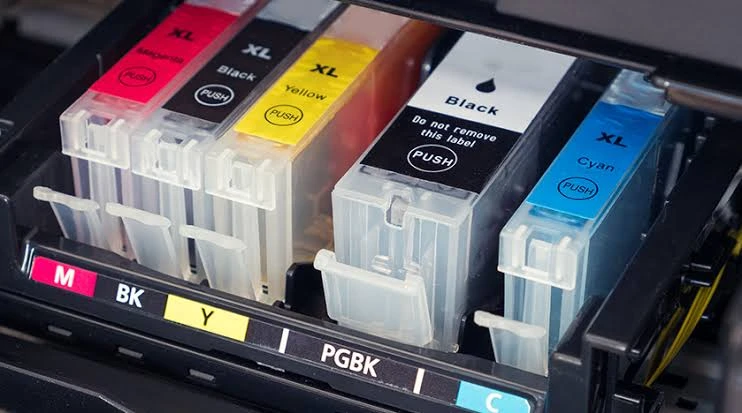
- Remove any pull tab, sealing tape, or packaging material left on a recently installed supply.
- Reinstall the supply firmly in its correct slot.
- Run the printer's built-in cleaning or maintenance function if the model provides one.
- Print a built-in self-test, status page, or quality report from the printer controls.
How to Verify
The method worked when the built-in page contains visible text, colors, or diagnostic marks. If it remains blank, Windows and the driver are not the confirmed cause; contact the printer manufacturer or an authorized service provider.
Method 2: Review the Document and Print Settings
When to use: Choose this method when the printer self-test works, but one document or one application produces blank pages.
Step-by-Step Guide
- Create a new one-page document containing a short line of black text.
- Print the new document to the same printer.
- Open the original document and check whether its content is hidden, white on a white background, or outside the printable page area.
- Correct the document or print setting that caused the blank result.
- Print the original document again.
How to Verify
The new text page should print normally. If it does and the corrected original file also prints content, the issue was isolated to that document or its settings.
Method 3: Update or Reinstall the Printer Driver
When to use: Use this method when the printer self-test works normally and different Windows applications still print blank pages. It is especially relevant after a driver, printer, or Windows change.
Step-by-Step Guide
- Open Windows Settings and select the installed printer to confirm the exact printer model.
- Open Device Manager and locate that printer under the relevant printer category.
- Choose the driver update option and follow the prompts to look for an updated driver.
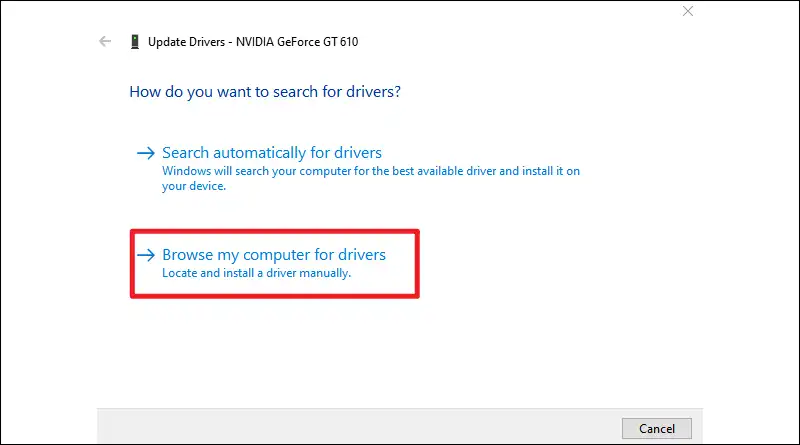
- If updating does not resolve the issue, uninstall the printer device or driver entry, then restart Windows.
- Add the printer again and install the driver that matches the exact printer model.
- Print a Windows test page or a new one-page text document.
How to Verify
Print the same simple text page from two different Windows applications. Visible output from both applications confirms that the driver path is working for those tests.
Method 4: Diagnose and Fix Printer Printing Blank Pages with Fionn Printer Driver
When to use: This recommended option fits Windows-side blank output across applications when the self-test works and you want a guided scan and repair path. Fionn Printer Driver can scan installed printers, drivers, and related printer issues, then install or repair a required printer driver.
Step-by-Step Guide
- Launch Fionn Printer Driver and click “Scan Now” to scan your computer for printer drivers and related issues.

- Wait while Fionn Printer Driver scans your system for installed printers, drivers, and common printer issues.

- After the scan finishes, click “One-Click Fix” to automatically install or repair the required printer driver.

- Wait for the repair to finish and confirm that the printer issue has been fixed successfully.

How to Verify
Print the simple text page, then print the original document. Visible output from both pages shows that the Windows printing path is working for that test.
Verification Checklist
- The printer's built-in self-test or status page contains visible marks or text.
- A new one-page text document prints readable content.
- The original document prints content rather than a blank sheet.
- The same test page prints from a second Windows application.
- The printer has no supply, paper, jam, paused-job, or offline message.
Conclusion
Start with the printer's built-in test page because it separates a printer-side fault from a Windows-side one. If the test page is blank, inspect the ink or toner, remove remaining protective material, reseat the supply, and run maintenance if available. If the test page works, use a simple text page to isolate a document issue before updating or reinstalling the driver for multi-app failures. For a guided Windows scan and repair workflow, Fionn Printer Driver can help. Verify the result with both a test page and the original document. If the built-in test page remains blank, contact the printer manufacturer or authorized support.
FAQ
Why does my printer print blank pages when it has ink or toner?
A supply can be present but incorrectly seated, blocked by packaging material, low, or unable to produce output. Print the built-in test page to determine whether the blank output occurs independently of Windows.
Why does only one document print blank?
The document may contain hidden content, white text, or content outside the printable area. Print a new plain-text page first, then inspect the original file's visible content and page layout.
Can a printer driver cause blank pages?
Yes. A driver is a relevant suspect when the printer self-test works but several Windows applications produce blank pages. Update or reinstall the driver that matches the exact printer model, then test from more than one app.
Should I replace the cartridge or toner immediately?
Not necessarily. First check that the supply is seated correctly and that all sealing material was removed. A built-in test page provides better evidence before you replace a supply.


