 Emily CarterDLL Errors
DLL entry point not found: 4 Safe Fixes for Windows
Introduction
A DLL entry point not found message usually means an application reached a DLL that does not provide the procedure the application expects. A mismatched or damaged app file is often more relevant than a completely missing DLL. The four methods below move from a restart and app repair to reinstallation, Windows component repair, and an optional assisted scan. Record the complete error first. The procedure name, DLL name, and displayed path determine which method fits and help you avoid replacing the wrong file.
Symptoms
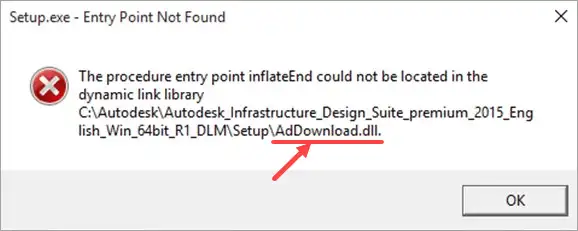
The dialog commonly says that a procedure entry point “could not be located in the dynamic link library.” The title bar may name the program that failed. The message should also identify a procedure and a DLL, sometimes with a complete path.
- One application or game fails during startup while Windows remains usable.
- The error begins after installing or updating the affected application.
- A specific feature fails because the DLL is loaded only when that feature runs.
- Several unrelated programs fail, suggesting a Windows component problem rather than one damaged installation.
Microsoft documents that a program uses exported DLL functions and that function names must match exactly. An entry-point error therefore differs from a simple “DLL not found” message. See the official GetProcAddress documentation for the underlying behavior.
Quick Diagnosis Checklist for DLL entry point not found
- Only one app fails after an app update: start with Method 1.
- Only one app fails and the DLL path is inside its installation folder: use Method 2 if repair does not work.
- Several apps fail, or the path points to a Windows system folder: use Method 3.
- The cause remains unclear after the supported repairs: consider the assisted scan in Method 4.
Method 1: Restart, Update, or Repair the Affected App
When to Use
Use this low-risk method when one app fails, especially after an interrupted installation or app update.
Step-by-Step Guide
- Photograph or write down the complete dialog, including the procedure, DLL, and path.
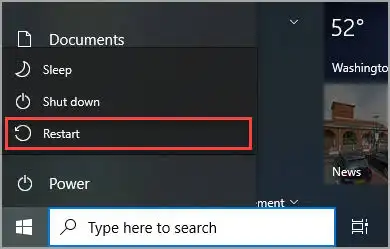
- Restart Windows, then open the affected application again.
- Open Settings > Apps > Installed apps , select the app’s advanced options, and choose Repair if available.
- Check the application’s own updater or original publisher for a compatible update.
Not every program exposes a Repair option. Microsoft lists the available Settings and Control Panel paths in Repair apps and programs in Windows .
How to Verify
Open the same feature that triggered the dialog. Success means the original procedure-and-DLL message does not return and the feature works.
Method 2: Reinstall the Affected App from Its Original Source
When to Use
Use reinstallation when the error remains limited to one program or names a DLL stored in that program’s folder. Reinstallation restores a matched set of application files.
Step-by-Step Guide
- Back up documents, saved projects, and app-specific settings that are not synchronized.
- Uninstall the affected application through Settings > Apps > Installed apps .
- Restart Windows to release files that may have remained in use.
- Reinstall the application from its original publisher or Microsoft Store listing.
- Test the clean installation before restoring optional extensions or modifications.
How to Verify
Launch the reinstalled app twice and repeat the failing action. If the same procedure remains absent, save the exact dialog for the developer; the installed build may expect a different DLL interface.
Method 3: Repair Protected Windows Components with DISM and SFC
When to Use
Use these built-in tools when multiple unrelated apps fail, Windows features also malfunction, or the dialog identifies a DLL in a Windows system folder. DISM repairs the Windows image used as a source, and SFC checks protected system files.
Step-by-Step Guide
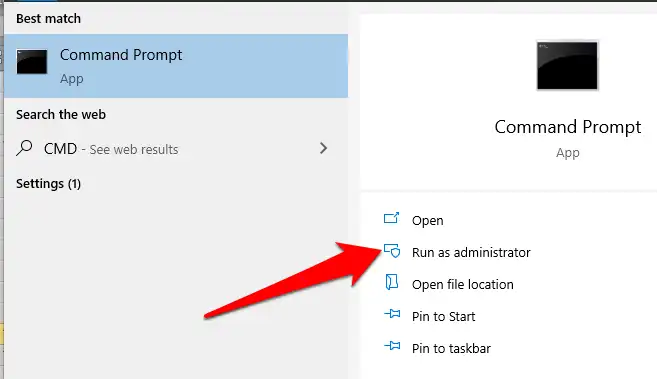
- Search for
Command Prompt
and select
Run as administrator
.
- Run the Windows image repair command:
DISM.exe /Online /Cleanup-image /Restorehealth
- Wait for DISM to report that the operation completed successfully.
- Run System File Checker:
sfc /scannow - Wait for verification to reach 100%, then restart Windows.
The command order and result messages come from Microsoft’s System File Checker instructions .
How to Verify
Retest at least two affected programs. If SFC reports no integrity violations while one app still fails, return to the app-specific path in Method 2 or contact its developer.
If the supported repairs do not isolate the problem, Fionn DLL Fixer provides an optional scan for missing, damaged, version-mismatched, and System32-path DLL issues.
Method 4: Use Fionn DLL Fixer for an Assisted Repair
When to Use
Use this method after the Windows and app-specific options when you want an assisted scan and post-repair recheck. The result still needs to be confirmed by launching the affected program.
Step-by-Step Guide
- Launch Fionn DLL Fixer. The software automatically scans your PC for DLL and system issues and displays the detected results when the scan is complete.

- After the scan finishes, click “Repair” to start fixing all detected DLL and system issues automatically.

- Wait while the repair is in progress. During this process, the button changes to “Fixing” until all issues have been repaired.

- When the repair is complete, click “Ok” in the confirmation dialog. If prompted, restart your computer before checking whether the problem has been resolved.

- If the issue still persists after restarting, click “Recheck” to perform another scan. If new issues are found, click “Repair” again to fix them.

How to Verify
Run Recheck, then launch the affected app and repeat the original action. A completed scan alone does not prove the application error is resolved.
Verification Checklist
| Check | Observable result | Next action if it fails |
|---|---|---|
| Error dialog | The same procedure-and-DLL message does not appear. | Compare the new message with the saved original. |
| Application launch | The app opens and remains running. | Use the method matching the displayed DLL path. |
| Failing feature | The exact action that failed now completes. | Contact the app developer with reproduction steps. |
| System scope | Other previously affected apps also open. | Review the DISM and SFC result messages. |
Conclusion
Start by recording the complete DLL entry point not found message, then separate a one-app failure from a wider Windows problem. Repair or update one affected app first, reinstall it if its private files appear mismatched, and reserve DISM plus SFC for protected Windows components. Use Fionn DLL Fixer only as an optional assisted path after those checks. Verification requires reopening the app and repeating the original failing action. If the same procedure remains unavailable, send the exact dialog, DLL path, and completed steps to the application developer or official support team.
FAQ
Is an entry point error the same as a missing DLL?
No. A missing-DLL error means Windows could not locate the library. An entry-point error generally means the program reached a DLL but could not resolve the expected exported procedure. The distinction changes the repair from “find a file” to “restore a compatible file set.”
Why does the error affect only one program?
The program may load a private DLL from its own folder before checking broader Windows locations. That private copy can differ from the version expected by the program. App repair or a clean reinstall is usually more targeted than changing system files.
Should I replace the named DLL manually?
Do not replace it with a file from an unverified download site. A matching filename does not prove matching exports, architecture, origin, or integrity. Use the application’s original installer, Microsoft’s system-file tools, or verified publisher support.
When should I run SFC for this error?
Run SFC after DISM when several apps fail, Windows features malfunction, or the dialog points to a protected Windows location. If only one app fails and SFC finds no integrity violations, focus on that application’s installation.
What should I send to the application developer?
Provide the program version, Windows version, full procedure name, DLL filename and path, when the error began, and every repair already attempted. A screenshot helps preserve capitalization and punctuation that may matter when identifying an exported function.


