 Emily CarterDLL Errors
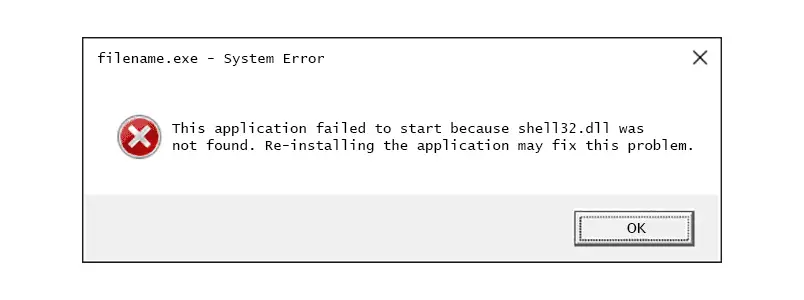
A shell32.dll missing message can stop an app from opening or affect Windows features such as File Explorer. Do not download a replacement DLL from an unknown website. First determine whether the error affects Windows broadly or only one app. Start with Windows’ built-in system-file repair, then repair the individual app if the issue is isolated. If the problem remains, use the additional repair paths below. This guide covers four methods, including Fionn DLL Fixer , and explains how to verify each result.
Quick Method Comparison
| Method | Best For | Efficiency | User Effort |
|---|---|---|---|
| DISM and SFC | File Explorer or several Windows features fail | High for protected Windows files | Moderate |
| Fionn DLL Fixer | Users who want an assisted scan and repair | High | Low |
| App repair | Only one installed app shows the message | High when Repair is available | Low |
| Windows repair reinstall | System-file symptoms persist after prior repairs | High | Moderate |
If multiple programs or Windows features fail, begin with Method 1. If only one app fails, Method 3 is a sensible first check. A repair reinstall is a later option for Windows 11 when the earlier system repair does not resolve the symptom.
Method 1: Repair Windows System Files with DISM and SFC
When to use: Use this method when the error affects File Explorer, Windows features, or more than one application. Microsoft directs users to run DISM before SFC because DISM can provide files needed for the repair.
- Search for
cmd, right-click Command Prompt, and select Run as administrator .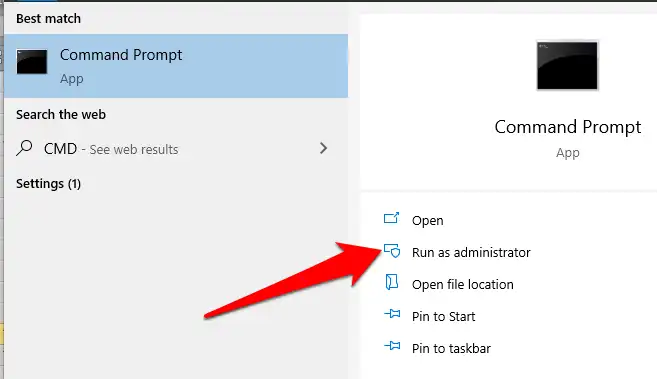
- Run the following command and wait for it to finish.
DISM.exe /Online /Cleanup-image /Restorehealth
- Run the next command and wait until verification reaches 100%.
sfc /scannow - Restart Windows, then open the feature or app that previously showed the error.
Verification: “Windows Resource Protection found corrupt files and successfully repaired them” indicates a successful SFC repair. If SFC reports no integrity violations, the cause may be limited to a particular application rather than protected Windows files. See Microsoft’s System File Checker repair instructions for the supported command sequence.
Method 2: Fix shell32.dll Missing with Fionn DLL Fixer
When to use: Choose this assisted option when a Windows app or game reports a missing DLL and you prefer a scan that identifies DLL and system issues before repair. Fionn DLL Fixer supports full or category scans, automatic repair, manual repair, and a post-repair recheck. It is a practical option alongside Windows’ built-in tools, not a replacement for assessing an app-specific installation issue.
- Launch Fionn DLL Fixer. The software automatically scans your PC for DLL and system issues and displays the detected results when the scan is complete.

- After the scan finishes, click
Repair
to start fixing all detected DLL and system issues automatically.

- Wait while the repair is in progress. During this process, the button changes to
Fixing
until all issues have been repaired.

- When the repair is complete, click
Ok
in the confirmation dialog. If prompted, restart your computer before checking whether the problem has been resolved.

- If the issue still persists after restarting, click
Recheck
to perform another scan. If new issues are found, click
Repair
again to fix them.

Verification: After the restart or recheck, open the affected app and confirm that the shell32.dll missing message no longer appears. If it remains limited to one app, continue with Method 3.
Method 3: Repair the Affected App
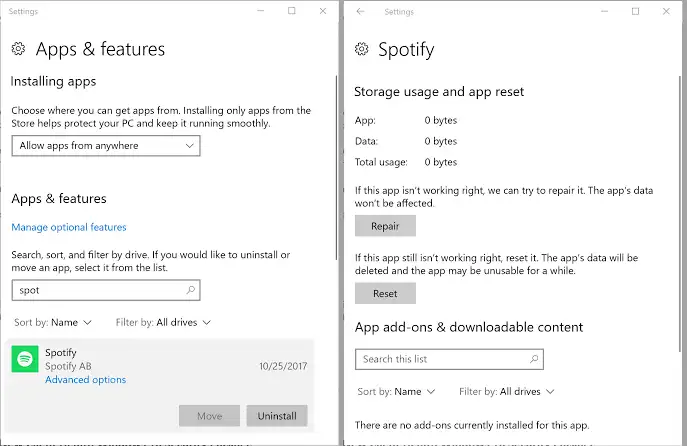
When to use: Use this path if Windows itself works normally and only one installed app reports the error. Windows offers a Repair option for some apps and programs, although not every app exposes it.
- Open Settings > Apps > Installed apps in Windows 11.
- Select the three-dot menu beside the affected app and choose Advanced options .
- Select Repair if it is available.
- Open the app again and check whether it starts normally.
Verification: The app should launch without the DLL message while other Windows functions remain unchanged. Microsoft documents the Repair and Reset choices in its app and program repair guidance .
Method 4: Reinstall the Current Windows Version
When to use: Consider this Windows 11 recovery option only when DISM and SFC have not corrected continuing system-file symptoms. Microsoft states that this reinstall repairs system files and components while preserving apps, files, and settings.
- Connect the PC to power and the internet.
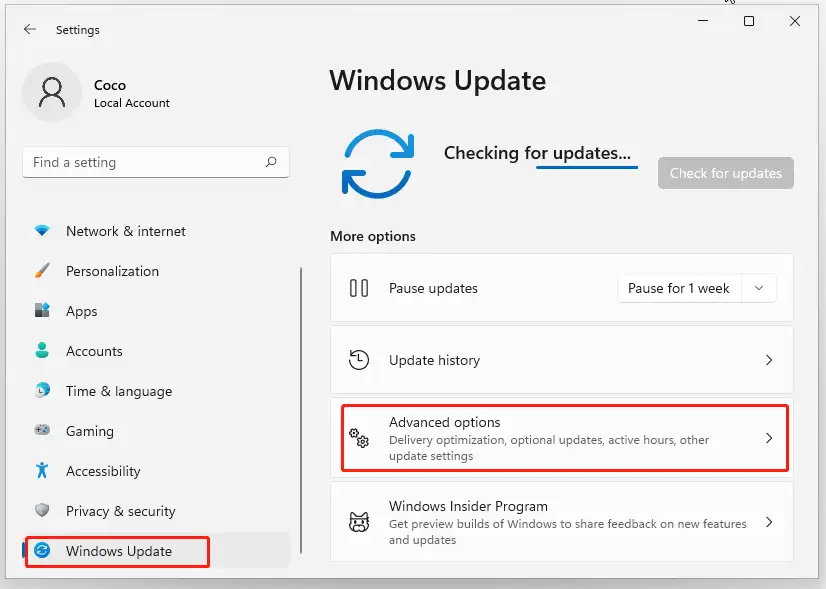
- Open Start > Settings > System > Recovery .
- Under
Fix problems using Windows Update
, select
Reinstall now
.
- Choose the restart preference and select OK to begin.
- Restart when the installation finishes, then test the affected Windows feature or app.
Verification: After the restart, test the original scenario first. For details and availability requirements, review Microsoft’s current-version Windows reinstall guidance .
Conclusion
For a shell32.dll missing error that affects Windows broadly, run DISM and then SFC first. If the message belongs to one app only, use that app’s Repair option. Fionn DLL Fixer provides an assisted scan, repair, and recheck path for DLL and system issues. On Windows 11, reinstalling the current version through Windows Update is a later recovery option when system-file symptoms continue. Verify the outcome by restarting if prompted and reproducing the exact action that previously triggered the message. If the error persists after these paths, record the full message and contact the app publisher or your IT administrator.
FAQ
Should I download shell32.dll from a DLL website?
No. A standalone file may not match the Windows version or component state on the PC. Use Windows repair tools or a supported recovery path instead.
Why run DISM before SFC?
Microsoft recommends DISM first because it can provide the files required to repair corrupted system files. SFC then scans protected system files and repairs them from its source.
What does it mean if only one app shows shell32.dll missing?
It suggests an app-specific installation or configuration issue is possible. Try that app’s built-in Windows Repair option when available before escalating to system recovery.
Does a Windows 11 repair reinstall remove my apps and files?
Microsoft describes the Windows Update current-version reinstall as preserving apps, files, and settings. Keep a backup of important data before starting any recovery process.
What should I do if the error returns after a restart?
Repeat the exact action that triggers the error, note whether other apps are affected, and use the Fionn DLL Fixer recheck or seek support from the affected app’s publisher.


