 Emily CarterDLL Errors
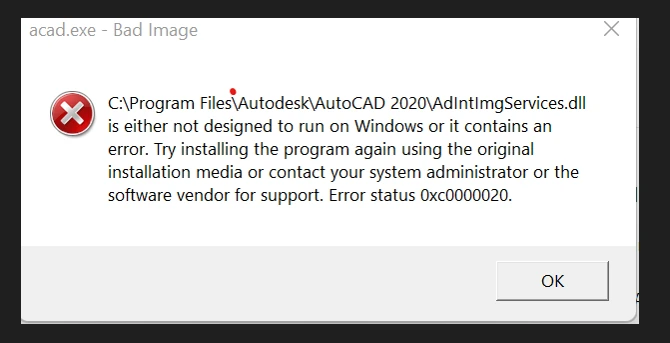
DLL is either not designed to run on Windows or it contains an error is a Windows Bad Image message. Missing DLL means Windows cannot find the required file. Bad Image means Windows found the DLL but could not load it correctly. Record the DLL filename, full path, affected application, and error status before choosing one of the four repair paths below: repair the provider, repair the app, repair Windows when justified, or use a guided scan.
Symptoms
- An app or game shows a Bad Image dialog during launch and names a DLL.
- One app fails after an update, while other programs work normally.
- Several unrelated apps fail, which can indicate a shared dependency or broader Windows corruption.
- The dialog may include a status such as
0xc000012for0xc0000020.
Different Bad Image dialogs can use the same wording. The DLL name, path, affected app, and status code together provide a more useful diagnosis than the message alone.
Quick Diagnosis Checklist
| What the dialog shows | Likely provider | Next step |
|---|---|---|
VCRUNTIME*
,
MSVCP*
, or
VCOMP*
| Visual C++ runtime | Use Method 1. |
D3DX*
,
X3DAUDIO*
, or
XINPUT*
| DirectX or a game prerequisite | Use Method 1. |
| DLL inside the affected app folder | That application | Use Method 2 first. |
| DLL inside a named third-party software folder | That software or component | Repair that provider with Method 1 or 2. |
| Confirmed Windows component and multiple unrelated apps fail | Windows component store or protected files | Use Method 3. |
Do not choose a repair based on the DLL folder alone.
Identify the component that provides the DLL first. A
System32\VCRUNTIME*
or
MSVCP*
path still points to Visual C++ as the provider; System32 alone does not make DISM and SFC the first repair.
Quick Method Comparison
| Method | Best For | Efficiency | User Effort |
|---|---|---|---|
| Repair the named runtime or component | Visual C++, DirectX, and game prerequisites | Highly targeted | Medium |
| Repair or reinstall the app | One failing app and a DLL in its folder | Targeted | Low to medium |
| Repair Windows files | Multiple failures with a confirmed Windows component | Broad system check | Medium |
| Fionn DLL Fixer | Several detectable DLL and Windows system issues | Guided scan and repair | Low |
Method 1: Repair the Runtime or Component Named in the Error
When to use: The DLL name identifies a shared runtime or game component, such as Visual C++ or DirectX.
Step-by-Step Guide
- Copy the DLL filename, full path, affected app name, and displayed status from the Bad Image dialog.
- Identify the provider from the filename:
VCRUNTIME*,MSVCP*, andVCOMP*indicate Visual C++;D3DX*,X3DAUDIO*, andXINPUT*indicate DirectX or a game prerequisite. - Use the affected software publisher's official installer or support guidance to repair or reinstall the identified component.
.webp)
- Restart Windows if the installer requests it.
How to Verify
Open the affected app. The original Bad Image dialog should not return. If the same app alone still fails and the DLL is in its own folder, continue with Method 2.
Method 2: Repair or Reinstall the Affected App
When to use: Only one app fails, particularly when the displayed DLL path is inside that app's installation directory. Repair or reinstall that app before broad Windows repairs.
Step-by-Step Guide
- Close the affected app and save any app-specific projects or local data that its publisher says removal may delete.
- Use the app's own maintenance or repair option if one is available.
- Uninstall the app from Windows Settings if repair is unavailable or does not resolve the error.
- Reinstall the app from its original publisher or store source.
How to Verify
Launch the same app after installation. A successful app repair reaches its normal start screen without the original Bad Image message.
Method 3: Repair Windows Component and System Files
When to use: Multiple unrelated applications fail, a Windows-owned component is confirmed, or targeted runtime and app repair did not resolve a broader Windows corruption symptom. A System32 location by itself is not enough.
Step-by-Step Guide
- Open Command Prompt as an administrator.
- Run the following command and wait for it to finish:
DISM /Online /Cleanup-Image /RestoreHealth
- After DISM completes, run:
sfc /scannow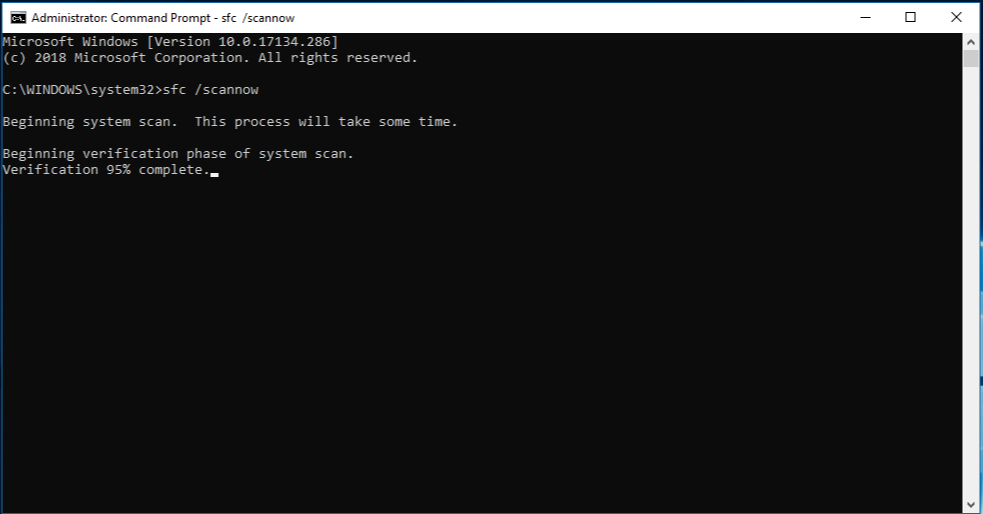
- Restart Windows.
How to Verify
After restart, test the affected app and another app that previously failed. If only the original app still fails, return to its provider or installation. For a fuller explanation of the command order, see SFC vs DISM.
Method 4: Fix the Error with Fionn DLL Fixer
When to use: The provider remains unclear or several runtime categories are involved. Fionn DLL Fixer is a practical guided option for detectable DLL and Windows system issues, with scan, repair, and recheck steps.
Step-by-Step Guide
- Launch Fionn DLL Fixer and wait for it to scan for detected DLL and system issues.

- After the scan finishes, select
Repair
to begin repairing detected issues.

- Wait for the repair process to finish while the button shows
Fixing
.

- Select
Ok
in the completion dialog, then restart if prompted.

- If the error continues after restarting, select
Recheck
; repair any newly detected issues.

How to Verify
Open the original app after any requested restart. If the error persists after recheck, give the app developer the DLL name, path, error status, app version, and scan findings.
Verification Checklist
- The affected app opens without a Bad Image or DLL dialog.
- The same DLL filename, path, and status code do not appear in a new dialog.
- A second previously failing app opens normally when the problem affected multiple programs.
- Windows was restarted when the component installer, repair commands, or repair tool requested it.
Conclusion
Start with the four diagnostic details: DLL filename, full path, affected application, and status code. Then repair the provider instead of reacting to the folder alone. Visual C++ and DirectX names usually need a targeted component repair; a DLL in one app folder usually needs an app repair. Reserve DISM and SFC for broader symptoms or confirmed Windows components. When several detectable DLL or system issues make manual triage difficult, Fionn DLL Fixer can provide a guided scan, repair, and recheck path. If the error remains, contact the software publisher with the recorded details.
FAQ
What does DLL is either not designed to run on Windows mean?
It is a Bad Image error: Windows located the DLL but could not load it correctly. The file may be incompatible, corrupted, or supplied by a damaged app or runtime component.
Does System32 mean the DLL belongs to Windows?
No. Location alone does not establish ownership. Visual C++ runtime DLLs can be stored in System32, so identify the provider from the DLL name first.
Should I reinstall Visual C++ for VCRUNTIME or MSVCP errors?
Those names commonly indicate Microsoft Visual C++ Redistributables. Use the affected software publisher's official prerequisite or support guidance to select the matching component.
Do I need x86 or x64 Visual C++ Redistributable?
The application architecture matters as well as the Windows architecture. On 64-bit Windows, a 32-bit app can still require x86 dependencies.
What does error status 0xc000012f mean?
It can accompany a Bad Image dialog. Treat it as a diagnostic detail alongside the DLL name, path, and affected app; see Fix Bad Image 0xc000012f for focused troubleshooting.
Should I manually download and replace the DLL?
No. Avoid unverified standalone DLL downloads. Repair the application, runtime, component, or Windows files that provide the DLL instead.


