 Emily CarterData Recovery
When Windows says CHKDSK is not available for RAW drives , it means the drive does not currently present Windows with a file system that CHKDSK can check. Treat the files as potentially recoverable and avoid writing to that drive. Start by ruling out a connection issue, recover important files, and only then consider formatting the affected volume. This guide covers three practical methods, beginning with the least disruptive option.
Before You Start: Protect the RAW Drive
Do not save, install, copy, or format anything on the affected drive while you still need its files. If it is an external drive, disconnect it safely until you are ready to work on it. Use another healthy disk for recovered files.
Quick Method Comparison
| Method | Best For | Efficiency | User Effort |
|---|---|---|---|
| Check the connection and status | An external drive that was recently moved, unplugged, or connected through an adapter | Fast | Low |
| Recover files with Fionn Data Recovery | Files are important and the drive appears as RAW or cannot be opened | Depends on drive condition and file state | Moderate |
| Format after recovery | You have saved needed files elsewhere and want to reuse the drive | Fast | Low |
Method 1: Check the Drive Connection and Status
When to use: Use this first for a USB drive, SD card, or external disk that suddenly became unreadable. A different connection can help distinguish a connection problem from a volume problem.
- Disconnect the external drive using Windows’ safe-removal option, if it is available.
- Connect the drive directly to a different USB port or use a different compatible cable.
- Open Disk Management by right-clicking Start and selecting Disk Management .
- Locate the affected disk and note whether its volume is labeled RAW and whether Windows shows a drive letter.
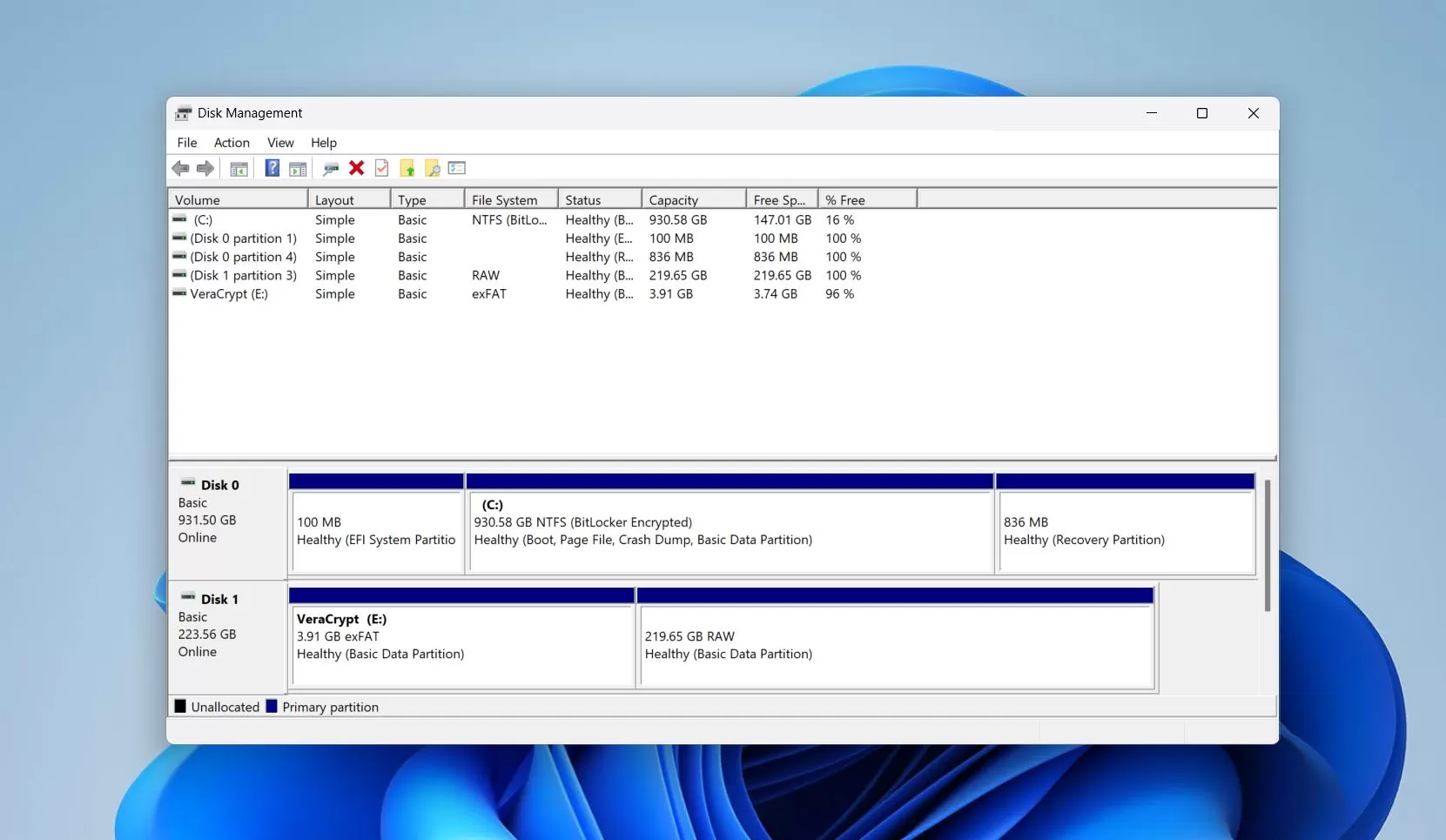
Verification: If the drive opens normally and files are visible, copy essential files to another disk immediately. If it remains RAW, move to recovery instead of repeatedly running CHKDSK.
Method 2: Fix RAW Drive File Access with Fionn Data Recovery
When to use: Use this recovery path before formatting when the files matter and Windows reports the volume as RAW. Fionn Data Recovery supports scanning local disks and external storage, including external hard drives, USB drives, SD cards, and camera cards. It provides quick, deep, and RAW signature-based scanning, plus file preview before recovery.
Recommended for recovery before repair: The product scans locally in read-only mode and its recovery guidance is to save restored files to a different disk. That helps avoid adding new data to the affected drive.
- Launch Fionn Data Recovery and select the recovery option for the type of data or storage location you want to recover.

- Start the automatic scan and wait while Fionn Data Recovery searches the selected location for deleted or lost files.

- After the scan finishes, browse the results and preview the files to select the data you want to restore.

- Select a destination folder to save the recovered files, then start the recovery process.

Verification: Open several recovered files from the destination disk and confirm that their content is intact before changing the RAW drive.
Method 3: Format the Drive After Recovery
When to use: Use this only after you have recovered the files you need or have confirmed that no data on the drive is required. Formatting creates a new file-system structure so Windows can use the volume again.
- Confirm that recovered files are stored on a separate healthy disk.
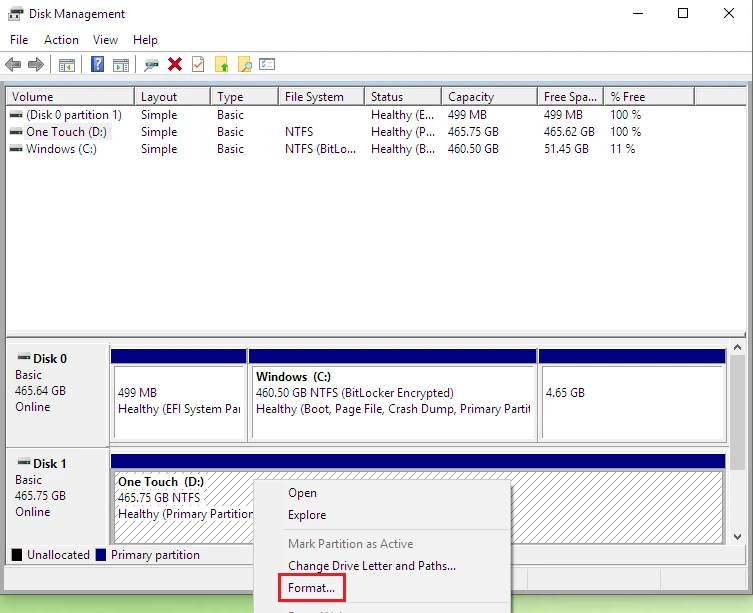
- Open Disk Management and identify the RAW volume by its capacity and disk location.
- Right-click the RAW volume and choose Format .
- Choose a file system appropriate for how you plan to use the drive, then complete the format.
Verification: Open File Explorer, confirm the volume has a drive letter, and create then remove a small test folder. If formatting fails or the drive repeatedly returns to RAW, stop using it for important data and consider professional hardware assessment.
Tips to Avoid Overwriting Recoverable Files
- Save recovered files to another physical disk, not the RAW drive.
- Do not install recovery software onto the affected volume.
- Do not use the drive for new files while deciding what to recover.
- If the drive disconnects repeatedly or makes unusual sounds, minimize further attempts and prioritize data recovery.
Conclusion
The CHKDSK RAW-drive message is a cue to protect the data first, not a reason to force more repair attempts. Check an external drive’s cable and port once, then recover the files you need before formatting. Verify recovered files by opening them from a different disk. After recovery, format the volume only if you want to reuse it and it behaves normally. If the drive remains unstable or cannot be formatted, do not trust it with important files. Fionn Data Recovery can provide a scan-and-preview path before you make permanent changes.
FAQ
Why does Windows say CHKDSK is not available for RAW drives?
Windows labels a volume RAW when it cannot recognize a usable file system on it. CHKDSK is designed to check supported file systems, so it cannot run against a RAW volume in that state.
Can I run CHKDSK after formatting the drive?
After a successful format creates a supported Windows file system, CHKDSK can be used on that formatted volume. Recover needed files first because formatting changes the volume’s file-system structure.
Should I format a RAW drive immediately?
No. If the drive contains needed files, recover or back up what you can first. Format only after you no longer need the unrecovered data or have safely saved it elsewhere.
Where should recovered files be saved?
Save them to a different healthy disk. Writing recovered data back to the source drive can overwrite data that may still be recoverable.
Can a USB drive or SD card become RAW?
Yes. A RAW state can affect local volumes and removable storage. Check the connection first, then use a recovery-first approach if the files are important.


