 Emily CarterPrinter Drivers
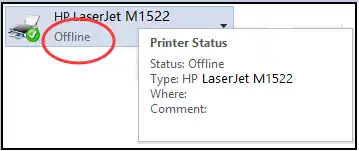
A printer can appear offline when Windows cannot communicate with it, the wrong printer is selected, a job blocks the queue, the Print Spooler stops responding, or the driver needs attention. Four methods below address those causes from lowest to higher effort. Check the physical or network connection first, correct the Windows queue next, and then restart the printing service or reinstall the device. Use a driver diagnostic tool only if those steps do not restore printing.
Quick Overview: Match the Symptom to the Method
| What you observe | Likely area | Start with |
|---|---|---|
| The printer display is off, or a USB printer disappears | Power or physical connection | Method 1 |
| A wireless printer works for other devices but not this PC | Windows selection, queue, or network path | Method 2 |
| Jobs remain pending, and several applications cannot print | Print queue or Print Spooler | Method 3 |
| Windows detects the printer, but the driver is unavailable or outdated | Printer driver | Method 4 |
This symptom-first approach avoids reinstalling a driver when the real cause is a disconnected cable or blocked queue. If manual checks do not isolate the cause, Fionn Printer Driver can optionally inspect the driver and Windows printing environment.
Method 1: Check the Printer and Its Connection
When to use this method
Start here when the printer is offline everywhere, its display shows an error, or Windows stops detecting a USB or wireless connection. An offline label does not identify the failed component, so confirm the device itself before changing Windows.
Step-by-step guide
- Read the printer display and resolve visible conditions such as a paper jam, missing paper, or another device-status warning.
- Turn off the printer, unplug its power cable, wait 30 seconds, reconnect it, and turn it on.
- For a USB printer, reconnect the cable firmly at both ends and test another working USB port if available.
- For a wireless printer, use its control panel to confirm that it is connected to the same Wi-Fi network as the PC.
- Restart the Windows PC after the printer finishes starting.
Note: A guest Wi-Fi network can isolate connected devices. Move both the PC and printer to the same trusted local network if they cannot discover each other.
How to verify
Open Settings > Bluetooth & devices > Printers & scanners in Windows 11. Select the printer and print a test page from its printer properties. A successful page confirms that both communication and printing work.
If the printer is powered and reachable but Windows still labels it offline, inspect its Windows configuration next.
Method 2: How to Fix Printer Offline Through Windows Settings
When to use this method
Use this method when the printer appears in Settings, yet jobs go to the wrong device or remain in its queue. Selecting the intended printer and removing stalled jobs can restore printing without reinstalling anything.
Step-by-step guide
- Open Start > Settings > Bluetooth & devices > Printers & scanners .
- Select the intended printer and choose Set as default .
- If that button is unavailable, return to Printers & scanners and turn off Let Windows manage my default printer .
- Select the printer again and open its print queue.
- Choose the queue menu and cancel every pending job.
- Search Start for Get Help , open it, and run the printer troubleshooter if the offline status remains.
On Windows 10, open the printer queue and clear Pause Printing or Use Printer Offline if either option is selected. Microsoft’s current offline printer troubleshooting instructions cover both Windows 11 and Windows 10. Microsoft also states that Windows 10 support ended on October 14, 2025, so its menus and assistance differ from the supported Windows 11 experience.
How to verify
Send a one-page test job and watch the queue. The method worked if the job changes from pending to completed and the selected physical printer produces the page.
A queue that immediately stalls again can indicate a problem with the service that manages print jobs.
Method 3: Restart the Print Spooler or Re-add the Printer
When to use this method
Restart the Print Spooler when multiple applications cannot print or jobs repeatedly freeze. Remove and re-add only the affected printer if the service restart succeeds but that printer remains offline.
Step-by-step guide
- Save open work, press
Windows + R
, enter
services.msc, and select OK .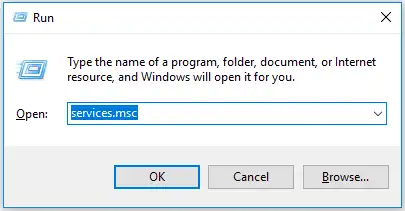
- Find Print Spooler in the Services window.
- Right-click Print Spooler and select Restart .
- Return to Settings > Bluetooth & devices > Printers & scanners and test the printer.
- If only that printer remains offline, select it, choose Remove , and confirm the removal.
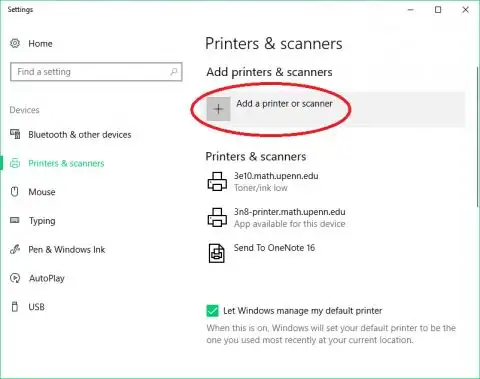
- Return to
Printers & scanners
, select
Add device
, and follow the Windows prompts to add it again.
Note: Removing a shared or organization-managed printer can require its network path or administrator support. Record that information before removal.
How to verify
Confirm that the Print Spooler status is Running . Then print from two different applications. Success in both helps distinguish a restored Windows printing path from an application-specific problem.
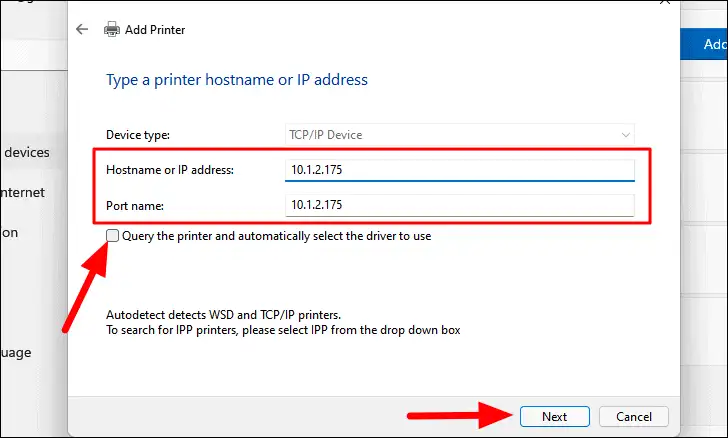
If Windows can add the device but reports a driver problem, check the driver only after completing these connection, queue, and service tests.
Method 4: Diagnose Drivers with Fionn Printer Driver
When to use this method
Use this optional Windows tool when the printer is connected but its driver is unavailable, outdated, or difficult to match. The product can detect supported printer models, inspect drivers, and check the printer service, port, queue, default-printer setting, and device status.
Step-by-step guide
- Launch Fionn Printer Driver and click “Scan Now” to scan your computer for printer drivers and related issues.

- Wait while Fionn Printer Driver scans your system for installed printers, drivers, and common printer issues.

- After the scan finishes, click “One-Click Fix” to automatically install or repair the required printer driver.

- Wait for the repair to finish and confirm that the printer issue has been fixed successfully.

How to verify
Run the product’s follow-up detection, confirm that it no longer flags the repaired item, and print a Windows test page. A successful scan alone does not prove that the printer can accept a job.
Tips That Prevent Repeat Offline Errors
- Keep one clearly named printer instance as the default. Duplicate entries can send jobs to an old queue.
- Check whether one application or every application fails. One-app failures point away from the whole Windows printing path.
- Clear a stalled job before restarting services. A blocked queue can otherwise make a healthy printer appear unresponsive.
- Use a driver intended for the exact printer model and current Windows system. Avoid unofficial driver mirrors.
- For recurring network-printer failures, record whether other devices can print at the same time. This separates a printer or network problem from a single-PC problem.
Conclusion
The safest order for how to fix printer offline errors is connection first, Windows selection and queue second, and the Print Spooler or printer reinstallation third. Check drivers only after confirming that Windows can reach the device. Always verify the final result with a test page and a normal document, not the displayed status alone. If the printer remains offline on every computer, consult its manufacturer or network administrator. If Windows detects it but flags the driver or printing environment, Fionn Printer Driver is an optional diagnostic and repair path.
Frequently Asked Questions
Why does my printer say offline when it is turned on?
“Offline” means Windows is not currently communicating with the selected printer. The cause may be its connection, a different default printer, a stalled queue, the Print Spooler, or a driver problem. The label alone does not show which component failed.
How do I change a printer from offline to online?
Confirm its power and connection, set the correct device as default, and cancel pending jobs. Windows 10 also exposes Use Printer Offline in the classic queue menu. Windows 11 users should start with the Get Help printer troubleshooter when basic checks fail.
Will restarting the Print Spooler delete my documents?
Restarting the service does not delete the original files stored on your PC. However, canceled or failed print jobs may need to be submitted again. Save each source document before changing the queue or restarting the service.
Should I reinstall the printer driver first?
No. Test power, connectivity, the selected default printer, and the queue first. Driver work adds unnecessary change when the fault is a cable, Wi-Fi connection, or stuck job. Investigate the driver when Windows detects the printer but reports that the driver is unavailable or unusable.
What if the printer is offline on only one computer?
Focus on that computer’s selected printer, queue, Print Spooler, port, and driver. If other computers print successfully, the physical printer is probably reachable. If every device fails, investigate the printer’s status and network connection before changing one PC.


