 Emily CarterDLL Errors
Introduction
The
msvcp110.dll missing
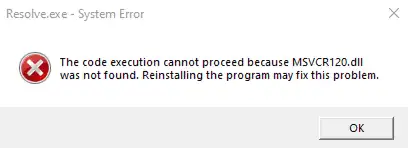
message usually means an application cannot load a required file from the Microsoft Visual C++ 2012 runtime. The safest response is to restore the complete runtime package, not download an isolated DLL from a file-sharing site. Three methods are covered below. Start with Microsoft's official redistributable, repair or reinstall the affected application if only one program fails, and use a DLL diagnostic tool only when the first two methods do not resolve the error.
Quick Overview: Choose the Right Method
| Observed situation | Best starting method | Why |
|---|---|---|
The message names
msvcp110.dll
| Install or repair Visual C++ 2012 Update 4 | Microsoft identifies Visual Studio 2012 as VC++ 11.0 and provides x86 and x64 redistributables. |
| Only one application fails | Repair or reinstall that application | The application's installation or bundled prerequisites may be incomplete. |
| Several DLL or dependency errors appear | Run a broader DLL scan | A wider check can identify missing, damaged, or mismatched dependencies. |
Useful distinction: application architecture matters more than the Windows edition alone. A 32-bit application can require the x86 package even on 64-bit Windows. Follow the application publisher's requirements when they are available.
Method 1: Fix MSVCP110.dll Missing with the Official Microsoft Package
When to use this method
Use this method first when the error explicitly names
msvcp110.dll
. Microsoft lists the Visual Studio 2012 runtime as VC++ 11.0 and provides the latest available Visual C++ 2012 Update 4 redistributables. Microsoft also notes that Visual Studio 2012 left extended support on January 10, 2023, so obtain the legacy installer only from Microsoft.
Step-by-step guide
- Close the application displaying the error.
- Open Microsoft's official Visual C++ Redistributable downloads page .
- Find the section labeled Visual Studio 2012 (VC++ 11.0) Update 4 .
- Download the x86 or x64 package required by the affected application.
- Run the downloaded installer and select Repair when that option appears; otherwise, complete the installation.
- Restart Windows after the installer finishes, then reopen the affected application.
Note:
Do not copy a separately downloaded
msvcp110.dll
into an application folder,
System32
, or
SysWOW64
. An unverified or incompatible copy can create a security risk or replace a missing-file message with a version or architecture error.
How to verify
Launch the same application from the same shortcut or executable. The method succeeded if the program opens and the
msvcp110.dll
message no longer appears. If the installer completes but one application still fails, continue with Method 2.
Method 2: Repair or Reinstall the Affected Application
When to use this method
Choose application repair when only one program shows the error, especially after a failed installation, interrupted update, or manual file change. Microsoft states that some Windows programs provide Repair or Change controls, although those options are not available for every application.
Step-by-step guide
- Open Start > Settings > Apps > Installed apps in Windows 11.
- Find the affected application and open its additional options.
- Select Advanced options > Repair if that choice is available.
- Open
Control Panel > Programs > Programs and Features
if Settings provides no repair control.
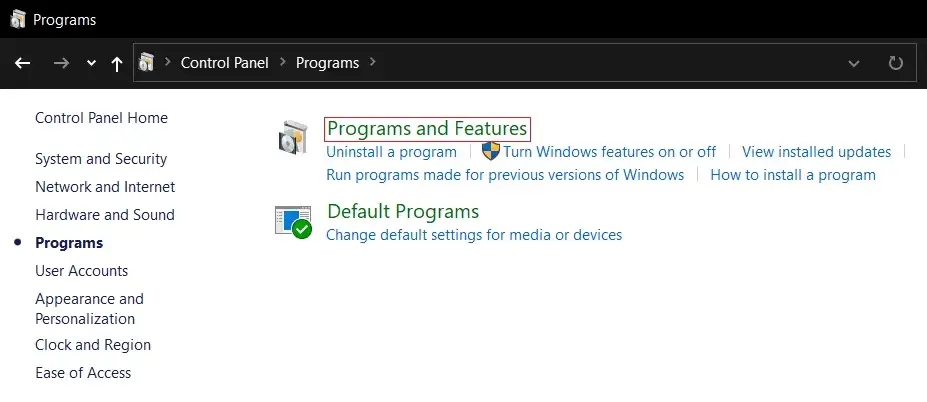
- Right-click the application and select Repair or Change , then follow its installer.
- Uninstall the application and obtain a fresh installer from its official publisher if no repair path works.
Back up application-specific projects, saves, or configuration files before uninstalling. Reinstallation can remove locally stored data when the program does not keep it separately.
How to verify
Restart the repaired or reinstalled application and repeat the action that previously triggered the error. If the program opens normally, no additional DLL action is needed. If multiple programs now report missing or damaged DLL files, use Method 3 for broader diagnosis.
Method 3: Scan with Fionn DLL Fixer
When to use this method
Use this optional Windows method after the official runtime and application repair paths have failed, or when several dependency-loading errors appear. Fionn DLL Fixer can scan for missing, damaged, version-mismatched, and path-related DLL issues. The free version displays three free attempts; VIP unlocks additional DLL, runtime, DirectX, and system repair functions.
Step-by-step guide
- Launch Fionn DLL Fixer. The software automatically scans your PC for DLL and system issues and displays the detected results when the scan is complete.

- After the scan finishes, click
Repair
to start fixing all detected DLL and system issues automatically.

- Wait while the repair is in progress. During this process, the button changes to
Fixing
until all issues have been repaired.

- When the repair is complete, click
Ok
in the confirmation dialog. If prompted, restart your computer before checking whether the problem has been resolved.

- If the issue still persists after restarting, click
Recheck
to perform another scan. If new issues are found, click
Repair
again to fix them.

How to verify
Confirm that the recheck no longer reports the relevant issue, then open the application that produced the original message. A clean scan alone is not final proof; successful application startup is the practical verification.
Common Mistakes to Avoid
- Downloading one DLL from an unofficial library: this bypasses the signed package and may introduce an unsafe or incompatible file.
- Choosing solely by Windows architecture: the affected application's architecture determines which runtime it loads.
- Installing only the newest Visual C++ package: Microsoft's current v14 package does not replace every legacy runtime. Use the confirmed 2012 package for this specific filename.
- Skipping verification: reopen the exact application and reproduce the original action after each method.
Conclusion
Start by repairing or installing Microsoft's Visual C++ 2012 Update 4 redistributable, using the architecture required by the affected application. Repair or reinstall the application next when the failure is isolated to that program. Verify every method by reopening the same executable and confirming that the error does not return. If several DLL or dependency problems remain, Fionn DLL Fixer provides an optional scan, repair, and recheck workflow. Persistent errors after these steps should be documented with the full message and reported to the application's publisher or Fionn support, as applicable.
Frequently Asked Questions
What is MSVCP110.dll?
MSVCP110.dll
is associated with the Visual C++ 11.0 runtime supplied through Microsoft's Visual C++ 2012 Redistributable. An application built to use that runtime may fail to start when Windows cannot load the required file.
Should I download MSVCP110.dll by itself?
No. Install or repair the complete Microsoft redistributable instead. A standalone DLL from an unofficial source may be unsafe, outdated, or built for the wrong architecture. The official package restores related runtime files together.
Do I need the x86 or x64 Visual C++ package?
Use the package required by the application, not merely the architecture shown for Windows. A 32-bit application can need the x86 runtime on 64-bit Windows. Consult the application's documentation or publisher when its architecture is unclear.
Why does the error remain after installing Visual C++ 2012?
The application installation may be damaged, the wrong architecture may have been installed, or another dependency problem may exist. Repair the affected application, restart Windows, and test again. Use a broader diagnostic scan only after these targeted steps.
Will System File Checker restore MSVCP110.dll?
System File Checker repairs protected Windows system files. Because this error points to a separately installed Visual C++ runtime, the official redistributable is the more direct first method. Reserve DISM and SFC for broader Windows corruption symptoms rather than this isolated message.
Optional DLL Diagnosis
If official runtime repair and application reinstallation do not solve the problem, use Fionn DLL Fixer to scan, repair, and recheck related Windows DLL issues.


