 Emily CarterWindows Errors
Bad Image 0xc000012f usually appears when Windows cannot load a file an application needs. The message may name a DLL or another file, but the code alone does not identify its source. Start by checking whether one app or several apps fail, then work from built-in Windows repair to app repair or reinstallation. This guide provides four repair paths, including a guided scan with Fionn DLL Fixer .
Symptoms
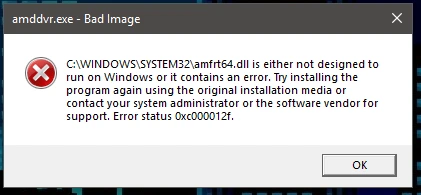
- A dialog titled Bad Image appears when you open an app or game.
- The dialog includes error code
0xc000012fand may reference a specific file. - One program may fail while other Windows apps work normally.
- Several unrelated programs may fail, which points to a broader Windows component or system-file issue.
- The failure can begin after an application update, an interrupted installation, or another recent system change.
Write down the complete file name and the app that triggers the message. Those details help distinguish an app-specific repair from a Windows-wide repair.
Quick Diagnosis Checklist
- Only one app fails: use Method 2 first. Its installed files may need repair or replacement.
- Multiple apps fail or Windows features act unusually: use Method 1. DISM and SFC check Windows component and system files.
- The error started after a recent system, driver, or software change: use Method 3 if a suitable restore point exists.
- You want a scan of detected DLL and system issues: use Method 4, then recheck after repair.
Quick Method Comparison
| Method | Best For | Efficiency | User Effort |
|---|---|---|---|
| DISM and SFC | Several apps failing or suspected Windows file damage | High for Windows system files | Moderate |
| App repair or reinstall | One affected application | High for app-specific files | Moderate |
| System Restore | Error began after a recent change | Useful when a restore point is available | Moderate |
| Fionn DLL Fixer | Detected DLL and system issues requiring a guided scan | Automated scan and repair workflow | Low |
Method 1: Repair Windows system files with DISM and SFC
When to use: Choose this method when more than one application shows Bad Image 0xc000012f, or when the problem is not limited to a single app.
Step-by-Step Guide
- Open Command Prompt as an administrator.
- Run the following command and wait for it to finish:
DISM.exe /Online /Cleanup-image /Restorehealth
- Run the following command after DISM completes:
sfc /scannow - Restart Windows when the commands finish.
How to Verify: Open the same affected application after restart. If it opens without the Bad Image dialog, the repaired Windows files resolved the issue. Microsoft documents the System File Checker repair process and its use with DISM.
Method 2: Repair or reinstall the affected application
When to use: Use this path when the error occurs only with one app or game and other programs launch normally.
Step-by-Step Guide
- Close the affected application and any related launcher.
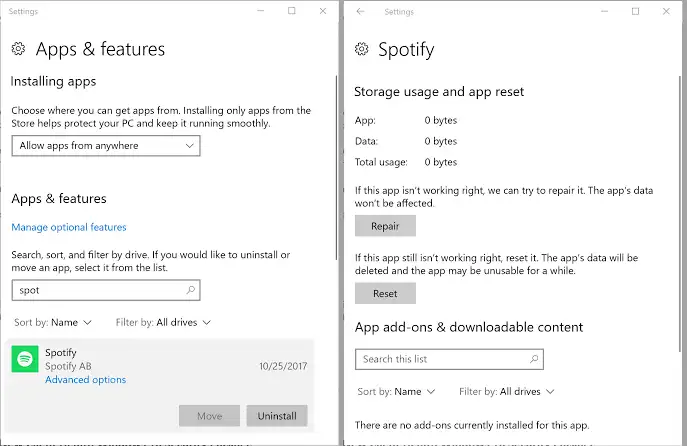
- Open Settings > Apps > Installed apps .
- Select the affected app, open its available options, and use Repair if Windows provides it.
- If no repair option exists or the error remains, uninstall the app.
- Install a fresh copy from the application's official publisher or store.
How to Verify:
Start the application from its normal shortcut. A successful launch without code
0xc000012f
indicates that its installed files are no longer causing the error.
Method 3: Use System Restore after a recent system change
When to use: Use System Restore when the error began shortly after a driver, application, or Windows configuration change and you have a restore point from before the problem.
Step-by-Step Guide
- Save open work and close running programs.
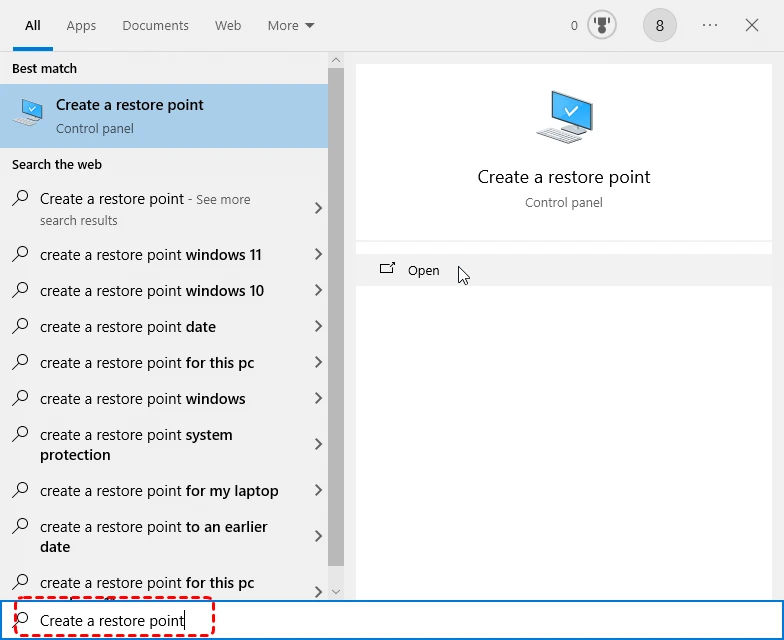
- Search Windows for
Create a restore point
and open it.
- Select System Restore , then choose a restore point dated before the first Bad Image error.
- Review the affected programs and confirm the restore.
- Allow Windows to restart and complete the process.
How to Verify: After Windows restarts, open the affected app and confirm the same dialog does not return. Review Microsoft’s System Restore guidance before proceeding.
Method 4: Fix Bad Image 0xc000012f with Fionn DLL Fixer
Recommended option for detected DLL and system issues: Fionn DLL Fixer can scan for DLL and system issues, show detected results, repair detected issues, and run a recheck. It is a practical option when manual identification of the failing component is unclear.
When to use: Use this method when the error points to a DLL or when you want a guided scan before repeating manual repairs.
Step-by-Step Guide
- Launch Fionn DLL Fixer. The software automatically scans your PC for DLL and system issues and displays the detected results when the scan is complete.

- After the scan finishes, click “Repair” to start fixing all detected DLL and system issues automatically.

- Wait while the repair is in progress. During this process, the button changes to “Fixing” until all issues have been repaired.

- When the repair is complete, click “Ok” in the confirmation dialog. If prompted, restart your computer before checking whether the problem has been resolved.

- If the issue still persists after restarting, click “Recheck” to perform another scan. If new issues are found, click “Repair” again to fix them.

How to Verify: After the restart or recheck, launch the app that produced Bad Image 0xc000012f. Confirm that it opens normally and that the error dialog does not reappear.
Verification Checklist
- The affected application opens from its normal shortcut.
- The Bad Image dialog and code
0xc000012fno longer appear. - If several apps were affected, test at least two of them.
- Windows restarts normally after the selected repair method.
- No new error message names a different file when you repeat the original action.
Conclusion
Start with the scope of the failure: repair Windows system files when several applications are affected, and repair or reinstall the app when the issue is isolated. Choose System Restore when a recent change clearly preceded the error and a suitable restore point is available. For a guided scan and repair of detected DLL and system issues, Fionn DLL Fixer can reduce manual troubleshooting steps. Verify the result by reopening the original app and checking that code 0xc000012f is gone. If the problem persists, contact the affected app’s developer or Microsoft Support with the complete error text.
FAQ
What does Bad Image 0xc000012f mean?
It means Windows could not load a file needed by an application. The message can identify a file, but the code does not by itself confirm whether the file belongs to Windows or the application.
Should I replace the DLL file manually?
Usually, no. Start with system-file repair or the application's official repair or reinstall option. Manually copying a file can introduce an incompatible version or put it in the wrong location.
Why does only one application show this error?
An isolated error often indicates that the application's own installed files are affected. Repairing or reinstalling that application is the most direct starting point.
Will System Restore remove my personal files?
System Restore is intended to restore system settings and installed programs to an earlier state. Review the affected-programs list before confirming the restore and keep a current backup of important files.
What should I provide to support if the error remains?
Provide the full Bad Image message, the file name shown, the affected application, when the issue began, and which repair methods you completed.


