 Emily CarterDLL Errors
The “entry point not found in DLL library” message means that a program loaded a DLL but could not find the function it needs in that file. The cause is usually an incompatible file version, a damaged application installation, or Windows system files. Start by reinstalling the one affected program, then check Windows with SFC and DISM. If the failure appeared after a recent system change, use System Restore. Below are four standalone methods, including a check with Fionn DLL Fixer .
How to choose a fix
| Method | Best for | Effectiveness | User effort |
|---|---|---|---|
| Reinstall the application | The error occurs in only one program | High for a damaged installation | Low |
| SFC and DISM | The error appears in multiple programs or after a Windows failure | High for system components | Medium |
| System Restore | The failure started after an update or software installation | Depends on an available restore point | Medium |
| Fionn DLL Fixer | You need DLL and system-problem diagnostics | Automated check | Low |
Method 1: Reinstall the application where the error appears
When to use: The message appears only when you start one application. This approach restores files included with the program and does not affect other applications.
- Open
Settings > Apps > Installed apps.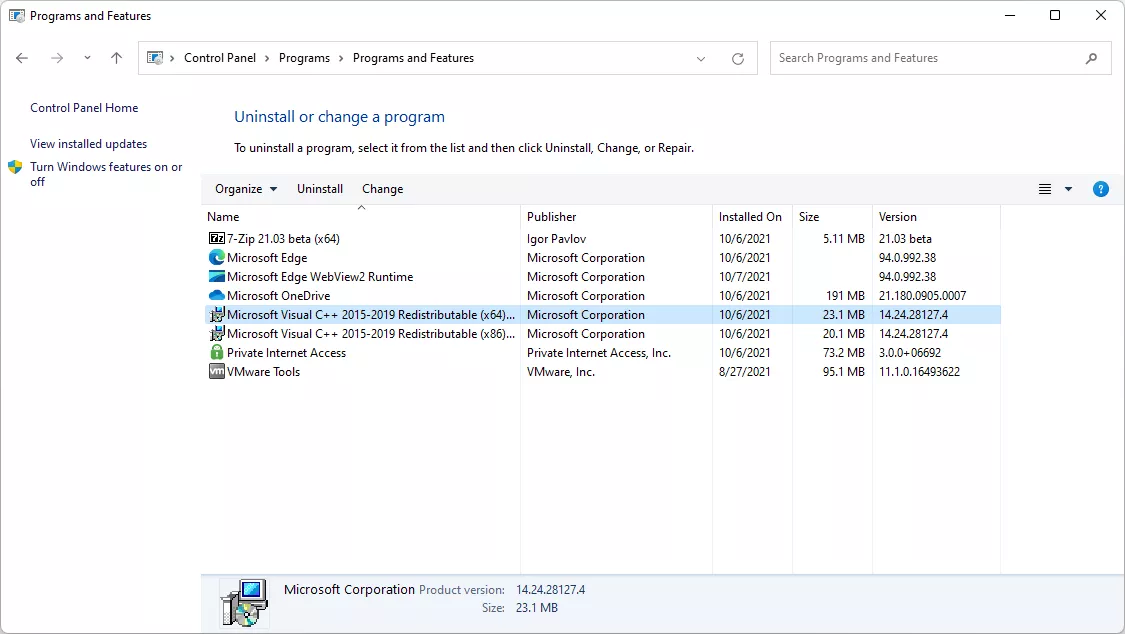
- Find the affected application and select Uninstall .
- Restart your computer.
- Download the installer from the application developer’s official website.
- Install the application and start it again.
Check: If the application starts without an entry-point-not-found dialog, its own files were the likely cause. If the message appears in other programs too, proceed with checking Windows.
Method 2: Repair Windows system files with SFC and DISM
When to use: Several programs produce similar errors, or the problem began after an improper shutdown, update, or system failure. Microsoft recommends running DISM first and then SFC to repair damaged Windows components.
- Open Terminal (Administrator) from the Start menu.
- Enter and run
DISM.exe /Online /Cleanup-image /Restorehealth.
- Wait for the command to finish.
- Enter and run
sfc /scannow.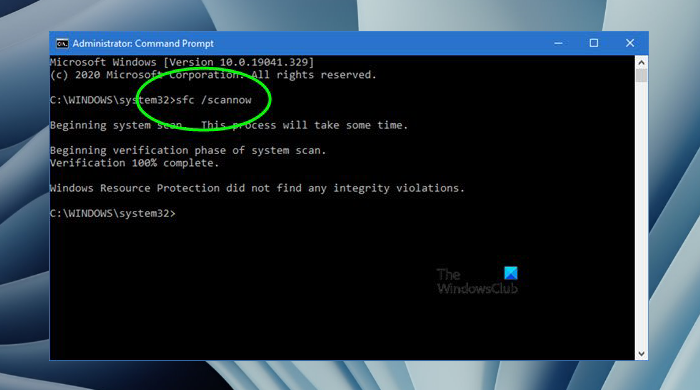
- Restart Windows after the scan finishes.
The detailed procedure and result messages are described in Microsoft’s System File Checker instructions .
Check: After restarting, try to start the application again. If SFC reports that it found no integrity violations but the error remains in one program, return to that program’s official installer.
Method 3: Use System Restore
When to use: The error appeared after a recent installation, update, or driver change, and a restore point was created before that event. System Restore reverses system changes to the selected date, but it is not intended to remove personal files.
- Press
Win + R. - Enter
rstrui.exeand press Enter.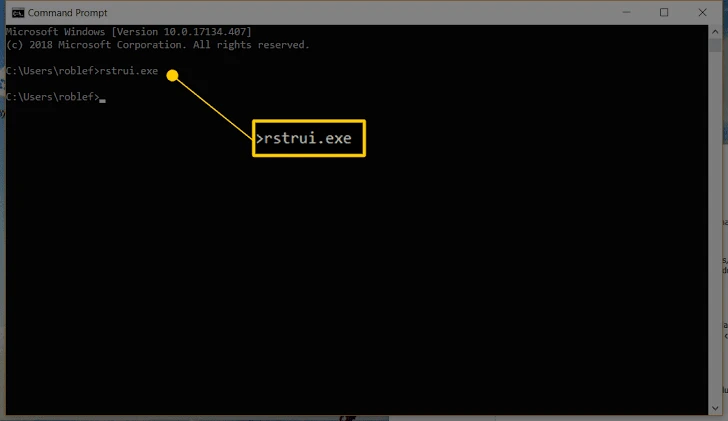
- Select a restore point created before the error appeared.
- Review the affected programs in the changes list.
- Confirm the restoration and wait for Windows to restart.
Before starting, review the official Windows recovery options .
Check: After signing in to Windows, open the affected program. If the error is gone, a change made after the selected restore point may have caused it. If no suitable point exists, do not create one retroactively—use another method.
Method 4: Resolve the error with Fionn DLL Fixer
When to use: You need to check DLL and system problems without manually searching for individual files. Fionn DLL Fixer detects missing, damaged, and incompatible DLL issues and supports another check after repair. It is a practical option when the cause of the error is still unclear.
- Launch Fionn DLL Fixer. The program will automatically scan your computer for DLL and system issues and display the detected results once the scan is complete.

- After the scan is complete, click “Repair” to automatically start fixing all detected DLL and system issues.

- Wait for the repair to finish. During the process, the button changes to “Fixing” and remains that way until all issues are fixed.

- When the repair is complete, click “Ok” in the confirmation dialog. If prompted, restart your computer before checking the result.

- If the problem remains after restarting, click “Recheck” to scan again. If new issues are found, click “Repair” again to fix them.

Check: Restart Windows if prompted, then open the application. If the message reappears, run another check in the program; if the error applies only to one application, also contact its developer for a compatible version.
Conclusion
First, match the symptom to the scenario: one program—reinstall it from an official source; multiple programs—run DISM and SFC; failure after a recent change—use System Restore. When you need to check DLLs and system components in one process, use Fionn DLL Fixer and then confirm that the affected application starts without the dialog. Do not manually replace DLLs from random sources. If none of the methods helps, save the exact text of the message and contact the application developer’s support team: the DLL name and requested function will help identify the compatibility issue.
Frequently asked questions
What does “entry point not found in DLL library” mean?
The application found the DLL, but the loaded version does not contain the function it expects to call. This differs from an error that says the entire DLL file is missing.
Should I download a DLL file separately?
No. First reinstall the application from an official source or repair Windows system files. An individual file often does not match the required version or architecture.
When should I run SFC and DISM?
Use them if the error affects multiple programs or there are signs of damaged Windows components. Microsoft specifies the order: DISM, then SFC.
Will System Restore delete my personal files?
System Restore returns system files, settings, and installed programs to an earlier state; it is not intended to remove personal documents. However, it can affect programs and drivers installed after the selected point.
How can I check whether the fix worked?
Restart your computer if required, then open the application where the error occurred. The absence of the previous dialog at launch is the practical test result.


