 Emily CarterDLL Errors
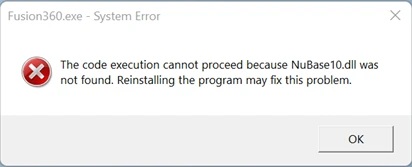
The code execution cannot proceed because DLL was not found usually appears when Windows cannot load a file an app needs at startup. The practical first question is scope: does the message affect one application, or several programs and Windows features? Start with the affected app, then repair Windows system files only when the problem is broader. This guide covers four paths, ordered from the least disruptive app-level repair to system repair and a guided DLL repair option.
Symptoms
The message may appear immediately after opening an app or game, followed by a startup failure, crash, or repeated error dialog. If only one program shows the error, its installation or app data is the more useful place to begin. If multiple unrelated programs fail, or Windows features also behave unexpectedly, damaged or missing protected Windows files are a stronger possibility.
Quick Diagnosis Checklist
- One app fails and Windows otherwise works: use Method 1. If the app has no Repair option or repair changes nothing, continue to Method 2.
- The failure started after an app update or an incomplete installation: use Method 2 to obtain a clean installer from that app’s publisher.
- Several apps fail, or Windows itself is unstable: use Method 3 to check protected Windows components.
- You need a guided scan for DLL and system issues: use the Fionn DLL Fixer method after the app-specific checks.
Quick Method Comparison
| Method | Best For | Efficiency | User Effort |
|---|---|---|---|
| Repair the app | One installed app with a Repair option | High for app-specific damage | Low |
| Reinstall the app | Missing files after an update or incomplete install | High for one affected app | Medium |
| DISM and SFC | Multiple failures or suspected Windows-file damage | High for protected Windows files | Medium |
| Fionn DLL Fixer | Guided DLL and system-issue repair | Practical when diagnosis is unclear | Low |
Method 1: Repair the affected app
When to use: The error is limited to one app and Windows offers a repair control for it. Windows notes that Repair, Change, and Modify are not available for every program.
Step-by-Step Guide
- Close the affected app.
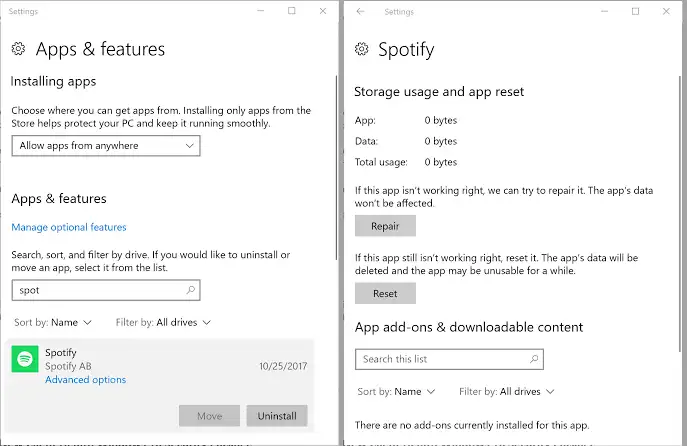
- Open Settings , then select Apps and Installed apps .
- Select the app’s menu, open Advanced options when available, and choose Repair .
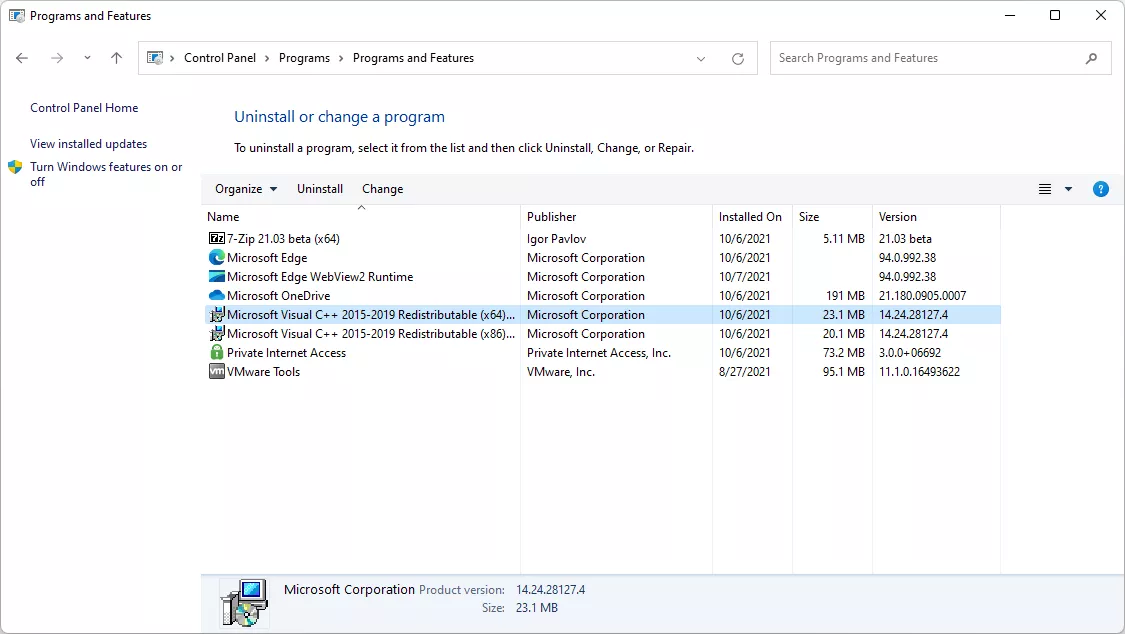
- If the app is a desktop program with no Settings repair option, open Control Panel, go to Programs and Features, and select its available Repair or Change option.
How to Verify: Restart the app from its normal shortcut. A successful result is the app reaching its normal opening screen without the missing-DLL message.
Method 2: Reinstall the affected app from its publisher
When to use: Only one app fails, repair is unavailable or unsuccessful, or the error began after that app was installed or updated.
Step-by-Step Guide
- Save work and close the affected app.
- Uninstall the app from Settings > Apps > Installed apps, using its normal uninstaller when one is supplied.
- Restart Windows to release files that may still be in use.
- Download a current installer from the app publisher’s official site or the store where you obtained the app.
- Install the app, then open it once before restoring optional add-ons or custom modifications.
How to Verify: Open the app twice: once immediately after installation and once after restarting Windows. The error should not return on either launch.
Method 3: Repair protected Windows files with DISM and SFC
When to use: Multiple unrelated apps fail, Windows features are unstable, or the error remains after reinstalling the affected app. Microsoft recommends running DISM before System File Checker for missing or corrupted Windows components.
Step-by-Step Guide
- Search for Command Prompt , then select Run as administrator .
- Run the following command and wait for it to complete.
DISM.exe /Online /Cleanup-image /Restorehealth
- Run the following command and keep the Command Prompt window open until verification reaches 100%.
sfc /scannow - Restart Windows after either tool reports that it repaired files.
How to Verify: Read the final SFC result, then open the previously failing app. “Windows Resource Protection did not find any integrity violations” means SFC found no protected-file integrity issue; it does not diagnose every app-specific dependency.
For the official commands and result meanings, see Microsoft’s System File Checker guidance .
Method 4: Fix the error with Fionn DLL Fixer
When to use: You want a guided Windows scan for detected DLL and system issues, particularly when the affected component is unclear. Fionn DLL Fixer supports scanning, repair, and a follow-up recheck for Windows DLL issues.
Step-by-Step Guide
- Launch Fionn DLL Fixer. The software automatically scans your PC for DLL and system issues and displays the detected results when the scan is complete.

- After the scan finishes, click “Repair” to start fixing all detected DLL and system issues automatically.

- Wait while the repair is in progress. During this process, the button changes to “Fixing” until all issues have been repaired.

- When the repair is complete, click “Ok” in the confirmation dialog. If prompted, restart your computer before checking whether the problem has been resolved.

- If the issue still persists after restarting, click “Recheck” to perform another scan. If new issues are found, click “Repair” again to fix them.

How to Verify: After the restart, launch the program that displayed the error. If it still fails, use Recheck and retain the result for support follow-up.
Verification Checklist
- The affected app opens from its normal shortcut without the error dialog.
- The app reaches its expected sign-in screen, project window, or main menu.
- After restarting Windows, the same app still opens normally.
- If other apps were affected, test one unrelated app to confirm the issue is not system-wide.
- If the message remains, note the exact DLL name, app version, and the method results before contacting the app developer or official support.
Conclusion
Begin with the smallest scope: repair the one affected app, then reinstall it from its publisher if needed. Reserve DISM and SFC for signs of broader Windows component damage, because those tools address protected system files rather than every app dependency. Fionn DLL Fixer is a practical guided option for scanning detected DLL and system issues and checking the result again after repair. Verify the outcome by opening the app after a restart. If the error persists, the app developer or official support can use the recorded DLL name and results to identify the remaining dependency.
FAQ
Can I fix this error by copying a DLL into System32?
Do not do that based only on the error message. The required file, version, architecture, and location are not confirmed by a generic dialog. Repair or reinstall the affected app first.
Why does only one program show the missing-DLL message?
That pattern often points to that program’s installation or its own required components. Use the app repair or clean reinstall path before repairing Windows system files.
Should I run DISM before SFC?
Yes, when you are checking suspected Windows system-file damage. Microsoft’s documented sequence runs DISM first, then SFC.
What if SFC reports no integrity violations?
Protected Windows files were not found to be corrupted. Return to the affected app’s repair or publisher-supported installation path, and provide the exact DLL name to its support team if needed.


