 Emily CarterDLL Errors
Introduction
The api-ms-win-crt-runtime-l1-1-0.dll missing message usually appears when an application cannot load a required Universal C Runtime component. Four repair paths are covered below, but the right starting point depends on the symptoms. Use Windows Update for system-wide or update-related problems. Check the Microsoft Visual C++ Redistributable when one application fails. Reserve DISM and SFC for signs of Windows component corruption. An optional diagnostic tool comes last, after the official methods.
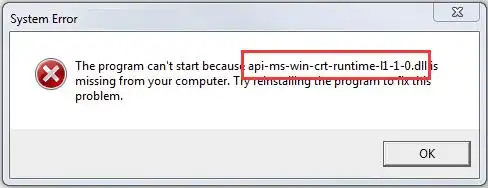
Quick Overview: What the Error Means
The Universal C Runtime is serviced as a Windows component on Windows 10 and 11, but an application may also depend on a compatible Microsoft Visual C++ runtime package. Package architecture follows the application, not just Windows. A 32-bit application may therefore need the x86 package on 64-bit Windows. Avoid copying an isolated DLL into a system directory because one file may not restore the full, compatible runtime.
How to Tell Whether the Problem Is Windows or One Application
| What you observe | Best starting point | What it suggests |
|---|---|---|
| Only one application fails | Method 2 | Its runtime or installation may be incomplete. |
| Several applications fail at the same time | Method 1, then Method 3 if Windows symptoms remain | A Windows update or system component may be involved. |
| Windows Update or Windows features also malfunction | Method 1, then Method 3 | The problem may extend beyond one application. |
| Only a specific program version fails | Method 2, then the publisher’s repair or reinstall option | That release may require a particular runtime or application fix. |
This distinction prevents an application-specific failure from being treated as general Windows corruption.
Method 1: Update Windows to Fix api-ms-win-crt-runtime-l1-1-0.dll missing
When to Use
Use Windows Update first when multiple applications report related runtime errors, Windows updates are pending, or the problem began after an interrupted update. If only one application fails and Windows otherwise works normally, Method 2 is usually more targeted.
Step-by-Step Guide
- Save your open work.
- Open Start > Settings.
- Select Windows Update in Windows 11 or Update & Security > Windows Update in Windows 10.
- Select Check for updates.
- Install the available updates.
- Restart the computer.
Microsoft’s official Windows update instructions provide the current Settings path.
How to Verify
Reopen every application that showed the error. If they launch without naming the DLL, the update resolved the problem. If Windows works and only one application still fails, continue with Method 2.
Method 2: Install or Repair the Microsoft Visual C++ Redistributable
When to Use
Use this method when one application fails, the error followed a software installation or update, or Windows Update did not help that application. Choose the package for the application’s target architecture rather than relying only on the Windows system type.
| Application target | Package to check |
|---|---|
| 32-bit application | x86 |
| 64-bit application on x64 Windows | x64 |
| ARM64 application | Follow Microsoft’s current ARM64 guidance |
| Architecture is unknown | Check the application publisher’s requirements |
Step-by-Step Guide
- Check the application publisher’s documentation for its target architecture and required runtime.
- Open Microsoft’s latest supported Visual C++ Redistributable downloads page.
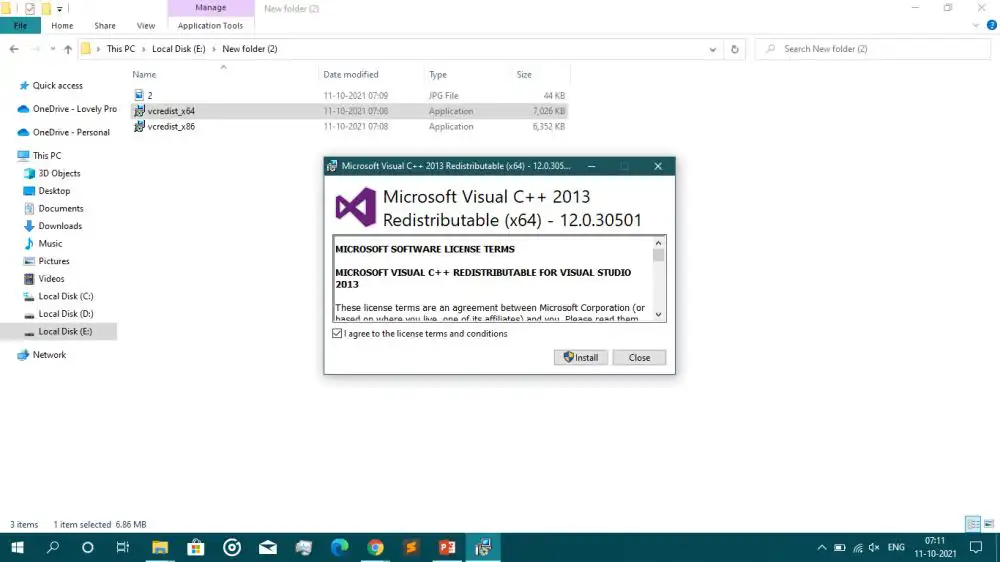
- Download the package that matches the application architecture.
- Run the Microsoft installer.
- Select Install, or select Repair if the installer offers that option.
- Restart Windows after the installer finishes.
How to Verify
Launch the affected application. If the installer reports an error, record its code instead of repeatedly installing different packages. If only that application still fails, use its official repair or reinstall option. Move to Method 3 only when Windows or multiple applications also show problems.
Method 3: Repair Windows Components with DISM and SFC
When to Use
DISM and System File Checker do not apply to every DLL error. Use them when Windows features malfunction, Windows Update fails, several applications show system-file symptoms, or the first two methods failed and the evidence no longer points to one application. If a single program is still the only failure, repair or reinstall that program instead.
Step-by-Step Guide
- Enter Command Prompt in Windows Search.
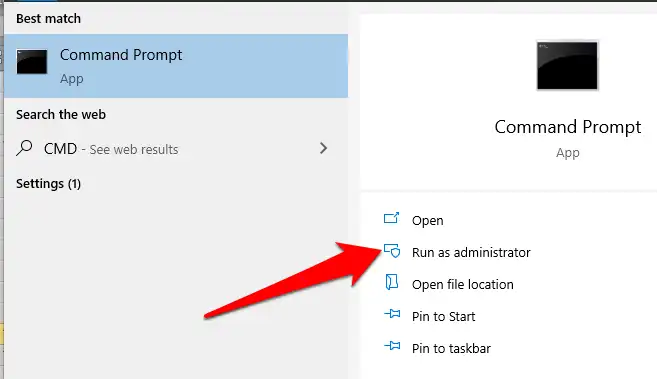
- Select Run as administrator.
- Run DISM:
DISM.exe /Online /Cleanup-image /Restorehealth - Wait for DISM to finish and record any reported error.
- After DISM completes successfully, run System File Checker:
sfc /scannow - Wait until verification reaches 100 percent.
- Restart Windows.
The command order follows Microsoft’s System File Checker instructions.
How to Verify
Review the SFC result for repaired files or no remaining integrity violations. Then test Windows features and the affected applications. If Windows behaves normally but one program still fails, return to that program’s official repair, reinstall, or publisher support options.
Method 4: Use Fionn DLL Fixer as an Optional Diagnostic Aid
When to Use
Consider this optional Windows method after the official repairs when DLL, application-launch, or dependency-loading errors remain and you want an additional scan and recheck. A scan does not prove that Windows is the cause, and the tool does not replace Windows Update, the correct Microsoft runtime, or application-publisher support.
Step-by-Step Guide
- Launch Fionn DLL Fixer. The software automatically scans your PC for DLL and system issues and displays the detected results when the scan is complete.

- After the scan finishes, click "Repair" to start fixing all detected DLL and system issues automatically.

- Wait while the repair is in progress. During this process, the button changes to "Fixing" until all issues have been repaired.

- When the repair is complete, click "Ok" in the confirmation dialog. If prompted, restart your computer before checking whether the problem has been resolved.

- If the issue still persists after restarting, click "Recheck" to perform another scan. If new issues are found, click "Repair" again to fix them.

How to Verify
Restart if requested, then launch the original application. Confirm that the same missing-DLL message no longer appears. Use Recheck to see whether the detected issue remains, but rely on the application test as the final result.
Common Mistakes to Avoid
- Matching the package only to Windows: The runtime architecture must match the application target.
- Copying a loose DLL into System32: One file may be untrusted, incompatible, or insufficient.
- Running DISM and SFC for one isolated application failure: Check that application’s runtime and installation first.
- Changing several things before testing: Relaunch the original application after each method to identify what helped.
Conclusion
Choose the repair path from the symptoms. Update Windows when several applications or Windows Update are affected. For one failing program, install or repair the Microsoft runtime that matches the application architecture, then use the program’s official repair option if needed. Run DISM before SFC only when broader Windows component problems are plausible. Verify each change by reopening the original application and checking that the same DLL message is gone. If official methods do not isolate the cause, Fionn DLL Fixer can provide an optional scan and recheck before you contact the application publisher or technical support.
FAQ
Can I download api-ms-win-crt-runtime-l1-1-0.dll by itself?
Avoid third-party DLL sites. An isolated file may be untrusted or incompatible and may not provide the complete runtime. Use Windows Update or Microsoft’s supported Visual C++ Redistributable package.
Should I install the x86 or x64 Redistributable?
Match the package to the application. A 32-bit application uses x86 even on 64-bit Windows. Check the publisher’s requirements if the target architecture is unclear.
Why does only one application show the error?
That application may have an incomplete installation, a version-specific problem, or an unmet runtime requirement while Windows remains healthy. Repair its runtime or installation before using system-wide tools.
Will DISM or SFC always repair this error?
No. They repair Windows components and protected system files, not every application dependency. Use them for Windows-wide symptoms, update failures, or suspected system corruption rather than one isolated application error.


