 Emily CarterDLL Errors
Introduction
The
msvcr110.dll missing
error usually means an application cannot load the Microsoft C Runtime library it expects. Microsoft identifies
msvcr110.dll
as the version 11 runtime used by Visual Studio 2012. Three methods can address the error: repair the affected application, install the official Visual C++ 2012 Redistributable, or use
Fionn DLL Fixer
for optional diagnosis and repair. Start with the affected application, then install the official runtime. Use the diagnostic tool only if the first two methods do not resolve the problem.
Quick Overview
| Observed situation | Best starting method | Why it fits |
|---|---|---|
| Only one application fails | Repair or reinstall the application | Its local files or installer may be incomplete. |
| Several older applications show the same DLL error | Install Visual C++ 2012 Redistributable | The shared version 11 runtime may be absent. |
| The cause remains unclear after both fixes | Run an optional diagnostic scan | A scan can check for missing, damaged, or mismatched DLL components. |
This distinction prevents unnecessary system-wide changes when one damaged application is the actual source of the error.
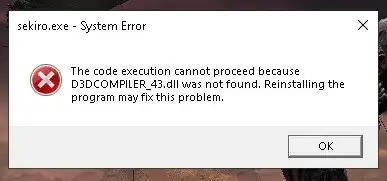
Method 1: Repair or Reinstall the Affected Application
When to Use
Use this method first when the error appears in only one program or game, especially after an interrupted installation, update, or file cleanup. Reinstalling from the original publisher restores the files and prerequisites selected by that application's installer.
Step-by-Step Guide
- Close the affected application and save work in other open programs.
- Open Start > Settings > Apps > Installed apps on Windows 11. On Windows 10, open Settings > Apps > Apps & features .
- Find the affected application and select Advanced options > Repair when that option is available.
- If no repair option exists, uninstall the application through Settings or its official uninstaller.
- Restart Windows, then download and reinstall the application from its original publisher or trusted store.
Note: Back up application-specific saves, profiles, or project files before uninstalling. Some uninstallers remove locally stored data.
How to Verify
Launch the same application from its normal shortcut and repeat the action that caused the message. The method succeeded if the program opens and the
msvcr110.dll
message no longer appears. If several programs still fail, continue to the shared runtime method.
Method 2: Fix msvcr110.dll Missing with Microsoft's Official Runtime
When to Use
Use this method when reinstalling one application does not help or when several applications report
msvcr110.dll
. Microsoft documents that this file belongs to the Visual Studio 2012 version 11 C Runtime. The appropriate source is the official Visual C++ 2012 Update 4 Redistributable, not an individual DLL download site.
Step-by-Step Guide
- Close every application displaying the error.
- Open Microsoft's
official Visual C++ Redistributable download page
.
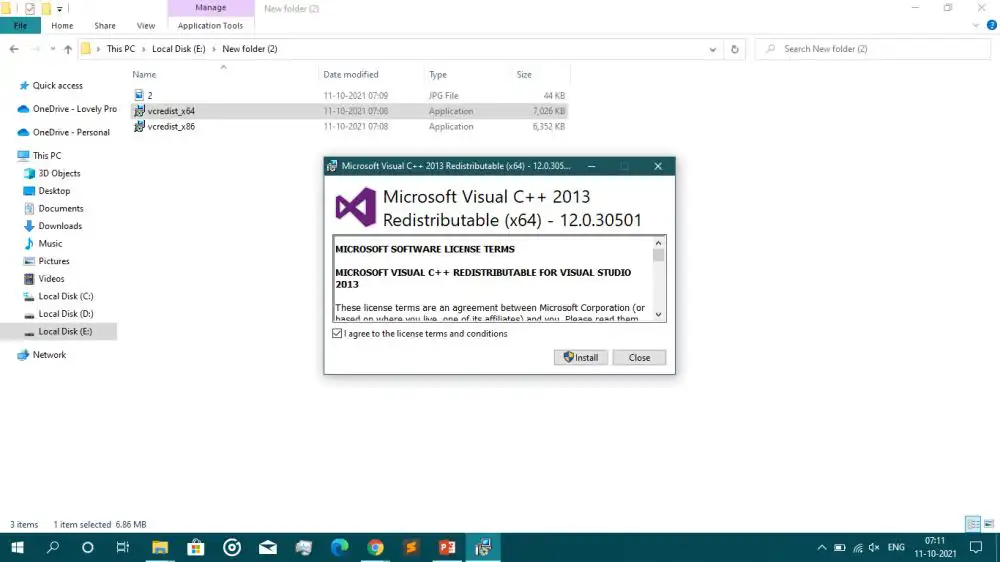
- Scroll to Visual Studio 2012 (VC++ 11.0) Update 4 .
- Download the x86 package for a 32-bit application or the x64 package for a 64-bit application. If the application's architecture is unknown on 64-bit Windows, its publisher's documentation is the safest reference.
- Run the downloaded Microsoft installer and complete the displayed setup or repair process.
- Restart Windows if the installer requests it.
Note: Package architecture follows the application's target architecture, not simply the Windows edition. A 32-bit application on 64-bit Windows can still require the x86 package. Microsoft also states that Visual Studio 2012 support ended on January 10, 2023, although its latest available Update 4 packages remain listed.
How to Verify
Reopen each affected application. If the error is gone, the required runtime is available. You can also open Control Panel > Programs > Programs and Features and check for a Microsoft Visual C++ 2012 Redistributable entry. If installation succeeds but the application still fails, ask its publisher which architecture and runtime build it requires.
Method 3: Scan with Fionn DLL Fixer
When to Use
Consider this optional method when the official runtime and application repair have not solved the error, or when multiple dependency-loading symptoms make manual diagnosis difficult. The Windows tool can detect missing, damaged, version-mismatched, and System32-path-related DLL issues. Its free version displays three free attempts; VIP unlocks additional DLL, runtime, DirectX, and system repair benefits.
Step-by-Step Guide
- Launch Fionn DLL Fixer. The software automatically scans the PC for DLL and system issues, then displays the detected results when the scan finishes.

- After the scan finishes, select
Repair
to begin automatically fixing all detected DLL and system issues.

- Wait while the repair runs. The button displays
Fixing
until all detected issues have been repaired.

- When the repair is complete, select
Ok
in the confirmation dialog. If prompted, restart the computer before checking whether the problem is resolved.

- If the issue remains after restarting, select
Recheck
to run another scan. If new issues are found, select
Repair
again.

How to Verify
Run the product's recheck, then launch the affected application independently. A clean scan alone is not sufficient verification; the original program must open without the missing-DLL message. Contact product support or the affected application's publisher if the error persists.
Common Mistakes to Avoid
- Downloading a standalone DLL from an unknown library: its origin, version, and architecture may not match the application.
- Placing files manually in System32: this can create a version or architecture mismatch without repairing the runtime installation.
- Installing only the newest v14 package: Microsoft says Redistributables from 2013 and earlier remain side by side. The v14 package does not replace the Visual Studio 2012 version 11 runtime.
- Using SFC as the first fix:
Microsoft describes
msvcr110.dllas a Visual Studio 2012 runtime library. Repairing its application or Redistributable is more targeted than starting with a protected Windows system-file scan.
Conclusion
For one failing application, begin with its repair option or reinstall it from the original publisher. If the msvcr110.dll missing message remains—or affects several programs—install the matching x86 or x64 Visual C++ 2012 Update 4 package from Microsoft. Confirm success by launching the original application, not merely by checking whether an installer completed. If the source remains unclear, Fionn DLL Fixer offers an optional scan, repair, and recheck workflow. A persistent error should be escalated to the application's publisher with the exact message and application architecture.
Frequently Asked Questions
What is msvcr110.dll?
msvcr110.dll
is the Microsoft C Runtime library associated with Visual Studio 2012, also identified as version 11. Applications built against that runtime may fail to start when the required library is unavailable, damaged, or incompatible with the application's architecture.
Is it safe to download msvcr110.dll by itself?
A standalone copy from an unofficial DLL website is not the recommended repair. It may have an unknown origin or the wrong version. Use the application's original installer or Microsoft's official Visual C++ 2012 Update 4 Redistributable so the runtime is installed as a package.
Should I install the x86 or x64 Visual C++ 2012 package?
Match the package to the affected application's target architecture. A 32-bit application generally needs x86 even on 64-bit Windows. A 64-bit application needs x64. When the architecture is unclear, check the application's publisher documentation before installing packages.
Why does the error remain after installing Visual C++ 2012?
The application may require the other architecture, contain damaged local files, or depend on a specific build selected by its publisher. Repair or reinstall the application, confirm its architecture, and ask its publisher for the required runtime instructions if the message continues.
Can System File Checker restore msvcr110.dll?
System File Checker repairs protected Windows system files. Microsoft identifies
msvcr110.dll
as a Visual Studio 2012 runtime library, so repairing the application or installing its official Redistributable is the more direct first approach. Reserve Windows repair tools for broader Windows corruption symptoms.


