 Emily CarterData Recovery
Can I cancel DiskPart clean all?
You may be able to interrupt the console process while it is still running, but do not assume that this reverses data already overwritten. Microsoft states that
clean all
sets every sector on the selected disk to zero. That makes recovery progressively less likely as the operation continues. Stop entering commands, avoid writing anything else to the affected disk, and assess the result before creating partitions, formatting, or initializing the drive.
This guide covers three response paths, from immediate interruption and preservation to a recovery scan and professional escalation. The correct choice depends on whether
clean all
is still active, whether the disk was merely cleaned, and whether the files are important enough to avoid further DIY changes.
Symptoms
- The DiskPart window remains busy after you entered
clean all, often on a large disk. - A disk that previously had volumes now shows unallocated space or no familiar partitions.
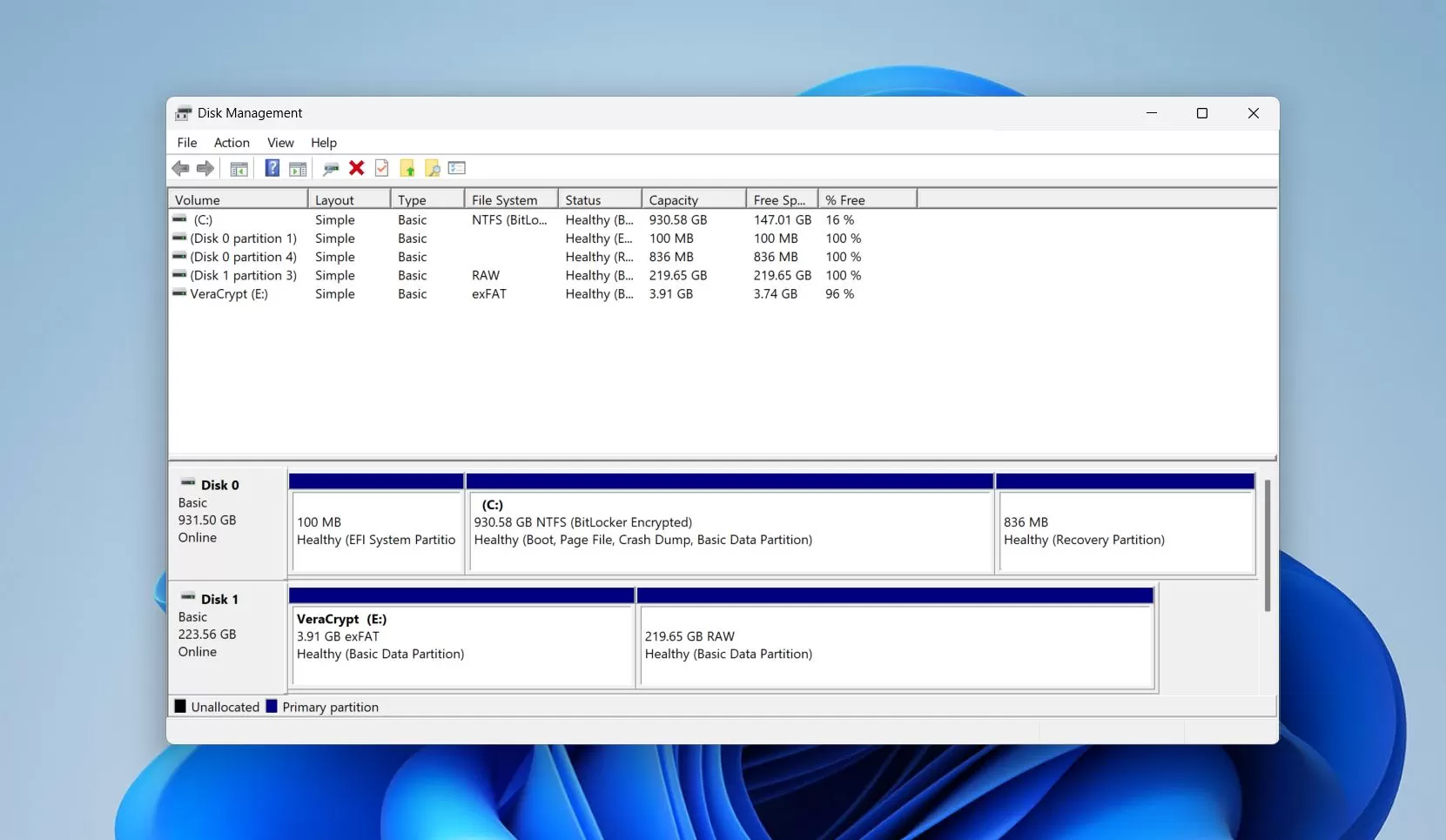
- File Explorer cannot open the former drive letter.
- Disk Management prompts you to initialize, create a volume, or format the disk.
- The impact is limited to the disk that had DiskPart focus; DiskPart commands act on the selected object.
clean
and
clean all
are materially different. Microsoft documents that
clean
removes partition or volume formatting, while
clean all
zeroes every sector. If you are unsure which command you ran, treat the disk as a preservation case until you confirm it.
Quick Diagnosis Checklist
- The command is visibly still running: attempt to interrupt the active console process, then continue with Method 1. Do not type additional DiskPart commands.
- You used
clean, notclean all: preserve the disk first, then use Method 2 to scan for files before rebuilding its layout. - You used
clean alland it completed: zeroed sectors cannot be restored by recreating a partition. Use Method 3 if the data has high business, legal, or personal value. - Windows asks to initialize or format the disk: decline the prompt and use Method 1; the prompt does not mean the disk is empty of recoverable information.
Quick Method Comparison
| Method | Best For | Efficiency | User Effort |
|---|---|---|---|
| Stop and preserve the disk | A command that may still be active | Immediate damage limitation | Low |
| Recover with Fionn Data Recovery | A cleaned disk with no further writes | Guided scan and file review | Moderate |
| Professional assessment | A completed
clean all
or irreplaceable files
| Depends on the storage condition | Low DIY effort |
Method 1: Stop Further Activity and Preserve the Disk
When to Use
Use this first when DiskPart is still processing, or immediately after you discover that the wrong disk was selected. This method does not promise to undo sectors already changed; its purpose is to prevent avoidable additional writes.
Step-by-Step Guide
- Stop typing commands in the active DiskPart window.
- Attempt to interrupt the active console operation with Ctrl + C .
- Wait for the console to return control or close, rather than issuing
create partition,format, or other disk commands. - Disconnect an affected external drive only after it is no longer being actively written to, then keep it disconnected until you choose a recovery path.
How to Verify
The operation is no longer advancing, the command prompt accepts no further destructive task from your actions, and you have not created a new volume or written new files to the affected disk.
Method 2: Recover Files with Fionn Data Recovery
When to Use
Use this recommended option after you have stopped writing to the affected disk and need to look for files that remain discoverable. It is most suitable when the command was
clean
, or when
clean all
was interrupted before all sectors were overwritten. Fionn Data Recovery supports local disks, external drives, USB drives, SD cards, and camera cards; its results can be filtered and previewed before recovery.
Step-by-Step Guide
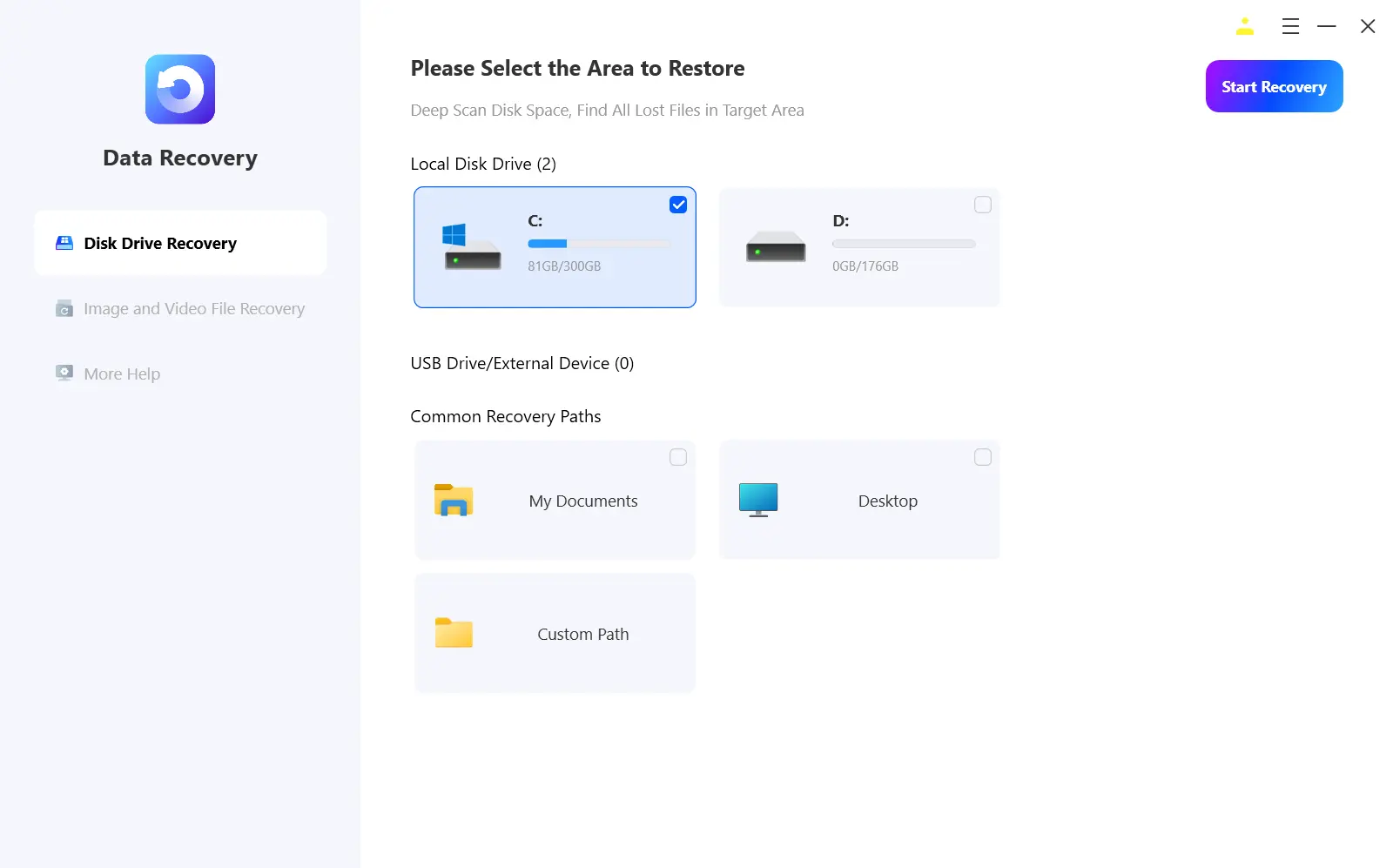
- Launch Fionn Data Recovery and select the recovery option for the type of data or storage location you want to recover.
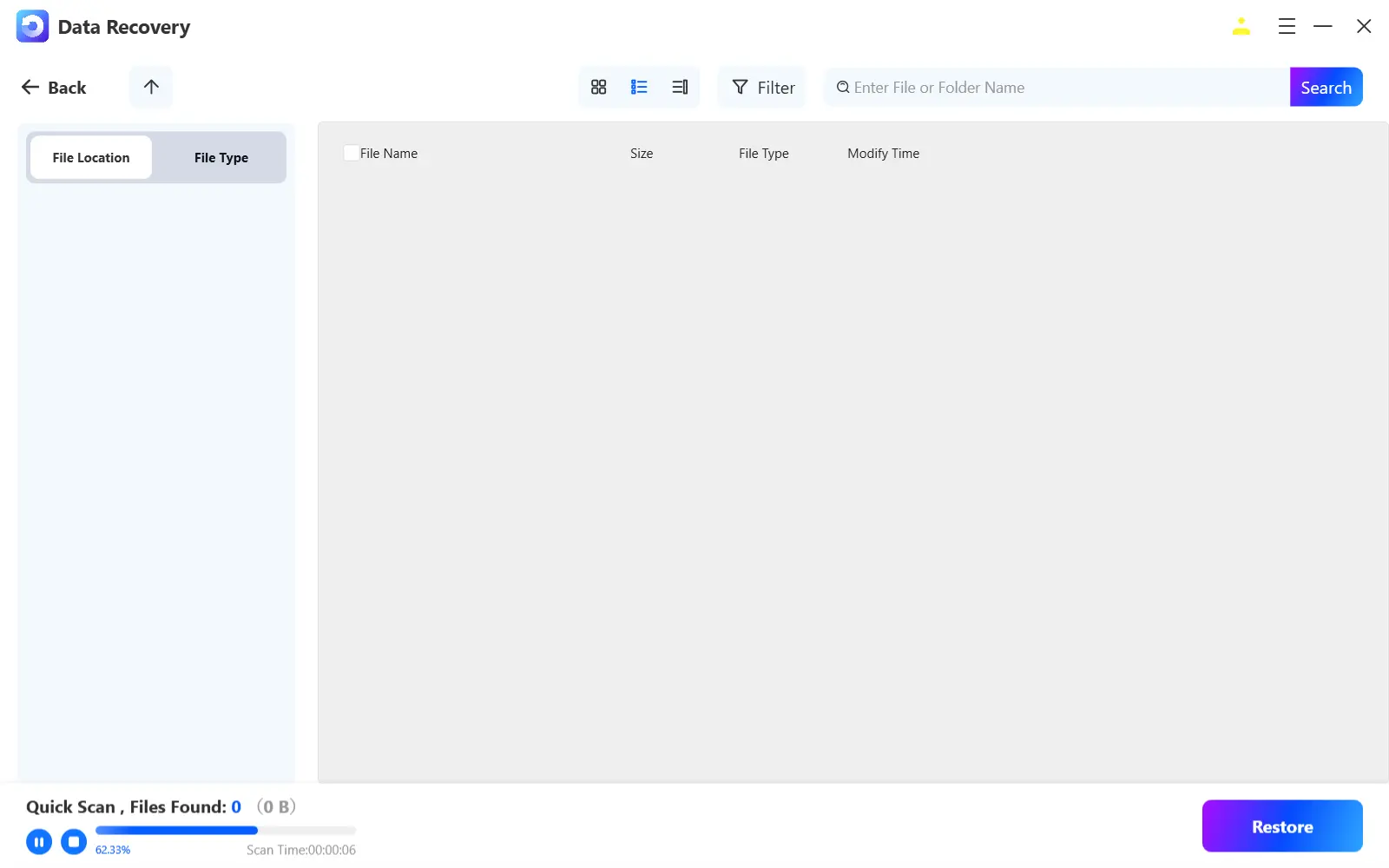
- Start the automatic scan and wait while Fionn Data Recovery searches the selected location for deleted or lost files.
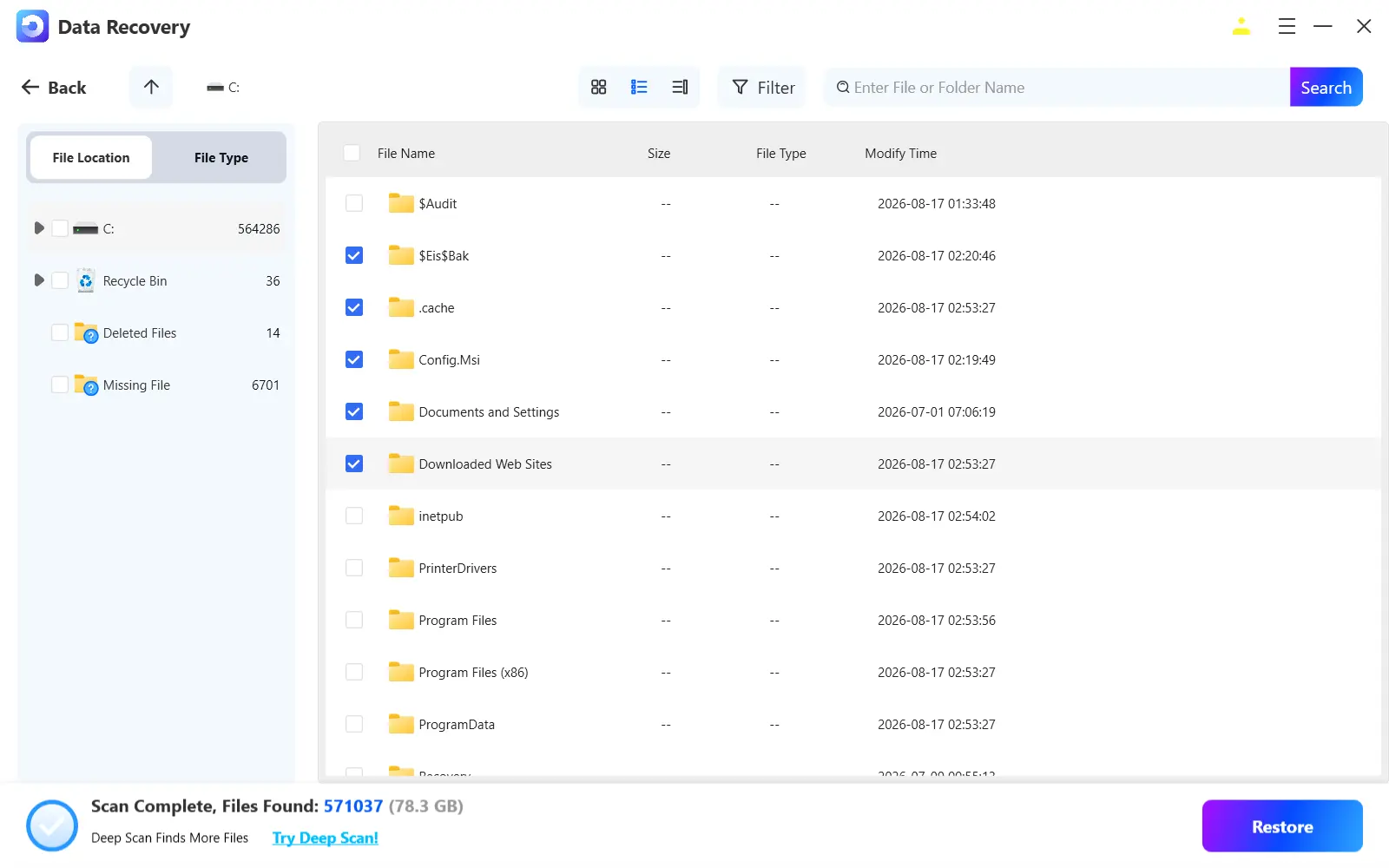
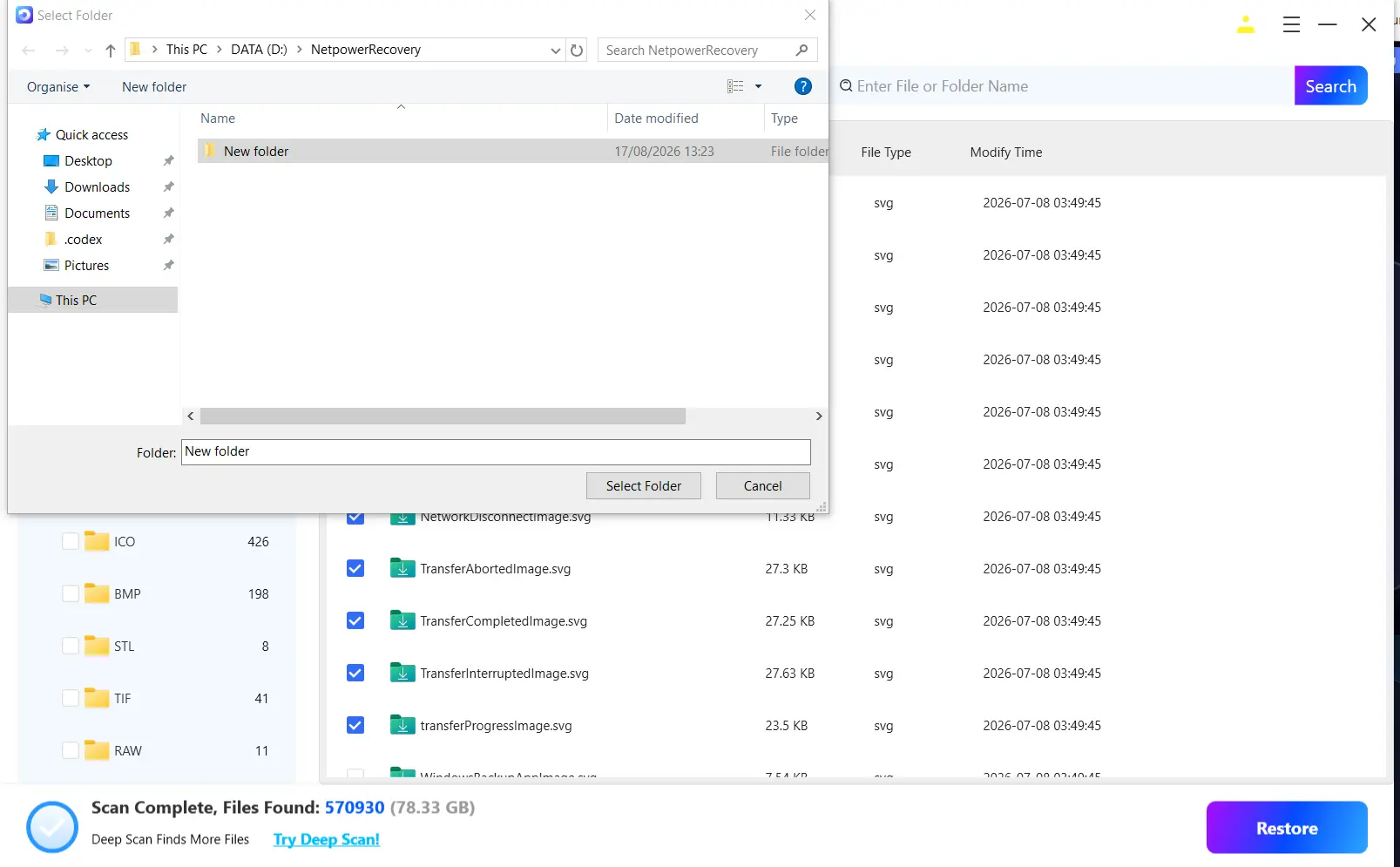
- After the scan finishes, browse the results and preview the files to select the data you want to restore.
- Select a destination folder to save the recovered files, then start the recovery process.
How to Verify
Open several recovered documents, photos, or videos from the destination disk. Confirm that the file opens, has the expected content, and was not saved back to the affected disk. If the first scan does not locate the needed files, the product provides deep and RAW scan modes.
Method 3: Escalate a Completed Clean All Case
When to Use
Choose this path when
clean all
completed, the missing data is irreplaceable, or the drive also shows signs of physical trouble. Because the command is designed to zero sectors, software recovery may have little or no remaining content to find after completion.
Step-by-Step Guide
- Leave the affected drive unused and do not attempt to rebuild its partitions.
- Record the disk model, capacity, connection type, and the command you believe was run.
- Contact a qualified data-recovery provider or the storage-device manufacturer’s official support channel for an assessment.
How to Verify
A provider can confirm whether the drive is stable enough for assessment and explain the available next steps without you performing more writes. Keep the original drive unchanged while deciding.
Verification Checklist
- The affected disk has not been initialized, formatted, repartitioned, or used as a recovery destination.
- You have identified whether the command was
cleanorclean all. - The DiskPart process is no longer receiving commands from you.
- Recovered files are stored on a different disk and open correctly in their normal applications.
- Important recovered items have a second copy on separate storage.
Conclusion
If you are asking “can I cancel DiskPart clean all,” act immediately to stop further activity, but do not expect cancellation to reverse sectors already zeroed. Preserve the disk before Windows prompts you to initialize or format it. For a disk that was cleaned or an interrupted operation,
Fionn Data Recovery
provides a practical way to scan, preview, and save any discoverable files to another disk. If
clean all
finished and the files are irreplaceable, leave the drive unchanged and seek professional or official support. Verify every recovered file by opening it.
FAQ
Does Ctrl+C cancel DiskPart clean all?
It may interrupt the active console operation, but it does not reverse data already processed. Stop further commands and avoid writing to the disk afterward.
Is DiskPart clean all the same as clean?
No. Microsoft documents that
clean
removes partition or volume formatting, while
clean all
sets every sector on the selected disk to zero.
Can I recover files after DiskPart clean all?
Recovery prospects depend on how much of the operation completed and whether anything was written afterward. A completed zeroing operation can leave little or no recoverable file content. An interrupted operation may still justify a scan.
Should I initialize the disk after a mistaken clean command?
No. Initializing or creating a new partition writes disk metadata. Preserve the disk and scan or seek assessment first.
Why must recovered files be saved to another disk?
Saving to the affected disk can overwrite remaining data. Use a different internal disk, external drive, or other separate destination.


