 Emily CarterVoice Changer
To change your voice to a female voice in voice chat, first set up an effect and virtual microphone in Fionn VoxMagic , then select that input wherever Steam or the game offers a microphone device, and test transmission separately in a channel. Previewing in the app confirms processing only within VoxMagic: the final test must be performed in voice chat.
The query often uses the name “CS:GO,” but the steps below are intended for the Counter-Strike client installed on your computer. Do not treat the effect name as a game setting: select the female voice in the voice-changing app, not in the CS2 menu.
Quick setup plan
- First: connect your physical microphone and headphones, then enable a female effect in VoxMagic.
- Next: find the Fionnshare Virtual Audio virtual input in Steam or game microphone settings if it appears in the device list.
- Finally: run the Steam microphone test and perform a short Push-to-Talk check with a teammate.
Method 1: Set Up a Female Voice with Fionn VoxMagic
This method is suitable when you need a live effect for conversation rather than processing an already recorded file. VoxMagic creates a virtual microphone for selection in third-party apps; the female voice character is determined by the chosen effect and can be adjusted with pitch if necessary.
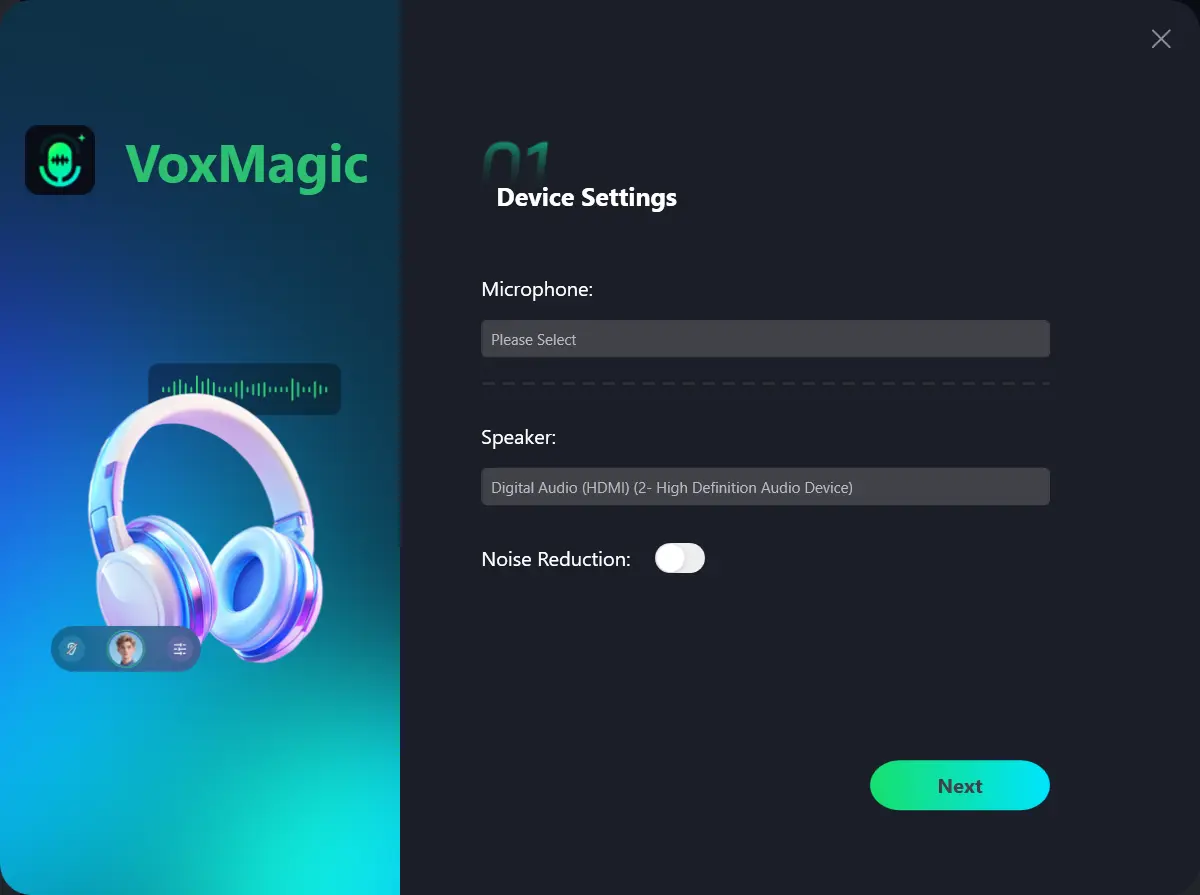
- Open Fionn VoxMagic. In the device settings section, select your microphone and playback device. If needed, enable noise reduction and click Next.
- If the core component installation window appears, wait for installation to finish before continuing.
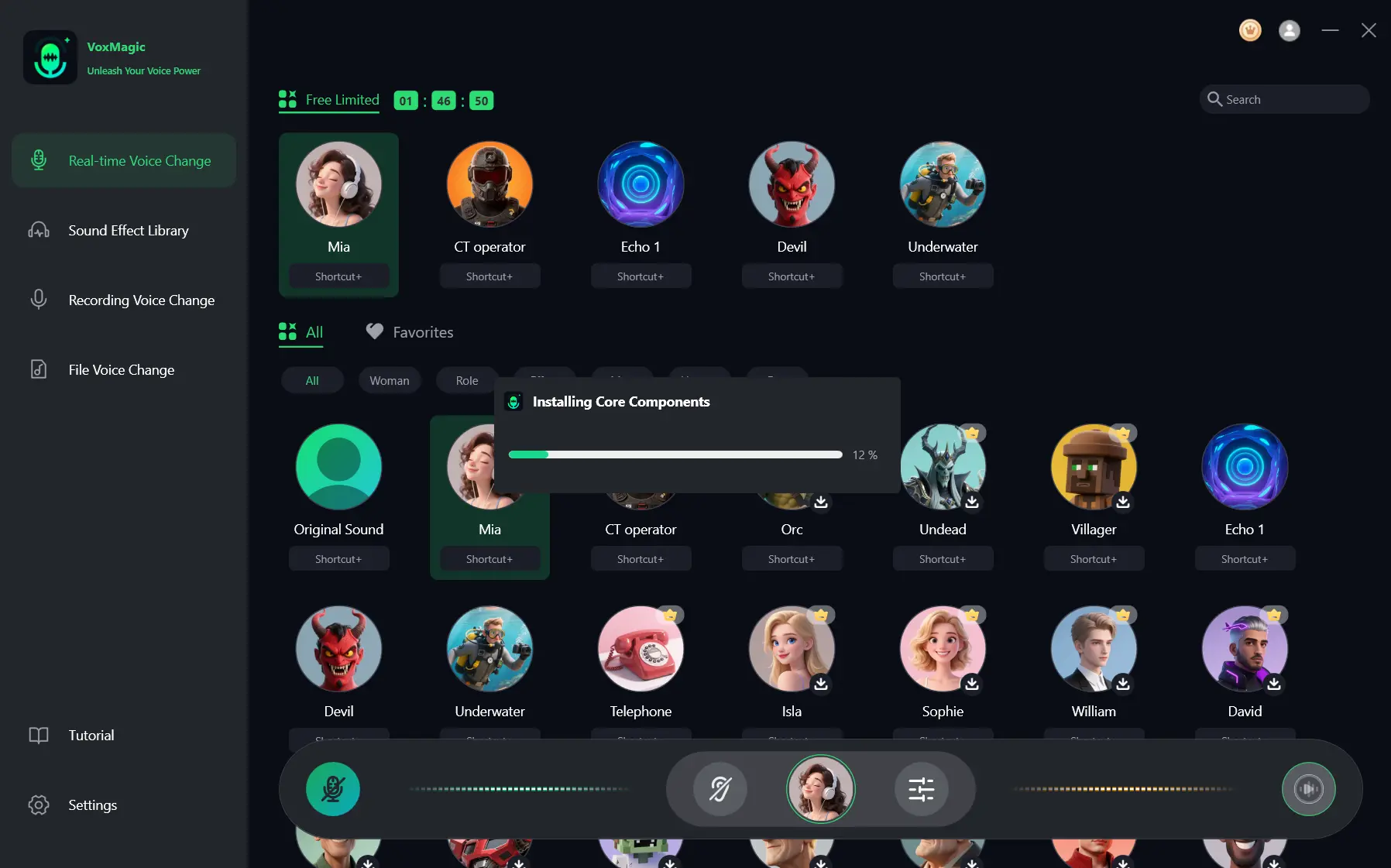
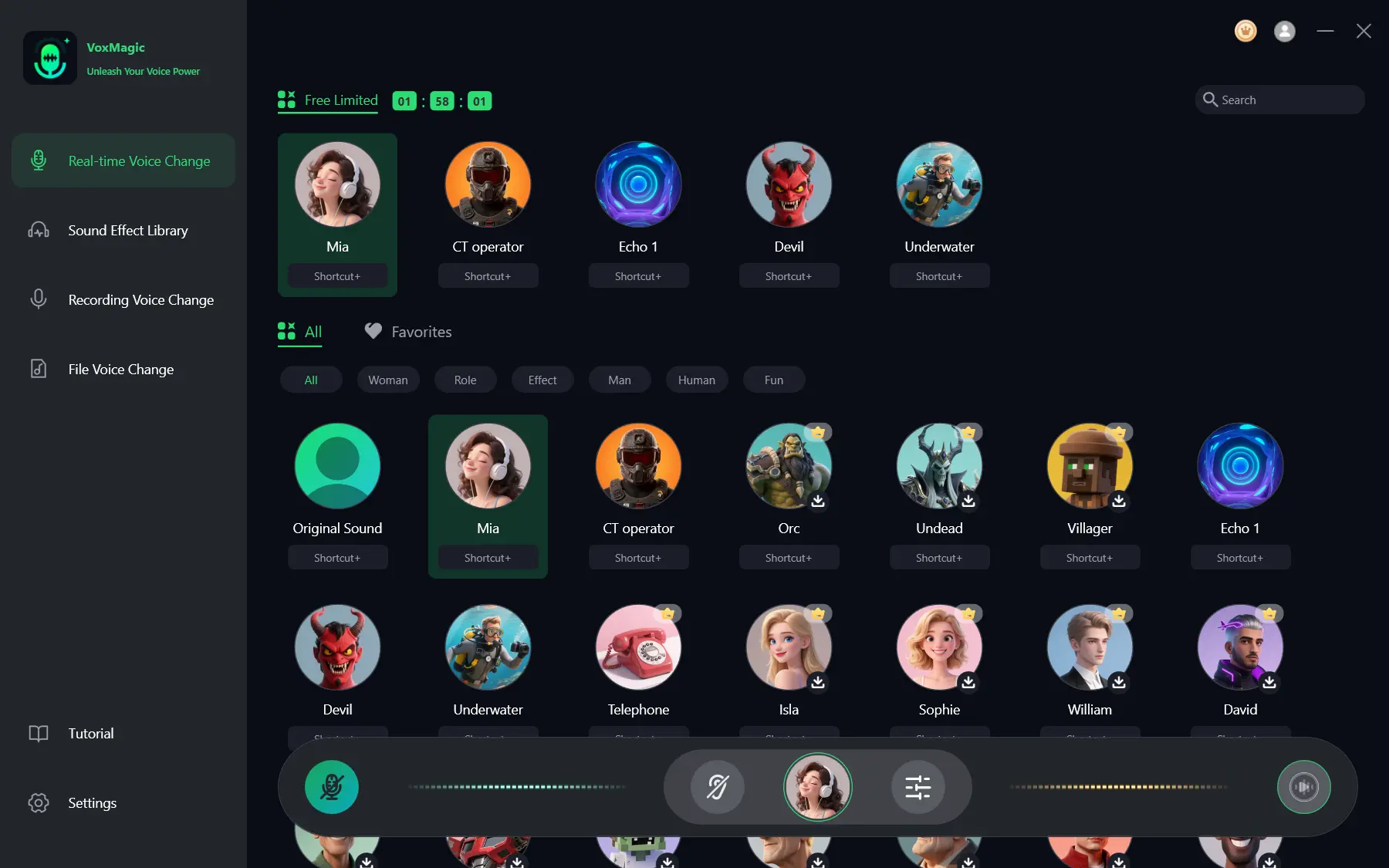
- Open the real-time voice changer section and choose a voice effect, such as Mia. The selected effect is highlighted and shown on the bottom control panel.
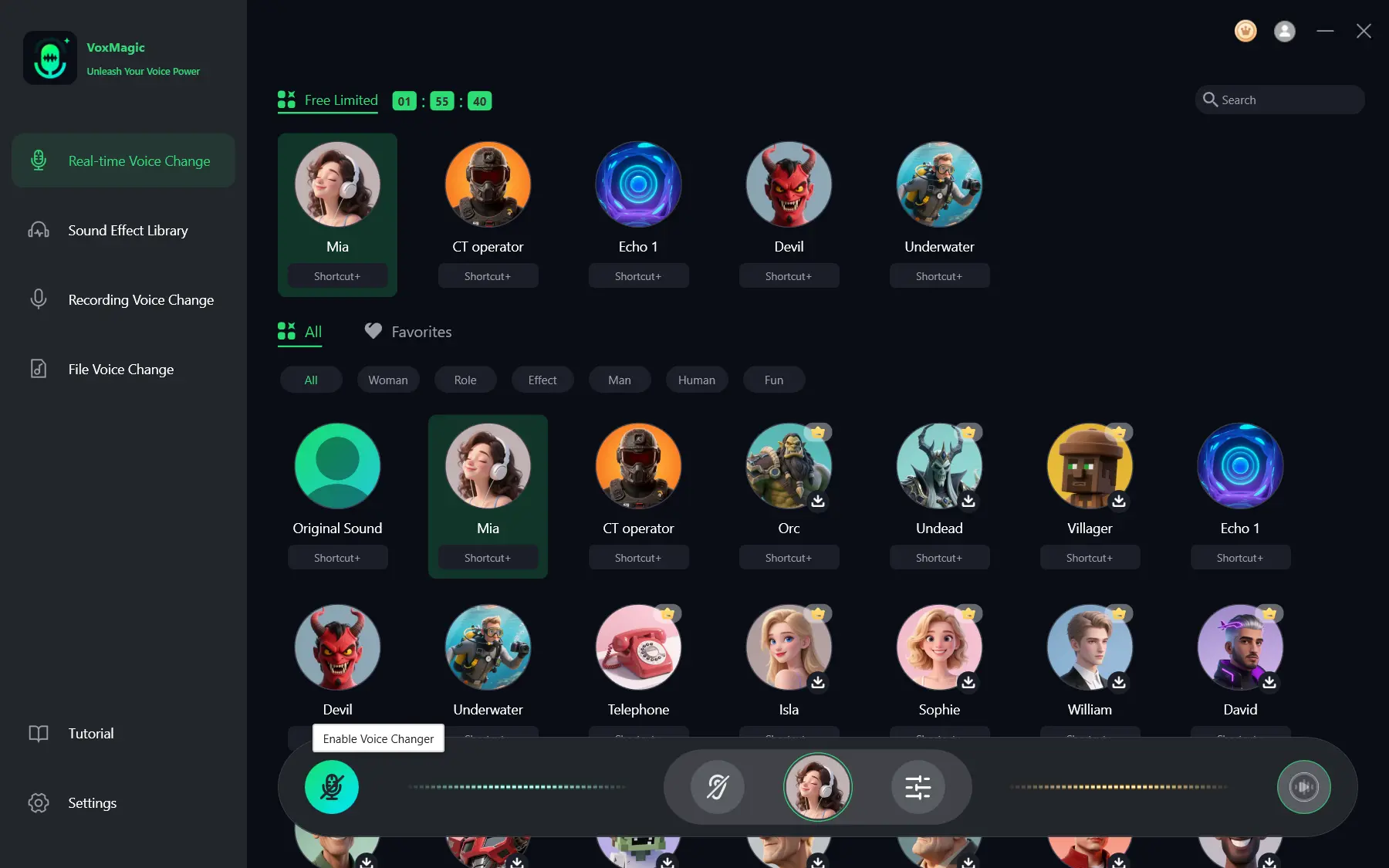
- Click the microphone button labeled Enable Voice Changer in the lower-left corner of the control panel.
- Click the ear icon on the bottom panel to enable voice preview. To test the selected effect, listen to yourself through headphones.
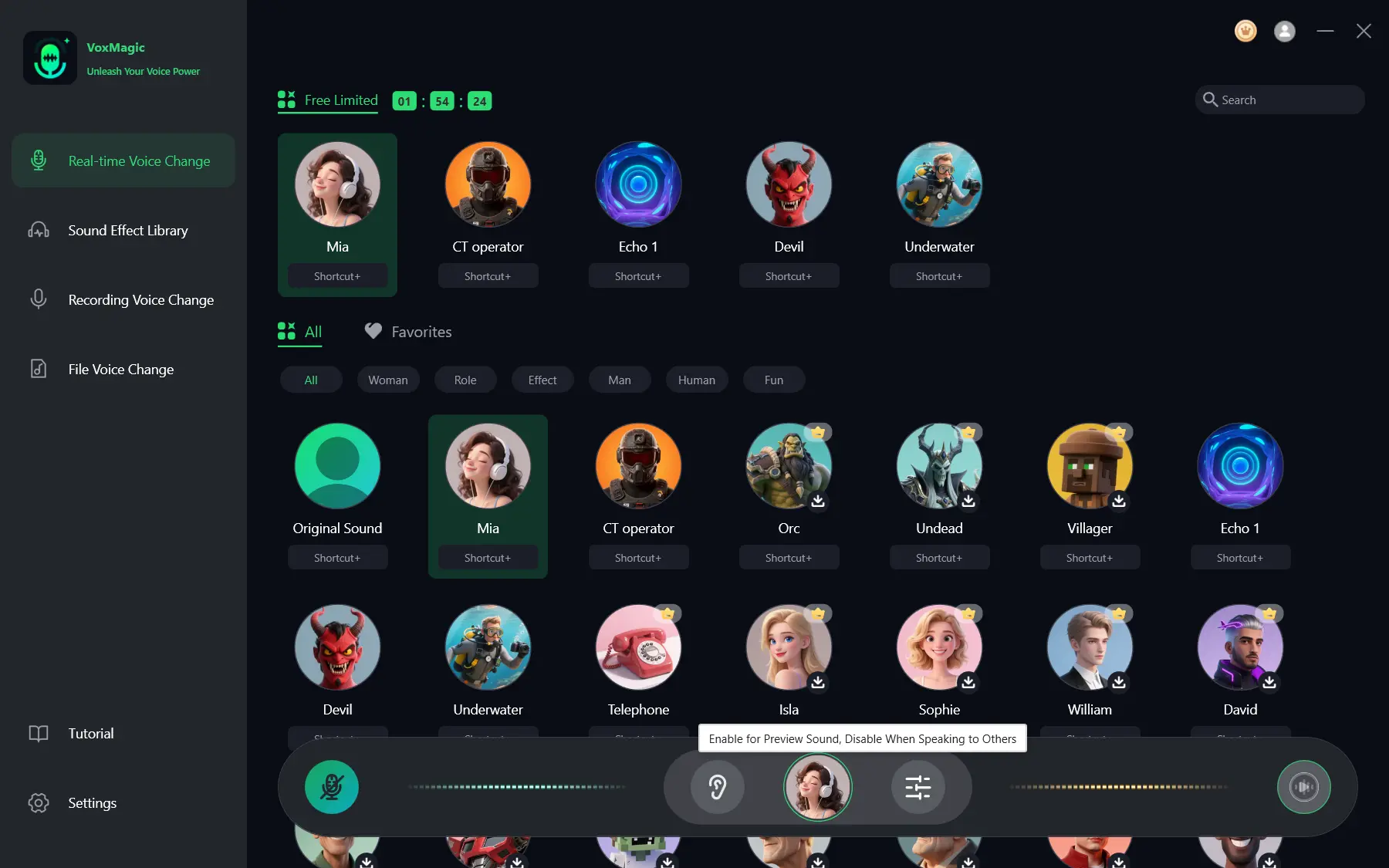
- Say a short phrase into the microphone and listen to the preview of the selected effect. Make sure the audio level indicators respond to your speech. Disable the preview before speaking with others.
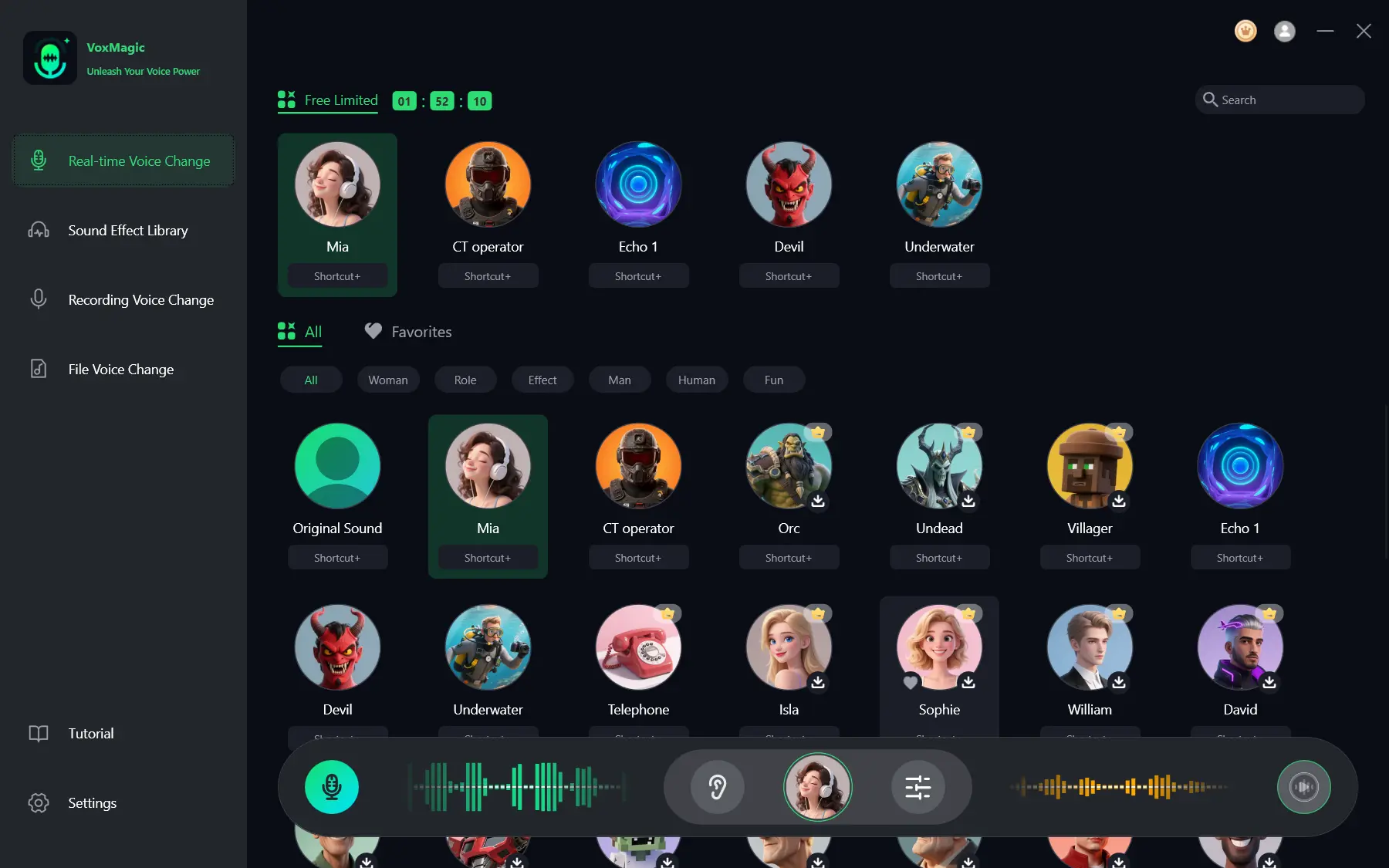
A successful result at this stage is that the indicators respond to your voice and you hear the selected female effect through your headphones. If the voice is too noisy, try another noise-reduction level: stronger reduction can affect sound quality.
Route the Virtual Microphone to Steam and CS2
After enabling voice changing, you need to send the VoxMagic virtual output rather than the physical microphone. It may appear in the device list as
Fionnshare Virtual Audio
. Select it only if you can actually see that name on your computer.
- Open Steam voice input settings and find the microphone device list.
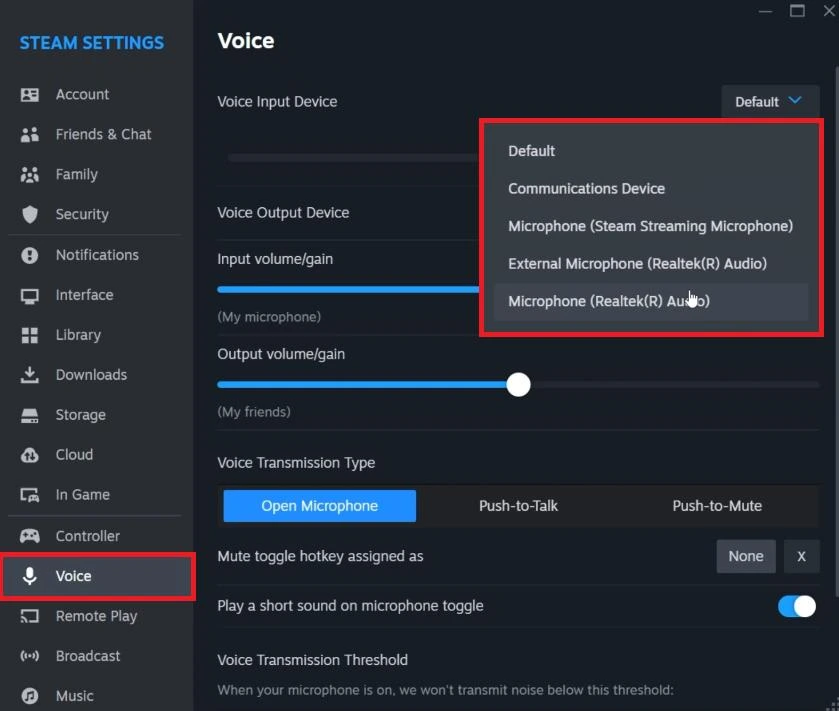
- Select
Fionnshare Virtual Audiothere if the device is available. - Run Steam’s built-in microphone test and say a short phrase with the effect enabled.
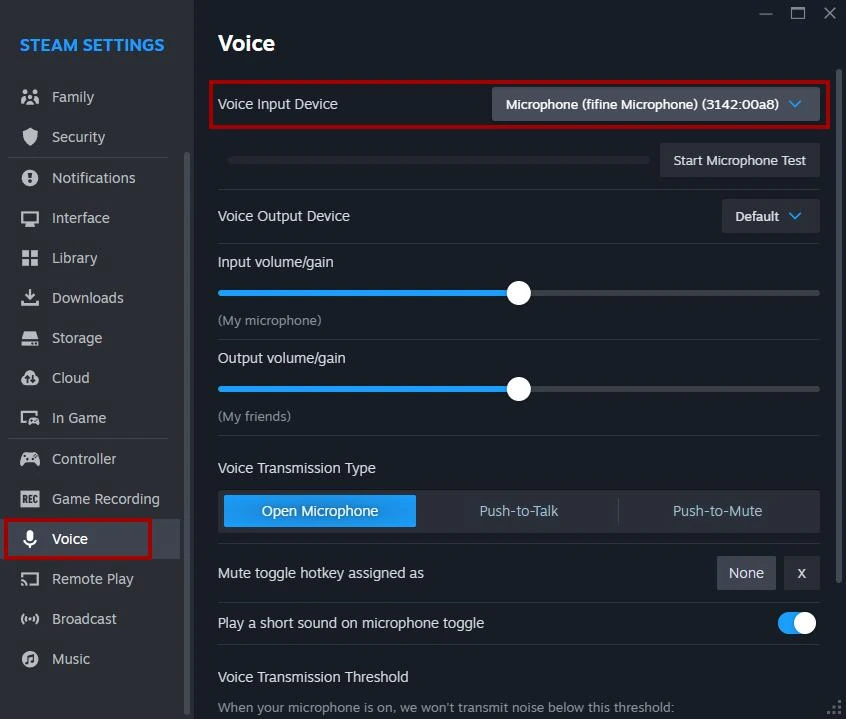
- Open the sound or voice communication settings in your installed Counter-Strike client.
- If the game offers a separate input-device selection, select the same virtual microphone.
The location and names of voice settings can vary between client builds and languages. Do not select a device based on a similar name or change settings at random: use the input-device list visible in your client. If CS2 has no separate selector, testing in a game channel remains essential.
Test Push-to-Talk and Voice in a Channel
You do not need to start a competitive match for this test. Join a group, private server, or another place where a teammate can tell you what they hear.
- In Counter-Strike control settings, find the action that activates voice transmission and assign a convenient unused Push-to-Talk key.
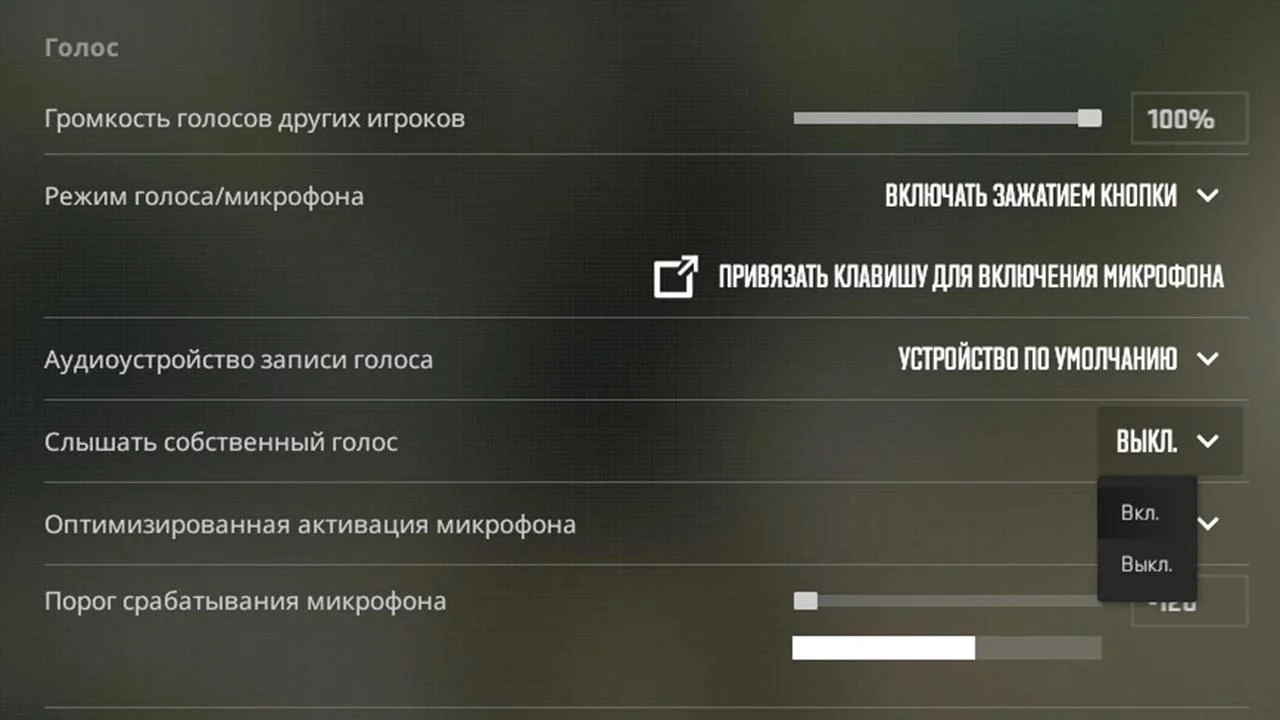
- Make sure voice communication is not disabled in the current mode or channel.
- Hold the assigned key and say a short, recognizable phrase.
- Ask a teammate to confirm that they hear the processed voice rather than your original voice.
A transmission indicator, if available in your interface, is useful as an additional sign. The most reliable result remains feedback from a listener in the same channel where you will play.
If Teammates Hear Your Original Voice
Your original voice usually means that the game or Steam is listening to the physical microphone, or that processing in VoxMagic is disabled. Check the chain in order without changing everything at once.
- Return to VoxMagic and make sure the Enable Voice Changer button is active.
- Check that an effect is selected and VoxMagic indicators respond to your speech.
- Open Steam or CS2 voice input again and select the virtual input rather than the name of the physical microphone.
- Repeat the Push-to-Talk test with a teammate.
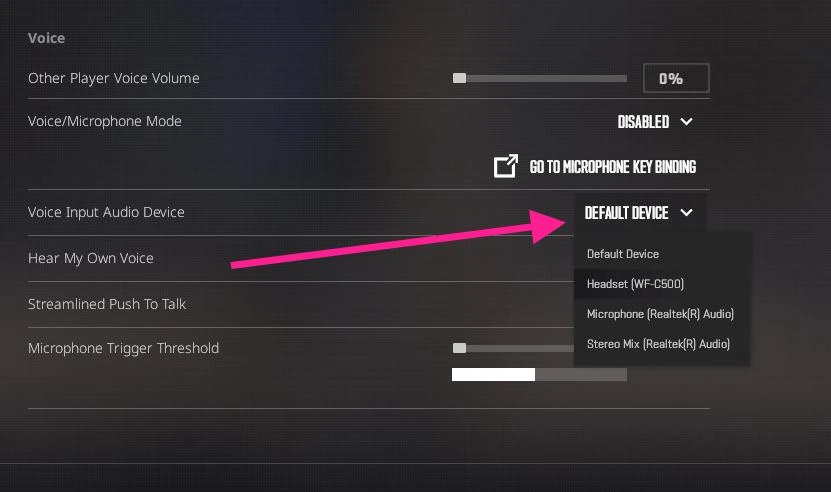
If the virtual device does not appear in the lists, restart the application where you select the microphone after launching VoxMagic. When the issue occurs in every application rather than only in the game, briefly check Windows 10/11: open Sound settings, go to Input, select the recording device, and run the built-in test. This diagnoses the system input but does not replace a Steam or game-channel check.
Conclusion
For a female voice, first ensure you can hear the effect and see the indicators move in VoxMagic, then select its virtual microphone in the available Steam or Counter-Strike input list and test Push-to-Talk with a real listener. If others hear your original voice, begin with the changer state and selected input; check the Windows system microphone only when the issue occurs in every application. To set up a real-time effect and virtual microphone, open Fionn VoxMagic .
Frequently Asked Questions
Does VoxMagic support real-time voice changing?
Yes. VoxMagic includes real-time voice changing, voice-effect selection, changer activation, and preview. To send audio to a third-party app, select the created virtual microphone in that app’s input settings if it is available in the list.
Why does Steam work but CS2 have no sound?
The Steam test and transmission in a game channel are different checks. Open the Counter-Strike client’s voice settings, see whether a separate input selection is available, enable voice communication for the current channel, and repeat the Push-to-Talk test. If the game has no separate device selection, confirm the result with a teammate in the channel.
Do I need to select a female effect in CS2 settings?
No. Select the female effect in VoxMagic. In Steam or CS2, you select only the device from which the program receives audio: the VoxMagic virtual microphone, if it appears in the list.
What should I do if VoxMagic indicators do not respond?
Check the physical microphone selected in VoxMagic settings and repeat a phrase while wearing headphones. If there is no response in other applications either, run the built-in input test in Windows Sound settings and choose the correct recording device.
You can download Fionn VoxMagic if you need one tool for choosing an effect, previewing it, and routing audio through a virtual microphone.


