 Emily CarterScreen Recording
To create one video from two Windows monitors without OBS, set the displays to an extended desktop, choose a capture area that includes the content on both screens, and make a short saved test before recording the full session. Fionn Screen Recorder documents simultaneous dual-monitor recording, while Bandicam documents an All display option for recording every connected display.
Your recording is ready for the real task only after the saved clip shows both required monitor edges, readable content, and the audio you intended to capture.
Prepare the two-monitor desktop
When both monitors are connected, set up an extended desktop first. This lets you arrange content across the two screens before selecting a combined capture area.
- Open Windows Display settings and, under Multiple displays, choose Extend these displays .
- Drag the display rectangles into the same arrangement as your physical monitors, then apply the layout.
- Move the mouse pointer across both screens to confirm the layout behaves as expected.
Place a recognizable window near each outer edge for the short test recording. It makes an accidental crop easier to identify during playback. See Microsoft’s multiple-monitor instructions .
Record Both Monitors with Fionn Screen Recorder
Use Fionn Screen Recorder when you need a Windows workflow that combines capture-area selection, audio selection, format selection, and access to the saved clip. Its dual-monitor guide documents simultaneous recording; set the capture area to include the content needed from both extended displays before starting.
- Open Fionn Screen Recorder and choose the area you want to capture: Full Screen, Window, or Region.

- Choose whether to record system audio, microphone audio, both, or no sound.

- Select MP4 or another video format before you start recording.

- Click Start to begin recording, then use Pause or Stop when you are finished.

- Open Media Library to play, edit, locate, or delete your recorded videos.

In Media Library, play the saved test clip and inspect both monitor contents, outer edges, text readability, and audio. If all are present, repeat the workflow for the full recording; the recorder showing that it stopped is not a substitute for checking the delivered video.
The documented free-version limit is two minutes per saved video at up to 720p, so a brief test is especially useful when those limits affect the project. The Fionn dual-monitor guide provides the documented recording and verification workflow.
Record All Connected Displays with Bandicam
Bandicam is an alternative when you need one recording containing every connected display and have version 6.2.2 or later available. Its documented All display setting is suited to that scope; it may be broader than needed if you only want selected content.
- Open Bandicam in Screen Recording mode and select the Fullscreen menu.
- Choose
All display
to record all connected monitors.
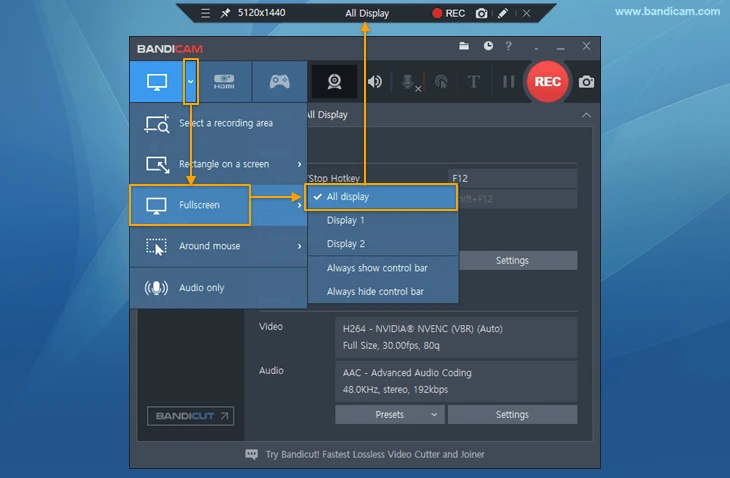
- If All display is unavailable, install Bandicam 6.2.2 or later.
- Play the saved recording and confirm that every intended monitor is included.
Follow the vendor’s official dual-monitor recording guide for this method.
Conclusion
Extend and arrange the Windows desktop, then record a short test before the full session. Choose Fionn Screen Recorder when its capture selection covers the two-screen content you need, or Bandicam’s All display option when recording every connected display is the goal. Continue only after playback confirms both screens, readable edges, and the correct audio.
Frequently Asked Questions
Can Windows record two monitors as one desktop?
Windows Extend mode creates a desktop that spans the two displays, allowing windows and the pointer to move between them. A recorder must still be configured to capture the required area of that desktop.
Can Fionn Screen Recorder record both monitors at the same time?
Its dual-monitor guide states that it supports simultaneous dual-monitor recording. Set the capture area to include the needed content from both extended displays, then verify both screens in a saved test clip.
Why does my recording show only one monitor?
First confirm that Windows is using Extend rather than a single-display arrangement. Then check that the selected capture area includes both screens, or select Bandicam’s All display option if the goal is to record every connected monitor.
How do I capture audio in a two-monitor recording?
In Fionn Screen Recorder, choose system audio, microphone audio, both, or no sound before recording. Playback of the saved test clip is the practical check that the intended source was captured.
What should I check before recording a long session?
Check the saved test clip for both monitor edges, readable text, and the intended audio. With the documented Fionn free-version limits, also confirm that the required duration and 720p maximum fit your project.


