 Emily CarterScreen Recording
To record one monitor while using another, limit the capture to the display you want in the video, then use the second display normally. Before making the final recording, create a short test, save or export the completed video, and check playback to confirm the working monitor is excluded. This guide covers three Windows options: Fionn Screen Recorder , Snipping Tool, and OBS Studio.
Before You Record: Identify the Target Monitor
Decide which monitor belongs in the video and which monitor will remain your workspace. Put a distinctive item, such as a temporary note or document, on the workspace monitor; it will make the test-file check clear.
- Choose full-display capture when the video must show activity across the target monitor.
- Choose window capture when only one application should appear.
- Choose region capture when you need a boundary that matches the target monitor edges exactly.
Whichever method you use, the final capture boundary must end at the target monitor edges and exclude the other display.
Choose the Right Method
| Method | Capture Boundary | Final Output Handling | Best For |
|---|---|---|---|
| Fionn Screen Recorder | Full Screen, Window, or Region; use a region aligned to the target monitor when a specific display selection is not verified. | Review the recording in Media Library, edit if needed, then export the final video. | Users who want capture-area, audio, format, editing, and export controls in one workflow. |
| Windows Snipping Tool | A manually dragged recording rectangle. | Save the recording from Snipping Tool, then play it back. | A short built-in recording where a monitor-sized rectangle is sufficient. |
| OBS Studio | A Display Capture source set to the intended display and checked in the preview. | Stop recording, then play the output file to review it. | A reusable scene for recording one display. |
Method 1: Record One Monitor with Fionn Screen Recorder (Recommended)
When to use: Choose this method when you want to set the capture area, audio source, and video format before recording, then review and export the result. It is practical for tutorials, demonstrations, and meetings where the second monitor must stay outside the video.
- Open Fionn Screen Recorder and choose Full Screen, Window, or Region. To record one monitor without relying on an unverified monitor-picker control, choose Region or a custom area and drag its edges to the target monitor only.

- Choose whether to record system audio, microphone audio, both, or no sound.

- Select MP4 or another video format before you start recording.

- Click Start to make a short test recording. Perform a distinctive action on the other monitor, then use Pause or Stop when you are finished.

- Open Media Library to play, edit, locate, or delete your recorded videos.

Verify: Play the test recording and confirm that the distinctive activity on the other monitor does not appear. If it does appear, stop and adjust the region boundary before creating the final recording.
Save, Export, and Verify the Fionn Recording
- Locate the completed recording in Media Library.
- Edit the recording only if needed.
- Export the final video.
- Open the exported file from the location you chose.
- Confirm in playback that only the target monitor is visible and that the distinctive activity on the other monitor is absent.
Do not assume an export destination or control label. Use the available export options in the app and verify the completed file after export.
Method 2: Record One Monitor with Windows Snipping Tool
When to use: Use this built-in route for a straightforward clip when selecting a rectangle that exactly covers the intended monitor is enough.
- Open Snipping Tool from the Start menu.
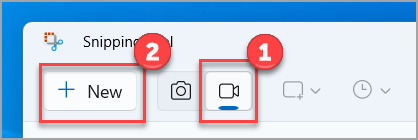
- Select the Record option.
- Select New.
- Drag the recording rectangle to the edges of the monitor you want to record.
- Select Start.
- Select Stop when you finish.
- Save the recording from Snipping Tool.
Verify: Open the saved video and check that the frame ends at the selected monitor edges. Confirm that the distinctive item on the other monitor is absent.
Method 3: Capture One Display in OBS Studio
When to use: Use OBS Studio when you want a reusable scene with one Display Capture source and a preview check before recording.
- Open OBS Studio and select a scene.
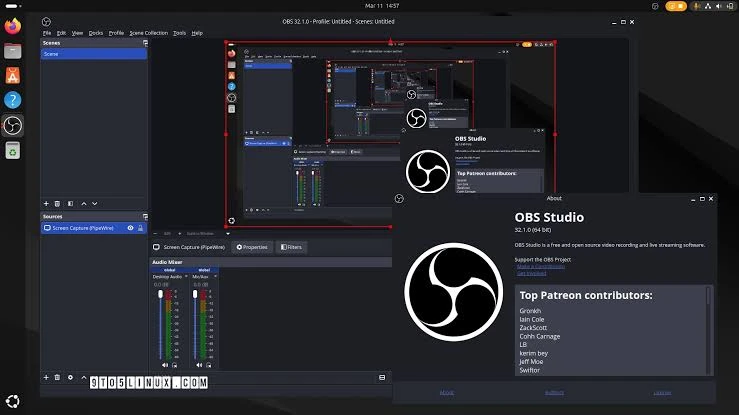
- In Sources, add a Display Capture source.
- Choose the display that the source should capture in its properties.
- Confirm that the preview shows the intended monitor only.
- Select Start Recording.
- Select Stop Recording when you finish.
Verify: Play the output file and confirm that the other monitor was excluded, including the distinctive item used for the test.
Keep the Other Monitor Private
- Choose whole-display capture when the video needs every app movement on one monitor. Choose a window or region only when the final video does not need the entire display.
- Keep notifications, password managers, and private messages on the non-recorded monitor. Selecting one display does not hide sensitive content inside the selected display.
- Use a distinct wallpaper or temporary document on the target monitor before setup so it is easier to recognize in a preview.
- After changing monitor resolution, scaling, or cable connections, make another short test recording. Display numbering and capture boundaries can change with the setup.
Conclusion
To record one monitor while using another, identify the target display, limit the capture boundary to it, and make a short test while the other monitor shows a distinctive item. Then stop the recording, save or export the final video, and inspect playback for any sign of the non-recorded display. Use Fionn Screen Recorder when its capture, audio, format, Media Library, and export workflow fits your task; use Snipping Tool for a quick rectangular capture or OBS Studio for a reusable display-capture scene.
Frequently Asked Questions
Can I use my second monitor while recording the first one?
Yes. Activity on the second monitor is excluded when the capture source or selection is limited to the first monitor.
Why did my recording include part of the other monitor?
The capture boundary likely crossed onto that display, or the wrong display source was selected. Check the preview or create a short test clip before continuing.
Should I record a full screen, a window, or a region?
Record a full screen when the task moves across apps on one monitor. Use a window for one application, or a region when only part of the monitor should be visible or when you need to align the boundary to that monitor.
Can I record sound while capturing only one monitor?
Yes, depending on the recorder. In Fionn Screen Recorder, you can choose no sound, microphone only, or system sound and microphone before starting.
How do I confirm the other monitor is excluded?
Place or move something distinctive on the other display during a short test. If it does not appear in the saved or exported video, the capture is limited correctly.


