 Emily CarterPrinter Drivers
If your printer prints but scanner not working, successful printing confirms only that the print path works; it does not prove Windows has detected or configured the scanner. First check Windows scanner detection, then use Windows Scan to determine whether the problem is the original app or the scanner software/component. Fionn Printer Driver is a printer-driver-focused workflow and is included only for related printer-driver findings.
Symptoms
- Print jobs complete, but a scanning app reports that no scanner is available.
- The all-in-one device appears as a printer in Windows, but no scanner option is available.
- Windows can see the scanner, but one regular scanning application fails.
- Scanning stopped after a Windows reinstall, device reinstall, or move to another computer while printing still works.
These symptoms can affect one app only or every scanning app. The key distinction is whether Windows and Windows Scan can find and use the scanner.
Quick Diagnosis Checklist
- Printer works, but Windows does not detect the scanner: go to Method 1 to check scanner detection, then Method 3 for the scanner component or software.
- The scanner appears in Windows, but the usual app fails: use Method 2. A successful Windows Scan test isolates an app-specific issue.
- Windows Scan cannot find or use the scanner: continue to Method 3 and install the manufacturer package that explicitly includes scan support.
- Printing worked after Windows, computer, or device setup changed, but scanning did not: check for a basic print-only installation in Method 3.
- Windows Scan succeeds: do not immediately reinstall drivers; check the original application’s selected scanner and scan settings.
Quick Method Comparison
| Method | Best For | Efficiency | User Effort |
|---|---|---|---|
| Confirm scanner detection | Scanner missing from Windows or Windows Scan | High for connection and discovery issues | Low |
| Test with Windows Scan | Separating an app failure from a scanner failure | High for diagnosis | Low |
| Install complete manufacturer software | Print support is present but scan support is absent | High after new setup or reinstallation | Medium |
| Fionn Printer Driver workflow | Related printer-driver findings | Depends on the printer finding | Low |
Method 1: Confirm Windows Detects the Scanner
When to Use
Use this method when no scanning application can find the device. An all-in-one device appearing as a printer does not automatically prove that Windows recognizes its scanner function.
Step-by-Step Guide
- Confirm the device is powered on and ready to scan.
- For USB, connect the device directly to the PC and avoid hubs or docks while diagnosing. For wireless, confirm the PC and device use the intended network.
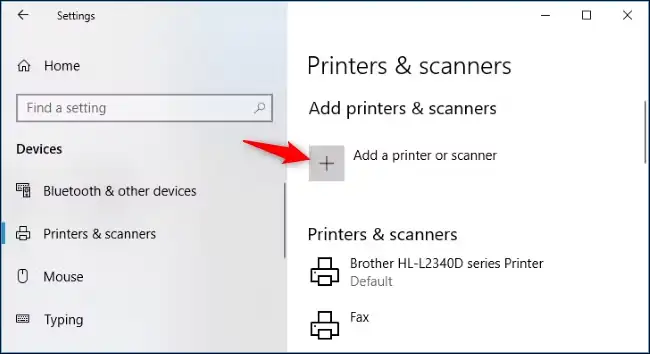
- Open Settings > Bluetooth & devices > Printers & scanners .
- If the device is absent, select Add device and choose it when Windows finds it.
- Select the device and look for Scanner settings .
- Open Windows Scan and check whether the scanner can be selected.
How to Verify
Windows exposes Scanner settings for the device, or Windows Scan lists the device as a selectable scanner. If neither occurs, continue to Method 3.
Method 2: Test with Windows Scan
When to Use
Use this method when Windows appears to recognize the scanner but the application you normally use cannot complete a scan. Windows Scan is an isolation test, not simply another scanning application.
Step-by-Step Guide
- Close applications that may be using the scanner.
- Search the Start menu for Windows Scan and open it.
- If Windows Scan is absent, install it from the Microsoft Store.
- Select the scanner from the Scanner list.
- Choose the correct source, such as Flatbed or Feeder.
- Scan one page and open the saved file.
How to Verify
If the test scan saves and opens, the issue is likely app-specific. If Windows Scan cannot find or use the scanner, continue to Method 3.
Method 3: Install the Manufacturer’s Complete Software Package
When to Use
Use this method when Windows Scan cannot find or use the scanner, or when printing works after a new setup but scanning does not. An all-in-one printer can print successfully even when its scanner software or scan component is missing because Windows may have installed basic printing support rather than the manufacturer’s complete package with scanner support.
Step-by-Step Guide
- Identify the exact printer/scanner model from the device label or menu.
- Visit the manufacturer’s official support source for that exact model.
- Select the package for the correct Windows version.
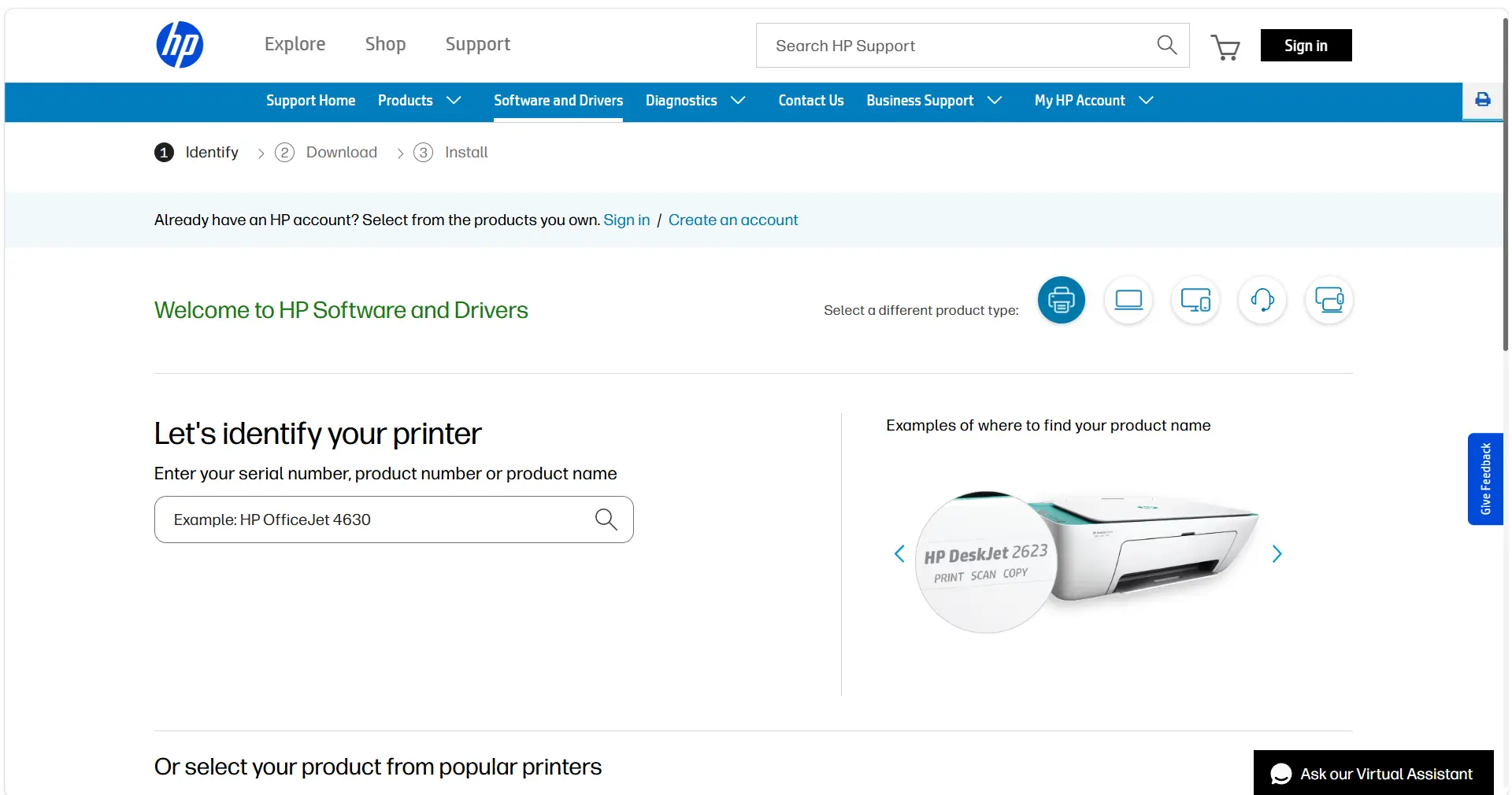
- Confirm the package explicitly includes scanner or scan support.
- Install the package according to the manufacturer’s instructions.
- Test the device again with Windows Scan.
How to Verify
Windows Scan can select the device and complete a one-page scan. If the scanner remains unavailable after the complete official installation, contact the manufacturer with the exact model and Windows version.
Method 4: Diagnose and Fix the Printer Issue with Fionn Printer Driver
When to Use
Use this workflow only when related printer-driver findings also need attention. Available product information does not confirm scanner-specific detection, repair, or scanner-driver repair capability, so a real scan test remains required.
Step-by-Step Guide
- Launch Fionn Printer Driver and click “Scan Now” to scan your computer for printer drivers and related issues.

- Wait while Fionn Printer Driver scans your system for installed printers, drivers, and common printer issues.

- After the scan finishes, click “One-Click Fix” to automatically install or repair the required printer driver.

- Wait for the repair to finish and confirm that the printer issue has been fixed successfully.

How to Verify
Confirm the reported printer finding, then scan one page in Windows Scan. If scanning is still unavailable, use Method 3 rather than treating the printer-driver result as scanner confirmation.
Verification Checklist
- Windows shows Scanner settings for the all-in-one device, or Windows Scan can select it.
- Windows Scan completes a one-page test and the saved file opens clearly.
- If Windows Scan worked, the original application is set to the same scanner and appropriate source.
- If the official package was installed, it explicitly includes scanner or scan support for the exact model.
- Printing still works after the scan test.
Conclusion
When a printer prints but scanning is unavailable, begin with the distinction that matters: printing does not prove scanner detection. Confirm the scanner in Windows, then use Windows Scan as the deciding test. A successful Windows Scan result points to the original app’s selected device or settings; a failed or missing result points to scanner detection or the manufacturer’s scanner software/component. Install the complete official package for the exact model when needed. Fionn Printer Driver can address related printer-driver findings, but only a completed scan verifies the scanner. Contact the manufacturer if the official package still cannot expose the scanner.
FAQ
Why does my printer print but not scan?
Printing proves the print path works, not that Windows detected the scanner. The scanner may be missing from Windows, the original app may be misconfigured, or the scanner component may not be installed.
How can I tell whether the scan app is the problem?
Test one page in Windows Scan. If it succeeds, the scanner and Windows scan path are working, so check the original app’s selected scanner and scan settings.
Do I need different software or a driver for scanning?
Possibly. A basic installation may support printing without providing the complete scanner software or component required by that device. Use the manufacturer package for the exact model that explicitly includes scan support.
What if Windows does not find my scanner?
Confirm the device is powered on. For USB, connect directly to the PC; for wireless, confirm the intended network. Then check Scanner settings and install the manufacturer’s complete package if Windows Scan still cannot find the scanner.


