 Emily CarterData Recovery
To recover deleted AutoCAD DWG files, check the Recycle Bin first. If the file was permanently deleted, look for an existing backup or use a data recovery scan while the deleted data may still be accessible.
If AutoCAD crashed, use Drawing Recovery Manager or a BAK or SV$ copy instead. Avoid writing new files to the affected drive until you have checked the available recovery options.
If the DWG was permanently deleted and no usable copy remains, Fionn Data Recovery can scan the original storage location for recoverable files.
How to Recover Deleted AutoCAD DWG Files: Choose the Right Method
| Situation | Recommended Method | Requirement |
|---|---|---|
| Recently deleted DWG | Recycle Bin | The file is still present. |
| Drawing lost after a crash | Drawing Recovery Manager | An available recovery entry exists. |
| Previously saved drawing | BAK or SV$ copy | An existing backup or autosave file exists. |
| Permanently deleted DWG with no usable copy | Fionn Data Recovery | Recoverable data remains accessible on the source device. |
Also check any existing cloud version history or project backup before scanning. Start with the simplest method that matches the way the drawing was lost.
Method 1: Restore a DWG from the Recycle Bin
When to use: The drawing was normally deleted from a local Windows drive, and the Recycle Bin has not been emptied.
- Open Recycle Bin from the Windows desktop.
- Find the DWG by name, deletion date, or file size.
- Select the correct
.dwgfile. - Right-click it and choose Restore .
- Open the restored drawing from its original folder in AutoCAD.
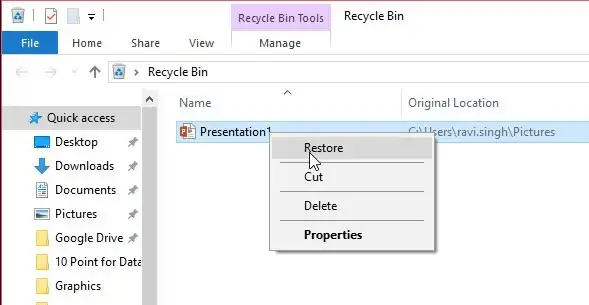
Verification: Confirm that AutoCAD opens the drawing, then use Save As to create a separate working copy.
Method 2: Recover a Drawing with Drawing Recovery Manager
When to use: AutoCAD, Windows, or the computer stopped unexpectedly while the drawing was active. Drawing Recovery Manager is for drawings involved in an application or system failure, not an ordinary deleted DWG.
- Restart AutoCAD after the failure.
- Open Drawing Recovery Manager, or enter
DRAWINGRECOVERYat the Command prompt if needed. - Expand the relevant drawing entry under Backup Files .
- Open the newest useful drawing, backup, or autosave candidate.
- Save the usable drawing under a new DWG name.
Verification: Close and reopen the newly saved DWG. An unsaved drawing may not have a recovery record.
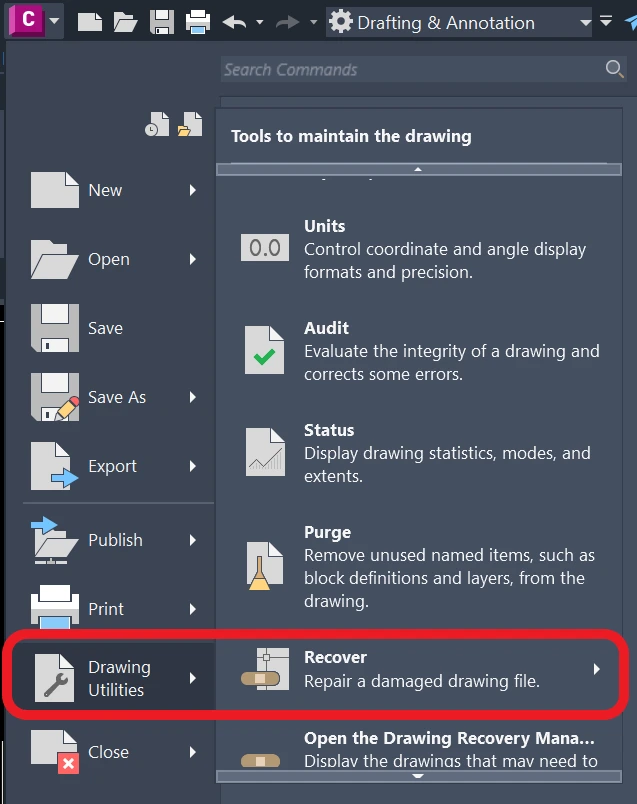
See Autodesk’s Drawing Recovery Manager instructions for the documented recovery-file behavior.
Method 3: Restore a BAK or SV$ Drawing Copy
When to use: The drawing was saved before it was lost, or AutoCAD created an autosave file before a crash. A BAK file is a previous saved version. An SV$ file is an autosaved drawing state when an autosave file exists.
- Look in the original drawing folder for a same-named
.bakfile. - Copy the BAK file to another folder.
- Rename the copied extension from
.bakto.dwg.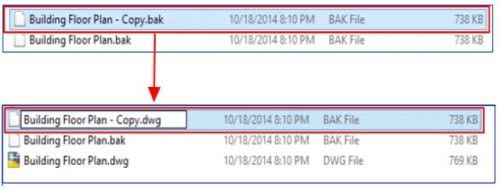
- Open the renamed copy in AutoCAD.
- Save a usable drawing under a new name.
For an SV$ file, check AutoCAD’s configured Automatic Save File Location. Copy the matching
.sv$
file, rename the copy to
.dwg
, then open and save it under a new name.
Verification: Compare layers, objects, and the saved timestamp with the expected project state. A BAK or SV$ copy can predate the final edits.
Method 4: Recover Deleted DWG Files with Fionn Data Recovery
When to use: The file is no longer in the Recycle Bin and AutoCAD recovery files or backups do not provide a usable drawing. This method is for permanently deleted DWG files when simpler recovery options are unavailable.
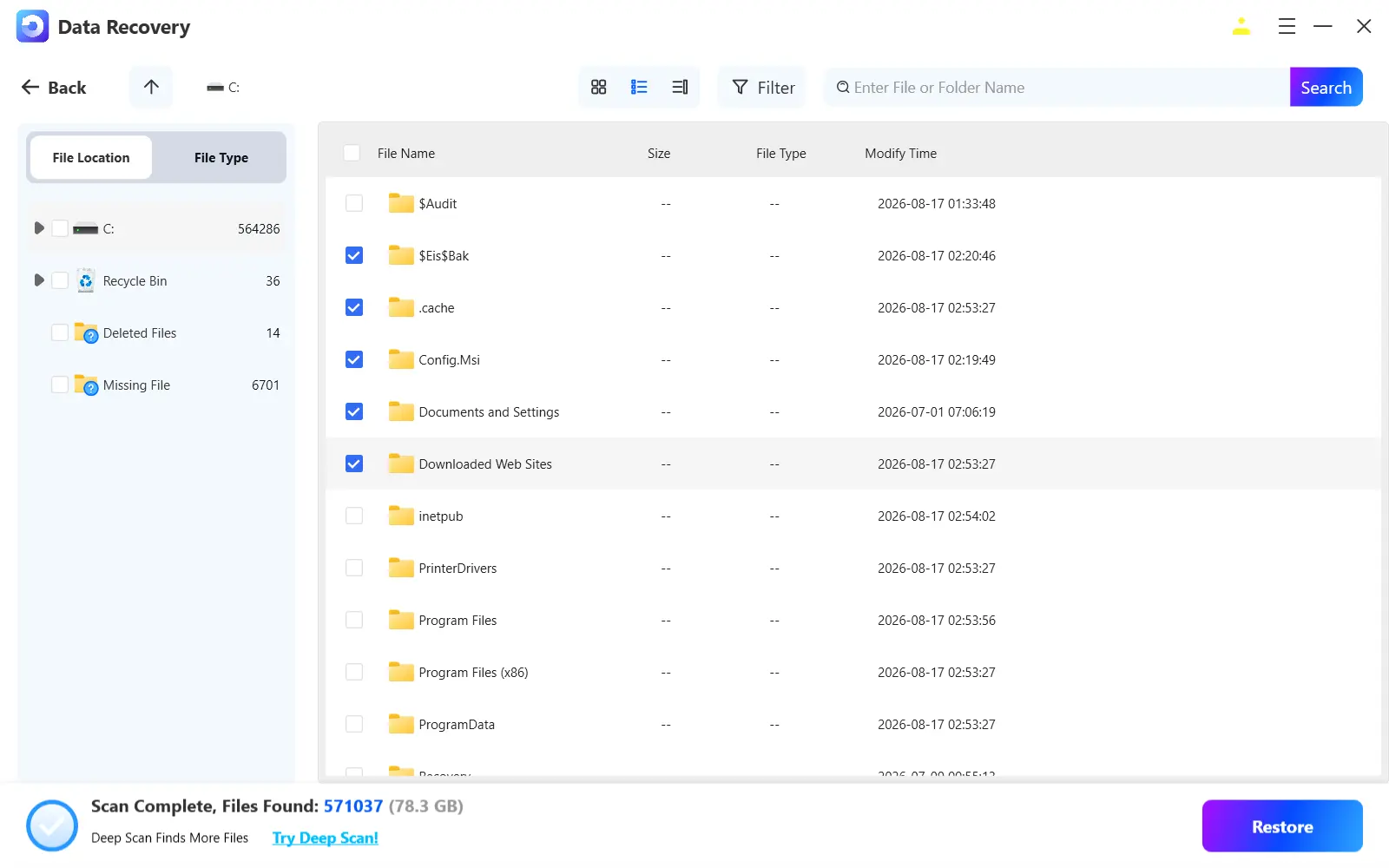
Fionn Data Recovery scans local and external storage without modifying the source data. It supports result filtering by filename, location, type, time, and size; scan results do not guarantee a complete or usable DWG.
- Choose the drive or storage location where the DWG was previously saved.
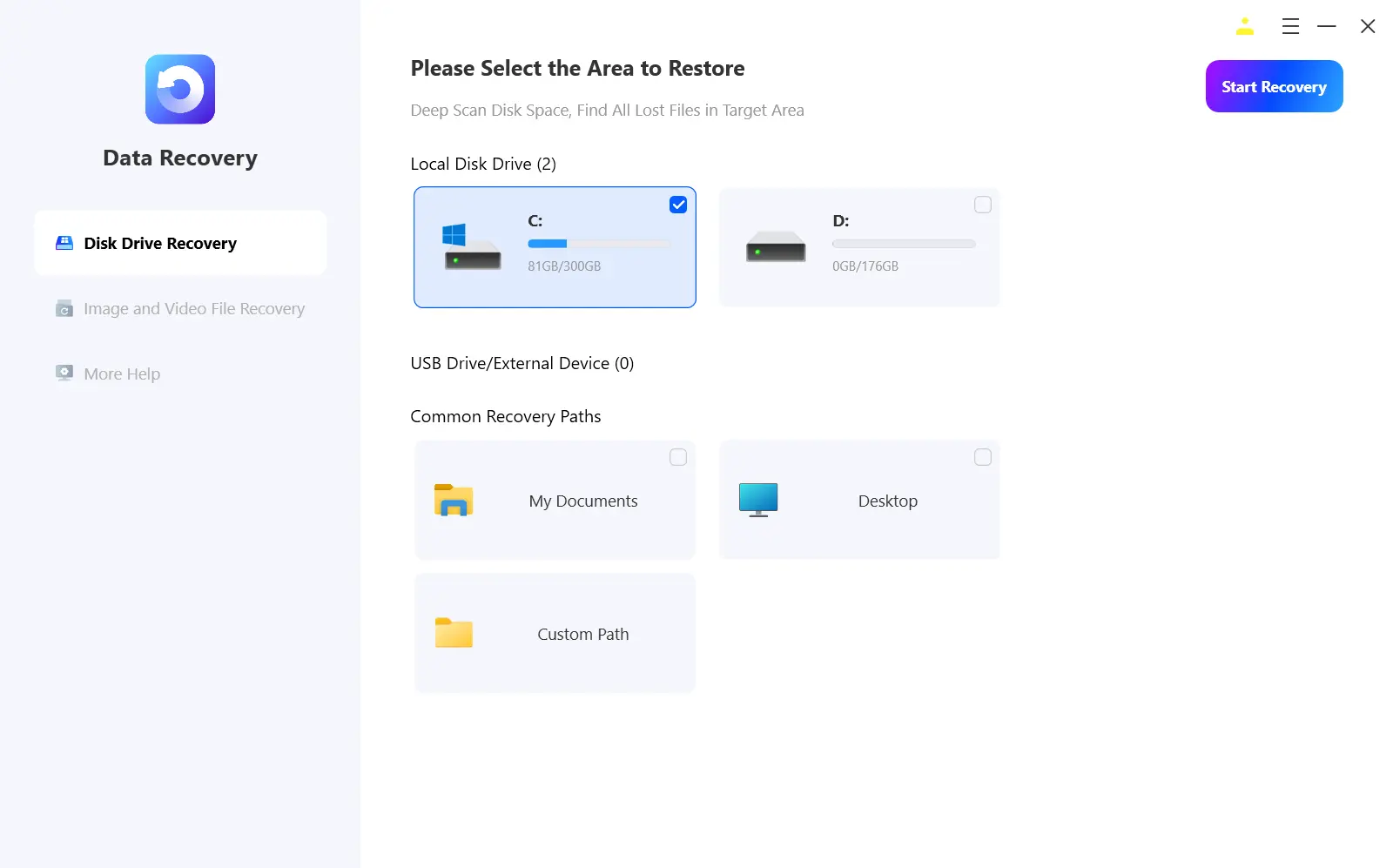
- Scan the selected location for lost or deleted files.
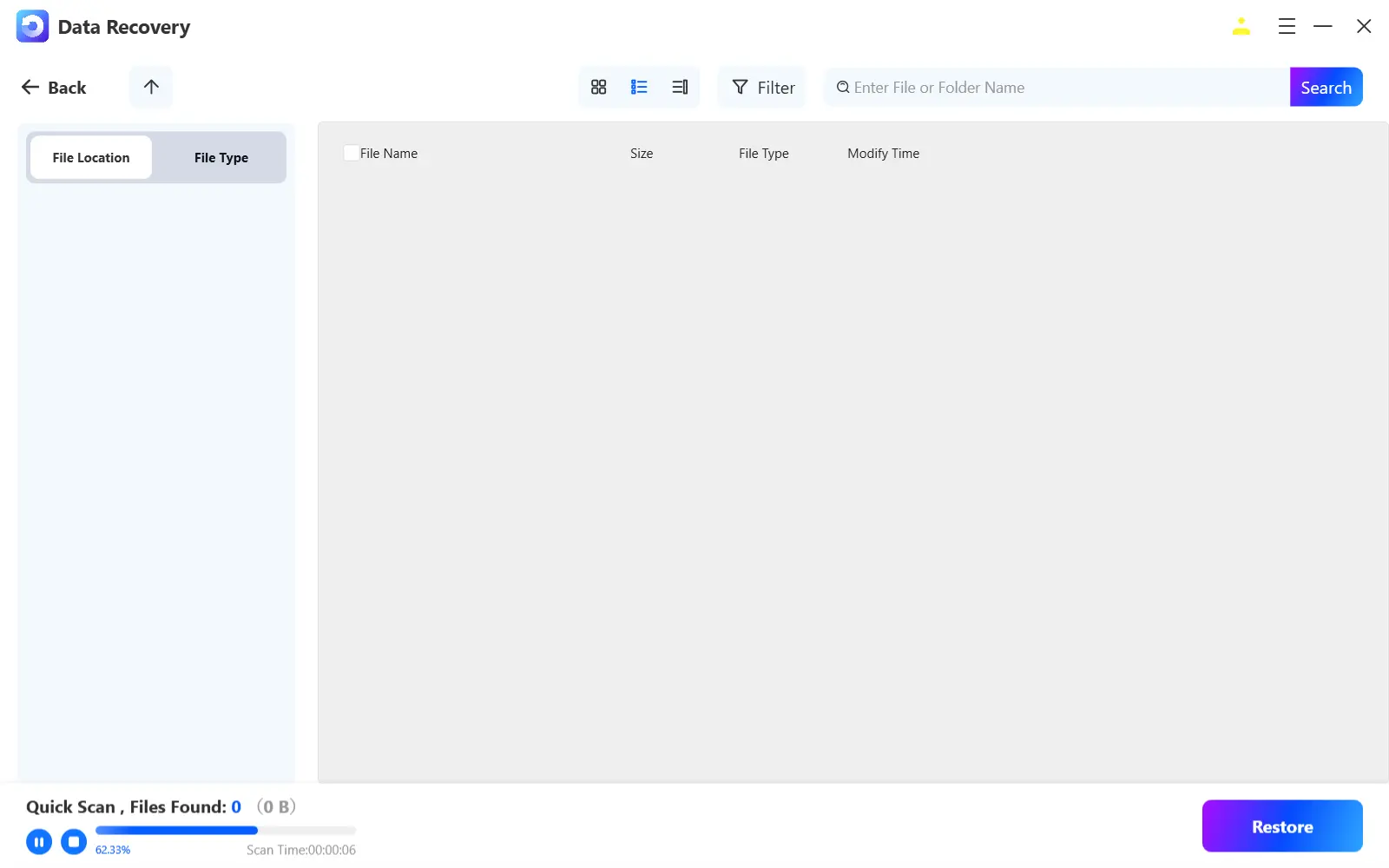
- Look for DWG candidates using supported filename, file type, location, or other available filters.
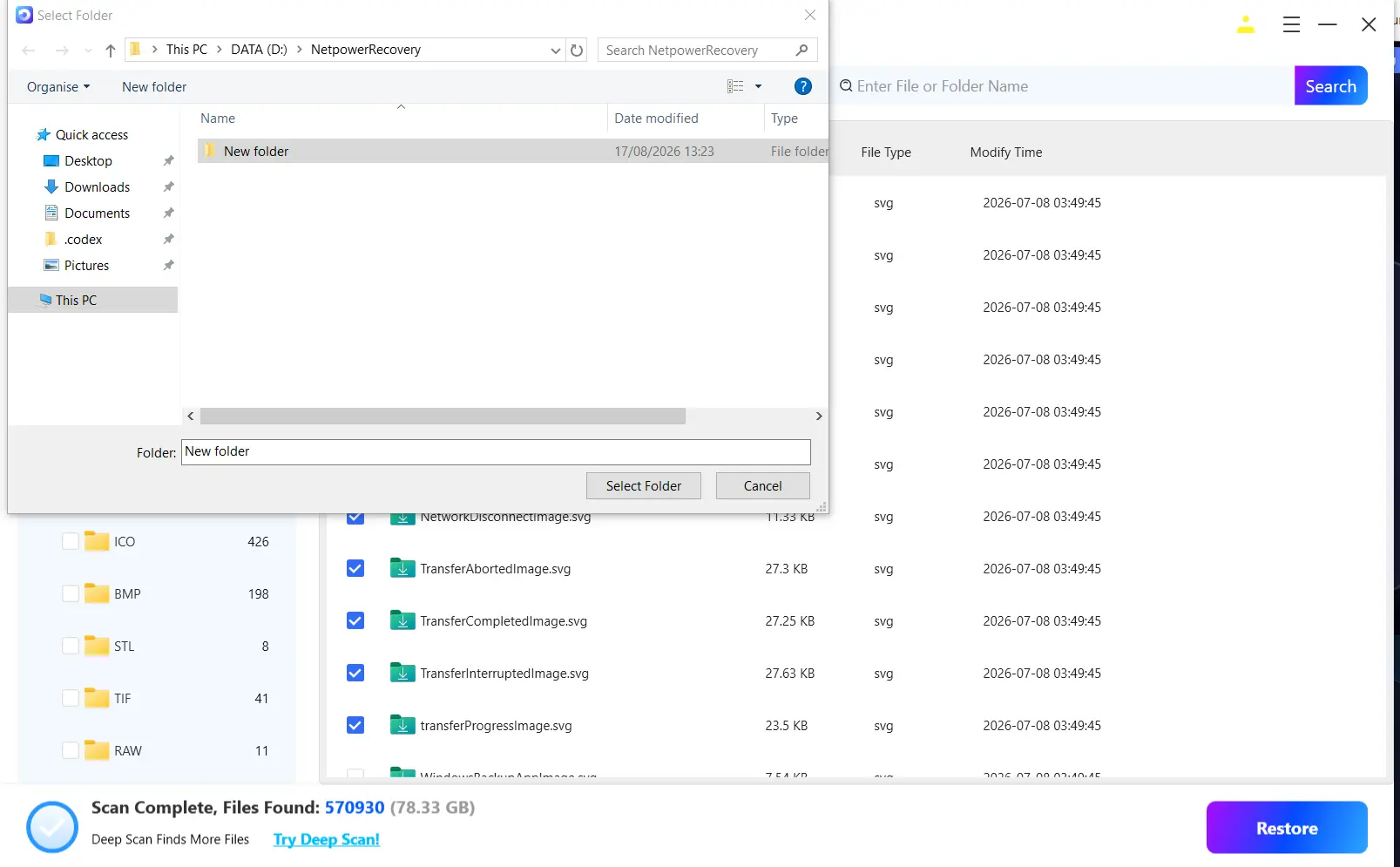
- Recover selected files to a different physical drive.
Verification: Open each recovered DWG in AutoCAD and check its drawing content. Download Fionn Data Recovery when a recovery scan is the appropriate next step.
How to Check a Recovered DWG File
- Open the recovered drawing in AutoCAD.
- Check major layers, blocks, annotations, and drawing objects.
- Review important layouts before resuming work.
- Check referenced external files if the project uses Xrefs.
- Preserve the recovered original and use Save As for further work.
If AutoCAD cannot open the recovered file, preserve the original recovered copy. You can try Autodesk’s official repair process on a duplicate, but recovery or repair cannot be guaranteed.
Conclusion
For an ordinary deletion, restore the DWG from the Recycle Bin first. For a crash, check Drawing Recovery Manager and then BAK or SV$ copies. When no usable copy remains, scan the original location with Fionn Data Recovery and save any selected results to another drive. Verify every result in AutoCAD by checking layers, objects, layouts, and Xrefs before returning it to production work.
Frequently Asked Questions
Can I recover a permanently deleted AutoCAD DWG file?
It may be possible if the deleted data has not been overwritten. Stop writing to the affected drive, check existing backups, and consider a recovery scan when no usable copy is available.
How do I recover a drawing after AutoCAD crashes?
Use Drawing Recovery Manager and enter
DRAWINGRECOVERY
if necessary. It is intended for drawings active during an application or system failure, so it may not list an unsaved or normally deleted drawing.
Where are AutoCAD SV$ autosave files stored?
They are stored in the Automatic Save File Location configured in AutoCAD. Copy a matching SV$ file elsewhere, rename the copy to
.dwg
, and open it in AutoCAD.
How do I turn a BAK file into DWG?
Copy the BAK file to a different folder first. Rename the copied extension from
.bak
to
.dwg
, then open it in AutoCAD and save a new version if it is usable.
Can Fionn Data Recovery recover deleted DWG files?
It can scan the source location for deleted files and provide filters to find candidates. Recovery depends on whether usable file data remains accessible, and a scan result is not proof that a drawing is complete.
What if a recovered DWG will not open?
Keep the recovered original unchanged and work only on a copy. You can attempt an official AutoCAD repair workflow on that copy, but it may not repair every file.


