 Emily CarterDLL Errors
xinput1_3.dll Download: How to Install It Safely on Windows
Introduction
For a safe xinput1_3.dll download , install the Microsoft DirectX End-User Runtime instead of downloading a loose DLL file. The Microsoft package includes the XInput 1.3 libraries used by some Windows programs and places the required components through an installer. Three methods are covered below: the web installer, the offline redistributable, and an optional diagnostic scan. Start with Method 1. Choose Method 2 if the web installer cannot download its files. Use Method 3 only if the official packages do not resolve recurring or multiple DLL errors.
Why xinput1_3.dll Is Missing
xinput1_3.dll
is associated with XInput 1.3, one of the legacy components included in Microsoft's DirectX End-User Runtime. A program can request this specific library even when Windows reports a newer DirectX version. Having that newer version does not prove that every optional legacy component is installed.
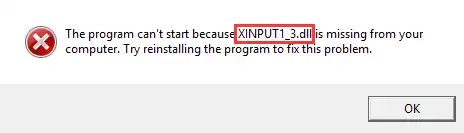
The error may appear because the required runtime was never installed, its files became damaged, or the affected program cannot load the expected dependency. The observable pattern helps narrow the next step: one failing program may have an incomplete installation, while the same error across several programs points toward a shared runtime problem.
Quick Overview: Choose the Right Method
| Situation | Recommended method | What it does |
|---|---|---|
| The computer is online and shows a missing or not-found error | Method 1 | Downloads and installs the required legacy runtime components |
| The web installer fails, or an offline installer is needed | Method 2 | Uses Microsoft's complete redistributable package |
| Errors continue or several DLL dependencies are affected | Method 3 | Runs an optional broader dependency scan |
Method 1: Use the Official xinput1_3.dll Download Package
When to Use
Use the web installer when the affected computer has a stable internet connection. Microsoft identifies XInput 1.3 among the legacy libraries installed by this package. The Download Center currently lists the installer as
dxwebsetup.exe
, version 9.29.1974.1.
Step-by-Step Guide
- Close the program displaying the
xinput1_3.dllerror. - Open the official DirectX End-User Runtime Web Installer page .
- Select
Download
and save
dxwebsetup.exe. - Open
dxwebsetup.exeand approve the Windows security prompt if it appears. - Follow the Microsoft setup instructions until installation finishes.
- Restart Windows so closed processes release any loaded runtime files.
- Open the affected program again.
How to Verify the Result
Launch the same program from the same shortcut or executable that previously failed. The method worked if the
xinput1_3.dll
message no longer appears and the program reaches its normal start screen. If setup cannot retrieve its files, continue with the offline package.
Method 2: Install the Official Offline Runtime Package
When to Use
Choose the offline redistributable when
dxwebsetup.exe
reports a download or connection failure. It is also useful when the same verified installer must be retained for an offline computer. Microsoft currently lists
directx_Jun2010_redist.exe
as a 95.6 MB download.
Step-by-Step Guide
- Close the affected program.
- Visit Microsoft's official DirectX End-User Runtimes download page .
- Download
directx_Jun2010_redist.exe. - Create an empty extraction folder, such as:
C:\DirectX-June2010 - Run the downloaded file and select that empty folder as the extraction destination.
- Open the extracted folder and run
DXSETUP.exe. - Follow the setup prompts until the installation finishes.
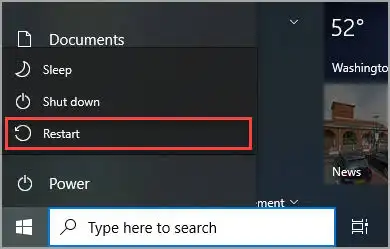
- Restart Windows and reopen the affected program.
How to Verify the Result
Check whether the original missing-file message is gone. If several programs previously failed, test one additional affected program. Success across both programs indicates that the shared runtime was the likely issue. If only one program still fails, reinstall that program from its original source before changing system files.
If the official runtime is present but the errors remain broad or inconsistent, an optional dependency scan can provide a more targeted next step.
Method 3: Use Fionn DLL Fixer for an Optional Diagnostic Scan
When to Use
Use this optional method after the Microsoft installers when errors persist, several DLL names are reported, or the cause remains unclear. The tool can scan for missing, damaged, or version-mismatched DLL issues, including XInput dependencies and System32 path-related problems. It does not replace the official runtime methods above.
Step-by-Step Guide
- Launch Fionn DLL Fixer. The software automatically scans your PC for DLL and system issues and displays the detected results when the scan is complete.

- After the scan finishes, click
Repair
to start fixing all detected DLL and system issues automatically.

- Wait while the repair is in progress. During this process, the button changes to
Fixing
until all issues have been repaired.

- When the repair is complete, click
Ok
in the confirmation dialog. If prompted, restart your computer before checking whether the problem has been resolved.

- If the issue still persists after restarting, click
Recheck
to perform another scan. If new issues are found, click
Repair
again to fix them.

How to Verify the Result
Review the recheck result, then launch the same program that produced the error. A successful outcome requires both a completed repair or clean recheck and normal program startup. A scan result alone does not prove that the original problem is resolved.
Tips and Common Mistakes
- Match the method to the symptom: use the web installer for a normal online repair and the redistributable for an offline or failed-download scenario.
- Verify through the affected program: finding a DLL on disk does not confirm that the program can load it.
- Do not register the file manually: the official installer manages this runtime package without unsupported registration commands.
- Keep the scope narrow: if every other program works after runtime installation, repair or reinstall the one remaining program from its original source.
Conclusion
The safest order is the Microsoft web installer first, followed by the official offline redistributable if downloading fails. Avoid standalone DLL sites and manual system-folder copying. Verify every method by reopening the exact program that displayed the error. If one program alone still fails, reinstall it from its original source or contact its publisher. If several dependency errors continue after the official packages, Fionn DLL Fixer provides an optional scan, repair, and recheck workflow for further diagnosis.
Frequently Asked Questions
Can I download xinput1_3.dll as a single file?
A single-file download is not the recommended approach. Use Microsoft's DirectX End-User Runtime, which includes XInput 1.3 components and installs them through a verified package. This avoids relying on an unknown DLL source or manually choosing a Windows system folder.
Why is xinput1_3.dll missing when a newer DirectX version is installed?
The library belongs to an optional legacy runtime set. Microsoft's installer adds those side-by-side components without replacing or downgrading the DirectX runtime built into Windows. A newer DirectX version and the presence of every legacy library are separate conditions.
Should I choose the web installer or the offline package?
Choose
dxwebsetup.exe
for a connected computer and the complete redistributable when the web installer cannot download files. The offline package is much larger because it contains the components locally rather than retrieving them during setup.
Where should I copy xinput1_3.dll on Windows 10 or 11?
Do not manually copy the file into a system directory. Run the official Microsoft installer and let it place the required components. This reduces the risk of using an incompatible file or putting a valid file where the affected program will not load it correctly.
What should I do if the error remains after installation?
Restart Windows and retest first. If only one program fails, reinstall that program from its original source. If multiple programs report DLL or dependency errors, use a broader diagnostic scan or contact qualified support instead of downloading additional loose DLL files.


