 Emily CarterDLL Errors
A Bad Image error means Windows found a DLL or EXE while loading an application but could not treat that module as a valid, compatible Windows image. The dialog often says the file is either not designed to run on Windows or contains an error. It is not automatically a missing-DLL problem. Start with the file named in the message: repair its owner when one app fails, check Windows files when several apps fail, and use a guided scan when DLL or runtime diagnosis is unclear. This guide covers three repair paths, from targeted repair to system checks.
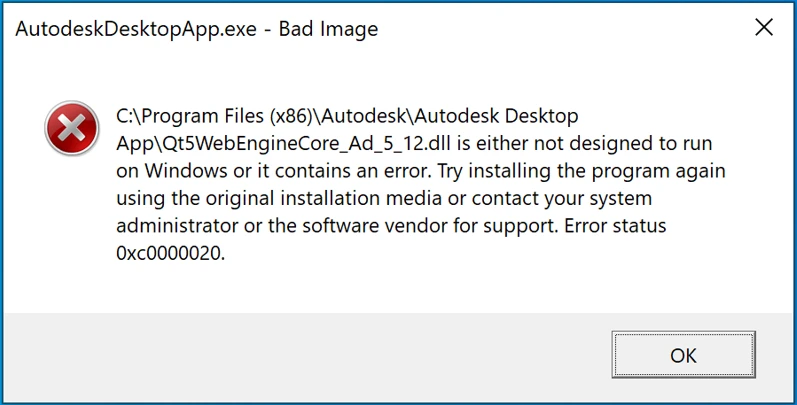
Symptoms of a Bad Image Error
- An app or game fails at launch and displays Bad Image .
- The dialog names a DLL or EXE and says it is not designed to run on Windows or contains an error.
- The error may include
0xc000007b, which can indicate an invalid image format. - The same error may affect one application, or several unrelated programs after a system or component problem.
Bad Image vs. Missing DLL
| Error | What It More Often Means |
|---|---|
| DLL was not found | The required file cannot be located. |
| Bad Image | The file exists but Windows cannot load it correctly. |
0xc000007b
| Invalid image format; architecture or module compatibility can be involved. |
| Entry Point Not Found | An API or version compatibility problem is more likely. |
These messages can share causes, but the wording changes the first repair target. Do not replace a named DLL with a random download.
Quick Diagnosis Checklist
- One app fails and the named DLL is in that app’s folder: use Method 1 to repair or reinstall that application from its official source.
- The dialog names a Microsoft Visual C++ runtime file: use Method 1 to repair or reinstall the official Visual C++ Redistributable that supplies it.
- The dialog names a Windows system DLL, or several apps fail: use Method 2 for DISM and SFC.
- The file belongs to a plugin, driver, or add-on: repair or reinstall that specific component first; then use Method 3 if DLL and runtime diagnosis remains unclear.
Quick Method Comparison
| Method | Best For | Efficiency | User Effort |
|---|---|---|---|
| Repair the named component | One app, runtime, plugin, or driver is identified | High when ownership is clear | Low to medium |
| DISM and SFC | Windows system DLLs or multiple affected apps | Broad system check | Medium |
| Fionn DLL Fixer | DLL, runtime, or dependency diagnosis is unclear | Guided scan and repair | Low |
Can an x86/x64 Mismatch Cause a Bad Image Error?
Yes. A 64-bit process cannot load a 32-bit DLL, and a 32-bit process cannot load a 64-bit DLL. That mismatch can produce a Bad Image error or
0xc000007b
, but the code does not prove an architecture mismatch by itself. Corruption, an incorrect runtime version, or an incompatible module can also be responsible. Use the app developer’s installer and the matching official runtime package rather than copying DLLs between folders.
Method 1: Repair the Component Named in the Error
When to use: Only one application fails, or the named file clearly belongs to the app, a Microsoft Visual C++ runtime, a plugin, or a driver.
Step-by-Step Guide
- Copy the complete error message and the file path or file name it identifies.
- Identify the file owner: the app’s installation folder, a Microsoft Visual C++ runtime, a Windows folder, or a third-party plugin or driver.
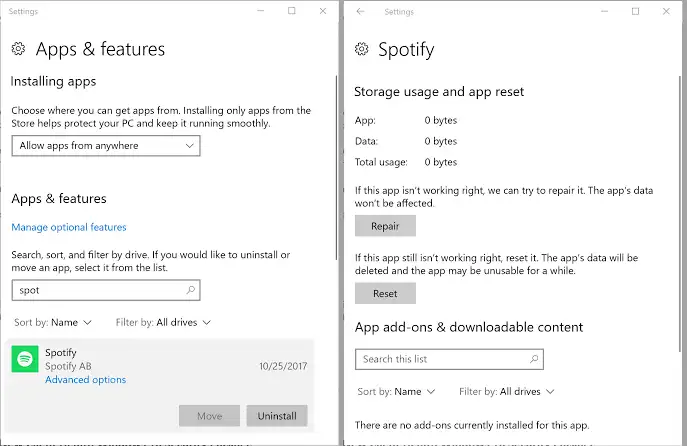
- For an app-local DLL, open Windows Settings, select Apps , and open the app’s advanced options if available.
- Select Repair , then launch the app; if Repair is unavailable or fails, reinstall the app from the developer’s official source.
- For a Visual C++ runtime, plugin, or driver, repair or reinstall the official package for that component instead of the application alone.
How to Verify: Launch the same app from its usual shortcut. If the Bad Image dialog no longer appears, the targeted component repair worked. If the same app still names the same local file, provide the full message to that component’s developer.
Method 2: Repair Windows System Files with DISM and SFC
When to use: The named file is a Windows system DLL, several programs show Bad Image errors, or Windows features are also unstable.
Step-by-Step Guide
- Search for Command Prompt and select Run as administrator .
- Run this command and wait for completion:
DISM.exe /Online /Cleanup-image /Restorehealth
- Run this command after DISM completes:
sfc /scannow - Wait until SFC reaches 100%.
- Restart Windows and test the affected application.
How to Verify: Reopen the app that failed and, if relevant, another affected app. If SFC reports unrepaired files or the error continues, follow Microsoft’s System File Checker instructions before escalating the issue.
Method 3: Diagnose and Fix Bad Image Errors with Fionn DLL Fixer
When to use: A DLL, runtime, graphics dependency, or version mismatch may be involved and manual ownership checks have not identified a clear repair target. Recommended: Fionn DLL Fixer can scan detected DLL and system issues, run a repair, and recheck the result.
Step-by-Step Guide
- Launch Fionn DLL Fixer. The software automatically scans your PC for DLL and system issues and displays the detected results when the scan is complete.

- After the scan finishes, click
Repair
to start fixing all detected DLL and system issues automatically.

- Wait while the repair is in progress. During this process, the button changes to
Fixing
until all issues have been repaired.

- When the repair is complete, click
OK
in the confirmation dialog. If prompted, restart your computer before checking whether the problem has been resolved.

- If the issue still persists after restarting, click
Recheck
to perform another scan. If new issues are found, click
Repair
again to fix them.

How to Verify: Restart when prompted, then launch the affected application. A launch without the original dialog is the observable result. If the error remains, save the Recheck result and the complete error message for the app developer or Microsoft support.
Verification Checklist
- Launch the exact app or game that previously showed the Bad Image error.
- Confirm that the dialog and its named module do not return.
- If multiple apps failed, test at least one other affected application.
- Restart Windows when the chosen repair requires it, then repeat the launch test.
- If the error persists, record the full text, error code, named file, file path, and the app version before contacting support.
Conclusion
Handle a Bad Image error according to the file Windows is trying to load. If one app names a file in its own folder, repair or reinstall that app. If the message points to a Microsoft Visual C++ runtime, plugin, or driver, repair the component that owns it. Use DISM and SFC for Windows system DLLs or multiple affected apps. When dependency diagnosis is unclear, Fionn DLL Fixer provides a guided scan, repair, and recheck path. Verify every repair by reopening the original app; if it fails again, send official support the complete dialog and file details.
FAQ
What does a Bad Image error mean?
It means Windows found a module needed by an application but could not load it as a valid or compatible Windows image. The file may be corrupted, incompatible, or incorrectly installed.
Does 0xc000007b always mean x86/x64 mismatch?
No. It can indicate invalid image format, and an architecture mismatch is one possible cause. A damaged or incompatible module can produce similar symptoms.
Should I download the DLL named in the error?
No. Repair the app or official component that supplies the file. A standalone DLL can be the wrong version or architecture.
Which repair should I use for a Visual C++ runtime file?
Repair or reinstall the official Microsoft Visual C++ Redistributable that owns the runtime, then test the affected app.
When should I run DISM and SFC?
Use them when a Windows system DLL is named, multiple unrelated apps fail, or Windows features are unstable. Run DISM first, then SFC.


