 Emily CarterData Recovery
Introduction
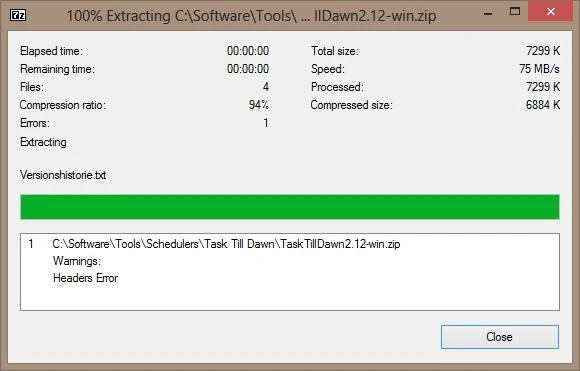
A headers error in 7-Zip indicates that the archive’s structural information cannot be read or validated correctly. For a 7z archive, this can involve the Start Header, End Header, or metadata used to locate compressed files. The error does not automatically mean every compressed file is lost. First check whether 7-Zip can display the archive’s file list, then run its Test function and use the result to choose one of the four paths below, from diagnosis to recovery of previously lost source files.
Symptoms
- 7-Zip reports
Headers Errorwhen opening, testing, or extracting one archive. - The archive cannot show a file list, or the visible list is incomplete.
- 7-Zip shows
Data ErrororCRC Errorafter listing files. - A numbered archive set, such as
archive.7z.001, is incomplete or has an unexpected file size.
This issue normally affects the specific archive copy or its parts, not every application or all of Windows.
Quick Diagnosis Checklist for Headers Error 7zip
| What you observe | What it suggests | Next step |
|---|---|---|
| 7-Zip cannot display the archive file list | Headers, metadata, archive completeness, or volumes need investigation. | Use Method 1, then Method 2 if the archive is split. |
| 7-Zip displays files, but Test reports Data or CRC Error | The compressed data may be affected; do not assume the whole header is unreadable. | Use Method 3 and verify extracted output. |
The archive uses
.7z.001
,
.7z.002
, and later parts
| The multipart set may be incomplete. | Use Method 2.
 |
| The file was downloaded or copied recently | The received copy may differ from the source. | Compare its size or checksum with the source and obtain a verified copy. |
| Some files extract successfully | Only those output files can be evaluated individually. | Use Method 3. |
| The local originals were deleted or lost | This is a separate data-loss scenario. | Use Method 4. |
Quick Method Comparison
| Method | Best For | Efficiency | User Effort |
|---|---|---|---|
| Test the archive | Identifying the reported failure | Fast | Low |
| Check all parts | Split 7z archives | Fast | Low |
| Extract readable files | Archives that still list accessible entries | Targeted | Moderate |
| Recover lost originals | Previously local source files that were deleted or lost | Storage-dependent | Low |
Method 1: Test the Archive with 7-Zip
When to use:
Start here for the exact archive copy that reports an error. The official 7-Zip
test command documentation
confirms that
t
tests archive files.
Step-by-Step Guide
- Open 7-Zip File Manager.
- Locate and select the affected archive.
- Choose
Test
.
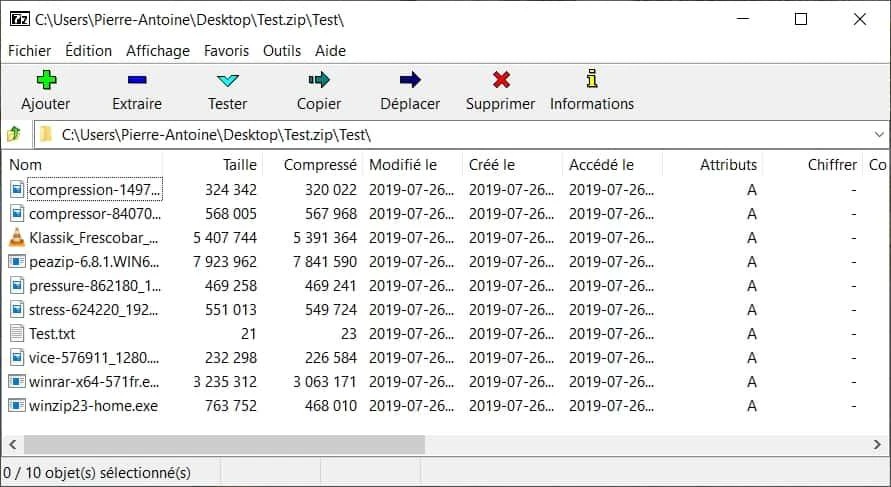
- Read the reported result.
- Record the exact error message before continuing.
As an optional command-line path, run the following only when a usable 7-Zip command-line executable is installed and available:
7z t "archive.7z"
How to Verify
A successful test means the archive passed the performed integrity test; if extraction still fails, check the separate extraction conditions. A Headers Error points to archive structure, completeness, or missing volumes. A Data Error or CRC Error points to affected compressed data, so verify any extracted files individually.
Method 2: Check All Parts and the Archive Filename
When to use: Use this for a multipart 7z archive or when the source provides numbered files. In many split archives, intermediate volumes have a consistent configured size while the final volume may be smaller. A complete-looking filename sequence alone does not prove data integrity.
Step-by-Step Guide
- Place every required part in the same folder.
- Check that the numbered sequence has no gaps and that the files belong to the same archive set.
- Check that no part is zero-byte or unexpectedly incomplete, and compare source sizes or checksums when available.
- Open or test from the correct first part. For a split 7z archive, 7-Zip documents this example; it is not a general command for every split format.
7z t -t7z.split "archive.7z.001"
How to Verify
You have completed this method when every expected part is present and the test begins from the first volume. If a volume is missing, obtain that exact part or a clean complete set from the original source. Renaming files cannot repair missing or damaged data.
Method 3: Extract the Readable Files to a New Folder
When to use:
Use this only when 7-Zip can access at least some entries. Being able to list a file does not guarantee successful extraction. In solid archives, multiple files can share compressed data, so damage to one shared block can affect several visible entries. The official
extract command documentation
explains that
x
extracts full paths to an output directory.
Step-by-Step Guide
- Keep the original archive unchanged.
- Create a separate destination folder.
- Attempt extraction of entries that 7-Zip can access.
- Record any Data, CRC, or Headers Error.
7z x "archive.7z" -o"D:\RecoveredFromArchive"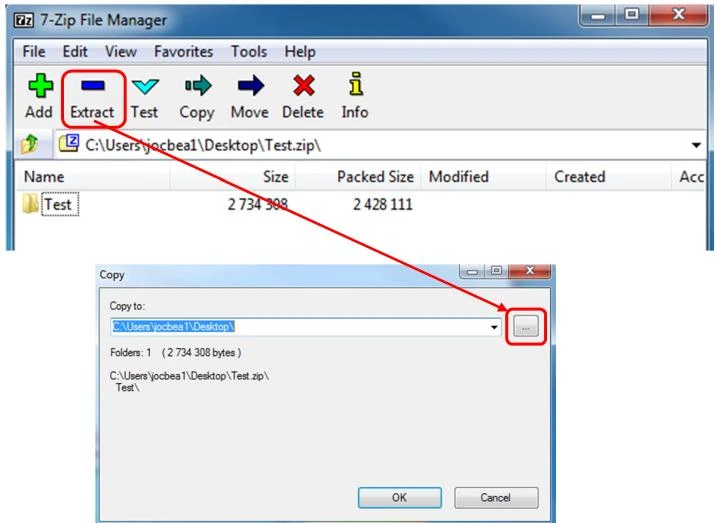
- Verify important extracted files individually.
How to Verify
Open the extracted files in their normal applications and check that their content is usable. Do not delete the archive because a subset extracted successfully. If 7-Zip cannot display any file list, this ordinary extraction path may not be available.
Can a 7z Archive Be Recovered if Its Headers Are Damaged?
Recovery depends on which header and data structures remain intact. A damaged Start Header and a missing End Header can have different consequences. Advanced recovery techniques exist, but they are not guaranteed, and a clean original copy is generally preferable when available. Do not modify the only existing copy.
Method 4: Recover Lost Source Files with Fionn Data Recovery
When to use: Use this separate path only when original documents, photos, or media previously existed on local supported storage and were later deleted, lost, formatted, or affected by storage damage. Fionn Data Recovery does not repair damaged 7z headers. It cannot recover files that existed only on someone else’s computer or a remote server.
Step-by-Step Guide
- Launch Fionn Data Recovery and select the recovery option for the relevant data type or storage location.

- Start the automatic scan and wait while it searches the selected location.

- Browse the results and preview the files you want to restore.

- Choose a destination on a different disk and start recovery.

How to Verify
Open recovered copies from the destination disk and confirm they are usable. Avoid writing new data to the source storage before recovery, because new writes can overwrite recoverable data.
Verification Checklist
- The test result is recorded for the exact archive and location.
- Every required split part is present, with no sequence gap.
- Any extracted output opens outside 7-Zip and is usable.
- The original archive remains preserved until results are checked.
- Recovered source files, if any, are saved to a different disk and open correctly.
Conclusion
Start by checking whether 7-Zip can list files, then test the exact archive copy. A Headers Error calls for structural, source-copy, and multipart checks; Data or CRC errors call for careful extraction and file-by-file verification. If accessible entries remain, extract them to a new folder without changing the original archive. When the local originals were separately deleted or lost, Fionn Data Recovery can search the original storage; it does not repair archive headers. If the archive set remains incomplete, ask the sender or publisher for a verified complete copy.
FAQ
What does Headers Error mean in 7-Zip?
It means 7-Zip cannot correctly read or validate required archive structural information, such as headers or metadata used to locate compressed files.
Does Headers Error always mean the archive is corrupted?
No. Missing volumes, an incomplete copied file, or missing metadata can lead to this result. Check the file list, Test output, and complete archive set.
Can I extract files when 7-Zip reports Headers Error?
Sometimes. If entries remain accessible, extract them to a separate folder and verify each important output file. Listing an entry alone is not proof that it will extract successfully.
What is the difference between Headers Error and CRC Error?
Headers Error concerns archive structure or metadata. CRC Error indicates an integrity check failed while data was read or extracted.
Can a missing .7z.002 file cause a Headers Error?
Yes. A missing part can prevent 7-Zip from processing a multipart set correctly. Obtain the exact missing volume from the original source.
Can Fionn Data Recovery repair 7z headers?
No. It is a separate option for recovering original files that were previously stored locally and then deleted, lost, or affected by storage damage.


