 Emily CarterPrinter Drivers
An Epson L3550 driver lets Windows communicate with the printer. The EcoTank L3550 supports USB, Wi-Fi, and Wi-Fi Direct, and Epson lists Windows 10 (32/64-bit) and Windows 11 or later among its compatible operating systems. You can use Fionn Printer Driver , Epson’s support page, or Windows Settings to install it. Finish with a Windows test page: a completed download alone does not confirm that the printer can print.
Before You Install
Confirm the full model name on the printer, turn it on, and identify whether you will connect by USB or Wi-Fi. For USB, connect the printer directly to the PC. For Wi-Fi, connect the printer and Windows PC to the same wireless network before adding it. Selecting a near-match model instead of the exact L3550 can prevent a correct setup.
Install the Epson L3550 Driver with Fionn Printer Driver
Use this guided route when you want the app to scan for a matching driver. Fionn Printer Driver supports Windows 10 and Windows 11, supports Epson among popular printer brands, and can identify missing or outdated printer drivers. It is most useful when you want to confirm the exact detected model before installing.
- Turn on the printer and connect it to the computer. Open Fionn Printer Driver, select
Auto install
in the sidebar, and click
Scan Now
.
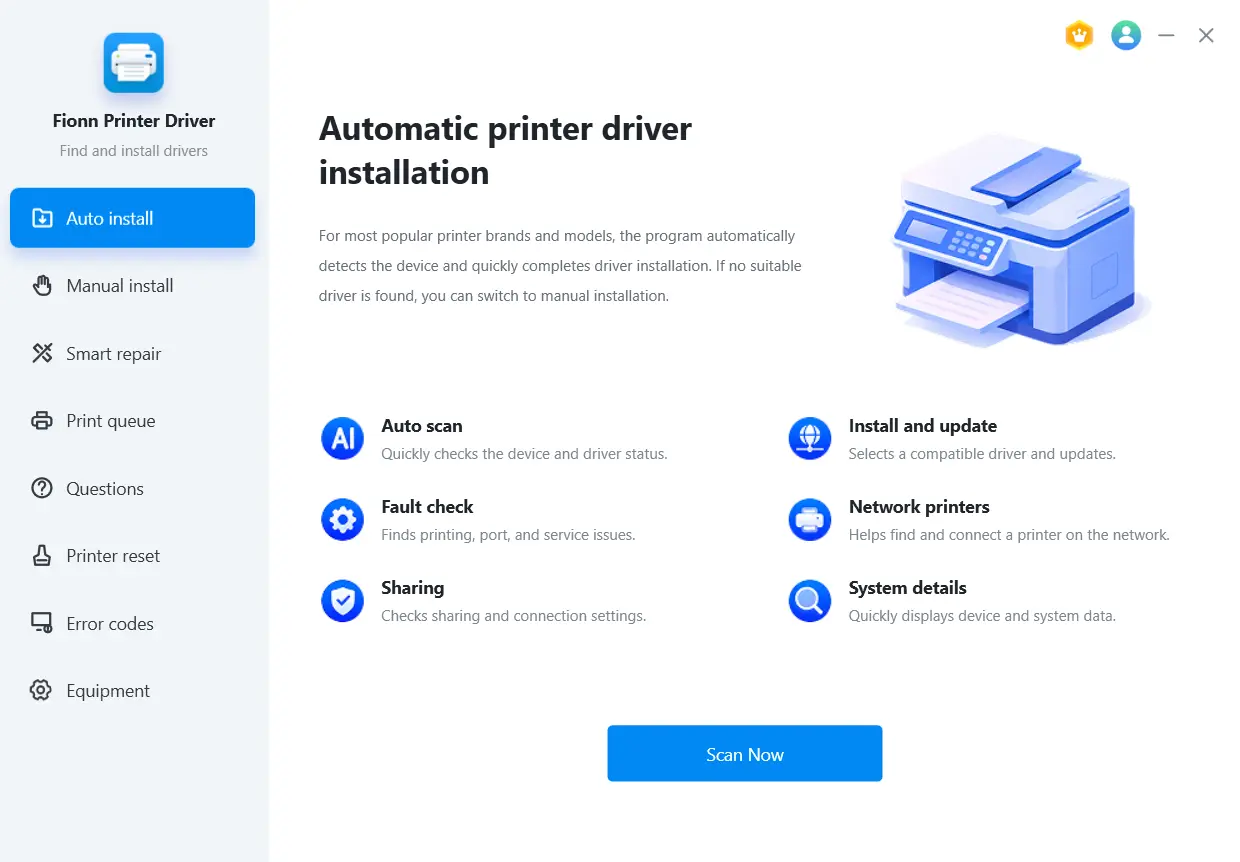
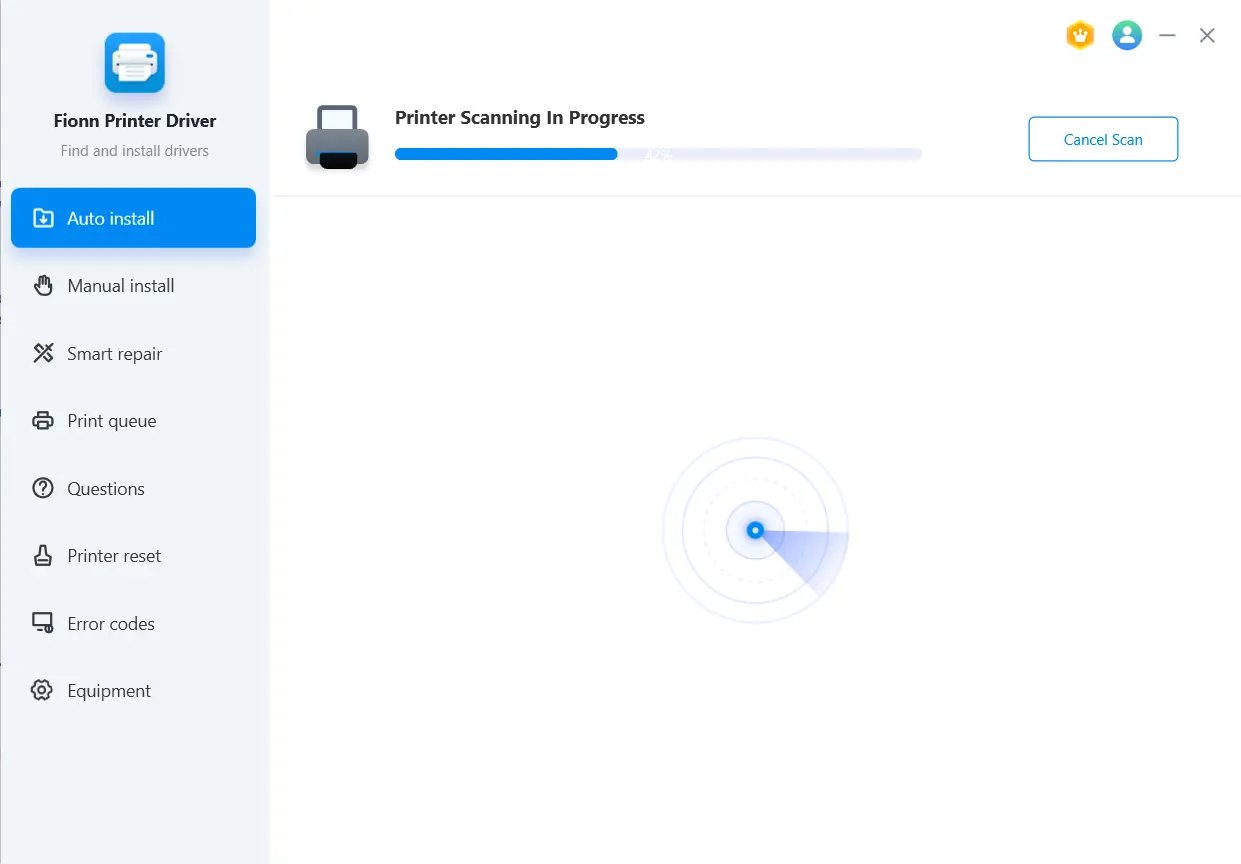
- Keep the printer connected while the scan runs. Wait for the detected printer and driver list to appear.
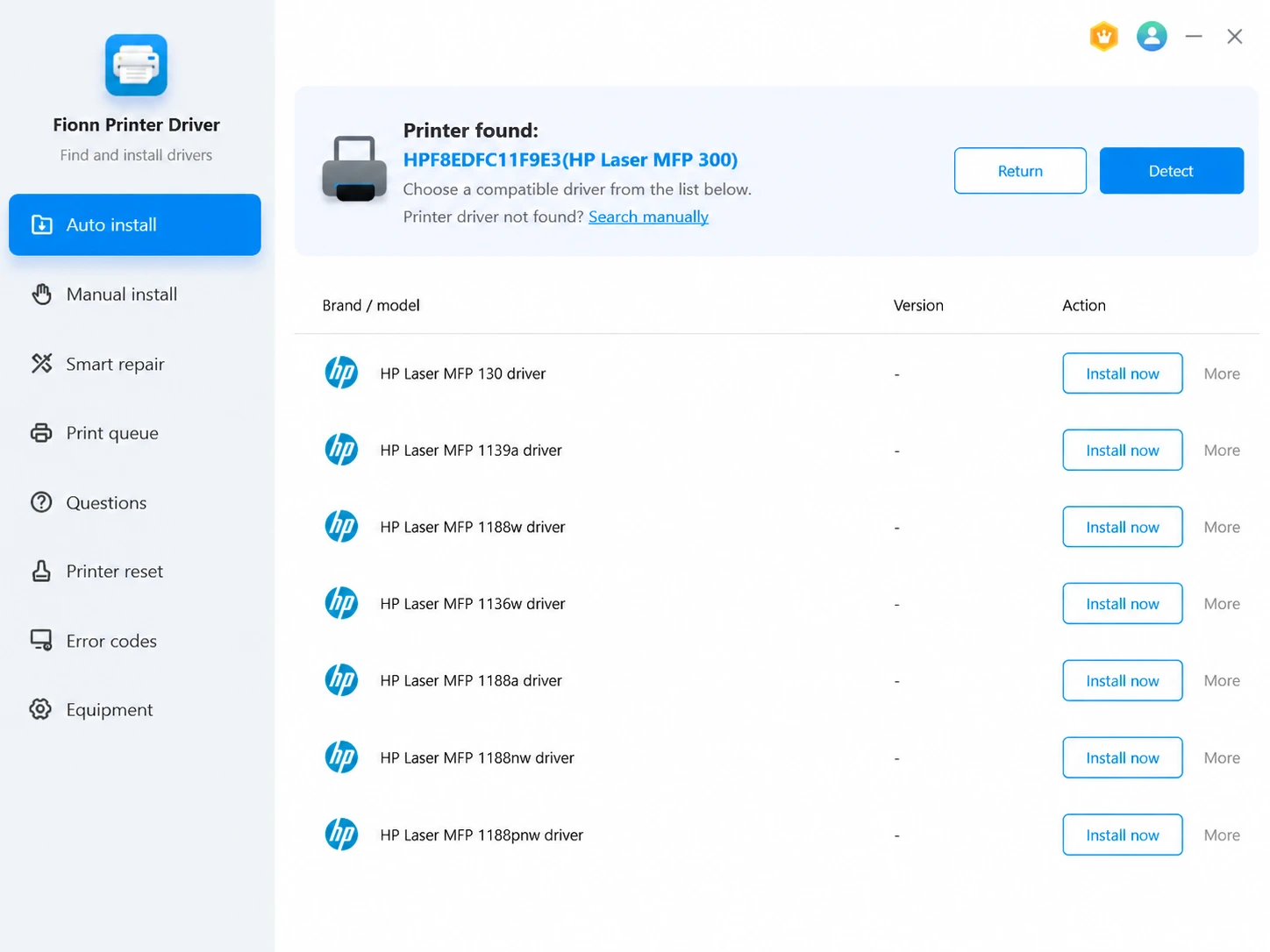
- Confirm the printer’s exact model, then click
Install now
beside the matching driver. If no match appears, click
Search manually
and look up the full model name.
- When the dialog shows
Download Complete
, click
Install & Fix Drivers
and follow the prompts. After installation, print a test page from Windows to confirm that the printer works.
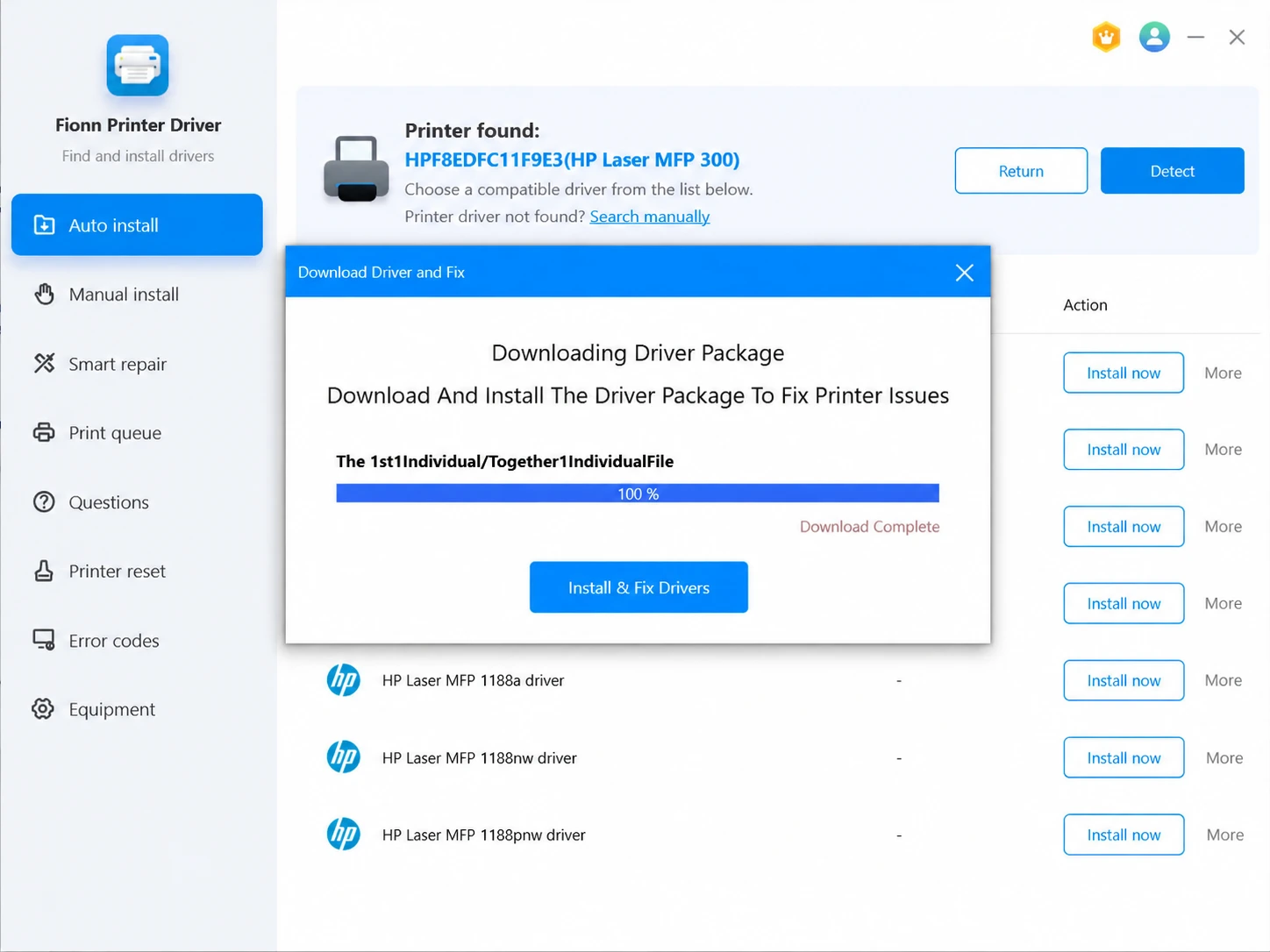
The completed download confirms that the app action finished; it does not by itself confirm a working printer. Continue to the verification steps below and print a Windows test page.
Use Epson’s Official L3550 Support Page
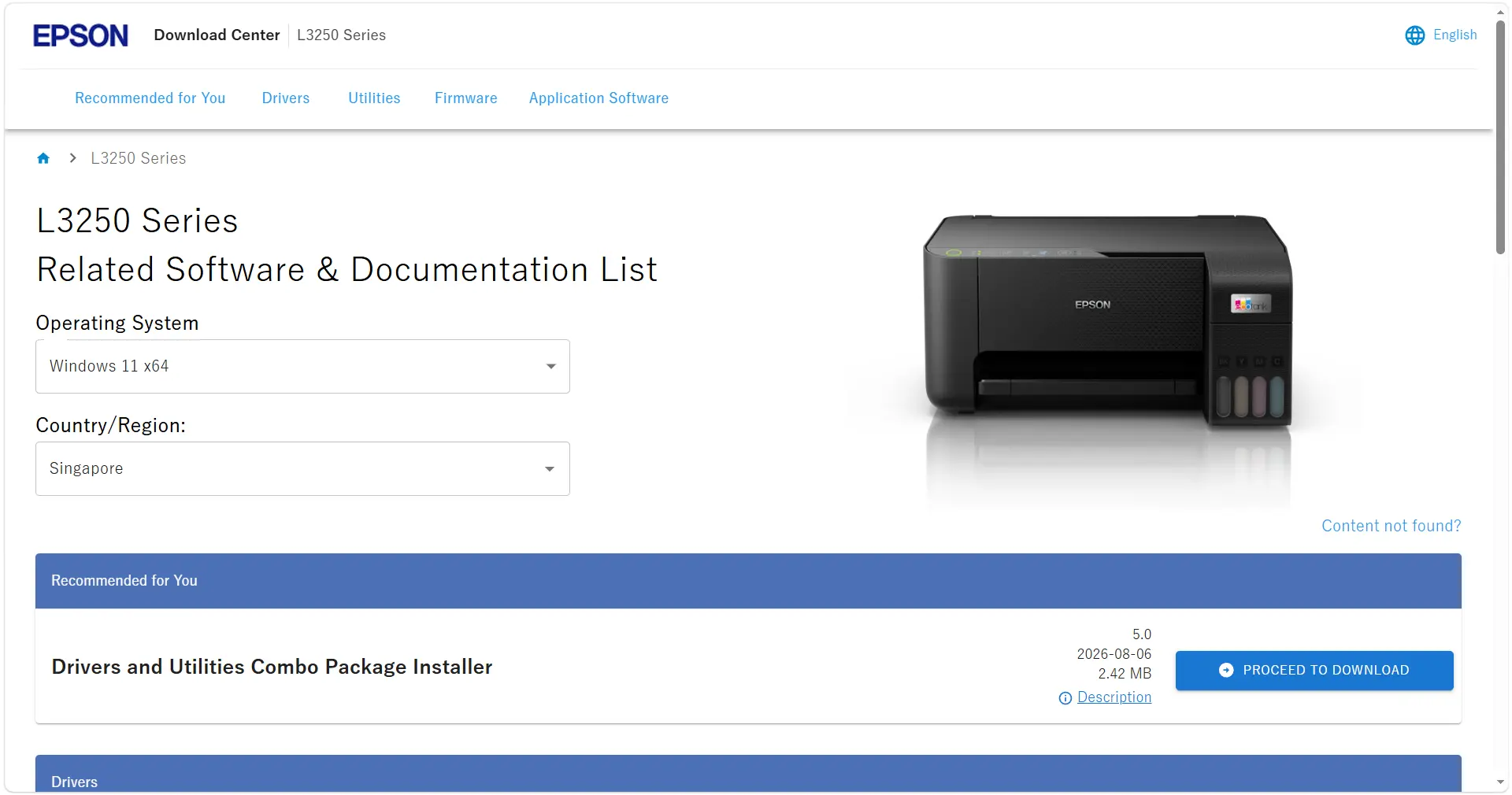
Choose this route when you prefer to select the download yourself. The official Epson L3550 support page offers downloads, videos, FAQs, and manuals/documentation.
- Confirm that the printer label says Epson L3550 and check whether the PC uses Windows 10 or Windows 11.
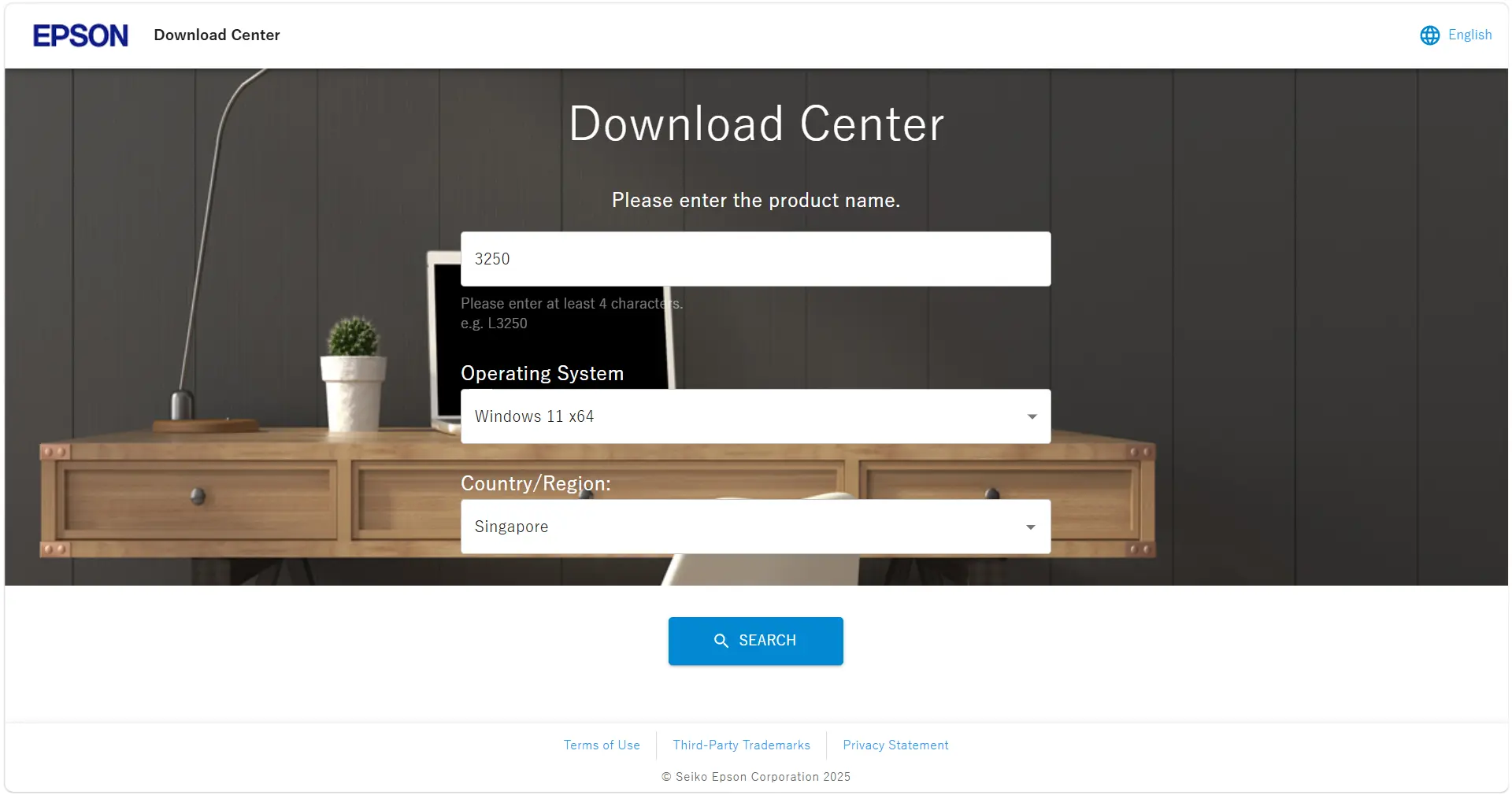
- Open Epson’s official L3550 support page and select the operating system that matches the PC.
- Download only a driver package that Epson explicitly offers for that model-and-Windows combination.
- Follow the selected package’s instructions.
- After installation, use Windows Update to check for available driver updates, then print a Windows test page.
The retrieved documentation does not identify a specific current L3550 package name or version. Do not substitute a similarly named L35xx package unless Epson presents it for your exact model and Windows version.
Add the Epson L3550 Through Windows Settings
This route is useful when the printer is already connected and Windows can discover it. Microsoft’s printer-installation guidance applies to Windows 10 and Windows 11; a directly connected printer normally installs automatically.
- For USB, connect and turn on the Epson L3550. For Wi-Fi, make sure the printer and Windows PC are on the same network.

- If the printer is not already installed, open Settings , go to Printers & scanners , and select Add device .
- Select the discovered Epson L3550 to add it.
- If Windows cannot find it, select The printer that I want isn’t listed , then Add a new device manually , and follow the Add Printer window.
- Confirm that the printer appears in the installed-printers list, then check Windows Update for driver updates.
On some Windows on ARM PCs, a manufacturer-provided installer may not add or install a printer. In that situation, Windows Settings and Windows Update are documented alternatives.
Verify the Driver and Printing
First, check that the Epson L3550 appears in Windows’ installed-printers list. Then print a Windows test page. A printed page is the reader-performed outcome check: it shows that Windows can send a job to the printer, rather than only showing that a download or setup action completed.
- Open the printer window for the installed Epson L3550.
- Select the printer icon and open Print server properties .
- Open the Drivers tab.
- Confirm that the printer name is listed, then print a Windows test page.
According to Epson’s driver guidance , seeing the printer name in the Drivers list confirms that a genuine Epson printer driver is installed. If the test page does not print, recheck the USB connection or confirm that both devices remain on the same Wi-Fi network, then try adding the printer again.
Conclusion
Start with Fionn Printer Driver if you want a guided scan and model match, use Epson support if you prefer a manufacturer-provided model download, or use Windows Settings when Windows can discover the connected printer. Whichever route you choose, confirm that the exact L3550 is installed and print a Windows test page before considering setup complete.
Frequently Asked Questions
Does the Epson L3550 work with Windows 11?
Yes. Epson lists Windows 11 or later, as well as Windows 10 (32/64-bit), among the compatible operating systems for the EcoTank L3550.
Can I install the Epson L3550 without downloading a package from Epson?
Yes. Windows can normally install a directly connected printer automatically, or you can use Settings > Printers & scanners > Add device. Windows Update is Microsoft’s recommended method for obtaining and updating printer drivers.
What should I do if Windows cannot find the printer?
For USB, confirm that the printer is powered on and connected to the PC. For Wi-Fi, confirm that the printer and PC are on the same wireless network. Then retry Add device or use the manual-add option in the Add Printer window.
How can I check whether a genuine Epson driver is installed?
Open Print server properties from the printer window and select the Drivers tab. Epson states that the printer name appearing in that list indicates that a genuine Epson printer driver is installed.
Why do I need to print a test page?
A test page checks the actual result: Windows can send a job to the Epson L3550. It is stronger confirmation than a completed download or installation message.


