 Emily CarterPrinter Drivers
Installing the Brother DCP-L2540DW driver is complete only when the printer produces a Windows test page. Start by matching the software to the exact model, your Windows version, and the connection you actually use: Wi-Fi, Ethernet, or USB.
The DCP-L2540DW is a wireless monochrome laser multifunction printer with duplex printing, and Brother lists wireless 802.11b/g/n, Ethernet, and Hi-Speed USB 2.0 interfaces.
For the most direct route, use Brother’s model-specific Downloads page. If you use Wi-Fi, connect the printer to the network before installing the Windows package.
A separate diagnostic option is available through Fionn Printer Driver ; use it only if it identifies your printer and you want help checking the Windows printing chain.
Before you install
- Confirm the printer label identifies it as Brother DCP-L2540DW .
- Identify the active connection: USB cable, Ethernet cable, or Wi-Fi.
- For Wi-Fi, record the network name (SSID) and network key before beginning.
- Know your Windows version so you can select the matching option on Brother’s Downloads page.
Install the official Brother driver
Use this method when you need Brother software selected for the exact model and Windows version. Brother’s Downloads page lets you choose an operating-system family and version, and Brother documents the Full Driver & Software Package as the Windows download route after wireless setup.
- If you will print over Wi-Fi, record the SSID and network key.
- On the printer, open
Menu or Settings > Network > WLAN > Setup Wizard.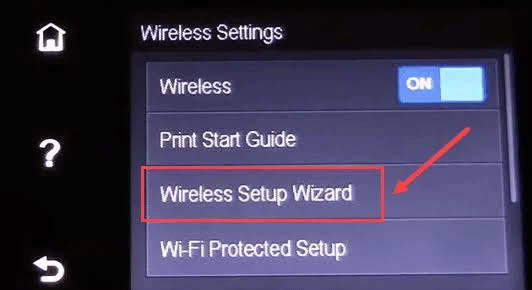
- Enable WLAN if prompted, select the recorded SSID, and enter the network key when required.
- Confirm that the printer LCD displays Connected .
- Open the
Brother DCP-L2540DW Downloads page
, select the operating-system family, then select the exact operating-system version.
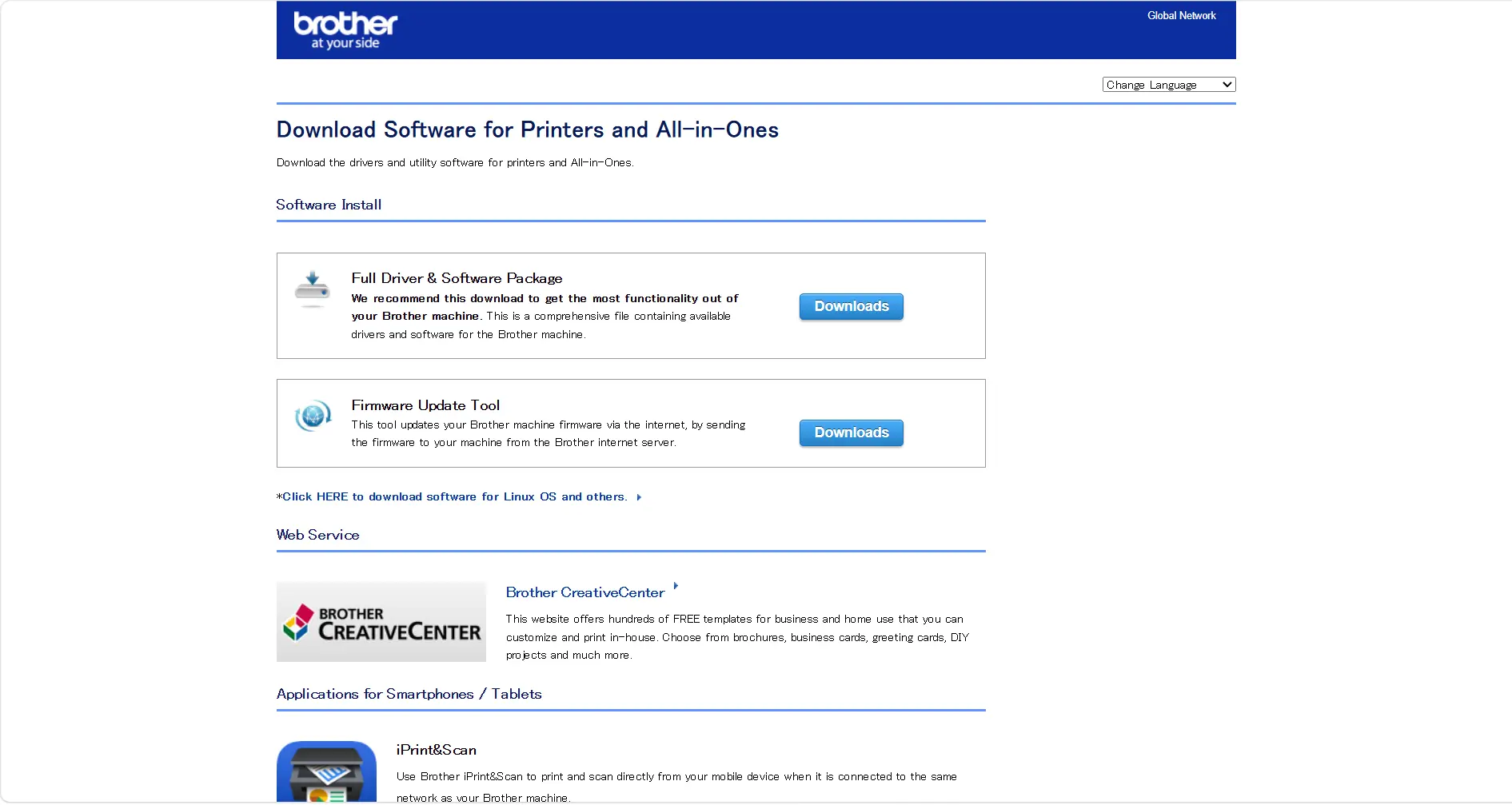
- For Windows, choose the Full Driver & Software Package when Brother lists it for your selected system, then follow the installation instructions on the download page.
The Connected message verifies the printer’s Wi-Fi connection, not that Windows printing is working. Print a test page after installation to verify the final result.
Choose a USB or network driver route
Use the connection you confirmed earlier. Brother’s USB driver package is described as containing printer and scanner drivers optimized for USB. Brother also documents a Universal PCL driver workflow that can search USB- and network-connected devices, let you select a device, and print.
- For a local USB connection, select the Brother printer-and-scanner driver package that Brother describes as optimized for USB.
- For a networked printer, use the documented Universal PCL driver workflow only when that route is appropriate for your selected system and device.
- Search for available USB- or network-connected devices, select the DCP-L2540DW, and print after selecting it.
Use the Brother Windows download listing to review the package descriptions. The retrieved evidence does not document a model-specific Brother USB-installation wizard, so follow the instructions supplied with the selected Brother download rather than assuming a setup path.
Use Fionn Printer Driver for installation and diagnostics
Fionn Printer Driver can recognize many mainstream printer brands and models, offers automatic and manual installation modes, and can check the Windows Printer Service, printer ports, and unfinished or paused print jobs. It can be useful when the driver issue may also involve the service, port, queue, or a reported device condition. Fionn Apps provides this product.
Its supplied product information does not establish model-specific compatibility with the Brother DCP-L2540DW. Continue only if the application identifies your printer, then verify printing independently.
- Launch Fionn Printer Driver and click
Scan Now
to scan your computer for printer drivers and related issues.
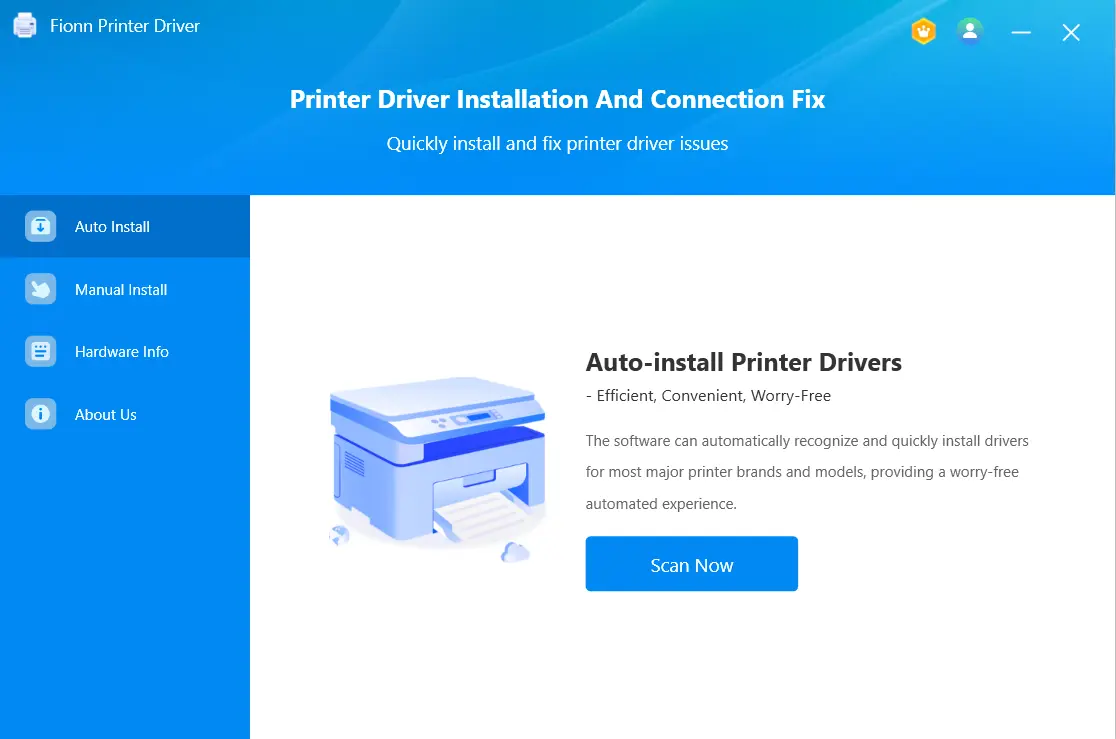
- Wait while Fionn Printer Driver scans your system for installed printers, drivers, and common printer issues.
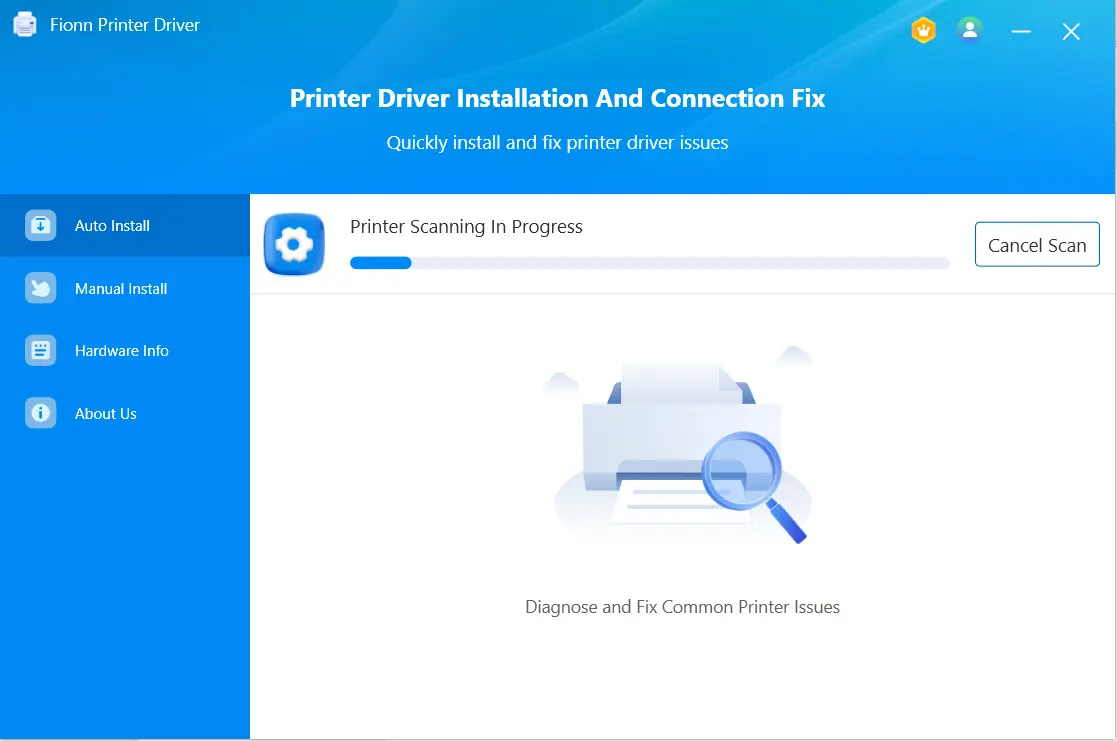
- After the scan finishes, review the detected driver issue, then click
One-Click Fix
to start the suggested installation or repair.
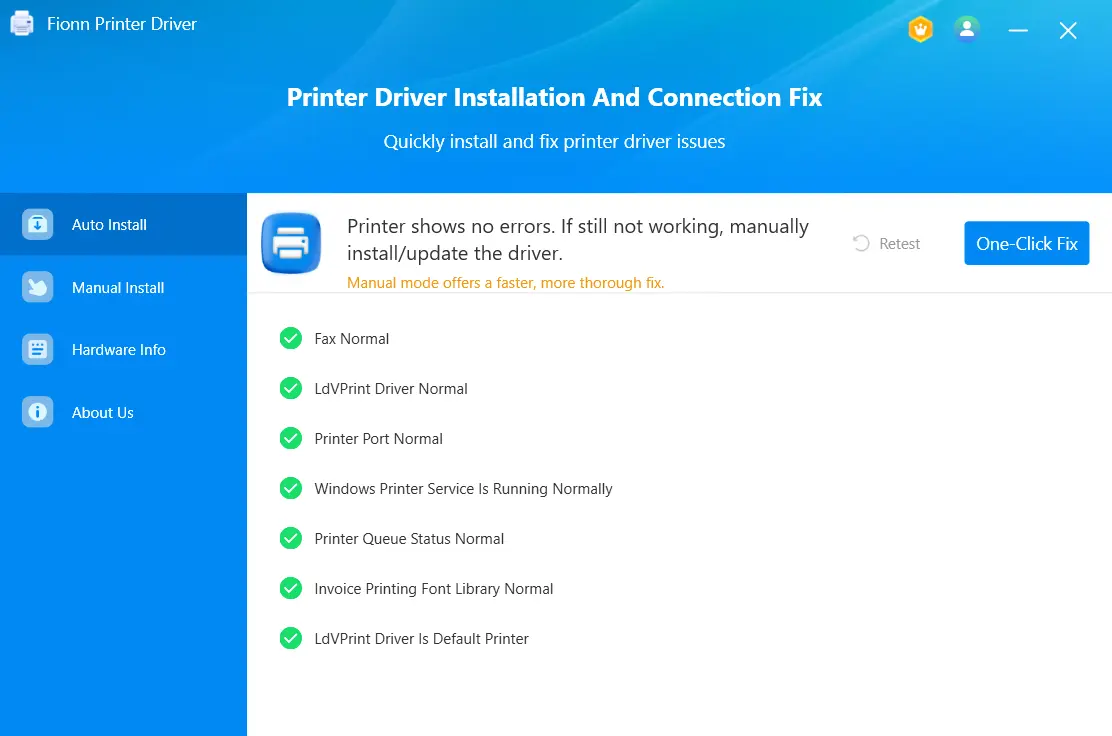
- Wait for the operation to finish and review its result. Then print a Windows test page to check whether the printer actually works.
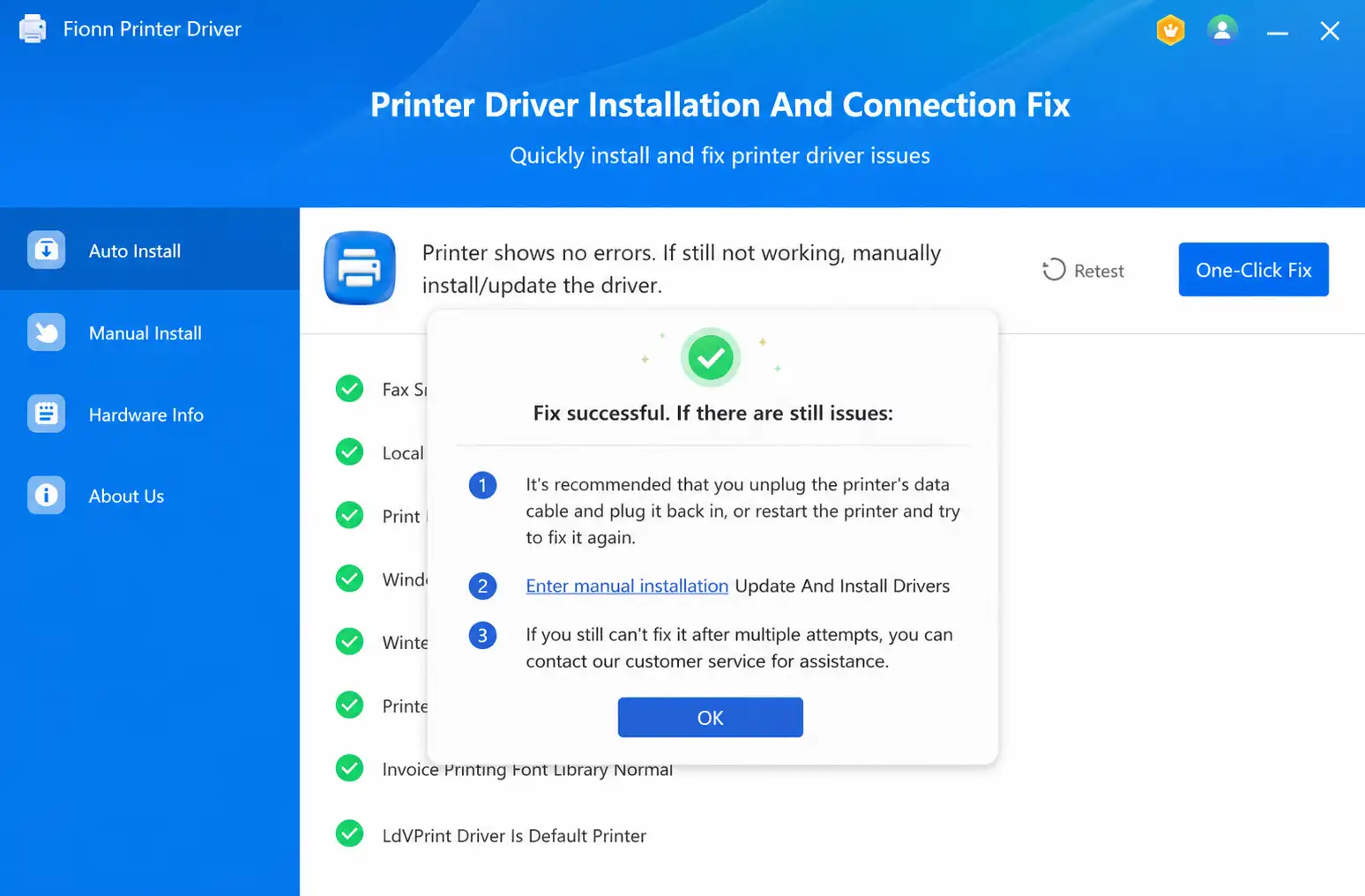
A completed scan, installation, or repair is an intermediate result. It does not prove that the Brother printer can receive and print a document.
Verify printing and resolve connection issues
After the printer appears in Windows, print a Windows test page. Microsoft recommends a test page to confirm that the printer is working correctly. A successful page is the reader-performed outcome test for this task.
- The printer is missing: check the USB cable or confirm the printer joined the intended Wi-Fi network; for Wi-Fi, the printer LCD should show Connected .
- Jobs stay pending: check for unfinished or paused print-queue jobs and the Windows Printer Service.
- The printer is offline: verify the cable or network connection before changing drivers.
- A networked printer stopped working after an address change: Brother lists a Network Connection Repair Tool that can locate and update the printer IP address in the printer driver.
For Windows test-page guidance, see Microsoft’s printer connection and printing help .
Conclusion
To install the Brother DCP-L2540DW driver on Windows, first match the package to the printer’s connection and your operating-system version. For Wi-Fi, complete the printer’s network setup and confirm Connected before downloading the Windows package from Brother. For USB, choose the package explicitly described for USB. Finish with a Windows test page: that result, rather than an installer completion message, confirms the printer is ready to use.
FAQ
Where can I download the Brother DCP-L2540DW driver?
Use the official Brother DCP-L2540DW Downloads page . Select the operating-system family and exact version before choosing a listed package.
Does the Brother DCP-L2540DW support Wi-Fi, Ethernet, and USB?
Yes. Brother lists wireless 802.11b/g/n, Ethernet, and Hi-Speed USB 2.0 interfaces. Select the driver route for the connection you actually use.
What do I need before setting up the printer on Wi-Fi?
You need the wireless network name (SSID) and network key. Brother’s documented printer path is Menu or Settings, Network, WLAN, then Setup Wizard. A successful connection shows Connected on the LCD.
How do I know the driver installation worked?
Print a Windows test page after installation. A completed download, installer, scan, or repair does not by itself confirm that the printer can print.
Can I use Fionn Printer Driver for this model?
Its supplied product information says it can recognize many mainstream brands and models and diagnose driver and printing-chain issues, but it does not establish DCP-L2540DW-specific compatibility. Use it only if it identifies the printer, and confirm the outcome with a Windows test page.


