 Emily CarterDLL Errors
To troubleshoot a dinput8.dll error, first determine whether it involves a Windows component or a file supplied with a game or mod. The same filename can refer to different files, so a repair that suits one case may not address another. Record the complete error and any reported path, then use the matching branch below.
Fionn DLL Fixer can scan for missing, damaged, or mismatched DLLs and offer repairs through an interface. Windows component corruption has a separate built-in repair path using DISM and SFC. For a game-local file identified as Ultimate ASI Loader, plugin isolation can help investigate the failure. After any applicable repair, repeat the action that originally failed to check the actual result.
Identify the dinput8.dll Error Before Making Changes
DirectInput is a core DirectX component included in Windows. However, Ultimate ASI Loader can also use the filename
dinput8.dll
in a game's folder. A missing-file message and a crash that merely names this DLL do not establish the same cause.
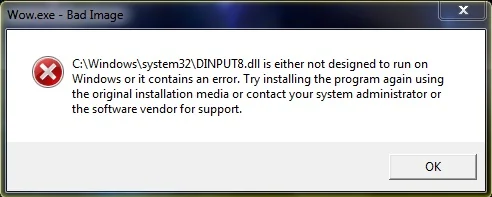
- Record the complete error, the affected application and its version, your Windows version/build, and the action that triggers the failure.
- Note any DLL path shown in the error. Does it point to Windows or the application's folder?
- Record recent changes, such as a game update, plugin installation, or file removal.
- Check the application's or installed mod's documentation to identify who supplied the file. A game-folder location alone does not prove that it is Ultimate ASI Loader.
Multiple copies of a DLL can exist in different folders, and loading depends on paths and search rules. Microsoft's DLL search-order documentation explains why finding a file elsewhere does not establish that it is the copy involved in the failure. For background on DirectInput's Windows ownership, see Microsoft's DirectX setup guidance .
Choose the Matching Troubleshooting Path
| Method | When to Use It | What It Helps You Do | What Still Needs Checking |
|---|---|---|---|
| 1. Fionn DLL Fixer | Suspected missing, damaged, or mismatched DLLs and related Windows issues | Scan, repair detected issues, and recheck through an interface | Whether the application's original failure is resolved |
| 2. DISM followed by SFC | Suspected corruption involving an identified Windows component | Repair Windows components and protected system files using administrator commands | The final repair result and the affected application's behavior |
| 3. Ultimate ASI Loader diagnostics | A game-local dinput8.dll identified as that loader | Disable plugin loading temporarily and collect diagnostic information | Whether plugin loading affects the failure and whether intended game functionality works |
Choose by file identity and symptoms. You do not need to run every method in order.
Method 1: Address DLL Errors with Fionn DLL Fixer
When an application will not launch and the cause may involve missing, damaged, or mismatched DLLs, manually checking those conditions can be difficult. Fionn DLL Fixer combines scanning, automatic repair, and post-repair rescanning so you can address detected problems through an interface and then return to testing the application.
The product supports Windows 10 and Windows 11. It is suitable to try for suspected DLL or related system problems; it is not an established repair for a deliberately installed game proxy or its plugins. A scan cannot guarantee a dinput8.dll-specific cure. Follow the workflow below, then test the original failing action.
- Launch Fionn DLL Fixer. The software automatically scans your PC for DLL and system issues and displays the detected results when the scan is complete.
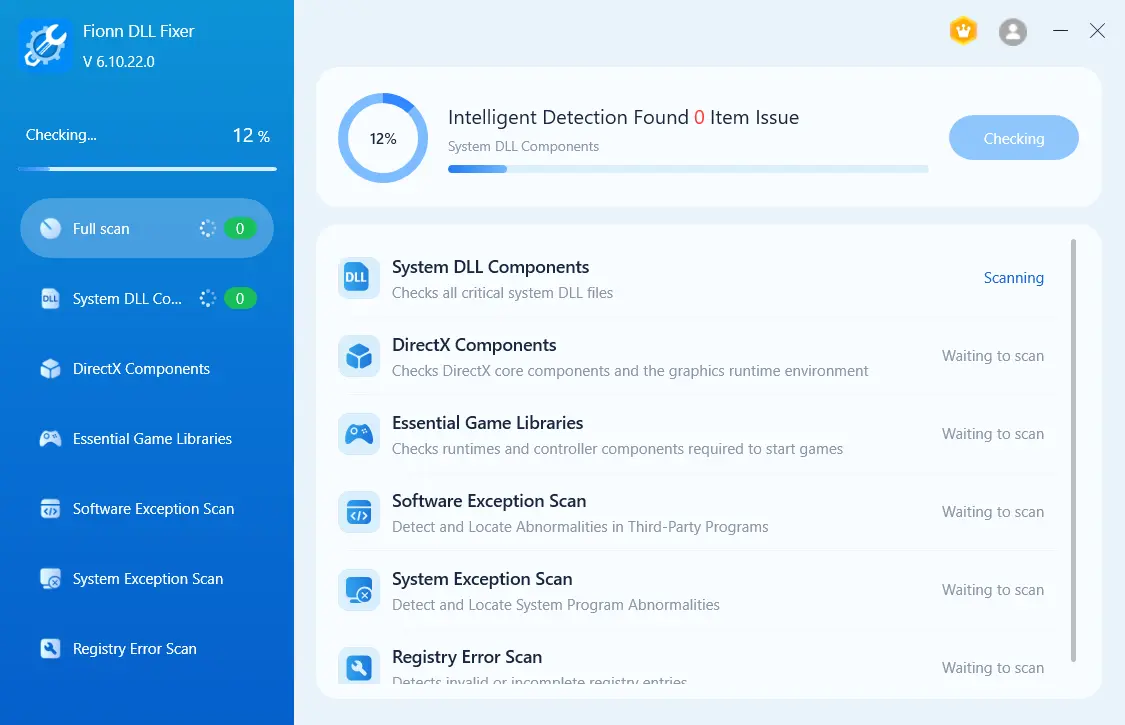
- After the scan finishes, click
Repair
to start fixing all detected DLL and system issues automatically.
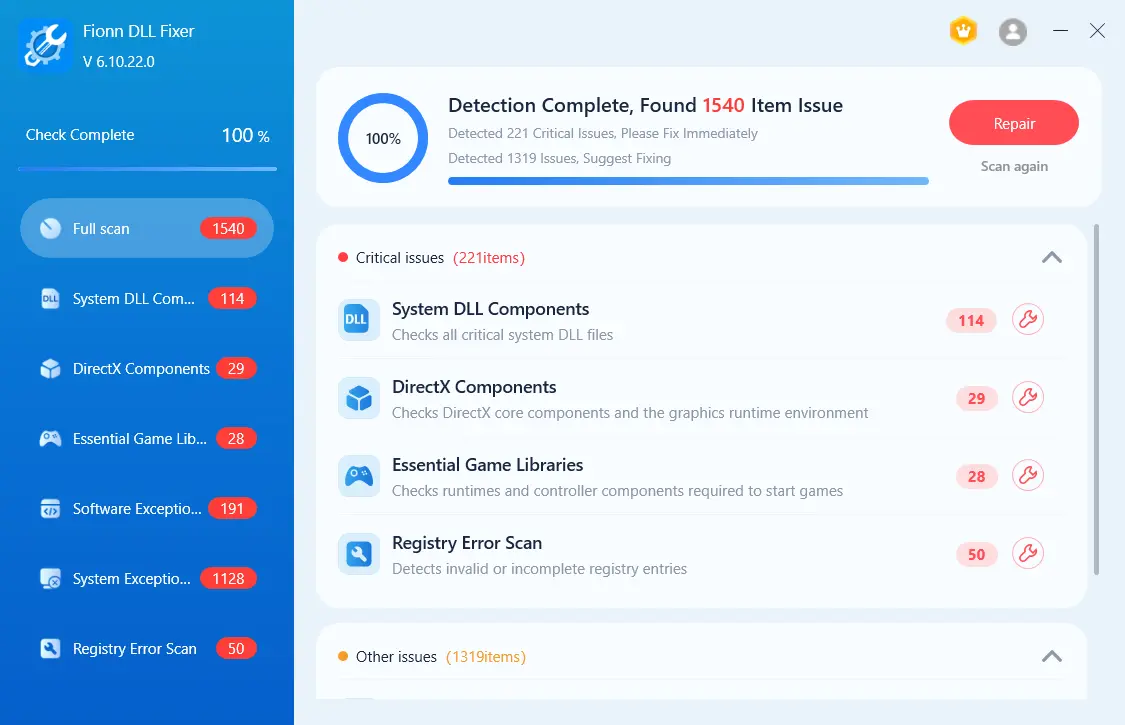
- Wait while the repair is in progress. During this process, the button changes to
Fixing
until all issues have been repaired.
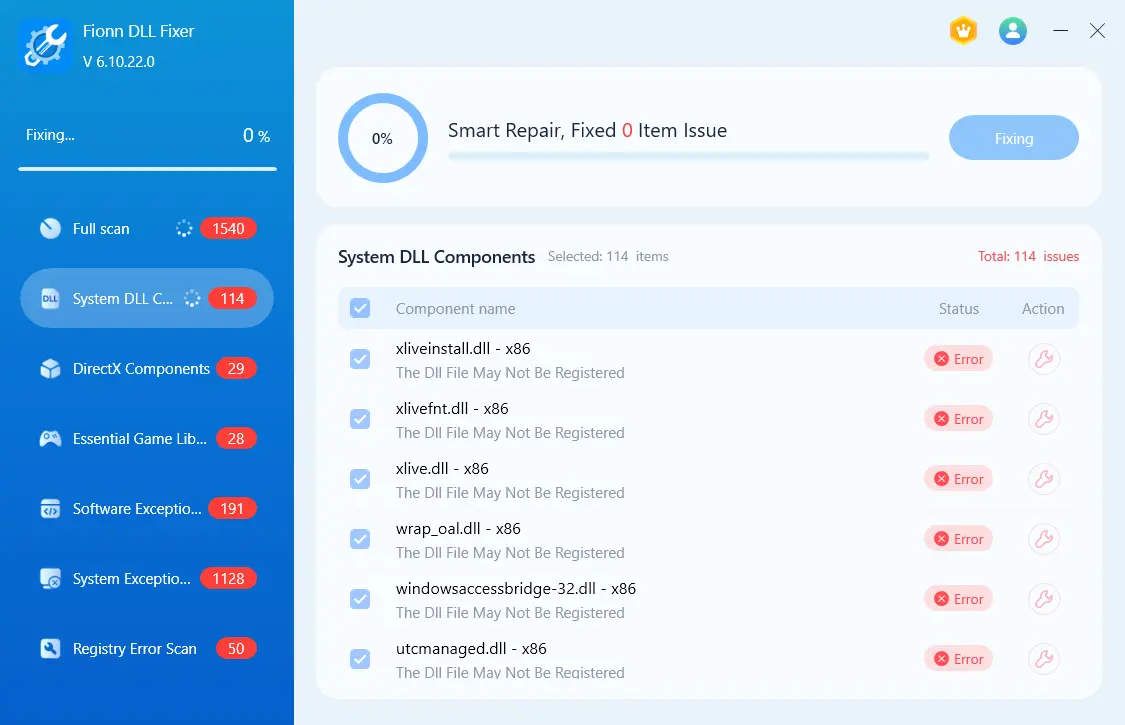
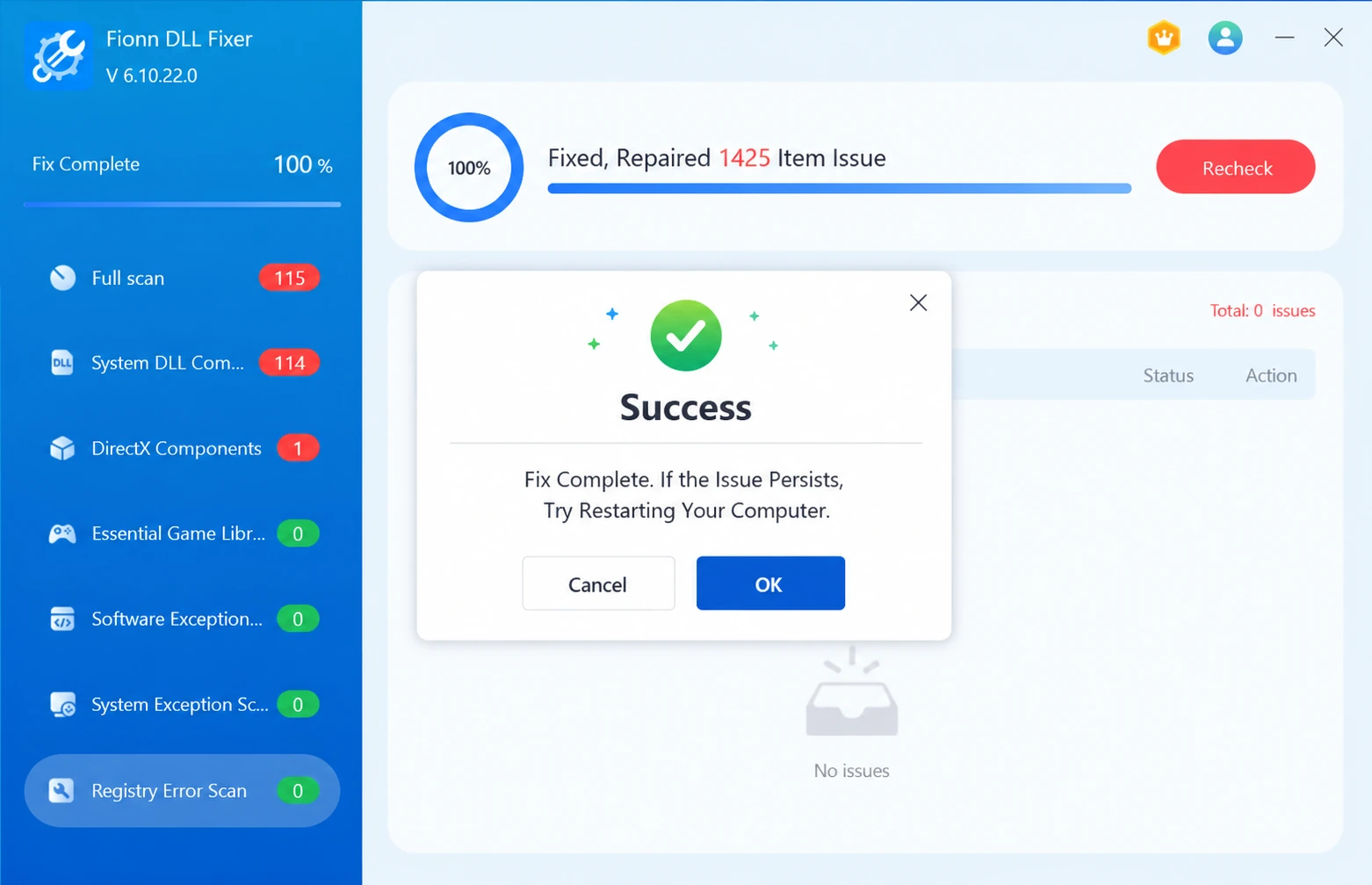
- When the repair is complete, click
Ok
in the confirmation dialog. If prompted, restart your computer before checking whether the problem has been resolved.
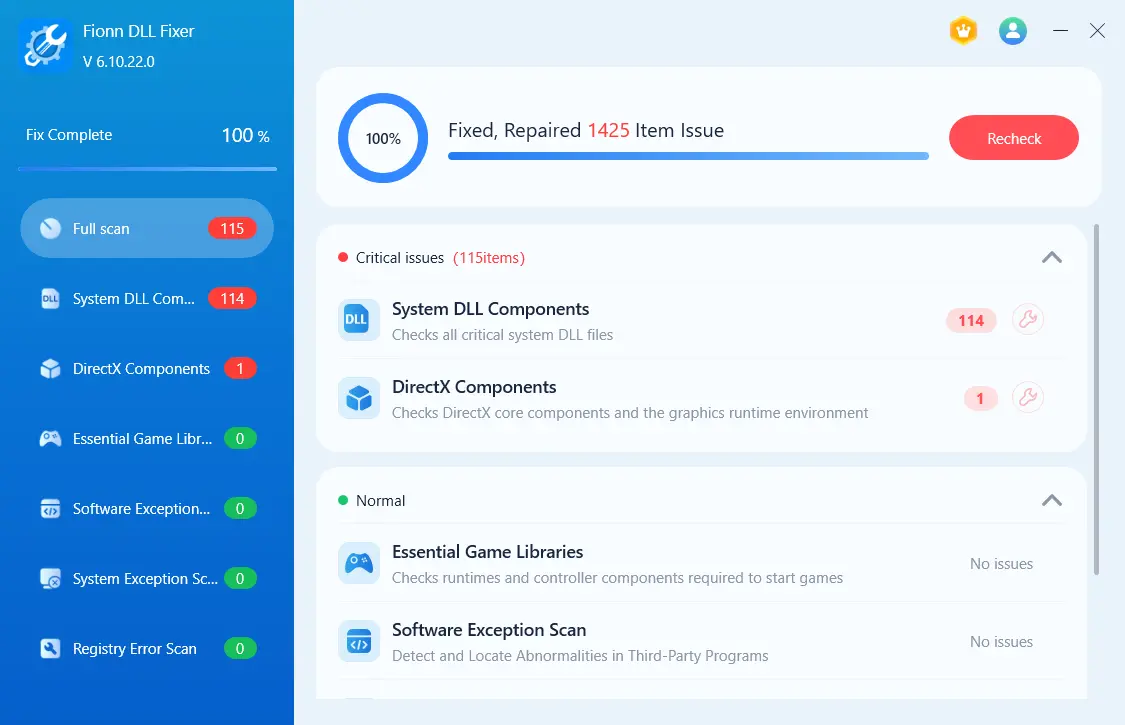
- If the issue still persists after restarting, click
Recheck
to perform another scan. If new issues are found, click
Repair
again to fix them.
Open the affected application and repeat the action that originally failed. Success means that action completes without the original error and the required functionality works. A repair confirmation or a clear rescan alone does not establish that result. If the same failure persists, use its file identity and error details to choose the next applicable branch rather than repeatedly applying the same repair.
Method 2: Repair Windows Components with DISM and SFC
Use this branch when the affected file is identified as a Windows component and corruption is suspected. These built-in tools address Windows component and protected system-file integrity; they do not repair an application-local mod loader. Microsoft's system-file repair instructions specify DISM before SFC because DISM supplies files needed for system-file repair.
- Search for
cmd, right-click Command Prompt , and select Run as administrator . Supply administrator confirmation or credentials if prompted.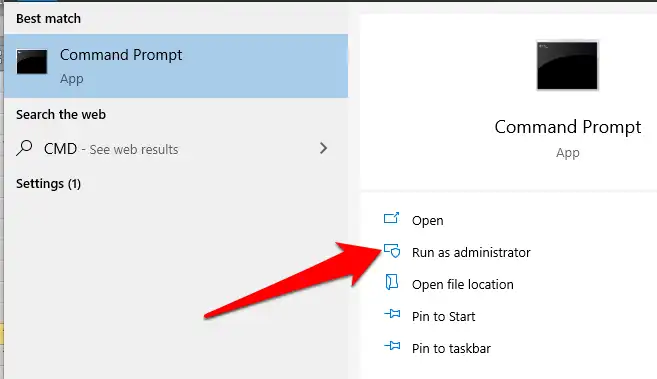
- Run DISM and allow it to finish:
DISM.exe /Online /Cleanup-image /Restorehealth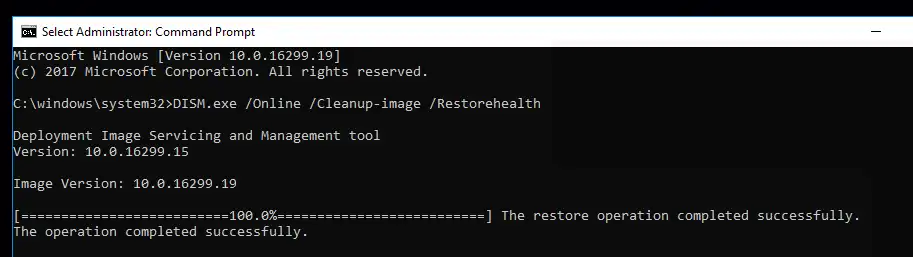
- Then run System File Checker:
sfc /scannow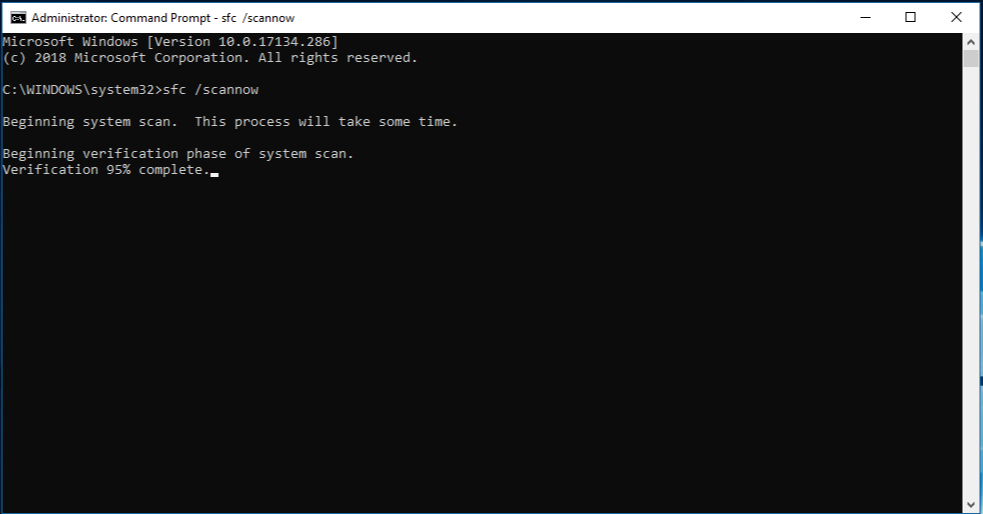
- Keep Command Prompt open until verification reaches 100%, then read the final result.
If SFC reports that it found corrupt files and successfully repaired them, that confirms the reported system-file repair. If it reports no integrity violations, it found no violations in the system files it checks. Neither result establishes that a game-local proxy works. Reopen the affected application and repeat the original failing action.
If DISM Needs an Alternate Repair Source
This is a conditional branch for cases where Windows Update cannot supply repair files and a suitable source is available. It is not required after a successful normal DISM operation. Follow Microsoft's alternate-source command instructions and repair-source requirements .
- When Windows Update is being used as the primary or backup repair source, ensure the firewall allows access to it.
- For a WIM or mounted-image source, follow Microsoft's RTM-media requirement. Keep the source updated with cumulative updates: repair can fail when the target Windows installation is patched beyond the source.
- Include the language components required by the Windows installation.
- In an elevated Command Prompt, replace
C:\RepairSource\Windowswith the actual suitable source location and run:DISM.exe /Online /Cleanup-Image /RestoreHealth /Source:C:\RepairSource\Windows /LimitAccessUse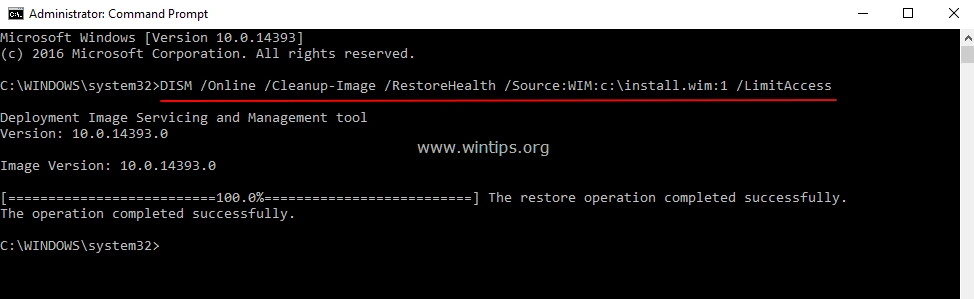
/LimitAccessonly when Windows Update should be excluded as both a primary and backup source. It does not make an unsuitable source usable. - After DISM completes successfully, run
sfc /scannow, wait for 100%, read its result, and retest the affected application.
If you do not have a suitable source, resolve that requirement before substituting a path into the command.
If SFC Cannot Complete or Cannot Repair Files
Use the branch that matches the final SFC message. Microsoft's SFC troubleshooting guidance distinguishes an operation that could not run from files that could not be repaired.
- If Windows Resource Protection could not perform the requested operation, run the SFC scan in safe mode as directed by Microsoft. Check that
PendingDeletesandPendingRenamesexist under%WinDir%\WinSxS\Temp. - If SFC reports unrepaired files, export its log entries from an elevated Command Prompt:
findstr /c:"[SR]" %windir%\Logs\CBS\CBS.log >"%userprofile%\Desktop\sfcdetails.txt" - Open
sfcdetails.txton the desktop and use the timestamps to identify entries from the latest scan. Keep those details for the next recovery decision or a support request.
An exported log is diagnostic information, not a repair. After any further repair, repeat the original application test.
Method 3: Isolate Plugins in an Identified Ultimate ASI Loader
Use this method only when the game-local
dinput8.dll
has been identified as Ultimate ASI Loader. Its
official configuration instructions
describe the following plugin controls and diagnostics.
- Locate the loader configuration.
global.inican be beside the loader or in itsscripts,plugins, orupdatefolder. Record the existing setting before changing it.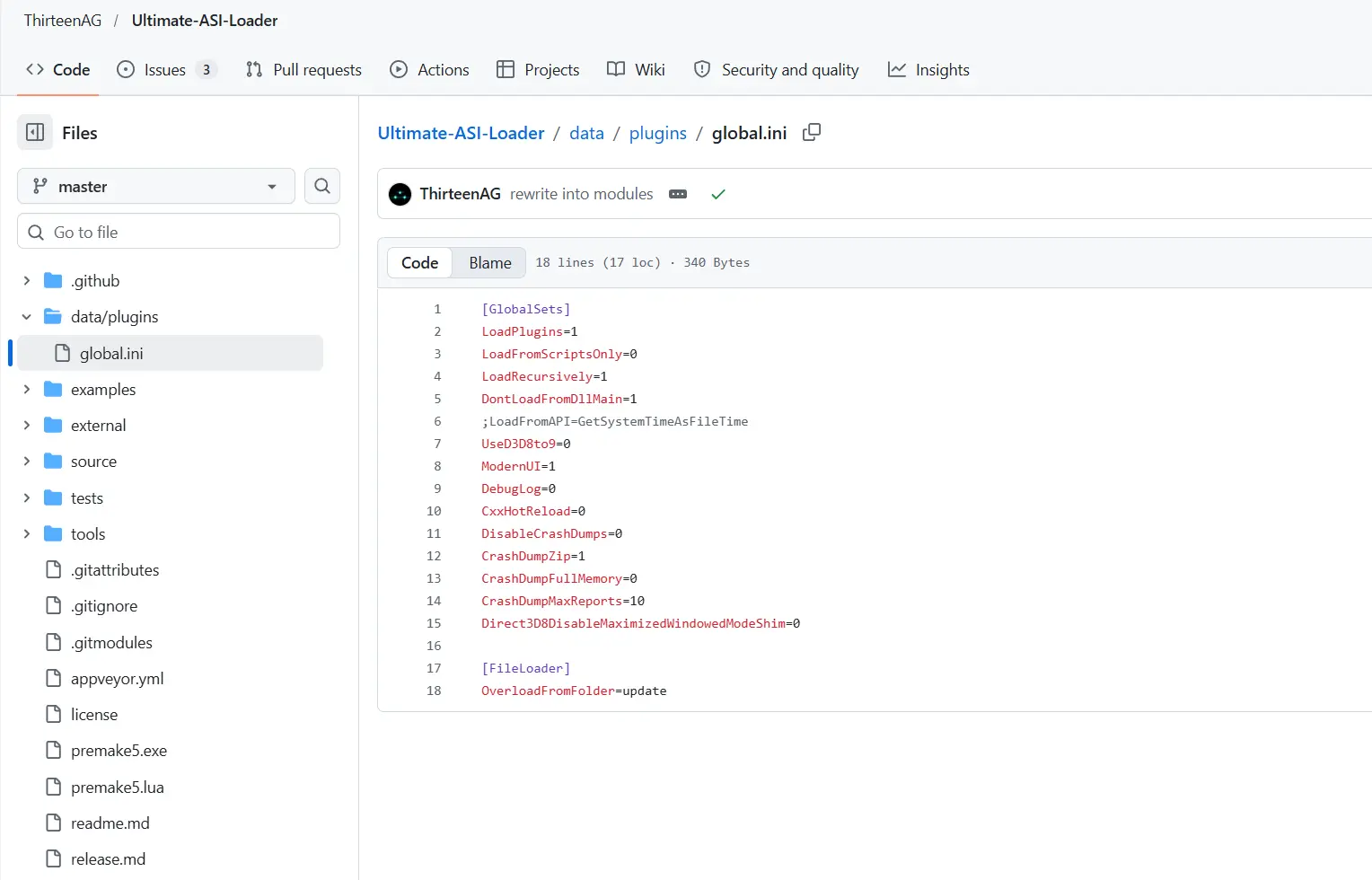
- For a plugin-isolation check, set the following under
[GlobalSets]:
This disables plugin loading; it does not remove or repair the proxy DLL.[GlobalSets] LoadPlugins=0 - Launch the game and repeat the action that failed. Compare its behavior with plugin loading disabled. If the failure disappears, plugin loading may be involved, but that does not identify a specific faulty plugin.
- If plugins fail to load or load at the wrong time, set
DebugLog=1under[GlobalSets]and inspect<loader name>.logbeside the loader for loading activity. - If crash diagnostics are needed, create a folder named
CrashDumpsbeside the loader DLL or game executable. After reproducing a crash, inspect any generated report for its crash location and any named plugin.
Disabling plugin loading also disables plugin functionality. A game that starts in that state has passed an isolation check, but it has not necessarily regained its intended modified behavior. After addressing the identified problem, return the plugin-loading setting to its previous value and retest both the original failing action and the functionality you need. Logs and crash reports support investigation; they do not establish a completed repair.
If the local file belongs to another application or loader, use that supplier's instructions. These settings apply specifically to Ultimate ASI Loader.
Why the Legacy DirectX Installer Is Not a DirectInput Repair
The DirectX End-User Runtime Web Installer documentation states that the package excludes the Windows DirectInput runtime and does not modify the Windows DirectX runtime. It adds optional legacy libraries used by some games, including D3DX and XInput 1.3. Installing those libraries is a different task from repairing Windows DirectInput, so do not use this package solely because an error names dinput8.dll.
Conclusion
Start with the exact error and the affected file's origin, then follow the matching branch. After repair, reopen the application and repeat the action that failed. If it still fails—or starts only with required plugins disabled—send the application's or loader's support team the error, reported path, application and Windows versions, recent changes, and relevant repair results or diagnostic report.
FAQ
What is dinput8.dll?
The name can refer to a Windows DirectInput component, but a game-local proxy such as Ultimate ASI Loader can also use it. Identify the file's origin and the path involved before choosing a repair.
Does a clean SFC result mean the game is fixed?
No. It means SFC found no integrity violations in the system files it checks. Open the game and repeat the original failing action; a local proxy or plugin can still require separate investigation.
Will the legacy DirectX installer reinstall Windows DirectInput?
No. Microsoft excludes that core runtime from the package. The installer adds optional legacy libraries and does not replace the Windows DirectX runtime.
Can Fionn DLL Fixer fix every dinput8.dll error?
It can detect DLL and related system issues and offers repair and rescanning, but a deliberately installed proxy or plugin conflict needs its own diagnosis. Confirm the result in the affected application.
Is disabling ASI plugins a complete fix?
Not necessarily. It is an isolation check that also disables plugin functionality. Use the behavior change and any logs to investigate, then retest the original action with the intended functionality restored.


