 Emily CarterDLL Errors
If vcomp110.dll is missing, an application may be unable to load its required Visual C++ 2012 OpenMP runtime. Address the dependency rather than downloading an isolated DLL. Start with an automated DLL check or obtain the matching Visual C++ 2012 Update 4 package from Microsoft. After either approach, reopen the affected application to confirm the result.
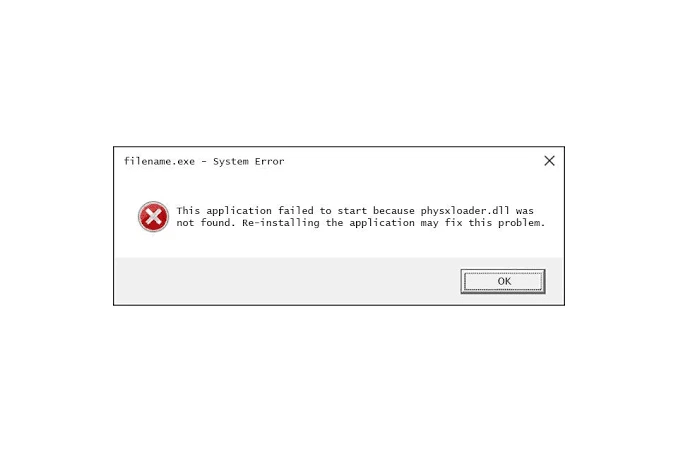
Fionn DLL Fixer is a recommended option for readers who want automatic scanning and repair of detected DLL problems. The Microsoft package provides a targeted manual route when the application’s runtime requirements and architecture are known. Neither an installer completion message nor a repair notification proves that the application now works.
Before addressing the vcomp110.dll is missing error
Record the application name, its version, and the full error message. Keep the exact filename: advice for a similarly named DLL may concern a different runtime. Also note whether the message appears immediately at startup or only when opening a particular feature.
Microsoft’s Visual Studio 2012 redistribution list identifies vcomp110.dll as an OpenMP runtime file, with separate architecture-specific copies. This establishes the relevant runtime family; it does not establish the architecture of your particular application.
Prepare the following information before choosing the manual route:
- Application architecture: check the application’s official requirements or ask its vendor whether the affected executable is x86 or x64.
- Windows architecture: read System type under Device specifications. This describes Windows, not necessarily the application.
- Previous attempt: note whether a runtime installer failed, completed, or requested a restart.
- Scope: record whether one application fails or several applications report the same filename.
These details prevent two different problems from becoming confused: restoring a missing dependency and diagnosing an installer that cannot complete. They also give application support a useful starting point if the initial repair does not resolve the error.
Quick Method Comparison
| Method | Best For | Efficiency | User Effort |
|---|---|---|---|
| 1. Fionn DLL Fixer — recommended for automated checks | Readers who want detected DLL and runtime issues scanned and repaired together | Combines detection and automatic repair in one procedure | Follow the repair prompts and test the affected application |
| 2. Microsoft Visual C++ 2012 Update 4 | Readers who know the application requires the 2012 runtime | Directly targets the identified runtime family | Confirm architecture, select the package, and follow its installer |
Choose according to the information you have. Automatic checking is useful when the error identifies a DLL but the surrounding dependency problem remains unclear. The manual route is useful when the application vendor has identified the required runtime. Installer diagnostics later in this guide support the manual route; they are not a separate DLL repair method.
Method 1: Check and repair DLL issues with Fionn DLL Fixer
Fionn DLL Fixer detects missing, damaged, and mismatched DLLs and checks Visual C++ dependencies. Its automatic repair process can help when a launch failure requires more investigation than locating a single filename. This makes it a practical recommended option for readers who prefer guided detection over selecting components manually.
The product’s detection capabilities do not guarantee that every application-specific vcomp110.dll error will be resolved. Use the procedure below, then judge success by the application’s behavior.
- Launch Fionn DLL Fixer. The software automatically scans your PC for DLL and system issues and displays the detected results when the scan is complete.
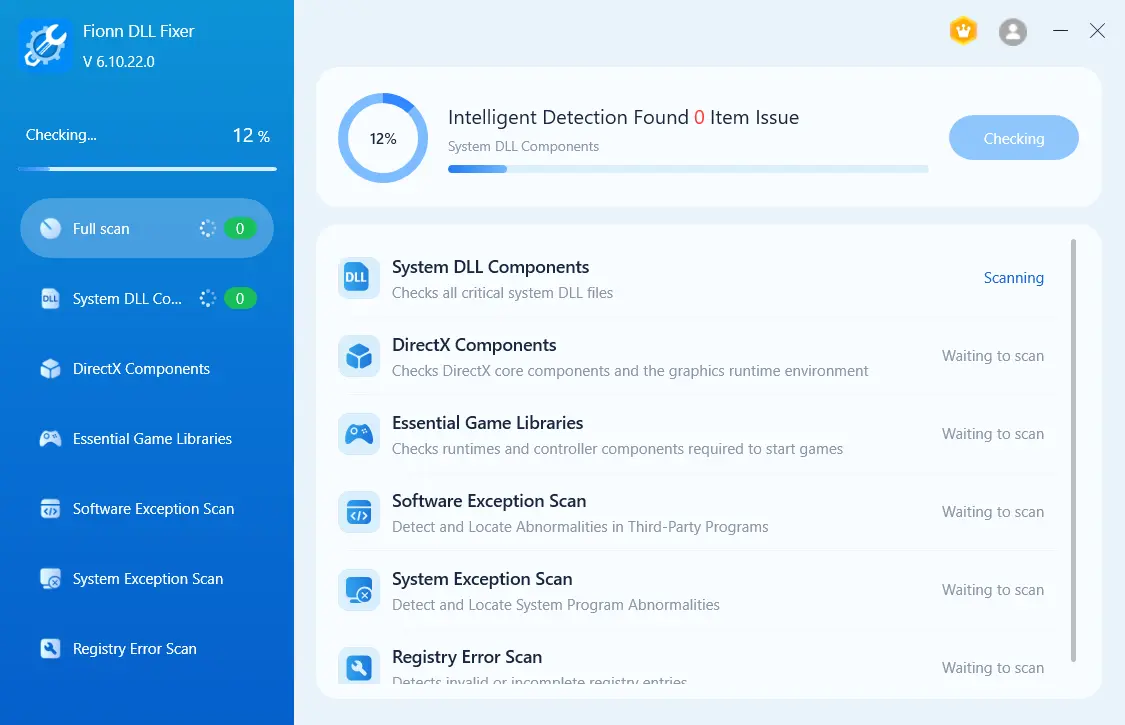
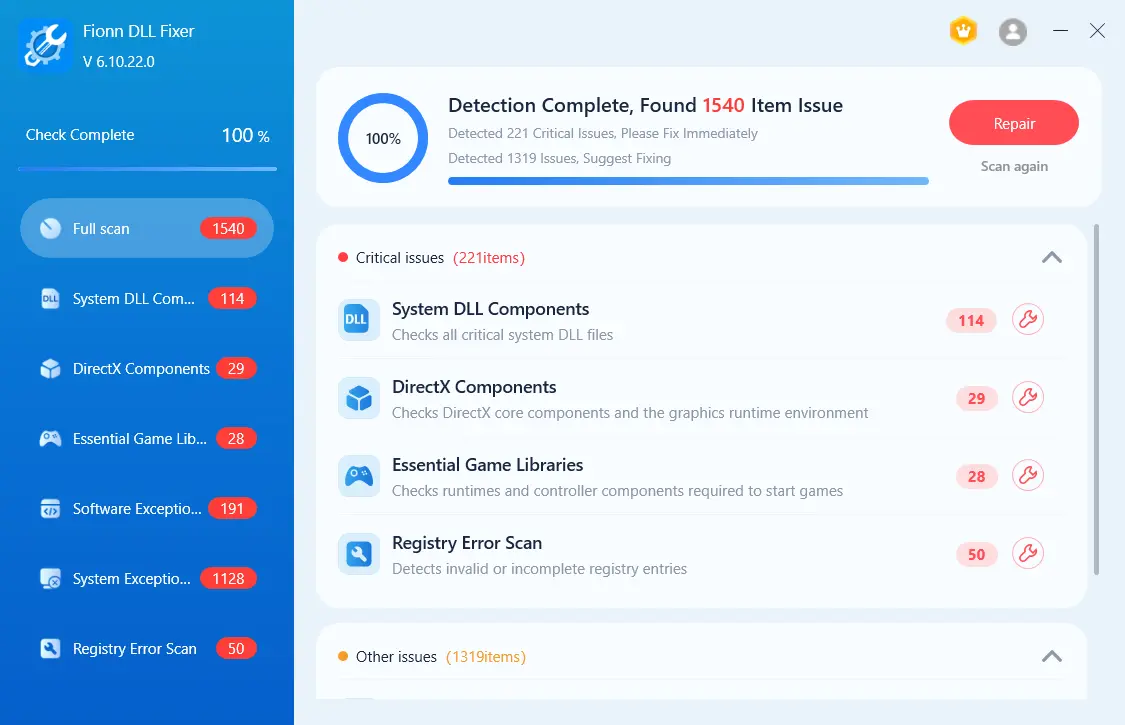
- After the scan finishes, click
Repair
to start fixing all detected DLL and system issues automatically.
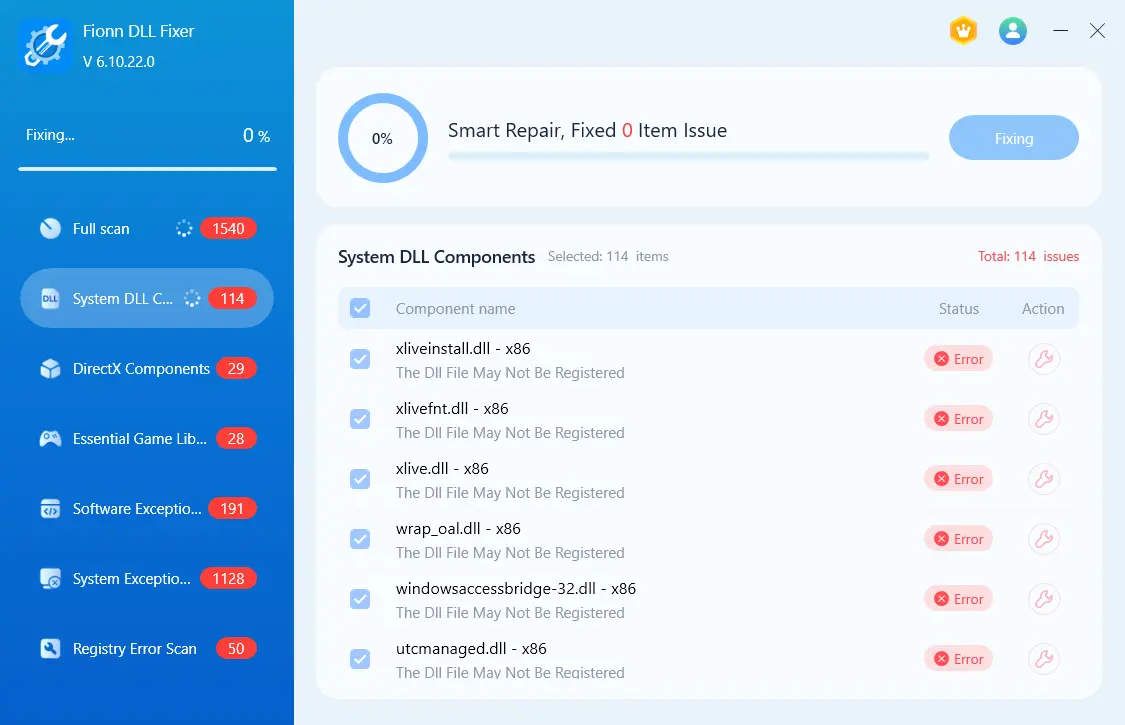
- Wait while the repair is in progress. During this process, the button changes to
Fixing
until all issues have been repaired.
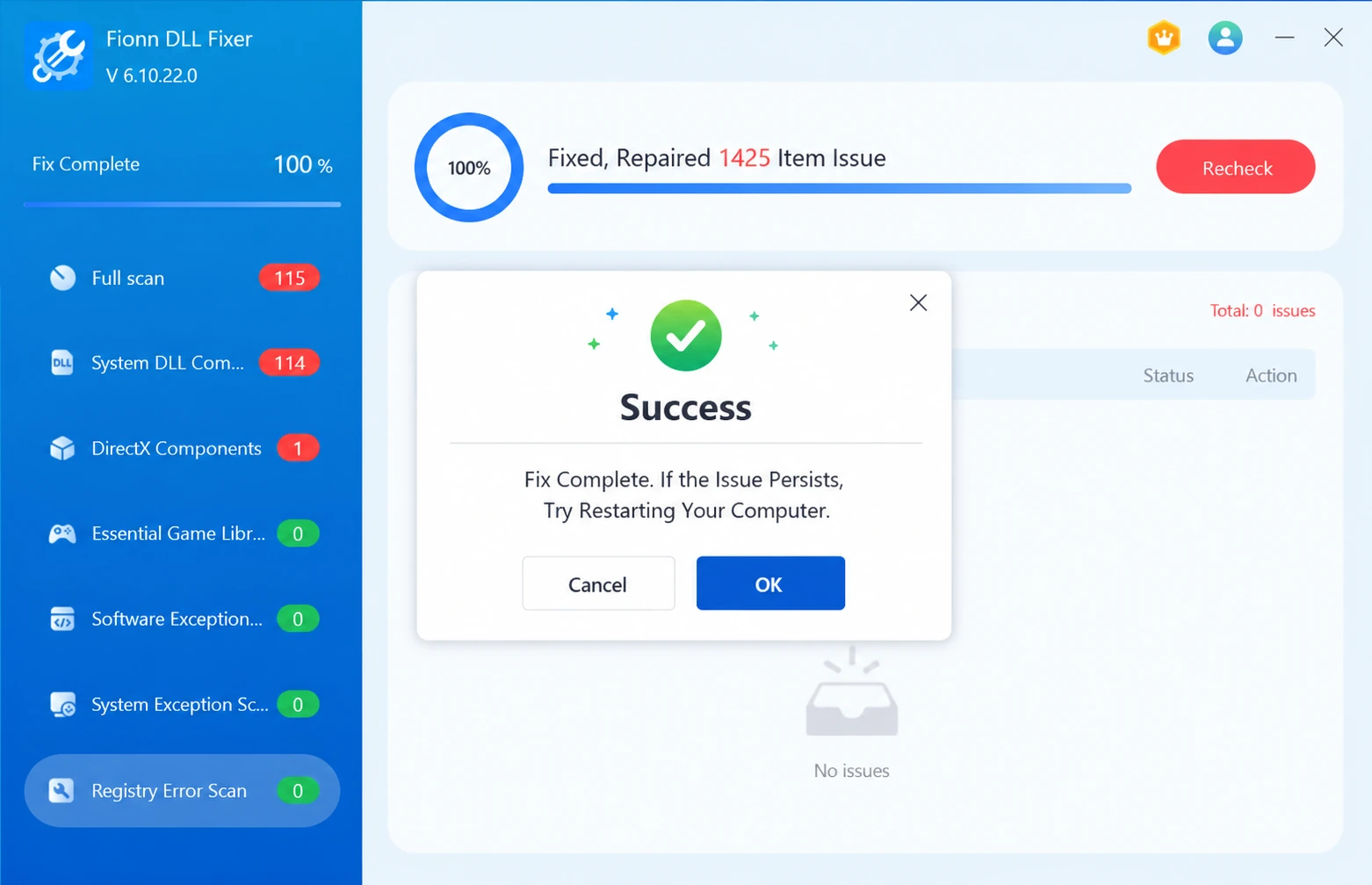
- When the repair is complete, click
Ok
in the confirmation dialog. If prompted, restart your computer before checking whether the problem has been resolved.
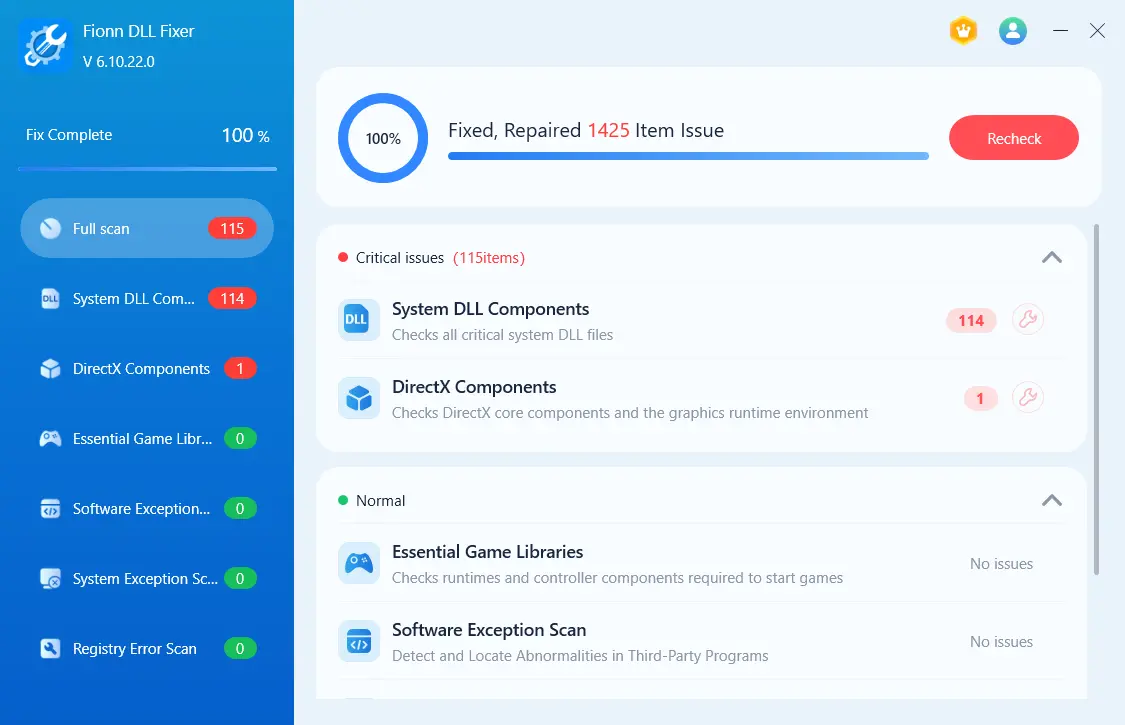
- If the issue still persists after restarting, click
Recheck
to perform another scan. If new issues are found, click
Repair
again to fix them.
For verification, launch the same application that originally displayed the missing-file message. If the message appeared only when opening a specific feature, repeat that action too. Successful repair means that the original task now completes without the vcomp110.dll error; a completed scan alone is insufficient.
The free edition displays three free attempts, and VIP unlocks DLL, runtime, and system repair benefits. Check the displayed entitlement before proceeding with a repair that requires access beyond the available attempts.
If the original message remains, preserve its wording and move to the targeted Microsoft route below. If a different error appears, record that change separately. A changed symptom gives you a new troubleshooting question rather than confirming complete recovery.
Method 2: Install the matching Microsoft Visual C++ 2012 runtime
Use this route when the application requires the Visual C++ 2012 runtime and you can establish its architecture. The relevant Microsoft package is Visual C++ Redistributable for Visual Studio 2012 Update 4. Its runtime components include OpenMP, the family containing vcomp110.dll.
The objective is to restore the application’s required runtime through its installer. Avoid choosing a package solely because its release number is newer. The application’s dependency determines the appropriate family.
- Confirm the affected application’s target architecture using its official requirements or vendor guidance.
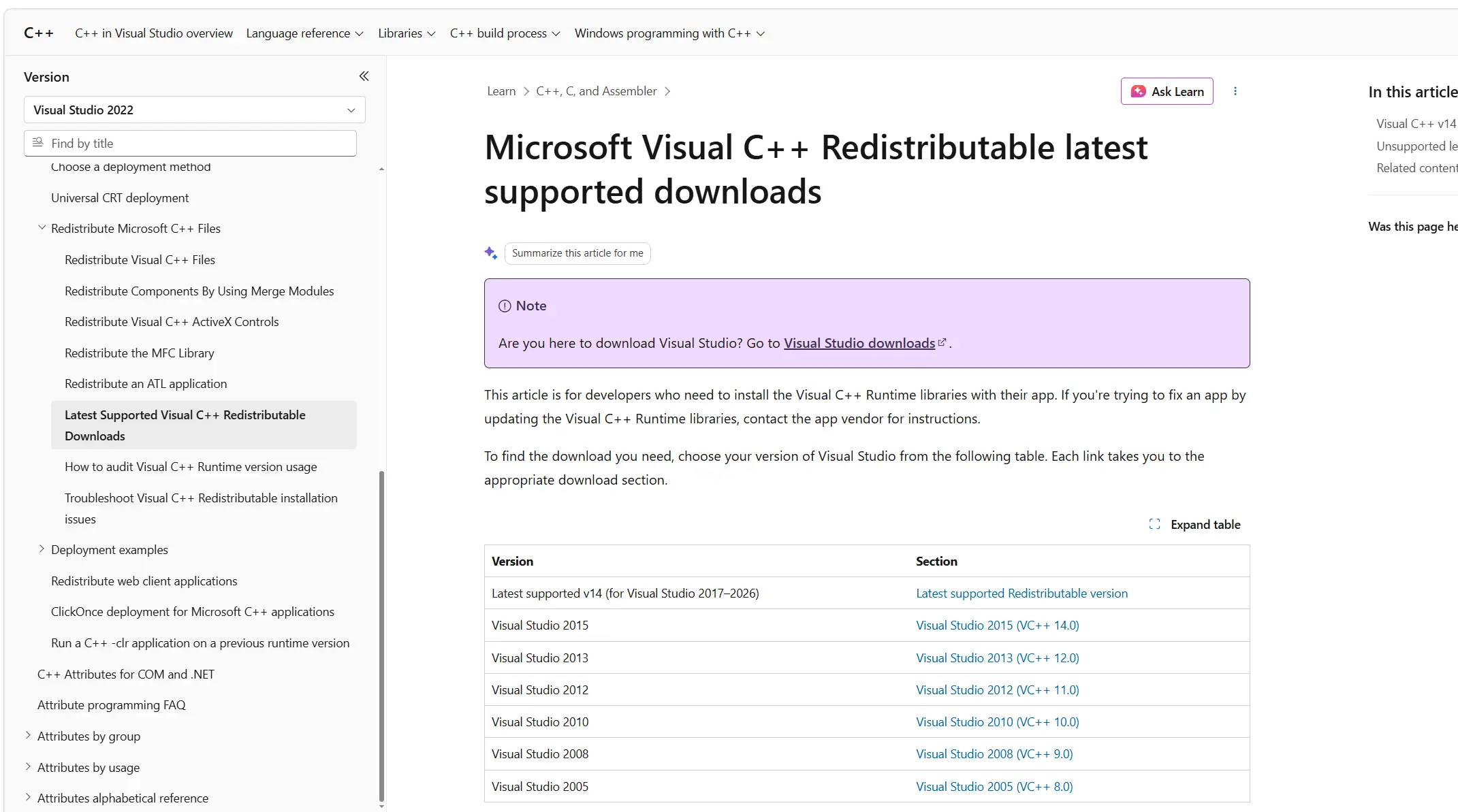
- Open the Microsoft Visual C++ 2012 Update 4 download page .
- Select Download .
- Choose the package matching the application:
vcredist_x86.exefor x86 orvcredist_x64.exefor x64. - Run the downloaded Microsoft installer.
- Approve its User Account Control request if administrative permission is requested.
- Follow the options presented by that installer.
- Restart Windows if the installer requests it.
Reopen the affected application after installation. Repeat the action that previously triggered the error. If startup succeeds but a later feature still fails, retain both observations when contacting support; basic startup and successful use of the affected feature are different checkpoints.
If the installer recognizes an existing installation, use only the operations it actually offers. Microsoft distinguishes runtime installation from repair in its general documentation, but that does not justify assuming every legacy installer presents an identical interface. There is no need to invent a command or force an unconfirmed option.
Microsoft’s redistributable deployment documentation describes installer help and installation behavior. If you need command-line deployment, inspect the selected executable’s help first. This guide deliberately uses the interactive route so that version-specific prompts remain visible.
If the runtime installer fails
An unsuccessful runtime installation requires its own diagnosis. Repeated application launches cannot confirm a repair while the required installation remains incomplete. Record the installer’s exact message before retrying, particularly if it shows a code without a clear explanation.
Use the Microsoft redistributable installation troubleshooting guide to investigate the installer failure. For a permission-related failure, its guidance includes running the installer as administrator. Keep the selected runtime family unchanged while investigating.
For an unresolved failure, collect diagnostic information:
- Obtain Microsoft’s log collection tool through the troubleshooting guide.
- Run
Collect.exe. - Extract
%TEMP%/vscollect.zip. - Inspect the extracted Temp folder for runtime installer logs.
- Include the attempted runtime version and collected logs when reporting the problem.
The useful outcome here is an identified installer failure or a support report containing evidence. Log collection itself does not restore vcomp110.dll. Once the installation issue is resolved, return to the affected application and repeat its original failure trigger.
Confirm recovery and choose the next action
Use the original application as the final test. A successful installer, a repair notification, and a working application describe different outcomes. The first two report that an operation finished; the third establishes that the reader’s task is restored.
| Observed result | Next action |
|---|---|
| The original application and affected feature work | Record the successful method and stop troubleshooting this error. |
| The same missing-file message remains | Confirm the application architecture and request vendor-specific dependency instructions. |
| The runtime installer fails | Investigate the installer message and collect its logs. |
| A different error replaces the original message | Record the new error and troubleshoot that symptom separately. |
When asking the application vendor for help, provide the application version, Windows version, target architecture if known, original message, and repair outcome. Explain whether the failure occurs at launch or inside a feature. This is more useful than reporting only that a DLL repair did not work.
Avoid turning this specific missing-runtime error into an unrelated cleanup project. Additional repair tools, system commands, or component installations need their own reason to be used. If the targeted routes do not work, application-specific guidance is the appropriate next step.
Conclusion
For automated detection and repair, start with Fionn DLL Fixer . For a known Visual C++ 2012 dependency, use Microsoft’s matching Update 4 package after confirming application architecture. Verify recovery by completing the action that originally failed. If the error persists after a completed repair, give the application vendor the exact message and your results instead of repeating the same operation.
FAQ
What is vcomp110.dll?
It is an OpenMP runtime DLL listed in Microsoft’s Visual Studio 2012 redistribution files. A missing-library message indicates that Windows could not locate a dependency needed by the application. The filename identifies the runtime family, but it does not identify the affected application’s architecture or explain why the dependency is unavailable.
Should I download vcomp110.dll separately?
Use the runtime package or the application vendor’s dependency instructions instead. These routes address the required component in context. An isolated filename does not tell you which architecture or installation arrangement the application expects. Microsoft’s installer troubleshooting guidance also directs users to Microsoft-hosted, Microsoft-signed redistributable installers.
Does 64-bit Windows mean I need the x64 package?
No. Select the runtime for the application’s target architecture. Windows architecture alone is insufficient. If the application’s documentation does not make its architecture clear, ask the vendor before selecting a package. Do not treat the presence of an x64 operating system as proof that every installed application is x64.
Will installing the newest Visual C++ runtime replace the 2012 runtime?
Do not assume that it will. Microsoft maintains earlier runtime families separately, including Visual C++ 2012. Use the dependency required by the affected application. Microsoft’s runtime download guidance also notes that Visual Studio 2012 reached the end of extended support on January 10, 2023.
What if repair finishes but the application still will not open?
Record whether the original vcomp110.dll message remains or a different error appears. If the runtime installer failed, investigate that failure first. If installation completed but the application still fails, contact its vendor for application-specific runtime or repair instructions. Include the architecture, installer result, and exact remaining error so support can distinguish the unresolved dependency from a separate launch problem.


