 Emily CarterDLL Errors
An Openal32.dll error means an application cannot load the library it expects. A missing, damaged, or mismatched file can prevent startup. Start with the affected application's installation instructions, then choose a repair path based on whether one program or several programs fail. Downloading an isolated DLL is not a reliable substitute for identifying the required component.
The methods below cover automated dependency diagnosis, the official OpenAL runtime download, application reinstallation, and conditional Windows system-file repair. Use the method matching your symptoms rather than completing every repair in sequence. After each change, reopen the same application and check whether the original error disappears.
Symptoms of an Openal32.dll Loading Problem
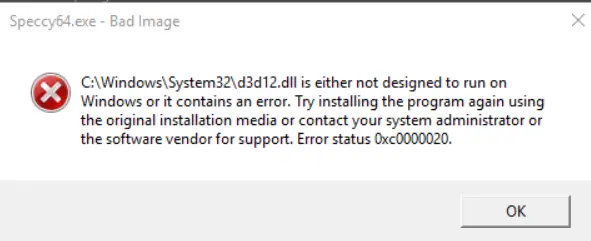
The error may report that Openal32.dll is missing or was not found. The application may stop before its main window opens, or a game may fail during startup. Record the full message because a missing-file message and a version-related loading failure can require different follow-up.
One failing application does not establish that Windows itself is damaged. Several failing applications justify broader investigation, but they still do not prove that every failure shares one cause. Keep the exact DLL name associated with each affected program.
- Only one application fails: focus on that application's supported installation and runtime requirements.
- Several applications report dependency errors: consider broader dependency diagnosis before replacing individual files.
- Windows also behaves abnormally: system-file checks may be relevant alongside application-level repair.
Quick Diagnosis Checklist
Before changing anything, note the application name, version, original installation source, and complete error text. These details help select a method and give support something actionable if the failure continues.
- Is the cause unclear, or do several dependencies need checking? Use Method 1 to diagnose DLL and startup-dependency problems.
- Does the application's guidance specifically require the Creative OpenAL runtime? Use Method 2 to obtain the Windows Installer from the official download page.
- Does only one application fail while other programs work? Use Method 3 to restore that application's installation.
- Did a system failure precede broader Windows problems? Consider Method 4. A DLL name or system-folder path alone is insufficient reason to use system repair.
Quick Method Comparison
| Method | Best For | Efficiency | User Effort |
|---|---|---|---|
| 1. Automated dependency diagnosis | Unclear DLL or startup-dependency failures | Combines detection, repair, and follow-up checks | Guided application controls |
| 2. Official OpenAL runtime | An application that explicitly requires the Creative runtime | Targets the stated runtime requirement | Check requirements and run the appropriate installer |
| 3. Reinstall the affected application | A failure isolated to one installation | Restores application-supplied files together | Preserve needed data and reinstall |
| 4. Windows system-file repair | Independent signs of Windows corruption | Addresses Windows system files, not a guaranteed OpenAL repair | Administrator commands and result interpretation |
These are different repair scopes, not measured speed rankings. If the application's developer provides a specific OpenAL installation procedure, follow that targeted guidance first.
Method 1: Diagnose and Fix Openal32.dll Errors with Fionn DLL Fixer
Recommended for unclear dependency failures: Fionn DLL Fixer checks OpenAL startup dependencies and detects missing, damaged, or mismatched DLLs. Its scan-and-repair process can help when the error does not reveal which component needs attention, reducing the need to search for individual replacement files.
The free version provides three free attempts; DLL, runtime, and system repair privileges are available through VIP. Check the applicable access conditions before proceeding. A completed repair does not guarantee that a particular game or application will launch.
- Launch Fionn DLL Fixer. The software automatically scans your PC for DLL and system issues and displays the detected results when the scan is complete.
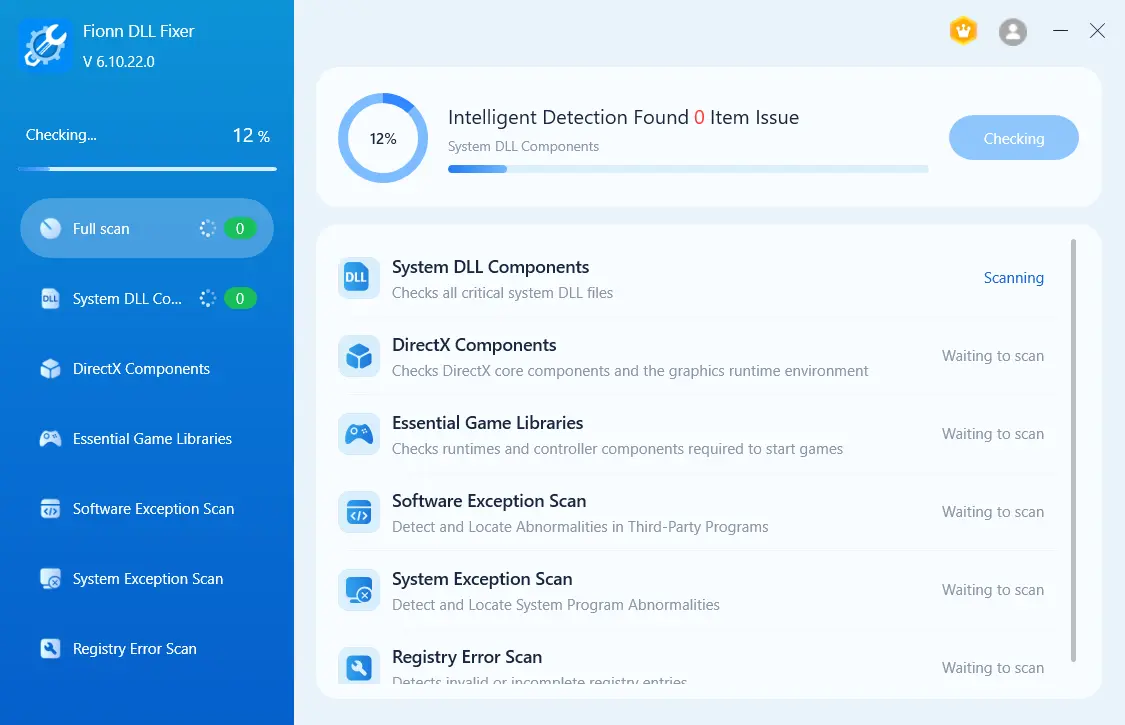
- After the scan finishes, click Repair to start fixing all detected DLL and system issues automatically.
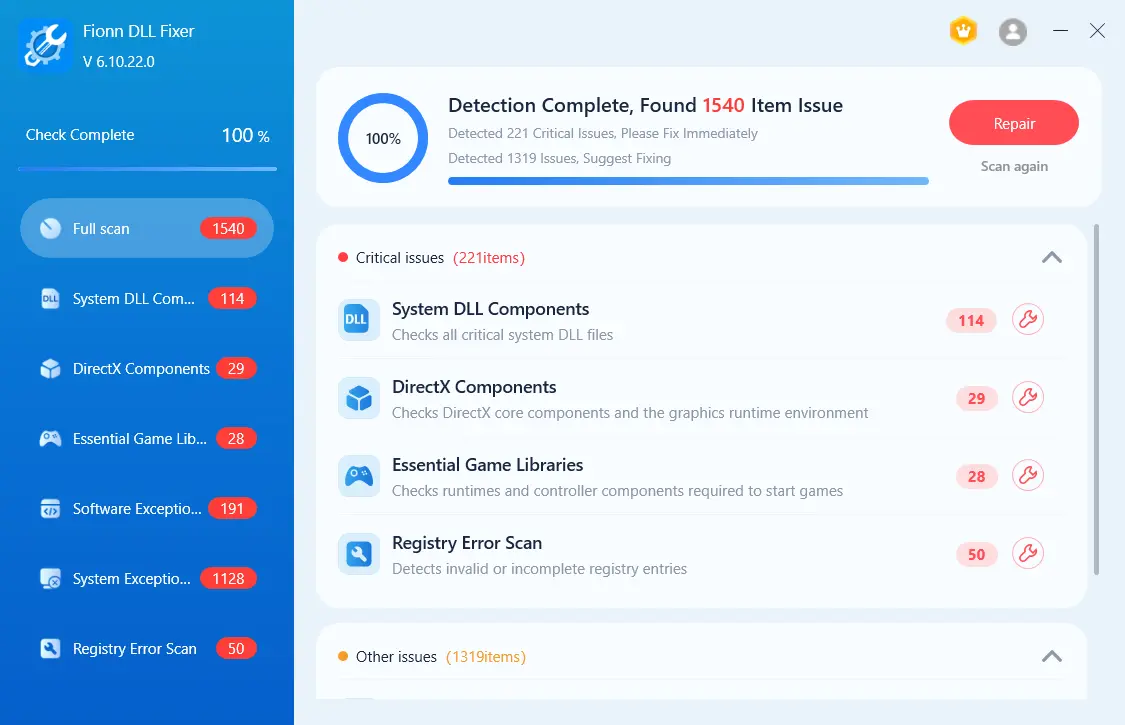
- Wait while the repair is in progress. During this process, the button changes to Fixing until all issues have been repaired.
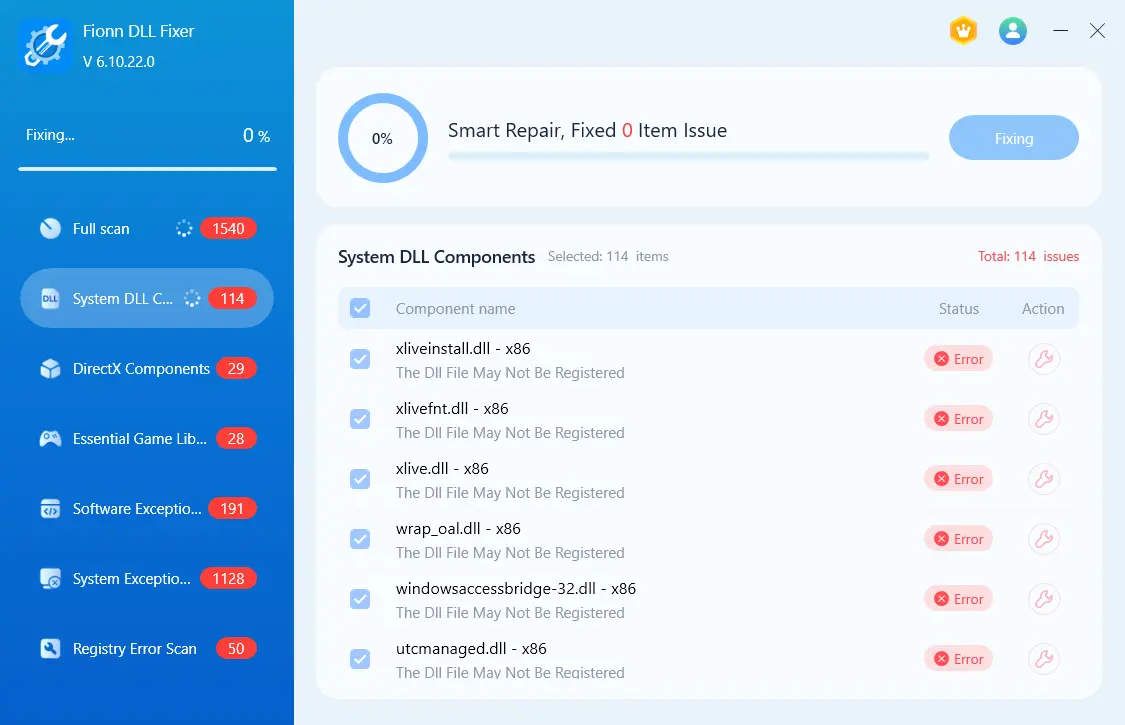
- When the repair is complete, click Ok in the confirmation dialog. If prompted, restart your computer before checking whether the problem has been resolved.
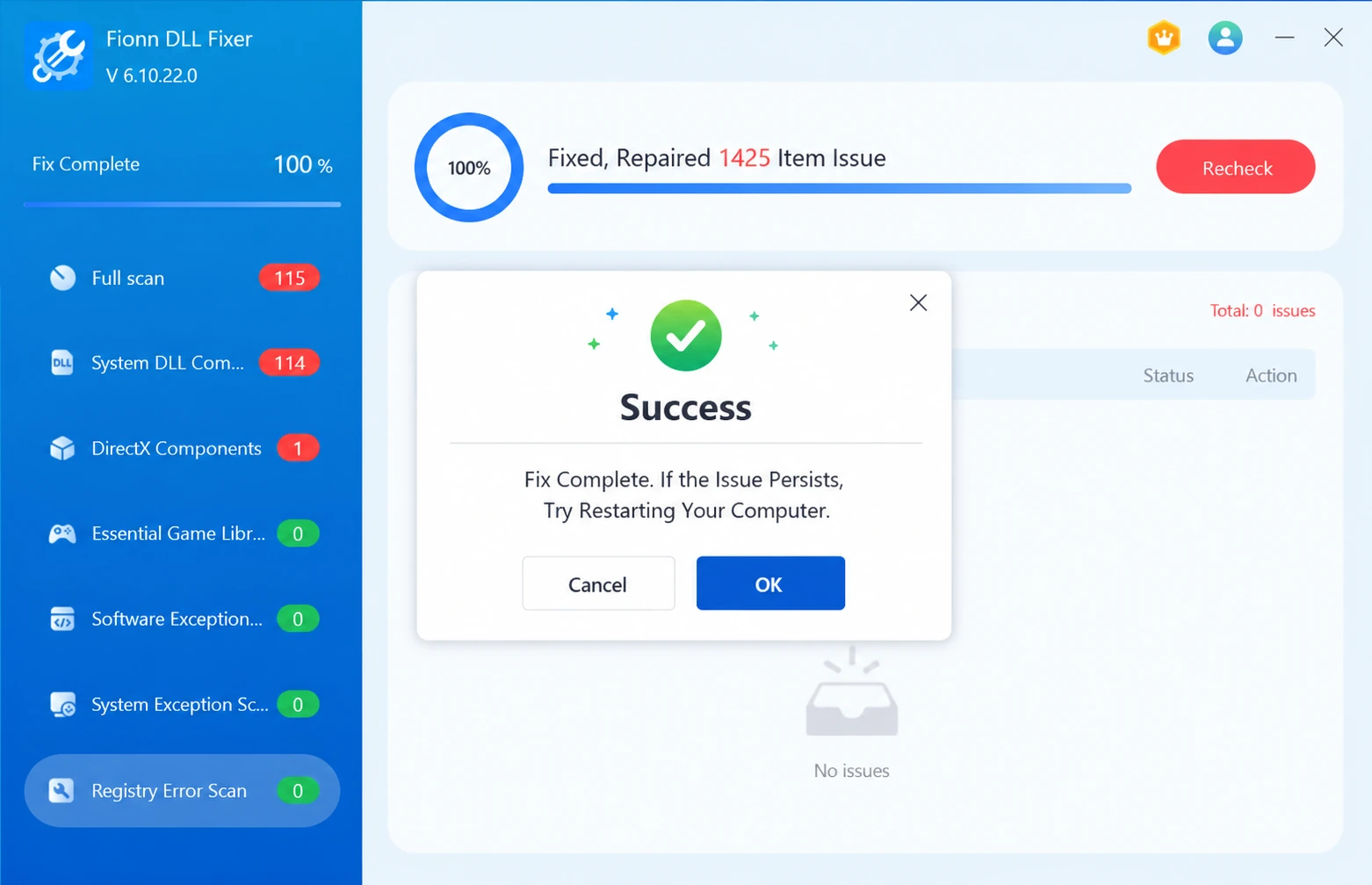
- If the issue still persists after restarting, click Recheck to perform another scan. If new issues are found, click Repair again to fix them.
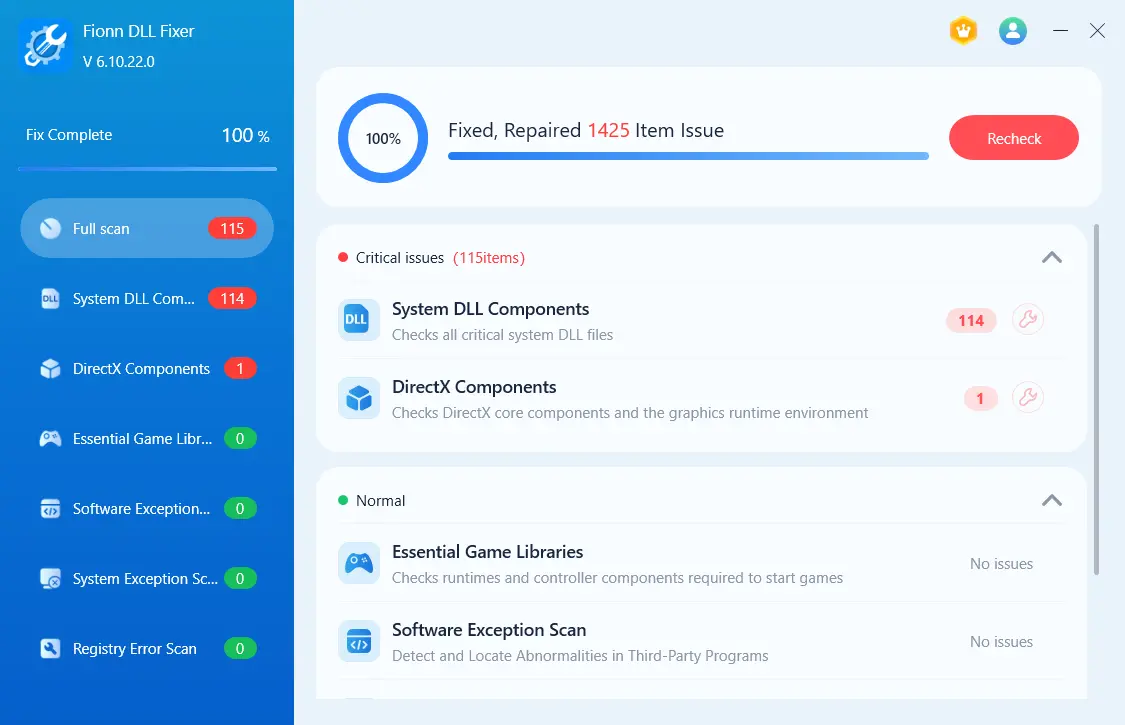
Confirm the actual outcome by reopening the originally failing application. The strongest success signal combines the absence of the previously detected issue with startup without the original Openal32.dll message. If the application still fails, retain the error text and follow the matching application or runtime path below.
Method 2: Obtain the Official OpenAL Windows Installer
Use this path when the affected application's instructions call for the Creative OpenAL runtime. The official OpenAL download page lists the Windows Installer separately from the developer SDK. Selecting the SDK simply because it includes OpenAL in its name does not follow the runtime-installation path.
- Check the affected application's installation or support instructions for its required OpenAL package.
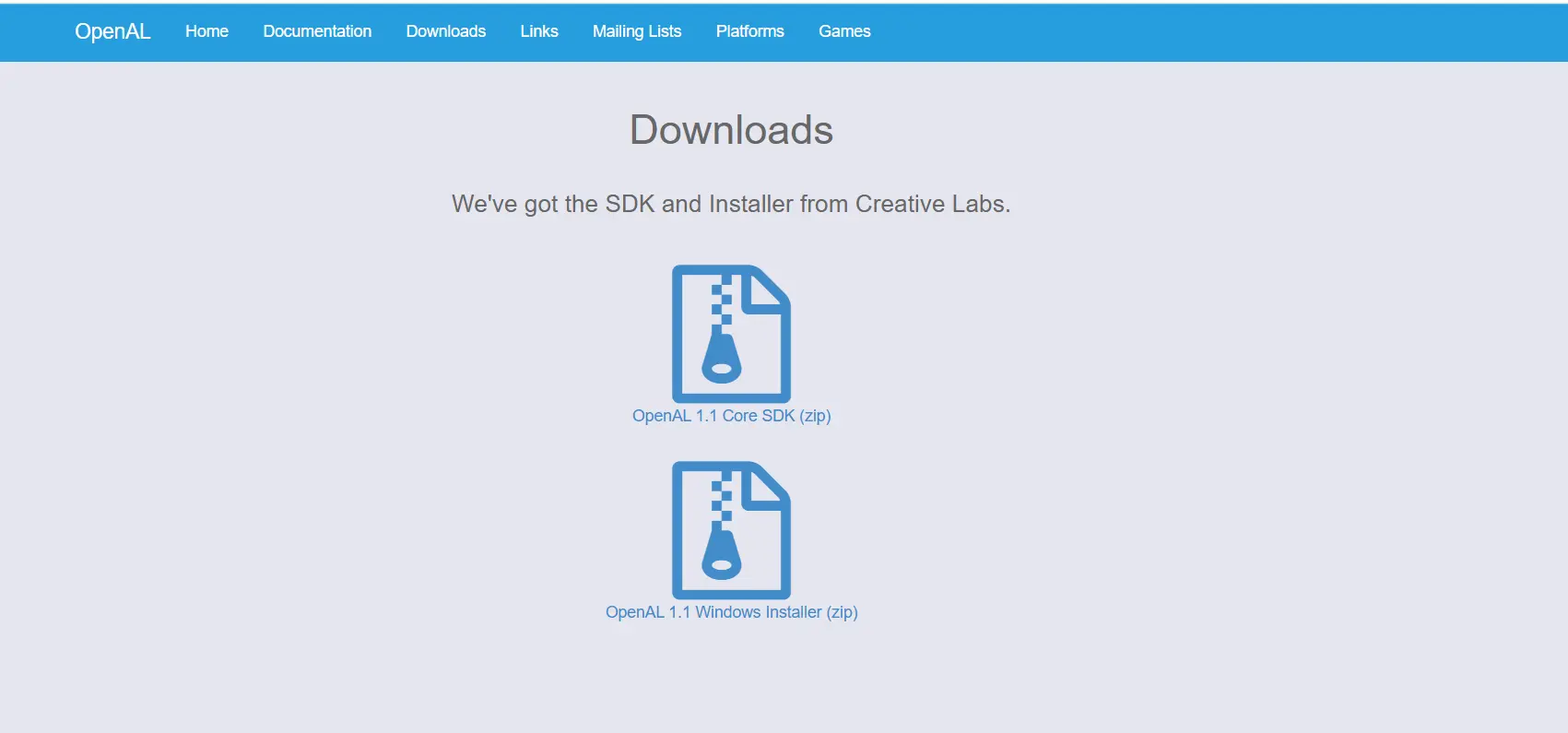
- Visit the official OpenAL downloads page .
- Select OpenAL 1.1 Windows Installer (zip), rather than OpenAL 1.1 Core SDK.
- Open the downloaded ZIP archive to access the installer.
- Run the installer according to the application's guidance and the installer's prompts.
After installation, launch the same application that reported the missing library. Reaching its main window without the original message is the first success check. Then test the activity that previously failed. If the message remains, reinstall the application or ask its developer which runtime package the application expects.
Method 3: Reinstall the Application That Reports the Error
Choose reinstallation when the failure affects one application and its installation may be incomplete or damaged. Restoring the application as a package avoids guessing which individual library belongs with that release. Reinstallation can restore bundled files, but it does not establish that every separately required runtime is installed.
Before removal, preserve application data you need and check the developer's instructions for saved settings or progress. Make sure you can obtain the application again from its original legitimate source.
- Close the affected application and its related processes.
- Open Windows Settings and locate the application in Installed apps; on Windows 10, use Apps & features.
- Uninstall the affected application.
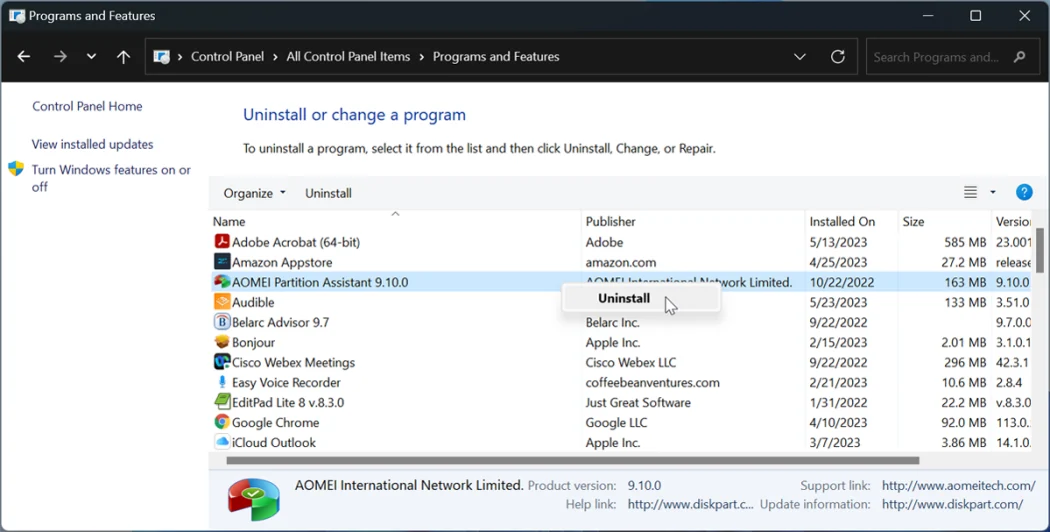
- Restart the computer.
- Obtain the installer from the application's developer or the official store originally used.
- Reinstall the application.
- Launch the newly installed application.
Check that the application reaches its main window without the original message. If the same Openal32.dll error returns immediately, consult the application's runtime requirements. Repeating the same reinstall without changing the suspected cause is unlikely to improve the diagnosis.
Method 4: Check Windows System Files When Broader Problems Exist
Use this method only when Windows corruption is independently suspected, such as after a system failure with problems beyond one application. System File Checker checks Windows system files. It should not be treated as a direct installer for a third-party OpenAL runtime.
Microsoft's System File Checker instructions specify installing available Windows updates and restarting before running the repair commands. The procedure below follows Microsoft's DISM-before-SFC order.
- Install available Windows updates through Windows Update.
- Restart Windows.
- Search for Command Prompt and select Run as administrator.
- Run the component-store repair command:
DISM.exe /Online /Cleanup-image /Restorehealth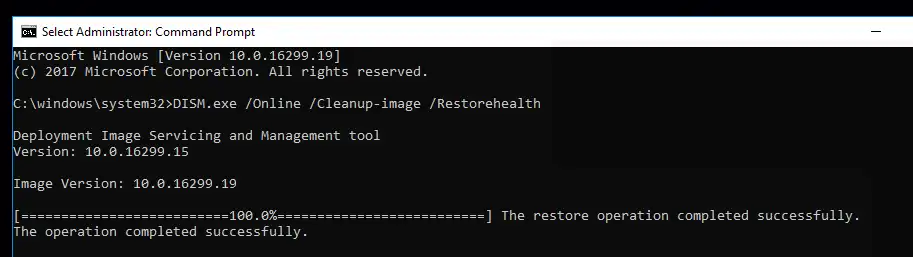
- After DISM reports successful completion, run the system-file check:
sfc /scannow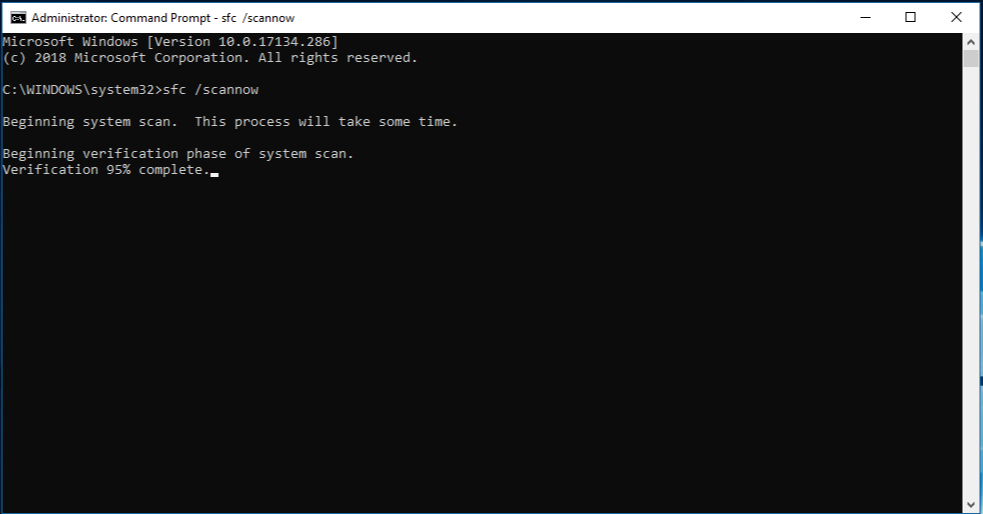
- Wait for verification to finish before closing Command Prompt.
Record any unrepaired-file report, then retry the affected application. A successful Windows repair and a resolved application error are separate outcomes. If Windows checks finish successfully but Openal32.dll is still reported missing, return to the application's installation and runtime requirements.
Verification Checklist
- The exact application that failed now reaches its main window.
- The original Openal32.dll message no longer appears during startup.
- The activity that previously triggered the failure now works.
- Any requested restart has been completed before the final test.
- For automated diagnosis, the previously detected issue is absent from the follow-up result.
- If another error appears, its exact wording is recorded separately.
Change one repair approach at a time. Testing after each method helps distinguish a successful repair from an unrelated change and gives support a clearer account of what happened.
Conclusion
Match the repair to the failure: follow application-specific runtime guidance for a known requirement, reinstall an isolated failing application, and reserve Windows system-file repair for broader corruption symptoms. For unclear dependency problems, Fionn DLL Fixer offers a diagnosis-and-repair path. Confirm success in the affected application, and contact its developer if the original error persists.
Frequently Asked Questions
Should I download Openal32.dll by itself?
Prefer the application's supported installer or runtime package. A standalone DLL may have the wrong architecture or version. Replacing a file without identifying the expected package can leave the original loading problem unresolved.
Do I need the OpenAL SDK to fix a missing-file error?
Not for the runtime-installation path described here. The official downloads page separates the Core SDK from the Windows Installer. If the application requires the Creative runtime, select the Windows Installer unless its developer gives different instructions.
Can OpenAL Soft replace the required library?
OpenAL Soft is a separate implementation, not a universal replacement procedure. Its maintainer guidance on replacement compatibility explains that compatibility depends on the game. Use an application-specific procedure rather than blindly renaming or copying DLLs.
Will SFC restore Openal32.dll?
SFC checks Windows system files; that scope does not establish that it will restore the OpenAL library required by your application. Use system checks for broader Windows problems and the application's supported installation path for its runtime requirements.
What should I send support if the error remains?
Provide the complete error text, application name and version, Windows version, installation source, and repair methods already attempted. Include whether other applications fail and whether the message changed after a particular repair.


