 Emily CarterDLL Errors
The error “d3dx11_43.dll was not found” usually prevents one Windows game or application from opening. The file is a legacy DirectX component, so the practical first path is to install Microsoft’s legacy DirectX runtime. If the error affects only one program, repair that program instead. When the source is unclear or several DLL and system issues appear together, Fionn DLL Fixer can scan and repair detected issues.
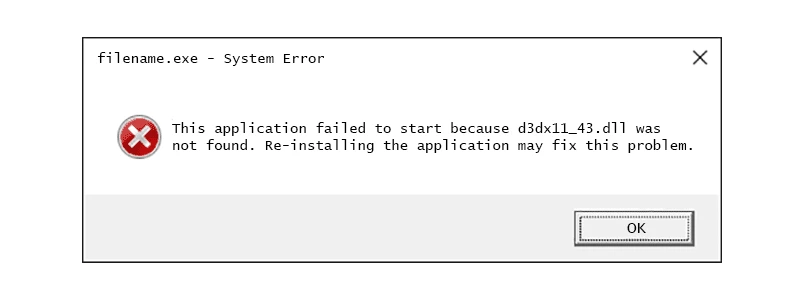
Start with the error dialog: note the exact DLL name, the full path shown, and the affected application. Then use the route that matches those details.
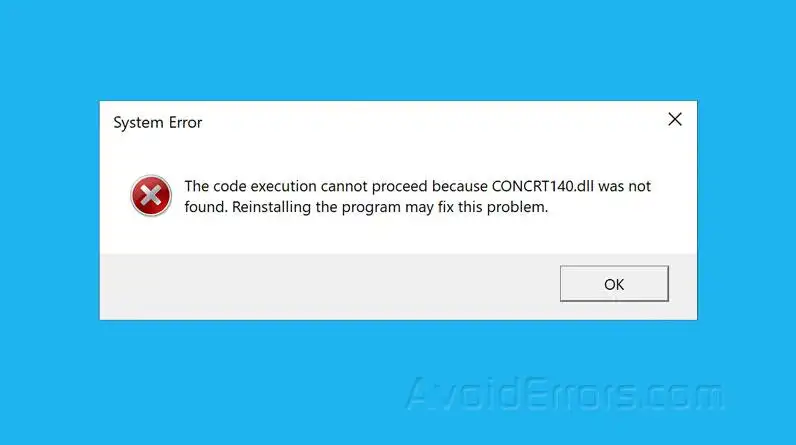
When Windows Reports “d3dx11_43.dll was not found”
- A game or application stops at launch and displays “d3dx11_43.dll was not found”.
- The same program repeatedly fails before its normal start screen appears.
- Only one application is affected, especially when the dialog points to that application’s installation folder.
- More than one program has startup or dependency-loading errors, making the provider less clear.
Current DirectX components in Windows and older D3DX utility libraries are separate. Microsoft states that its legacy runtime adds optional side-by-side technologies; it does not replace or modify the DirectX runtime already installed with Windows.
Quick Diagnosis Checklist
- The dialog names d3dx11_43.dll: choose Method 1. Microsoft’s legacy DirectX package includes D3DX libraries used by some games.
- One application fails and the displayed path is inside its own installation folder: choose Method 2 before making broader changes.
- The failing component is unclear, or several DLL/system problems are involved: choose Method 3 for a scan-and-repair workflow.
- You were considering downloading one DLL from a random website: do not do that. Use the official runtime or the application’s original publisher instead.
Quick Method Comparison
| Method | Best For | Efficiency | User Effort |
|---|---|---|---|
| Official legacy DirectX runtime | A missing D3DX DLL named in the error | Direct | Low |
| Application repair or reinstall | One affected app with a path in its install folder | Targeted | Moderate |
| Fionn DLL Fixer | Unclear or multiple DLL and system findings | Guided scan and repair | Low |
Method 1: Install the Official Legacy DirectX Runtime
Use this route when the startup dialog specifically reports d3dx11_43.dll. Microsoft’s DirectX End-User Runtimes (June 2010) download page provides legacy DirectX SDK libraries, including D3DX, for games that need them.
- Open Microsoft’s DirectX End-User Runtimes (June 2010) download page.
- Select
Download
to start the download.
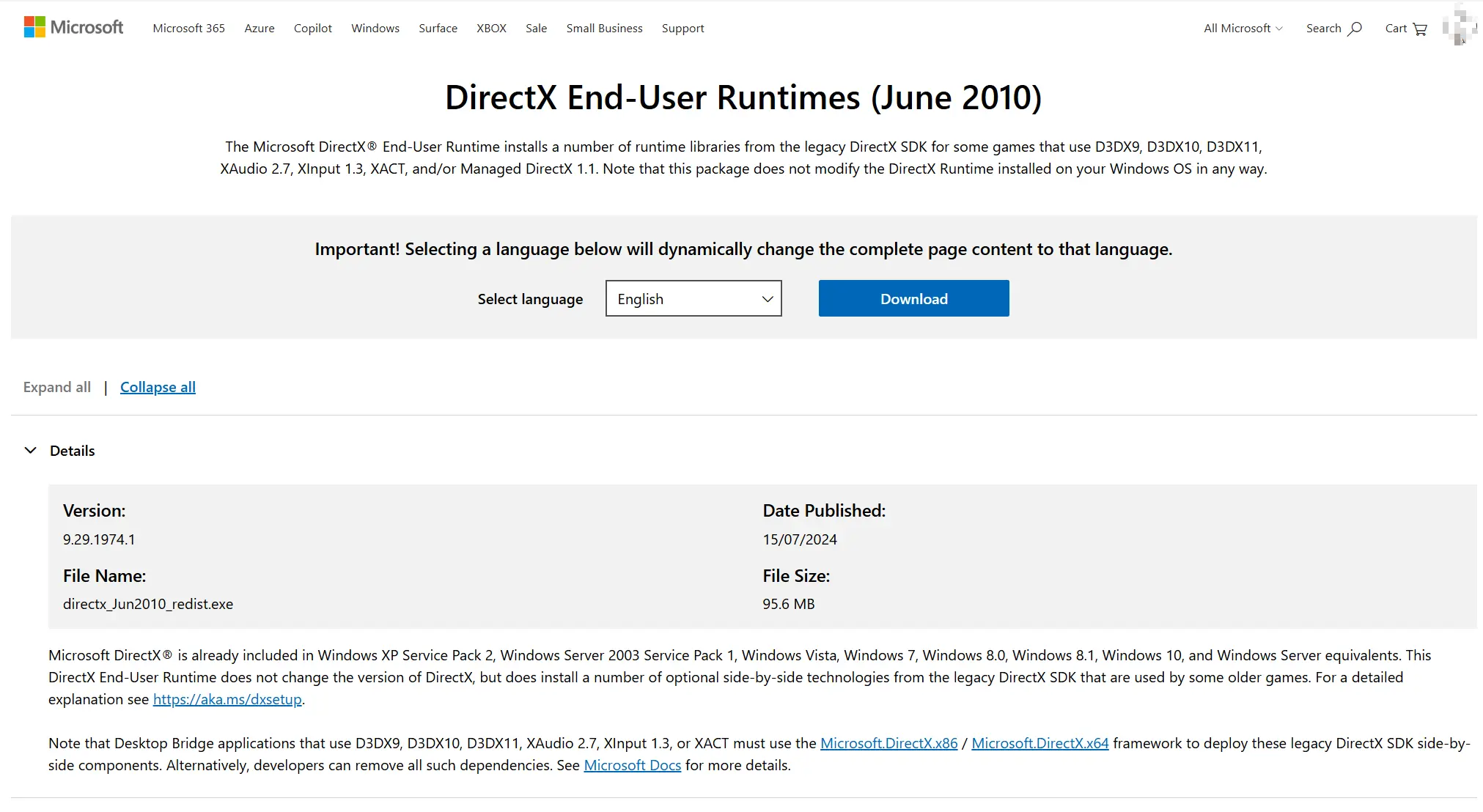
- Select Run to install immediately, or select Save to install it later.
- Open the original game or application after installation finishes.
A successful result is that the application reaches its normal start screen without the original missing-DLL dialog.
Method 2: Repair or Reinstall the Affected Application
Use this route first when only one application fails and the error path is inside that application’s installation directory. The application may need its own files or prerequisites restored.
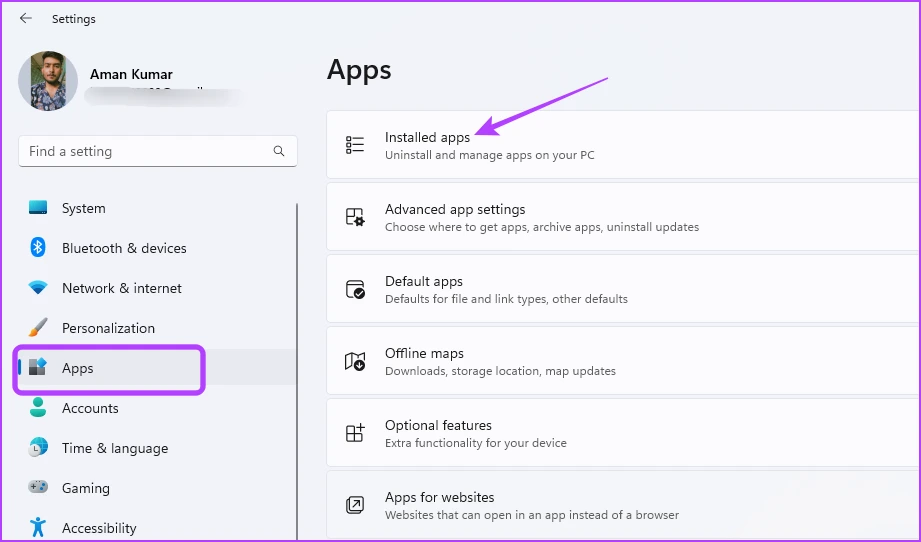
- Look for the application’s own maintenance or repair option and use it when available.
- If repair is unavailable or does not resolve the error, uninstall the application from Windows Settings.
- Reinstall the application from its original publisher or store source.
- Launch the same application again.
The repair worked if that application reaches its normal start screen and the original d3dx11_43.dll message does not return.
Method 3: Diagnose the “d3dx11_43.dll was not found” Error with Fionn DLL Fixer
Recommended when the source is unclear or several dependency issues may be involved. Fionn DLL Fixer detects missing, corrupted, or invalid DLL files and includes DirectX repair capability. Its scan can also check DirectX DLLs, D3D Runtime items, Shader Compiler items, and graphics API conflicts.
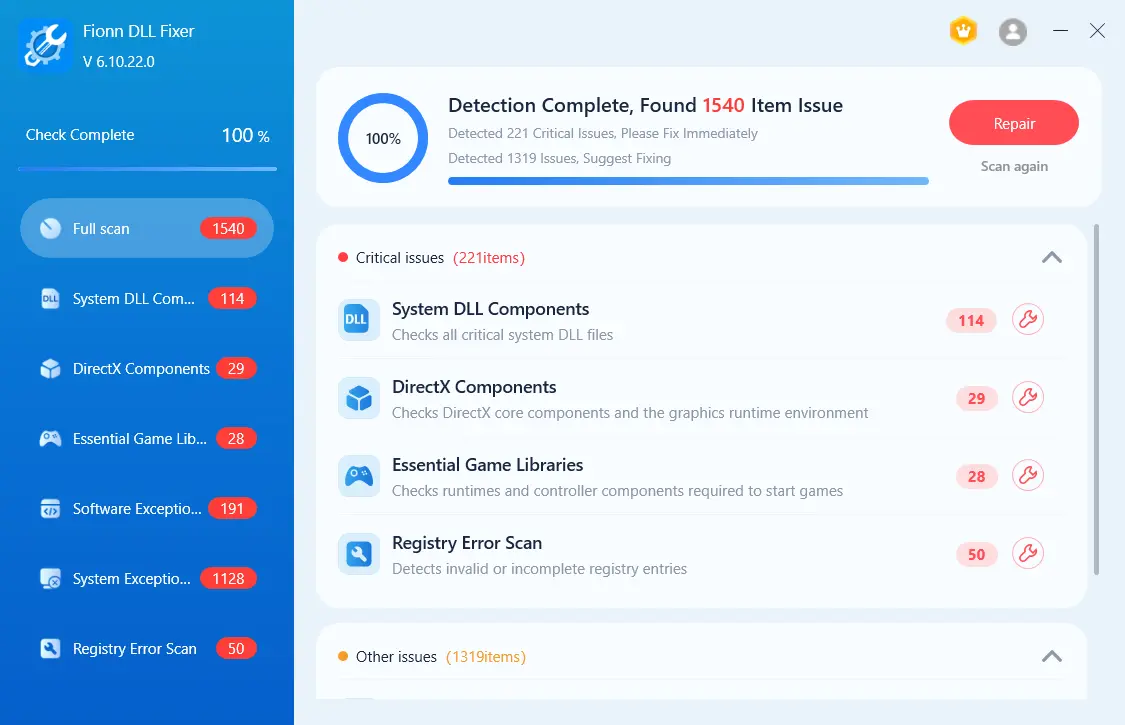
- Launch Fionn DLL Fixer. The software automatically scans your PC for DLL and system issues and displays the detected results when the scan is complete.
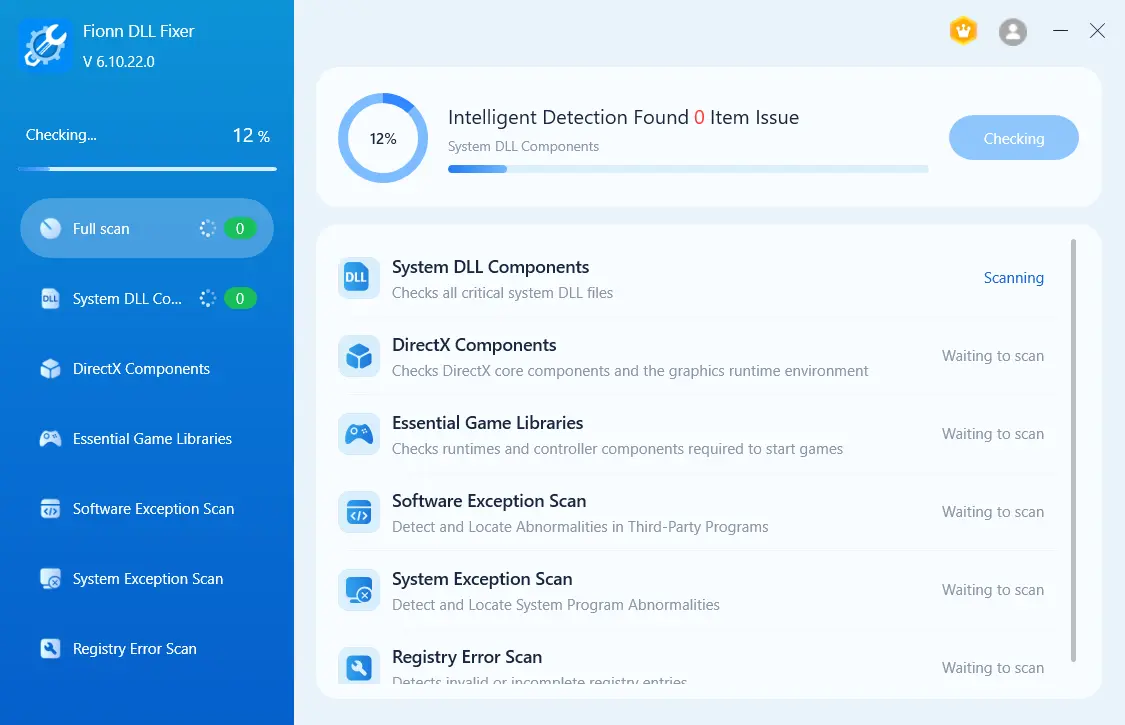
- After the scan finishes, click
Repair
to start fixing all detected DLL and system issues automatically.
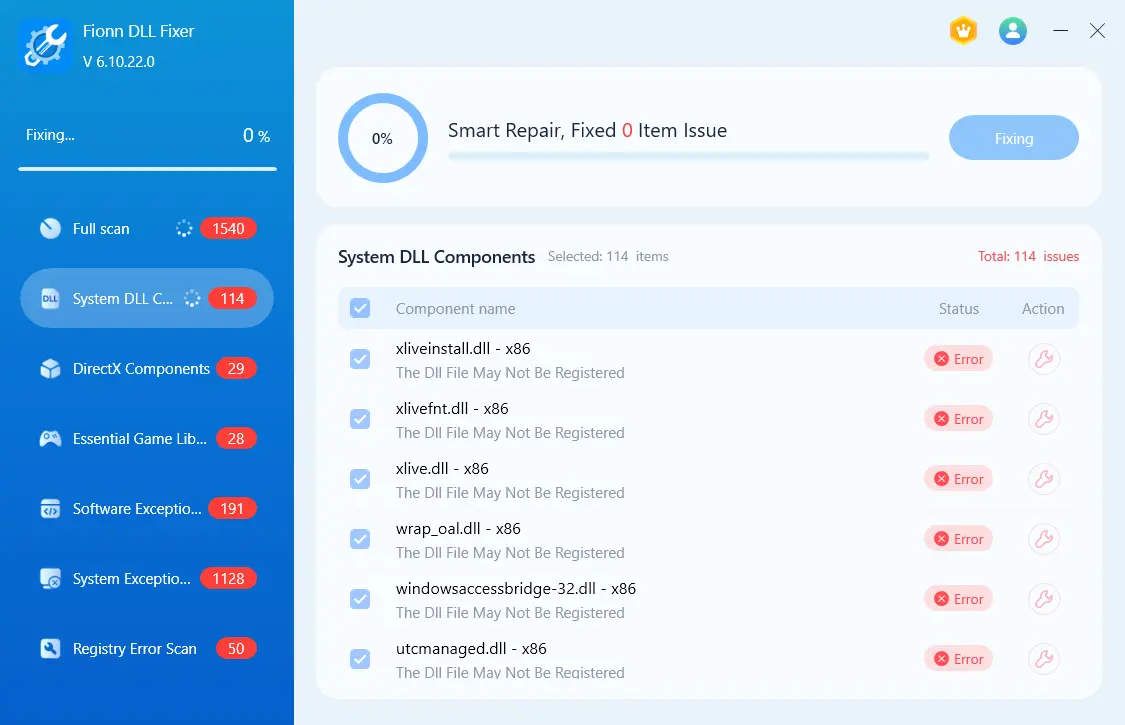
- Wait while the repair is in progress. During this process, the button changes to
Fixing
until all issues have been repaired.
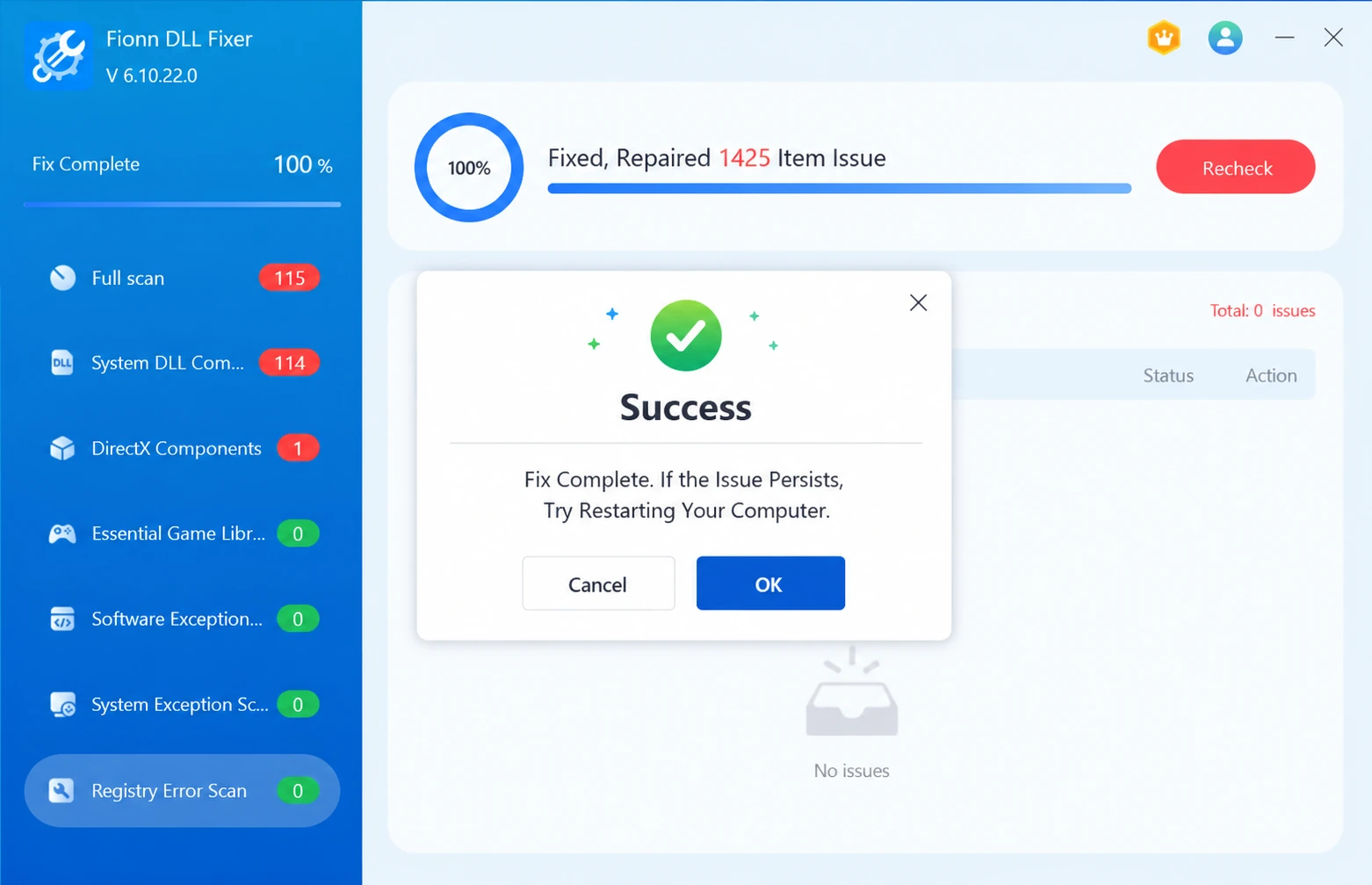
- When the repair is complete, click
Ok
in the confirmation dialog. If prompted, restart your computer before checking whether the problem has been resolved.
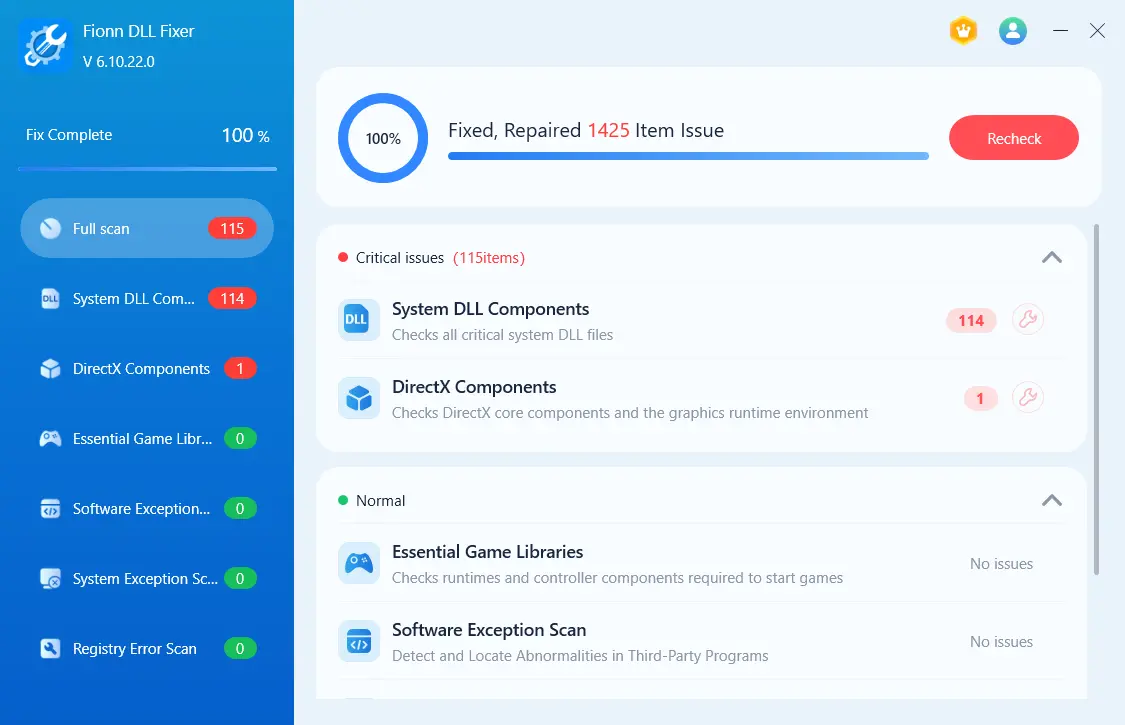
- If the issue still persists after restarting, click
Recheck
to perform another scan. If new issues are found, click
Repair
again to fix them.
After any requested restart, open the original application. The product’s completion message is not the final test; the useful success signal is that the application starts without the d3dx11_43.dll error.
Verification Checklist
- The original game or application opens past the previous error dialog.
- The “d3dx11_43.dll was not found” message does not reappear at startup.
- If you used the legacy DirectX runtime, the application starts without changing the installed Windows DirectX version.
- If the error persists, record the new dialog text and full path before contacting the application developer or official support.
Conclusion
If you see “d3dx11_43.dll was not found”, install Microsoft’s legacy DirectX runtime first because it supplies the legacy D3DX components that affected games may require. Repair or reinstall the program when the failure is limited to that program. If the cause remains unclear, use Fionn DLL Fixer to scan, repair, restart when prompted, and recheck. Always verify by launching the original application; if it still fails, contact the application developer or its official support channel with the exact new error message.
FAQ
Is d3dx11_43.dll included with current Windows DirectX?
Not necessarily. Microsoft distinguishes current Windows DirectX runtime components from legacy D3DX utility libraries. The DirectX End-User Runtimes (June 2010) package adds the older side-by-side components, including D3DX.
Will the DirectX End-User Runtimes package replace my DirectX version?
No. Microsoft states that the package does not change the DirectX version installed with Windows. It adds optional legacy technologies needed by some older games and applications.
Should I download d3dx11_43.dll by itself?
No. Avoid unverified DLL-download sites because the filename does not establish a compatible source, version, or architecture. Use Microsoft’s runtime package or reinstall the affected application from its original source.
Why does only one game show the error?
That often points to the game’s own installation or prerequisites. If the error path is inside that game’s installation folder, use its repair option or reinstall it from the original publisher or store before attempting broader repairs.
What should I do if the error remains after repair?
Restart if the repair process requested it, then launch the original application again. Record any new error text and its full path, and provide those details to the application developer or official support.


