 Emily CarterDLL Errors
A combase.dll missing error does not automatically mean that the Windows file itself is damaged. If only one app fails, repair or reinstall that app first. If several apps or Windows features fail, repair Windows with DISM and SFC. For a guided scan of detected DLL and system issues, Fionn DLL Fixer is another option. This guide covers three methods, then shows how to distinguish a missing-file message from a crash that merely names combase.dll.
What Is combase.dll?
Combase.dll is a Windows component associated with Component Object Model (COM) infrastructure. COM lets Windows components and applications use shared objects and services. Microsoft API documentation lists
Combase.dll
as the DLL for COM-related APIs, so a problem loading it can affect more than the app that first displays the message. That said, a single app failure can still be caused by that app’s installation, dependencies, or configuration rather than a damaged Windows component.
Quick Method Comparison
| Method | Best For | Efficiency | User Effort |
|---|---|---|---|
| Repair or reinstall the affected app | Only one app or game shows the error | Directly targets the isolated app | Low to moderate |
| DISM and SFC | Multiple apps fail, Windows features misbehave, or the issue followed an update | Built-in Windows component repair | Moderate |
| Fionn DLL Fixer | A guided scan for detected DLL and system issues | Automated scan-and-repair flow | Low |
Use the pattern of failures to choose. One affected app points first to that app. Multiple affected apps or Windows features point to Windows repair. If the issue began after Windows Update, install pending updates, restart, and then use the Windows repair path if the problem continues. If SFC reports no integrity violations, do not continue to assume that combase.dll is corrupted; focus on the affected app or its vendor support instead.
Method 1: Repair or Reinstall the Affected App
When to use: Choose this method when the error occurs in one app or game while other software and Windows features work normally. This method addresses the app installation rather than changing Windows system files.
- Close the affected app.
- Open Settings and go to Apps > Installed apps .
- Select the affected app, open its available options, and choose
Repair
if that option is provided.
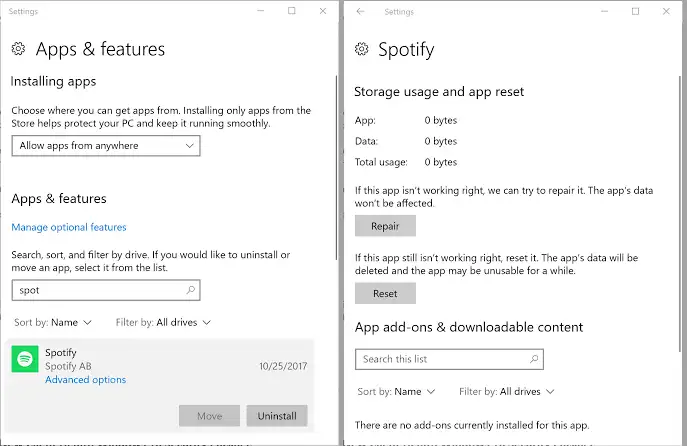
- Open the app and test it again.
- If the error remains or no Repair option is available, uninstall the app using its normal uninstall process, then install a fresh copy from its official publisher or store.
Expected result: The app opens without the original message while other Windows software remains unaffected. If the app still fails after a clean reinstall, keep the full error text and contact the app publisher, because an app-specific dependency or configuration may be involved.
Method 2: Repair Windows System Files with DISM and SFC
When to use: Use this method when more than one program fails, Windows components are also unstable, or the issue persisted after Windows Update. Microsoft recommends running DISM before System File Checker because DISM provides files needed for repair.
- Open Command Prompt as an administrator: search for
cmd, right-click Command Prompt, and select Run as administrator . - Run the following command and wait for it to finish:
DISM.exe /Online /Cleanup-image /Restorehealth
- Run the following command in the same elevated Command Prompt:
sfc /scannow - Keep the Command Prompt window open until SFC reaches 100% and displays its result.
- Restart Windows if the repair result indicates that files were repaired.
Expected result: SFC either reports that it found no integrity violations or that it found and successfully repaired corrupt files. Microsoft documents that DISM and SFC can scan for and restore missing or damaged Windows components.
For the complete commands and result meanings, see Microsoft’s System File Checker instructions .
Method 3: Fix combase.dll Missing with Fionn DLL Fixer
When to use: This is the recommended guided option when you want to scan detected DLL and Windows system issues without manually interpreting each result. Fionn DLL Fixer supports full or category scans, repair, and a post-repair recheck. It detects missing, damaged, version-mismatch, and System32-path-related DLL issues.
- Launch Fionn DLL Fixer. The software automatically scans your PC for DLL and system issues and displays the detected results when the scan is complete.

- After the scan finishes, click
Repair
to start fixing all detected DLL and system issues automatically.

- Wait while the repair is in progress. During this process, the button changes to
Fixing
until all issues have been repaired.

- When the repair is complete, click
Ok
in the confirmation dialog. If prompted, restart your computer before checking whether the problem has been resolved.

- If the issue still persists after restarting, click
Recheck
to perform another scan. If new issues are found, click
Repair
again to fix them.

Expected result: The repair completes, and Recheck identifies whether detected issues remain. Then test the same app that originally showed the error.
combase.dll Missing vs. Faulting Module
A message saying
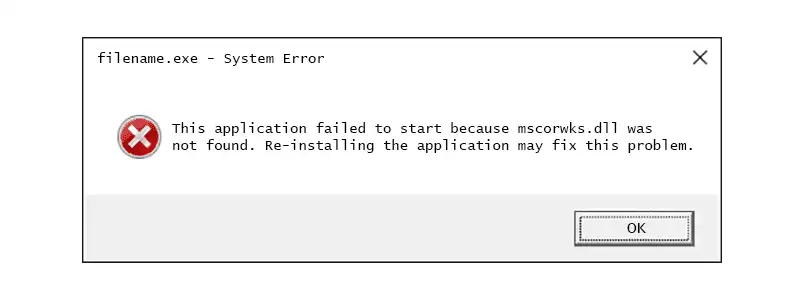
combase.dll was not found
or that the file cannot be loaded is different from an Event Viewer crash record that lists
combase.dll
as the
faulting module
. A missing-file message is a load failure. A faulting module entry means the crash occurred while code in that module was active; it does not, by itself, prove that combase.dll caused the crash.
For a faulting-module case, record the crashing app name, exception code, and any recently installed software or driver. Test the app after updating or removing the suspected third-party component according to its publisher’s guidance. Do not replace combase.dll solely because its name appears in a crash report.
How to Verify the Repair
- Restart the PC when Windows, the app installer, or the repair tool prompts you to do so.
- Open the same app or game that displayed the combase.dll missing message.
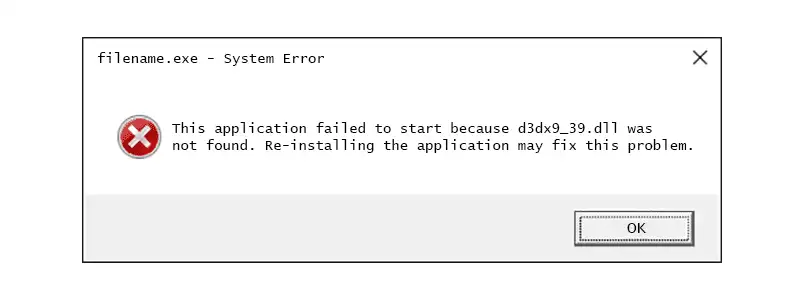
- Confirm that it reaches its normal start screen without the original error.
- Open one or two unrelated apps if the original problem affected multiple programs.
- If the error remains, note whether it is a missing-file message or a faulting-module report, then retain the full text for the app publisher or technical support.
This final test matters because a completed command, reinstall, or scan does not by itself prove that the original launch issue is resolved.
Conclusion
Start with the scope of the problem. Repair or reinstall the affected app when only that app shows a combase.dll missing error. When multiple apps or Windows features fail, install pending updates if applicable, then run DISM followed by SFC and read the result instead of assuming a damaged DLL. A faulting-module report needs separate diagnosis because it does not prove the named DLL is missing. For a guided scan-and-repair route, Fionn DLL Fixer can scan detected DLL and system issues, apply repair, and recheck afterward. Verify by reopening the original app.
Frequently Asked Questions
Is combase.dll missing always a damaged Windows-file problem?
No. If one app is affected, its own installation or dependencies may be the cause. Repair or reinstall that app before treating the issue as Windows-wide.
Should I run DISM before SFC?
Yes. Microsoft’s guidance is to run DISM first because it provides files needed for System File Checker repairs.
What does no integrity violations mean?
It means SFC did not find missing or corrupted protected Windows system files. Investigate the affected app, its installation, or a faulting-module report instead of assuming combase.dll needs replacement.
Does faulting module combase.dll mean combase.dll caused the crash?
No. It identifies the module active at the crash point, not necessarily the underlying cause. An app, driver, or another component can trigger the failure.
Can Fionn DLL Fixer check again after repair?
Yes. Its supplied workflow includes a Recheck scan after restarting if the issue persists, followed by another repair when new issues are found.
Need a guided repair workflow? Fionn DLL Fixer is a practical option for scanning detected DLL and Windows system issues, applying repair, and checking again afterward.


