 Emily CarterWindows Errors
The
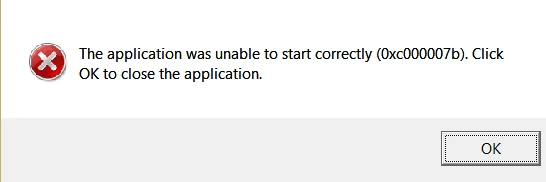
0xc000007b error
corresponds to
STATUS_INVALID_IMAGE_FORMAT
. It means Windows could not load an executable image or one of its required modules in the expected format. A common cause is an incompatible or damaged application dependency, including a possible 32-bit/64-bit mismatch, but the error code alone does not identify the exact file.
Start with the affected application, then check its required runtimes, and use Windows file repair when several programs fail. This guide covers four repair paths. For a guided scan of DLL and system-component issues, Fionn DLL Fixer is a recommended option after you have identified the affected scope.
Symptoms
- A game or program displays a startup message containing
0xc000007b. - The application closes immediately or never reaches its first screen.
- Only one application fails, while other Windows features continue to work.
- The problem begins after an update, interrupted installation, or dependency change.
The code is a loading failure, not proof that one particular DLL is missing. Whether one application or several unrelated applications fail is the most useful first clue.
What Causes 0xc000007b?
| Possible cause | Typical clue |
|---|---|
| x86/x64 module mismatch | The app fails immediately at launch. |
| Damaged or incorrect DLL or executable | A Bad Image message or 0xc000007b appears. |
| Visual C++ runtime problem | The app or game requires Microsoft Visual C++ components. |
| DirectX or game dependency problem | The issue is mainly limited to a game or older software. |
| Damaged application installation | Only one application fails. |
| Windows system-file corruption | Multiple unrelated applications fail. |
These clues guide diagnosis; they do not prove the cause by themselves.
Can a 32-bit/64-bit Mismatch Cause 0xc000007b?
Yes. A 32-bit application cannot load a 64-bit DLL into its process, and a 64-bit application cannot load a 32-bit DLL. This is one common reason for an invalid-image-format error.
Do not assume that every dependency must be x64 simply because Windows is 64-bit. A 64-bit edition of Windows can run 32-bit applications. Check the relationship application architecture → dependency architecture ; install or repair only the architecture required by the application and its official prerequisites.
Quick Diagnosis Checklist
- One application fails: choose Method 1. A clean reinstall restores that application's own files and bundled prerequisites.
- The failure began after a runtime or game-component change: choose Method 3 and repair only the runtime named by the application's documentation or installer.
- Several unrelated applications fail: choose Method 2 to check the Windows image and protected system files.
- The affected component is unclear: choose Method 4 for a consolidated DLL and system-issue scan.
Quick Method Comparison
| Method | Best For | Efficiency | User Effort |
|---|---|---|---|
| Reinstall the application | One affected application | High for damaged app files | Low |
| Repair Windows system files | Multiple failures | Broad system check | Medium |
| Repair required runtimes | Known Visual C++, DirectX, or publisher dependency | Targeted | Medium |
| Fionn DLL Fixer | Unclear DLL or component diagnosis | Guided scan and repair | Low |
Method 1: Reinstall the Affected Application
When to use: Use this when 0xc000007b appears in one application, especially after an update, move, or incomplete installation.
Step-by-Step Guide
- Close the affected application and its launcher.
- Uninstall the application through Windows Settings or its original uninstaller.
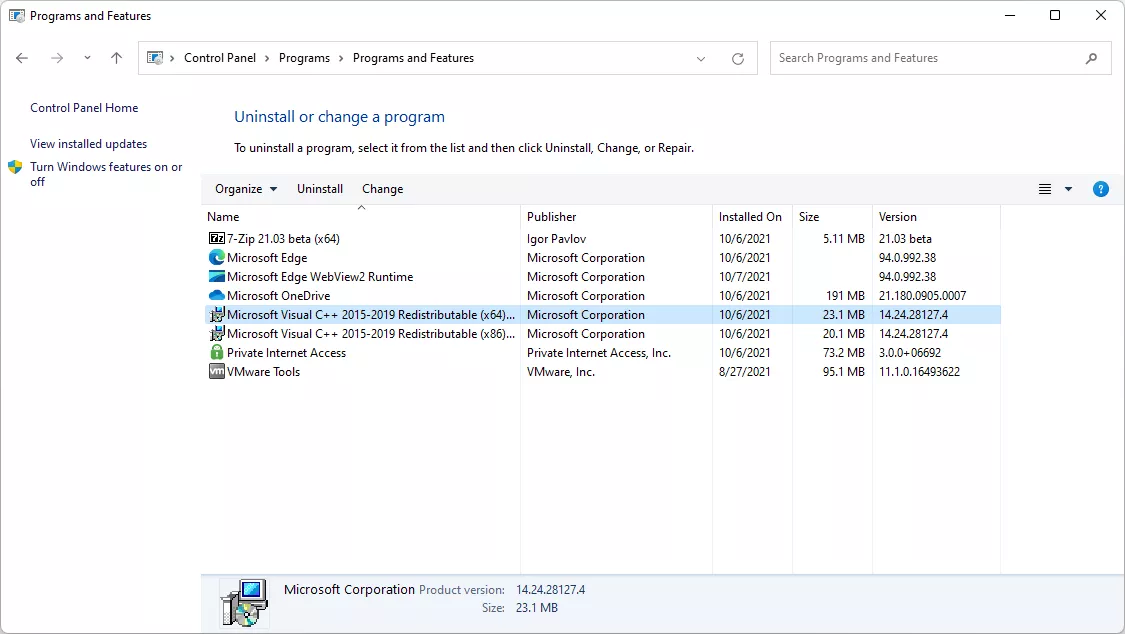
- Restart Windows.
- Install a fresh copy from the developer or authorized store.
- Launch the application before restoring add-ons or custom files.
How to Verify
Open the application from its normal shortcut. Success means it reaches its usual opening screen without the error. If only this application still fails, provide its developer with the exact error text and installation details.
Method 2: Repair Windows System Files
When to use: Use this when several unrelated applications fail or the error remains after reinstalling the affected application. DISM and System File Checker repair Windows component and protected system-file integrity.
Step-by-Step Guide
- Save open work and open Command Prompt as an administrator.
- Run the DISM command and wait for completion.
DISM.exe /Online /Cleanup-Image /RestoreHealth
- Run System File Checker in the same elevated window.
sfc /scannow - Restart Windows after both commands finish.
How to Verify
After restarting, launch the affected application. If SFC repaired files, test before making other changes. If integrity issues remain unrepaired, retain the command results for Microsoft support or the application developer.
Method 3: Repair Visual C++ or Other Required Runtimes
When to use: Use this when the application's official documentation, installer, or launcher identifies a prerequisite. This is particularly relevant for Visual C++ Redistributable packages and older games that require a DirectX runtime.
Step-by-Step Guide
- Check the application's official documentation, installer, or launcher for listed prerequisites.
- Identify whether it requires Visual C++, DirectX, .NET, or another publisher-required runtime.
- Repair or reinstall that named runtime using the application developer's installer or the component publisher's official installer.
- Restart Windows if the installer requests it.
- Launch the affected application again.
Visual C++ Redistributable: match the package architecture to the application's requirements. DirectX runtime: check it for older games when the developer lists it as a prerequisite. .NET or other runtimes: install only versions the publisher requires rather than installing unrelated packages at random.
How to Verify
The relevant test is the application launch, not merely a successful runtime installation. If the same error remains, stop adding unrelated runtimes and use a broader diagnosis.
Method 4: Diagnose and Fix the 0xc000007b Error with Fionn DLL Fixer
When to use: Recommended when the precise DLL or component is unclear. Fionn DLL Fixer can scan application startup and dependency-loading problems, including missing, damaged, version-mismatched, and System32-path-related DLL issues.
Step-by-Step Guide
- Launch Fionn DLL Fixer and wait for its automatic scan to display detected DLL and system issues.

- After the scan finishes, select “Repair” to fix the detected issues.

- Wait for the repair process to finish while the button displays “Fixing.”

- Select “Ok” in the completion dialog and restart the computer if prompted.

- If the issue persists, select “Recheck”; repair any newly detected issues.

How to Verify
After any prompted restart, open the application that showed 0xc000007b. The intended outcome is an error-free launch and a recheck with no remaining issue requiring repair.
Verification Checklist
- The affected application opens from its usual shortcut without an error dialog.
- The application reaches its normal first screen or working window.
- A Windows restart does not bring back the same error.
- Other applications that previously failed now open normally.
- No new startup error replaces 0xc000007b.
Conclusion
Start with a clean reinstall when one application shows the 0xc000007b error. If a publisher identifies a prerequisite, repair the required Visual C++, DirectX, .NET, or other runtime with the correct architecture. Use DISM and SFC when failures affect several unrelated applications. When manual DLL and component diagnosis is unclear, Fionn DLL Fixer provides a scan, repair, and recheck workflow. Verify every repair by restarting when requested and launching the original application. If the error remains, contact the application developer or official support with the exact message and completed repair results.
FAQ
What does the 0xc000007b error mean?
It corresponds to STATUS_INVALID_IMAGE_FORMAT: Windows could not load an executable image or required module in the expected format. The code does not name the exact faulty file.
Is 0xc000007b always a 32-bit or 64-bit mismatch?
No. An architecture mismatch is a common cause, but damaged application files, incorrect DLL versions, runtime problems, and Windows corruption can also contribute.
Should I install both x86 and x64 Visual C++ packages?
Follow the application's official prerequisites. A 32-bit application may require x86 components even on 64-bit Windows; install only the packages and architectures the publisher specifies.
Should I reinstall Windows to fix 0xc000007b?
Usually not. Try the affected application's reinstall, required-runtime repair, and Windows system-file checks first. Consider broader recovery only with official support guidance.
Can I copy a DLL from another computer?
No. The copied file can have the wrong source, version, or architecture. Restore components through the application developer, the component publisher, or an appropriate repair workflow.


