 Emily CarterDLL Errors
Introduction
DLL errors happen when Windows or an application cannot find, verify, or load a library or dependency it requires. The likely cause is usually visible in the error wording and in whether one app or several apps fail. This guide covers four repair paths: repair the affected app, restore a required runtime, repair protected Windows files, or run a consolidated diagnostic scan. Start with the narrowest repair that matches the symptom, then verify the original action.
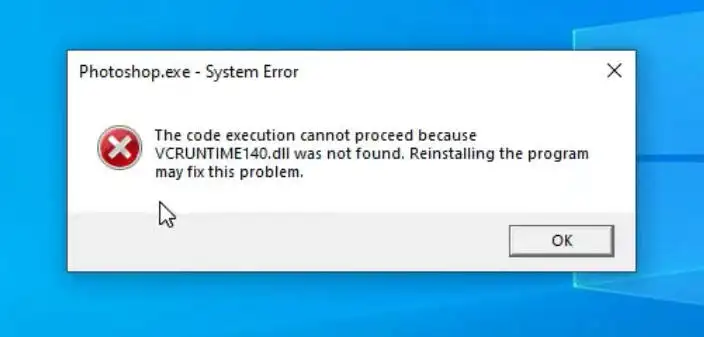
What Causes DLL Errors?
| Cause | Common signs |
|---|---|
| DLL is missing | DLL was not found or missing |
| DLL is corrupted | Bad Image or load failure |
| Wrong DLL version | Entry Point Not Found or version conflict |
| x86/x64 mismatch | Invalid image or application launch failure |
| Missing runtime | Visual C++, DirectX, or .NET-related error |
| Damaged app installation | Only one app fails |
| Windows system corruption | Multiple apps or Windows features fail |
A DLL message names the component Windows could not load; it does not always identify the original cause. For example, an app update can leave an incompatible dependency in place, while a missing Visual C++ file can indicate that its runtime package needs repair.
What Does Your DLL Error Mean?
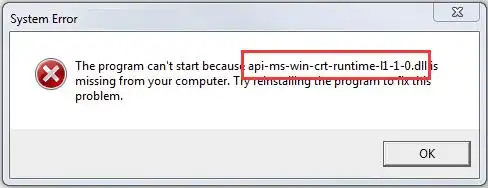
- DLL Not Found or Missing: The file or a required dependency cannot be found in the expected location.
- Bad Image: The file exists, but Windows cannot load it normally; corruption, a wrong version, or an architecture mismatch may be involved.
- Entry Point Not Found: The application expects a DLL or API version that does not provide the required function.
- Side-by-side Configuration Error: An assembly, manifest, or runtime dependency is unavailable or incompatible.
- 0xc000007b: Windows reports an invalid image format, often associated with mismatched architecture or components.
Quick Diagnosis Flow
- One app fails: Start with the app installation or its dependency.
- Several apps fail: Check Windows system components.
- The message names Visual C++, DirectX, or .NET: Repair or reinstall the required official runtime.
- The message says Bad Image or 0xc000007b: Check version and x86/x64 compatibility before replacing files.
- The cause is unclear: Use a diagnostic scan to identify DLL and dependency issues.
Quick Method Comparison
| Method | Best For | Efficiency | User Effort |
|---|---|---|---|
| Repair or reinstall the affected app | One application reports the error | High for an app-specific installation problem | Low to medium |
| Repair the required runtime | Visual C++, DirectX, or .NET dependency messages | High when the named runtime is the cause | Medium |
| DISM and SFC | Multiple app failures or Windows system-file symptoms | High for protected Windows files | Medium |
| Fionn DLL Fixer | Unclear DLL, runtime, or dependency-loading issues | Convenient consolidated diagnosis and repair | Low |
Method 1: Repair or Reinstall the Affected App
When to use: Use this method when the error occurs in one app or game, particularly after an update, move, or incomplete installation.
- Close the affected application.
- Open
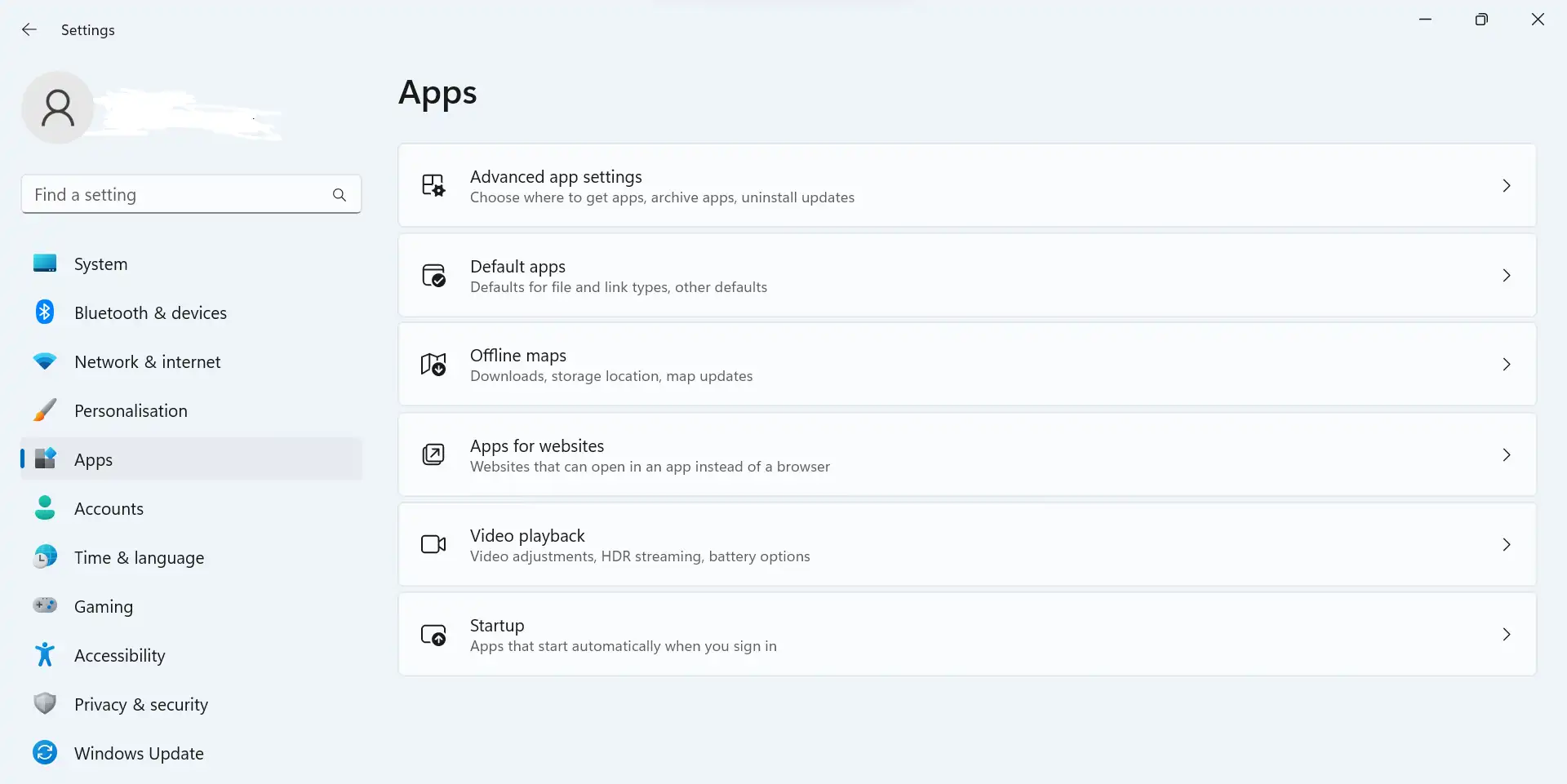
Start > Settings > Apps > Installed apps. - Select the affected app and run its available repair option.
- If repair is unavailable or fails, uninstall the app.
- Install a fresh copy from the publisher or official store page.
- Repeat the action that originally displayed the DLL error.
Verification: The app opens and completes the previously failing action without the DLL message.
Method 2: Repair or Reinstall the Required Runtime
When to use: Choose this path when the error names Visual C++, DirectX, .NET, or a related runtime DLL. This is the middle path between reinstalling one app and repairing Windows system files.
- Record the complete error text and the affected application.
- Identify the named runtime family, such as Visual C++, DirectX, or .NET.
- Download or repair the matching runtime only from its official Microsoft installer or the application publisher.
- Install the required runtime and restart Windows if prompted.
- Open the affected application and repeat the failed action.
Verification: The named runtime message no longer appears when the application starts or performs the original task.
Method 3: Repair Protected Windows System Files with DISM and SFC
When to use: Use this method when multiple programs fail, Windows features behave unexpectedly, or the symptom points to a protected Windows system file.
- Install available Windows updates and restart the computer.
- Open Command Prompt as an administrator.
- Run the following command and wait for it to finish:
DISM.exe /Online /Cleanup-image /Restorehealth
- Run the following command and wait until verification reaches 100%:
sfc /scannow - Restart Windows.
- Test the original feature or application.
Verification: Review the final SFC message, then test the original symptom after restarting. These tools do not necessarily restore a DLL supplied only by a third-party app.
Method 4: Diagnose and Fix DLL Errors with Fionn DLL Fixer
When to use: This is the recommended practical option when the cause is unclear or several dependency types may be involved. Fionn DLL Fixer scans missing, damaged, version-mismatched, and System32-path DLL issues, plus DirectX, D3D Runtime, Shader Compiler, Visual C++, .NET, OpenAL, and XInput dependencies.
- Launch Fionn DLL Fixer. The software automatically scans your PC for DLL and system issues and displays the detected results when the scan is complete.

- After the scan finishes, click
Repairto start fixing all detected DLL and system issues automatically.
- Wait while the repair is in progress. During this process, the button changes to
Fixinguntil all issues have been repaired.
- When the repair is complete, click
Okin the confirmation dialog. If prompted, restart your computer before checking whether the problem has been resolved.
- If the issue still persists after restarting, click
Recheckto perform another scan. If new issues are found, clickRepairagain to fix them.
Verification: After the recheck or restart, launch the affected app or game and repeat the original task. If the symptom remains, keep the exact error text for the application publisher or Fionn support.
How to Prevent Repeated DLL Errors
- Install applications and updates from their official publisher or store source.
- Keep the error text and note whether the problem began after an app or Windows update.
- Use the application installer or official runtime package instead of replacing individual system files.
- Confirm the required x86 or x64 version before installing a dependency.
Conclusion
Why DLL errors happen usually becomes clearer once you classify the scope and message. Repair or reinstall the app when one program fails. Repair the named runtime when Visual C++, DirectX, or .NET is involved. Use DISM and SFC for protected Windows file symptoms across multiple apps. For unclear dependency-loading issues, Fionn DLL Fixer offers a scan, repair, and recheck workflow. Verify every repair by repeating the original action after any required restart, then contact the app publisher or support with the full error text if it persists.
Frequently Asked Questions
Why does a DLL error affect only one application?
This pattern often indicates an app-specific installation or dependency problem. Repairing or reinstalling that application is the focused first step.
Can DISM and SFC fix every DLL error?
No. They repair protected Windows system files and may not restore a DLL that belongs only to a third-party application or game.
What does 0xc000007b usually indicate?
It indicates an invalid image format. Check for incompatible component versions and an x86/x64 architecture mismatch before changing files.
Should I download a missing DLL by itself?
Use the affected app's official installer, a verified runtime installer, or supported Windows repair tools instead. A standalone file can have the wrong version or architecture.
What should I do if the same error remains after repair?
Preserve the complete error message, identify whether other apps fail, and provide those details to the application publisher, IT administrator, or Fionn support.


