 Emily CarterData Recovery
How to Recover a Deleted Excel File on Windows
Introduction
To recover a deleted Excel file, first stop saving data to the drive where the workbook was stored. Check Recycle Bin, restore an existing File History backup, and then use a deleted-file recovery tool if neither option works. This guide covers four methods in that order. Start with Recycle Bin because it is fastest. Use File History when a backup exists. For a permanently deleted local file, try Windows File Recovery or Fionn Data Recovery and save recovered data to a different drive.
Choose the Right Method
| Method | Best For | Efficiency | User Effort |
|---|---|---|---|
| Recycle Bin | A normally deleted workbook still in the bin | Immediate | Low |
| File History | A workbook included in an existing Windows backup | Fast when a backup exists | Low |
| Windows File Recovery | A permanently deleted file on local storage | Depends on drive use and file condition | High; command-line input required |
| Fionn Data Recovery | A deleted workbook not available through Recycle Bin or backups | Quick, deep, and RAW scan options | Moderate; graphical selection and preview |
A deleted workbook is different from an unsaved or corrupted workbook. Excel's Recover Unsaved Workbooks feature addresses work that was never saved, while Open and Repair addresses a file that still exists but will not open. Neither feature restores a file deleted from storage.
Method 1: Restore the Excel File from Recycle Bin
When to use: Choose this method when the workbook was deleted normally from an internal Windows drive and Recycle Bin has not been emptied.
- Open Recycle Bin from the desktop.
- Search for the workbook by its filename, or sort the results by deletion date or file type.
- Confirm that the listed original location is where the missing workbook was stored.
- Right-click the workbook and select Restore .
Verification: Open the original folder and confirm that the workbook is present. Open it in Excel and check several worksheets, formulas, and recent entries.
Method 2: Restore the Excel File with File History
When to use: Use File History when it was enabled before deletion and covered the folder containing the workbook. It cannot create a historical copy retroactively.
- Connect the drive or network location used for the existing File History backup.
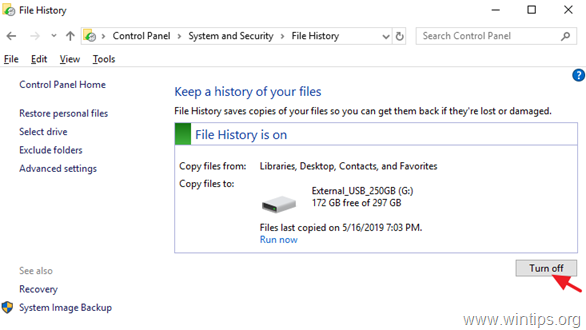
- Open the Windows search box, enter
Restore your files with File History
, and open the matching result.

- Browse to the folder that previously contained the workbook.
- Use the arrows to select a backup dated before the deletion.
- Select the workbook and choose the green restore button.
Verification: Check the restored location, open the workbook, and confirm that its modification date and contents match the required version. If a current file has the same name, preserve it before choosing any replacement option.
Method 3: Recover the Excel File with Windows File Recovery
When to use: Use Microsoft's command-line utility when a workbook was permanently deleted from a local internal drive, external drive, or USB device. Microsoft states that the source and destination drives must differ. Cloud storage and network shares are not supported.
- Connect a separate destination drive with enough free space for recovered results.
- Install Windows File Recovery from Microsoft's official instructions .
- Open
Windows File Recovery
and approve the system prompt.
- Run a filtered Regular-mode search, replacing the drive letters, username, and filename as needed:
winfr C: E: /regular /n \Users\<username>\Documents\budget.xlsx - If Regular mode finds nothing, run an Extensive-mode search for Excel workbooks:
winfr C: E: /extensive /n *.xlsx /n *.xls - Enter Y when prompted to begin recovery.
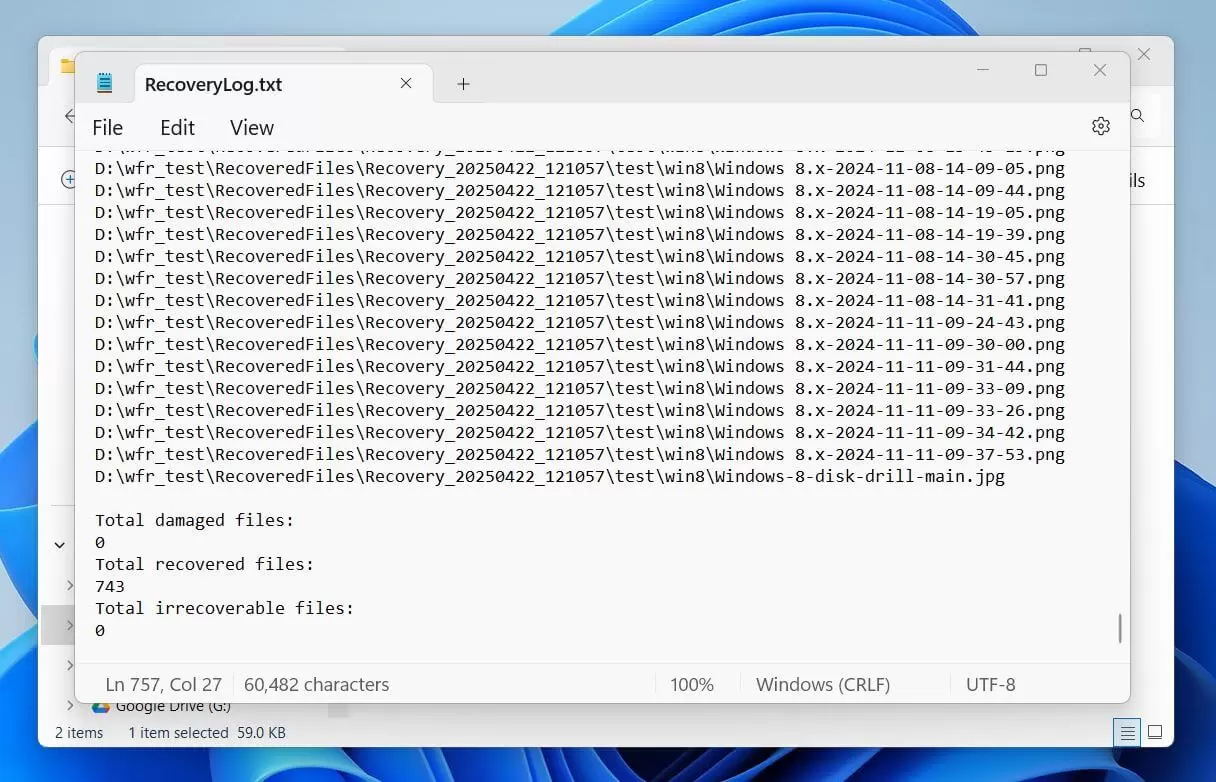
Verification:
Open the automatically created
Recovery_<date and time>
folder on the destination drive. Check recovered workbooks in Excel rather than trusting the filename alone.
Method 4: Recover a Deleted Excel File with Fionn Data Recovery
When to use: This is a practical graphical option when the workbook is no longer in Recycle Bin and no usable backup exists. The Windows desktop application scans local disks and external storage locally in read-only mode. Its filtering and preview features can help distinguish a usable workbook from similarly named results.
- Launch Fionn Data Recovery and select the recovery option for the type of data or storage location you want to recover.

- Start the automatic scan and wait while Fionn Data Recovery searches the selected location for deleted or lost files.

- After the scan finishes, browse the results and preview the files to select the data you want to restore.

- Select a destination folder to save the recovered files, then start the recovery process.

Verification: Open the recovered copy from the destination drive. Confirm that Excel can read it and inspect worksheets, formulas, formatting, and recent records.
Tips That Improve the Chance of Recovery
- Identify the storage location first. A local drive, removable device, cloud account, and network share require different recovery paths.
- Recover to another drive. Saving results to the source can overwrite other deleted data that has not yet been recovered.
- Verify content, not just the extension.
A recovered
.xlsxfilename does not prove that the workbook is complete. - Preserve multiple candidates. Similar filenames and older copies may contain different portions of the missing work.
These checks address two often-overlooked issues: the deletion location determines which tools apply, and successful extraction does not necessarily mean the workbook is intact.
Conclusion
Start with Recycle Bin, then check File History if a backup existed before deletion. Use Windows File Recovery for a command-line search of permanently deleted local files. Fionn Data Recovery provides a graphical scan, filtering, and preview path when the simpler options do not produce a usable workbook. Verify every recovered copy by opening it and reviewing important worksheets, formulas, and recent entries. If no method finds the file, stop using the source device and consider a professional recovery service, especially when the workbook is irreplaceable or the storage device is physically unstable.
Frequently Asked Questions
Can I recover an Excel file after emptying Recycle Bin?
Possibly. Stop writing to the source drive, then use Windows File Recovery or a compatible recovery application. Recovery depends on whether the storage space has been overwritten, so no method can promise a usable result.
Does Recover Unsaved Workbooks restore a deleted Excel file?
Usually not. Recover Unsaved Workbooks targets temporary versions of work that was not saved correctly. For a saved workbook later deleted from storage, check Recycle Bin, backups, or deleted-file recovery tools instead.
Why must I save a recovered workbook to another drive?
Writing the recovered copy to the source drive may reuse space occupied by other deleted data. A separate destination reduces avoidable write activity and protects additional files that may still be recoverable.
What if the recovered Excel workbook will not open?
Keep the recovered file unchanged and work from a duplicate. In Excel, select File > Open > Browse , choose the copy, open the arrow beside Open , and select Open and Repair . This repairs an existing damaged workbook; it does not recover a missing file.
Can a deleted Excel file be recovered from a cloud account?
Check that service's recycle bin and version history first. Windows File Recovery does not support cloud storage or network shares. The retention period and restore options depend on the specific service and account policy.


