 Emily CarterData Recovery
Folder Disappeared from Windows? 4 Ways to Find or Recover It
Introduction
If a folder disappeared from Windows, it may be hidden, moved, deleted, or absent from its original path. Start with File Explorer because showing hidden items and searching the PC do not alter stored data. Next, check the Recycle Bin, then restore a File History backup if one exists. If the folder’s files were deleted and no backup is available, use the recovery method last. The four methods below move from simple checks to file recovery, with a clear verification step for each.
Symptoms
- A folder no longer appears on the Desktop, in Documents, or at its saved path.
- A shortcut reports that its target was moved or changed.
- File Explorer search finds individual files but not the expected folder location.
- The folder is absent from one File Explorer view but visible after hidden items are enabled.
- Several files and their parent folder vanished together after deletion, an account change, or a Windows upgrade.
No error code is consistently associated with a missing folder. First determine whether the issue affects one path, one user account, or files across the PC.
Quick Diagnosis Checklist
- The folder may only be hidden or moved: use Method 1.
- The folder was recently deleted and the Recycle Bin was not emptied: use Method 2.
- File History was enabled before the folder disappeared: use Method 3.
- The folder was permanently deleted or is missing from an accessible drive: stop writing to that drive and use Method 4.
Method 1: Show Hidden Items and Search This PC
When to Use
Use this method when the folder vanished without a known deletion, or when only its shortcut disappeared. Microsoft documents that File Explorer can display hidden items and search the PC and connected cloud locations.
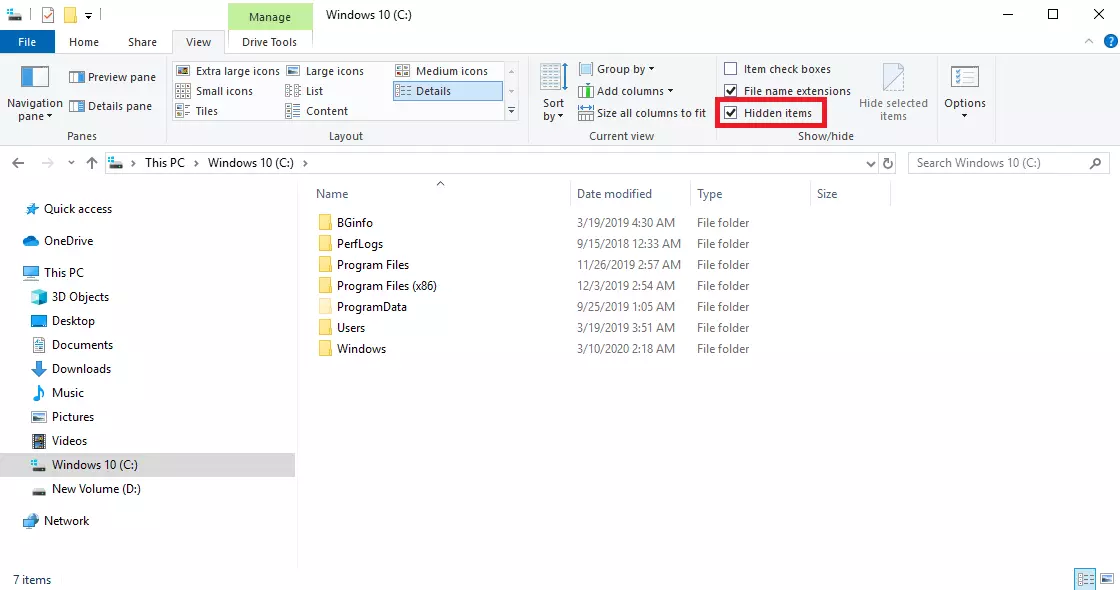
Step-by-Step Guide
- Press Windows + E to open File Explorer.
- Select View > Show > Hidden items in Windows 11. In Windows 10, open View > Options > Change folder and search options > View , then select Show hidden files, folders, and drives .
- Select This PC and enter the folder name, or a known filename from inside it, in the search box.
- Right-click a matching file, choose Open file location when available, and inspect the parent folder.
See Microsoft’s File Explorer instructions for the current hidden-item controls.
How to Verify
Open two or three known files from the located folder. Confirm that the address bar shows the expected drive and user profile before moving anything.
Method 2: Restore the Folder from the Recycle Bin
When to Use
Use the Recycle Bin when the folder was deleted recently from a local drive and the bin has not been emptied. Skip this method if the missing data is not present there.
Step-by-Step Guide
- Open
Recycle Bin
from the Desktop or Windows search.
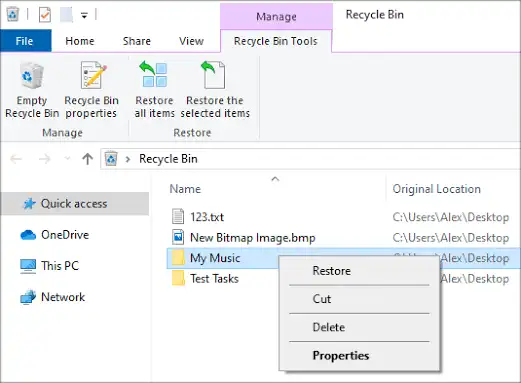
- Search for the folder name and sort the results by deletion date if needed.
- Open the folder in the Recycle Bin and confirm that recognizable files are present.
- Right-click the folder and select Restore .
How to Verify
Return to the folder’s original path and open representative files. The restored folder should appear at its previous location, not in a newly selected destination.
Method 3: Restore a Previous Version with File History
When to Use
Use this method only if File History protected the folder before it disappeared. File History needs a previously configured external drive or network location; enabling it after the loss does not create an earlier copy.
Step-by-Step Guide
- Connect the drive or network location previously used by File History.
- Open File Explorer and navigate to the folder that formerly contained the missing folder.
- Right-click the parent folder and select Restore previous versions .
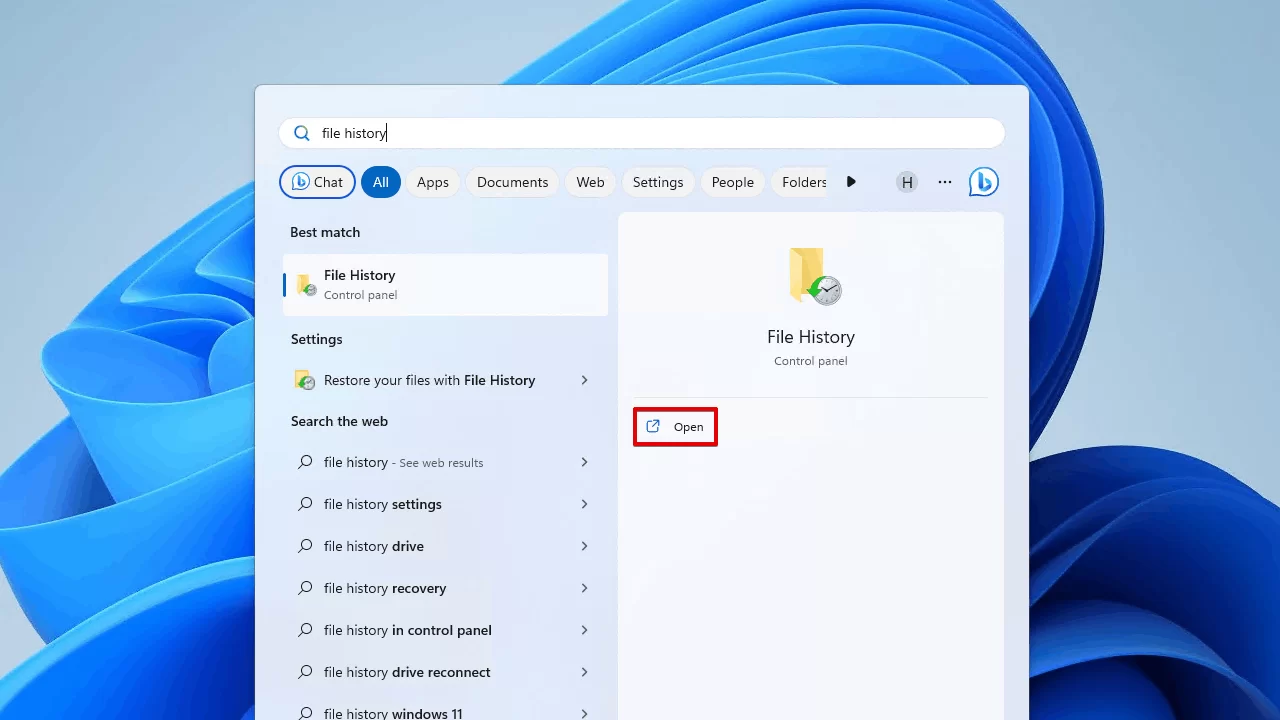
- Select a version dated before the disappearance and preview it with
Open in File History
.
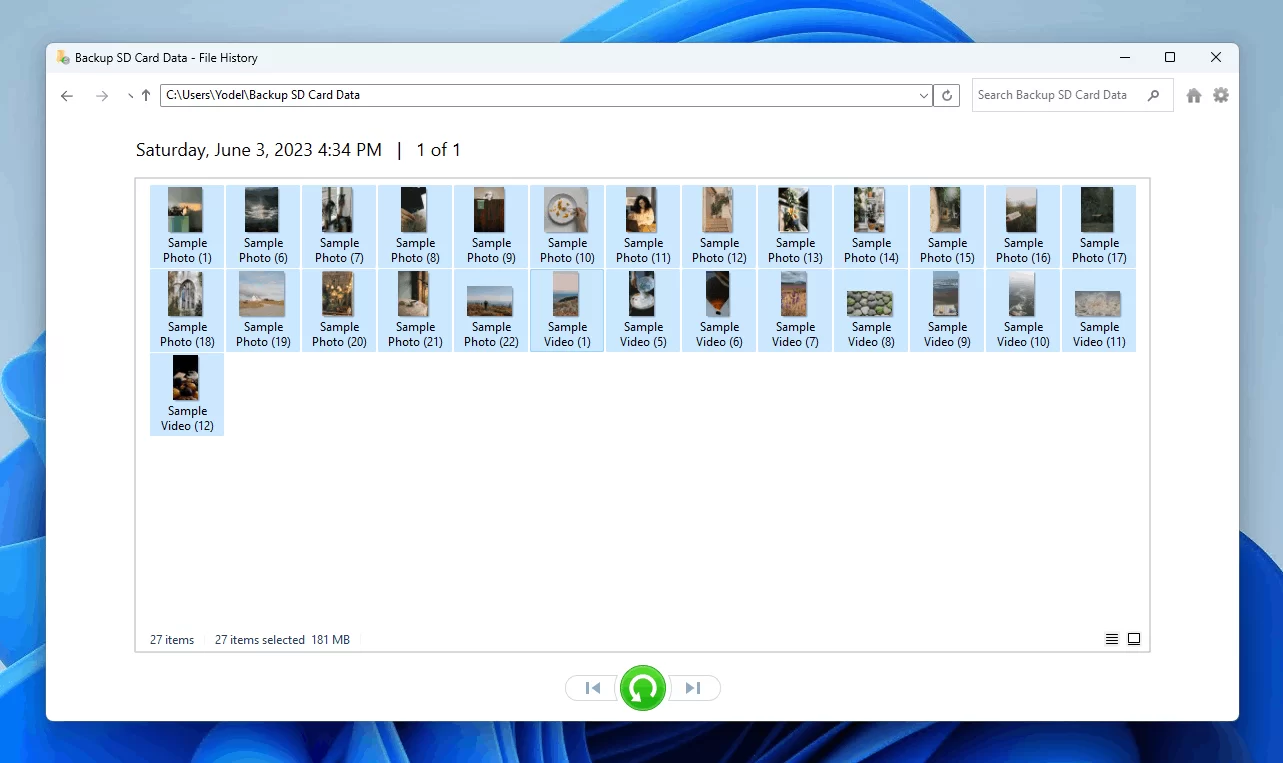
- Choose Restore to and select a separate location to avoid replacing current content during inspection.
Microsoft’s File History restoration guide explains that a direct restore can replace the current version and cannot be undone.
How to Verify
Compare the restored folder’s date, file count, and several file contents with what you expected. Keep both copies until the restored version is confirmed complete.
Method 4: Recover Lost Files with Fionn Data Recovery
When to Use
Use this method when files from the missing folder were deleted or can no longer be accessed through their original path. The Windows desktop application scans local disks and external storage. It can filter results and preview files before recovery. It scans locally in read-only mode and does not upload files.
Step-by-Step Guide
- Launch Fionn Data Recovery and select the recovery option for the type of data or storage location you want to recover.

- Start the automatic scan and wait while Fionn Data Recovery searches the selected location for deleted or lost files.

- After the scan finishes, browse the results and preview the files to select the data you want to restore.

- Select a destination folder to save the recovered files, then start the recovery process.

How to Verify
Open recovered files from the destination drive and inspect their contents. Confirm that the recovered set includes the needed names or file types. Recovery results should remain on a different drive from the affected source.
Verification Checklist
| Check | Observable Result |
|---|---|
| Folder location | The File Explorer address bar shows the intended drive and user profile. |
| Folder contents | Several expected files open and display recognizable content. |
| Backup version | The restored date predates the disappearance. |
| Recovery destination | Recovered files are stored on a different drive from the source. |
| Shortcuts | Shortcuts open the verified folder without a missing-target message. |
Prevention Tips
- Pin frequently used folders to Quick access, but remember that a pin is not a backup.
- Enable File History before a loss and use an external drive or network location.
- Keep important folders backed up separately from the original storage device.
- Verify the destination path before moving a folder between user profiles or drives.
Conclusion
When a folder disappears, first show hidden items and search This PC. Restore it from the Recycle Bin if deletion is confirmed. Use File History only when a backup existed before the loss. If files were permanently deleted, stop using the affected drive and scan it with Fionn Data Recovery , saving results elsewhere. Verify the path, open several files, and compare dates before treating the case as resolved. If the drive is missing, physically unstable, or unreadable, stop repeated access attempts and contact the device manufacturer, Microsoft Support, or a qualified recovery specialist.
Frequently Asked Questions
Why did my folder suddenly disappear from Windows?
A folder may be hidden, moved, deleted, restored under another user profile, or absent because its storage device is unavailable. Search the whole PC and check the address path before assuming deletion. The observed result determines whether you need visibility settings, restoration, or file recovery.
Can a Windows update move my files?
Files that seem missing after an upgrade may exist elsewhere or under another profile. Microsoft recommends searching from This PC and checking hidden items. Avoid resetting or reinstalling Windows solely to locate one folder because those actions do not diagnose its actual location.
Can File History restore a folder that was never backed up?
No. File History can restore only versions captured while the feature was already configured for the relevant folder. If no earlier version appears, check the Recycle Bin. For permanently deleted local files, minimize drive use and consider a file-recovery scan.
Why should recovered files be saved to another drive?
Saving onto the source drive writes new data to the same storage area being searched. Those writes may overwrite recoverable content. Use another internal disk, external drive, or USB device with enough free space for the selected files.


