 Emily CarterData Recovery
The disk structure is corrupted and unreadable error usually means Windows cannot reliably read the affected volume's file-system information. Possible causes include logical file-system corruption, an interrupted write, storage connection problems, or a failing device. Before running repair commands or formatting, determine whether the drive contains important files and whether the device is stable enough for software troubleshooting.
Symptoms
- File Explorer cannot open one volume and shows the corrupted-and-unreadable message.
- Folders, documents, or photos on that volume cannot be accessed while other Windows programs work normally.
- Windows recognizes the device but requests formatting, or Disk Management identifies the volume as RAW.
A single affected volume does not prove a physical disk failure. It can reflect a logical file-system problem or an unstable connection. However, repeated disconnects, unusual HDD noises, or serious read errors require a more cautious response.
Quick Diagnosis Checklist
| What you observe | What it suggests | Next step |
|---|---|---|
| The drive is stable and consistently detected, but files cannot open. | Possible logical file-system corruption. | Protect important data first; use Method 1 if recovery is needed. |
| An external drive disappears or reconnects intermittently. | Possible cable, port, or power issue. | Use Method 2 with minimal handling. |
| An HDD clicks, repeatedly disconnects, or has severe read failures. | Possible physical failure. | Stop scans and repair attempts; see When to Stop Troubleshooting. |
| Disk Management shows RAW. | Windows cannot identify a usable file system. | Do not format immediately; prioritize data protection. |
| Files are backed up or recovered and the drive is stable. | A logical repair may be appropriate. | Consider Method 3. |
| Files are safe elsewhere and the volume must be rebuilt. | A new file system may be needed. | Consider Method 4 after checking for continuing hardware symptoms. |
Quick Method Comparison
| Method | Best For | Efficiency | User Effort |
|---|---|---|---|
| Recover with Fionn Data Recovery | Important files on a stable, consistently detected storage device | Recovery-first workflow | Low |
| Test the connection | External drives with intermittent detection and no serious hardware symptoms | Fast connection diagnosis | Medium |
| Run CHKDSK | Stable volumes after files are protected | Logical file-system repair | Medium |
| Format the drive | Volumes whose needed files are safely elsewhere | Creates a new file system | Medium |
Method 1: Fix Disk Structure Is Corrupted and Unreadable with Fionn Data Recovery
When to use: Recommended when important files remain on a supported storage device that is consistently detected and stable enough for software recovery. Fionn Data Recovery can scan local disks, external drives, USB drives, SD cards, and camera cards, then let you browse and preview found files. It recovers files; it does not repair physical hardware, and recovery success is not guaranteed.
Step-by-step guide:
- Launch Fionn Data Recovery and select the recovery option for the type of data or storage location you want to recover.

- Start the automatic scan and wait while Fionn Data Recovery searches the selected location for deleted or lost files.

- After the scan finishes, browse the results and preview the files to select the data you want to restore.

- Select a destination folder on a different healthy disk, then start the recovery process.

How to verify: Open representative recovered documents, photos, and other important files from the separate destination before changing the original volume. Do not treat a repeatedly disconnecting or mechanically failing drive as a routine logical-error case.
Method 2: Test the Drive Connection and Another Computer
When to use: Use this method for an external device with an unstable connection but no clear sign of severe hardware failure.
Step-by-step guide:
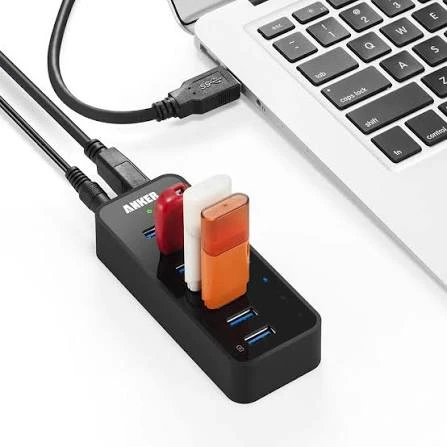
- Disconnect the external device once and inspect whether its removable cable can be replaced with a known-good cable.
- Connect the device directly to a USB port where practical, rather than through a hub.
- Check whether Windows detects the drive consistently and retains the same capacity.
- Open Disk Management and observe the volume, capacity, and displayed file-system status.
- If appropriate, test the device on another computer once to compare detection behavior.
How to verify: If the drive becomes stable and important files can be read, copy those files to healthy storage first. If the device repeatedly drops out, makes unusual noises, or has severe read failures, stop repeated testing rather than changing computers, scanning, or retrying indefinitely.
Method 3: Repair the File System with CHKDSK
When to use:
Use CHKDSK only after important files are backed up or recovered, the drive is stable, and the potential data-loss risk is acceptable. The
/f
parameter attempts to repair logical file-system errors; it does not repair physical drive damage.
Step-by-step guide:
- Open Windows Terminal or Command Prompt as an administrator.
- Confirm the affected drive letter in File Explorer or Disk Management.
- Replace
Xwith that letter and runchkdsk X: /f.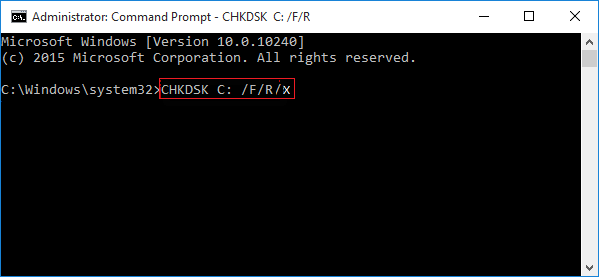
- Allow the command to finish, or restart if Windows schedules the check for the next restart.
How to verify:
If CHKDSK succeeds, reopen the drive and verify important files. If it reports a RAW file system, do not repeatedly rerun
/f
; return to data protection and diagnosis. If it reports I/O errors or the drive disconnects, stop repeated repair attempts and assess device health. See the
Microsoft CHKDSK command reference
for parameter details.
Method 4: Format the Drive After Recovery
When to use: Use formatting only as the last step, after needed files are recovered or backed up and the device appears stable. Formatting creates a new file system and may make the volume accessible again, but it does not prove that the device hardware is healthy.
Step-by-step guide:
- Confirm that recovered or backed-up files open from another disk.
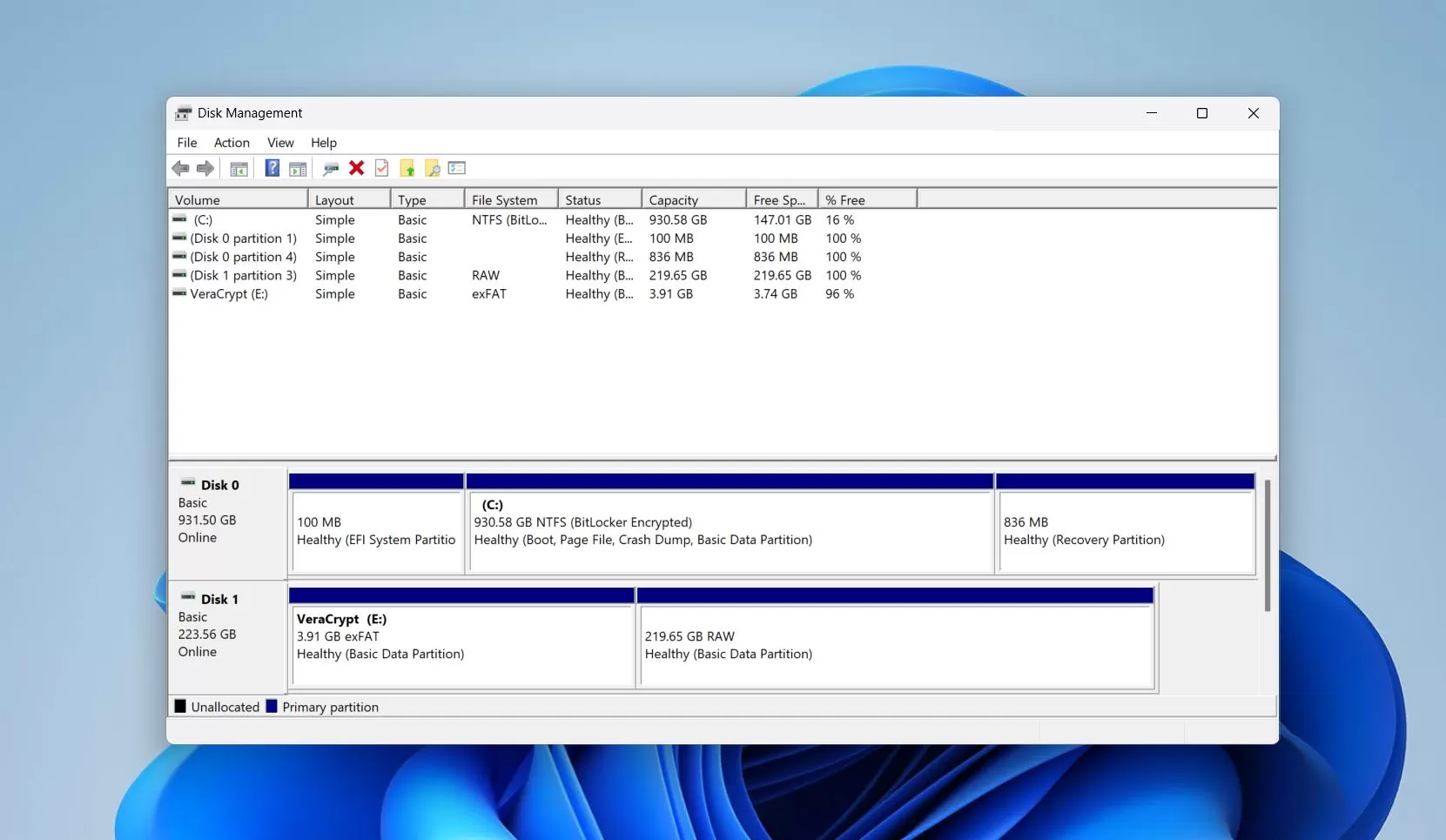
- Open Disk Management by right-clicking Start and selecting Disk Management .
- Identify the target volume using its capacity and device identity, not its drive letter alone.
- Right-click the confirmed volume, choose Format , select the required file system, and complete the format.
How to verify: Confirm the volume appears, then read and write one noncritical file. If disconnects or I/O errors persist, do not rely on the device for important files.
When to Stop Troubleshooting the Drive
- Repeated unexpected disconnections
- Unusual HDD clicking or mechanical noises
- A device that is not reliably detected
- Severe or recurring I/O errors
- A drive that freezes during basic reads
These signs may indicate hardware failure. Repeated full scans, repairs, or formatting attempts can increase risk. If the data is important, stop DIY operations and consider a professional recovery service.
Verification Checklist
- The drive remains detected without unexpected reconnects.
- File Explorer opens the volume without the disk-structure error.
- Important recovered files open correctly from a separate healthy disk.
- For a repaired or reformatted volume, a noncritical test file can be written, reopened, and read.
- No recurring I/O errors, freezes, or unusual mechanical symptoms occur during basic access.
Conclusion
Start by deciding whether the device is stable and whether important files are at risk. A stable but inaccessible volume may justify recovery first, followed by CHKDSK only after data is protected. Connection instability calls for limited cable, port, and power checks; suspected physical failure calls for stopping repeated DIY operations. Format only when needed files are safe and the device is stable enough to reuse. After every path, verify accessible files and basic read/write behavior. For stable supported storage, Fionn Data Recovery can help create a separate copy before you modify the original volume.
FAQ
What does the disk structure is corrupted and unreadable message mean?
Windows cannot reliably read the affected volume's file-system information. The cause may be logical corruption, an interrupted write, a connection problem, or a failing device.
Should I recover files before running CHKDSK?
Yes, when the files matter and the drive is stable enough for recovery. CHKDSK with
/f
modifies file-system structures, so protect important files first.
Can CHKDSK fix a RAW drive?
Do not repeatedly run
chkdsk X: /f
on a drive reported as RAW. Prioritize data protection and diagnosis, then format only after required files are safe elsewhere.
Does formatting fix the disk structure error?
Formatting can create a new usable file system, but it can make remaining data harder to recover and does not show that the hardware is healthy.
What if my external drive keeps disconnecting?
Try minimal connection checks only when there are no serious failure signs. If disconnects continue, read failures are severe, or an HDD makes unusual noises, stop repeated testing and consider professional help.
Can data recovery software repair physical drive damage?
No. Fionn Data Recovery is for recovering files from supported storage devices; it does not repair physical hardware damage. Avoid routine scans when a drive appears mechanically unstable.


