 Emily CarterScreen Recording
To record your screen and microphone at the same time, select a supported screen recorder, enable microphone capture, and verify the input device before recording. The right tool depends on the area you need to capture and its available audio controls: Xbox Game Bar works for an app or game, PowerPoint suits narrated presentations, Snipping Tool can handle short compatible Windows 11 captures, and Fionn Screen Recorder provides screen, window, or region choices.
The key distinction is simple: screen recording and microphone recording are separate controls. A successful video capture does not prove that the intended microphone recorded your voice.
Quick Method Comparison
| Method | Capture Area | Microphone Support | Best For |
|---|---|---|---|
| Xbox Game Bar | Supported app or game capture | Toggle during recording | Recording activity in one app or game |
| PowerPoint | Selected screen area | Audio control on the recording dock | Narrated slides and demonstrations |
| Snipping Tool | Selected screen area | Available in supported Windows 11 versions | Short recordings on compatible PCs |
| Fionn Screen Recorder | Full Screen, Window, or Region | Microphone Only or System Sound + Microphone | Flexible Windows screen recording with voice |
Check Your Microphone Before Recording
- Open
Windows Settings
→
System
→
Sound
→
Input
.
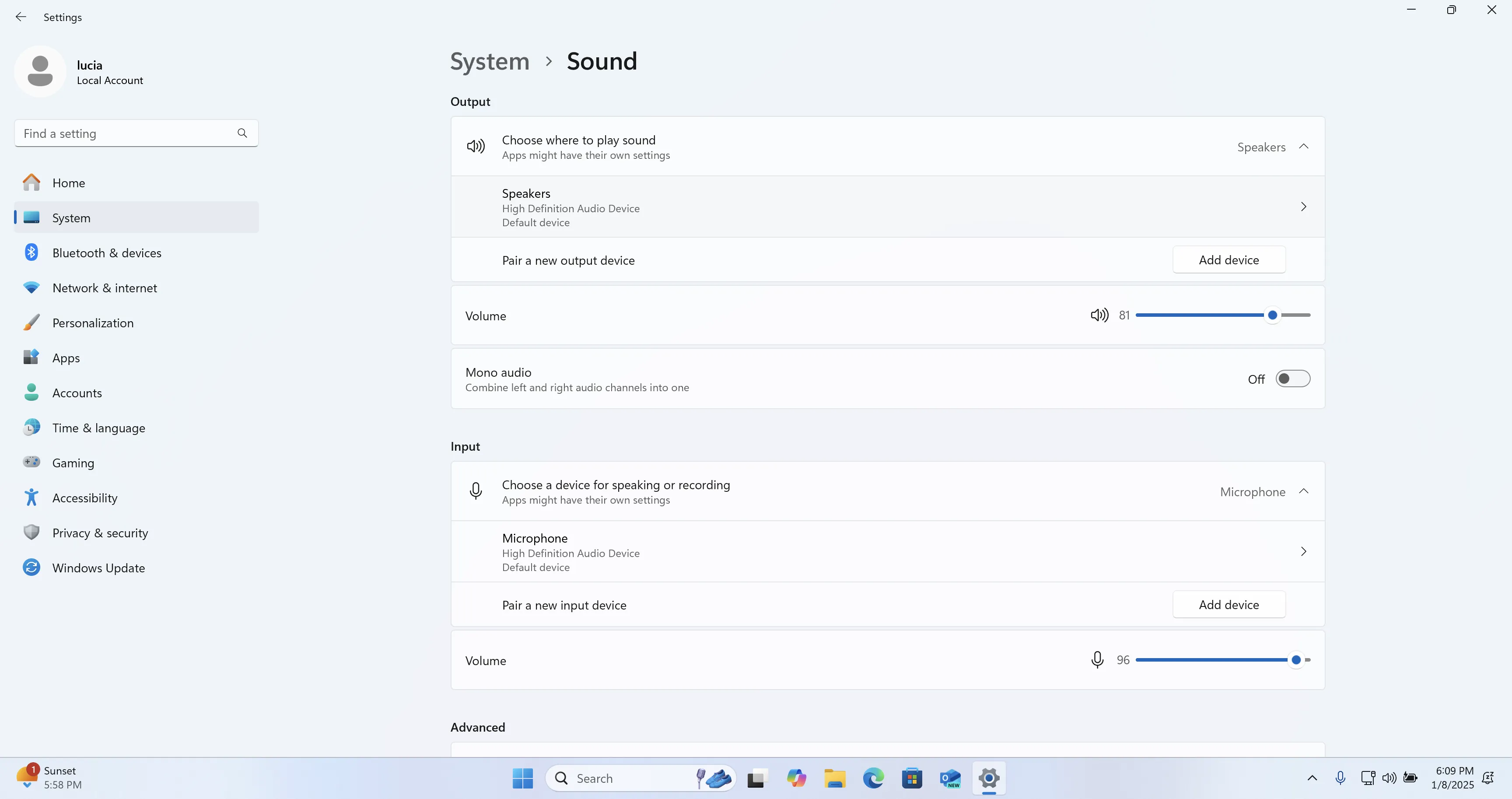
- Select the microphone you want to use.
- Test whether Windows receives your voice.
- Check the recorder's microphone selection if it has a separate device control.
- Make a 10-second recording and play it back.
Method 1: Record an App and Microphone with Xbox Game Bar
When to use: Use Xbox Game Bar for content inside one app or game on Windows 10 or Windows 11. It is designed for app capture, so do not rely on it as an unrestricted way to record the Windows desktop or File Explorer.
- Open the app or game you want to record.
- Press
Windows + Gto open Xbox Game Bar.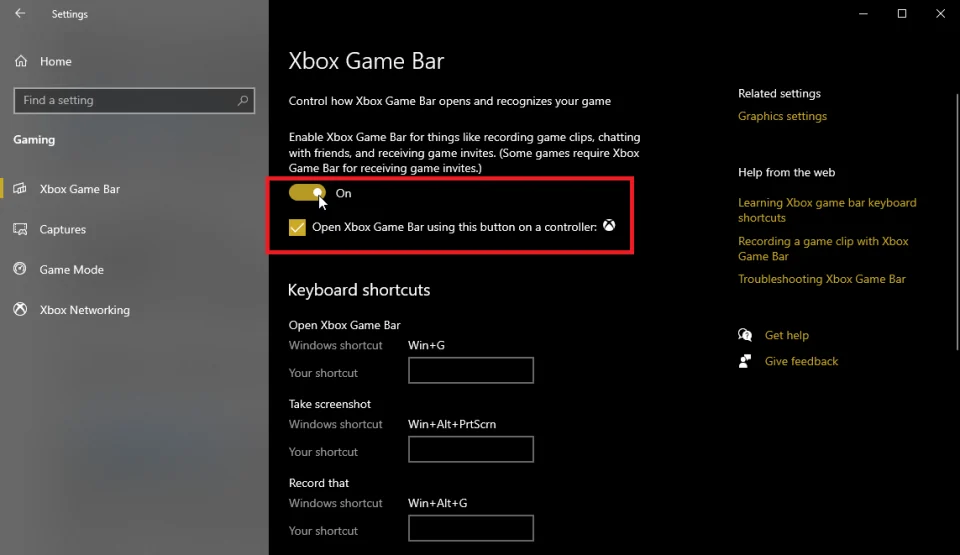
- Turn on the microphone button in the Capture widget.
- Press
Windows + Alt + Rto start recording. - Press
Windows + Alt + Mto toggle microphone capture during recording. - Press
Windows + Alt + Ragain to stop recording.
Verify: Play the saved clip and listen for your voice. Video recording can work even when microphone capture is disabled, so confirm speech is actually present.
Method 2: Record a Screen Presentation with PowerPoint
When to use: Choose desktop PowerPoint for a narrated walkthrough that you want to place in a presentation or save as media. This applies to supported desktop versions, not necessarily PowerPoint for the web.
- Open PowerPoint and choose
Insert
→
Screen Recording
.
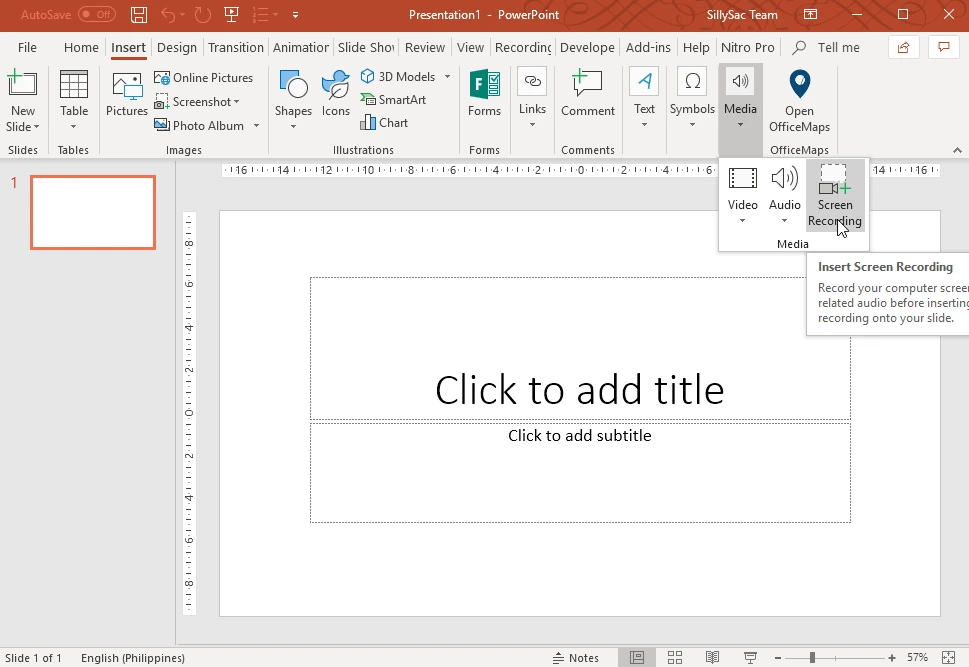
- Select the area of the screen to capture.
- Confirm that Audio is enabled on the recording control dock. In supported desktop PowerPoint versions, Audio is selected by default.
- Select Record and narrate the task.
- Move the pointer to the top of the screen and select Stop .
- Play the recording in the slide, or right-click it to save the media as a separate file.
Verify: Replay the recording and confirm that the narration is audible before you share or export it.
Method 3: Record Your Screen and Voice with Snipping Tool
When to use: This is a practical choice for a short Windows 11 recording when your installed Snipping Tool includes microphone controls. Supported Windows 11 Snipping Tool versions can record screen video with microphone audio.
- Open Snipping Tool and select
Record
mode.
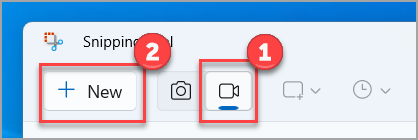
- Select New and drag to choose the recording area.
- Enable microphone input from the audio controls when that control is available.
- Select Start and explain the on-screen steps.
- Select Stop , then preview and save the clip.
Verify: Play the saved file with speakers or headphones and check that your speech matches the screen actions. If you do not see a microphone recording control, check the installed Snipping Tool version and available updates.
Method 4: Fix Screen and Microphone Recording with Fionn Screen Recorder
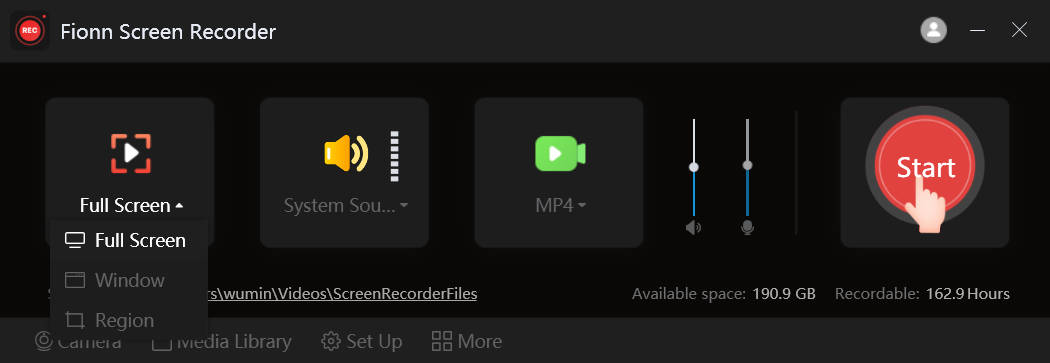
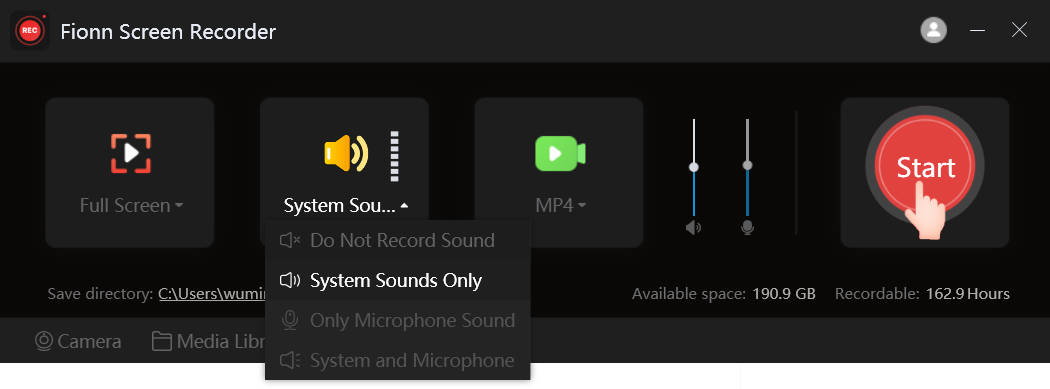
When to use: This recommended option fits Windows recordings where you need to choose Full Screen, Window, or Region and set the audio source in the same workflow. It supports microphone-only recording and system sound plus microphone recording.
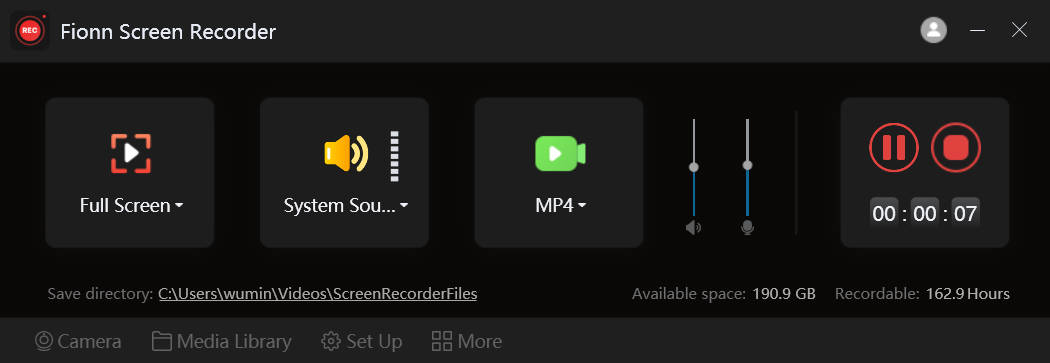
- Launch Fionn Screen Recorder.
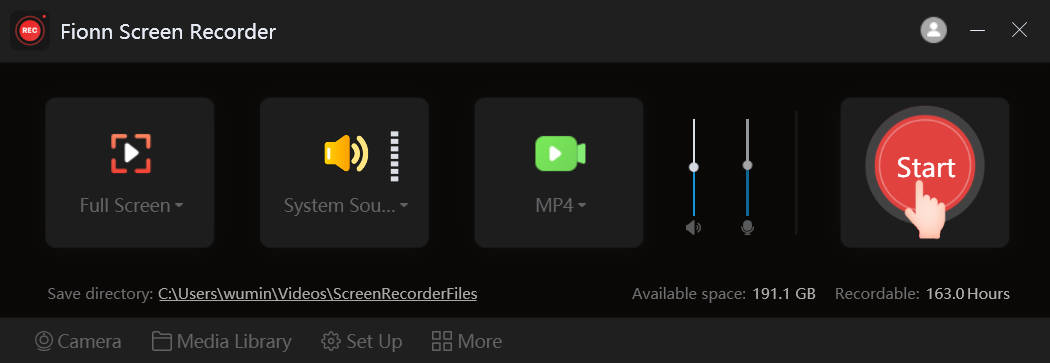
- Select Full Screen, Window, or Region.
- Choose
Microphone Only
or
System Sound + Microphone
.
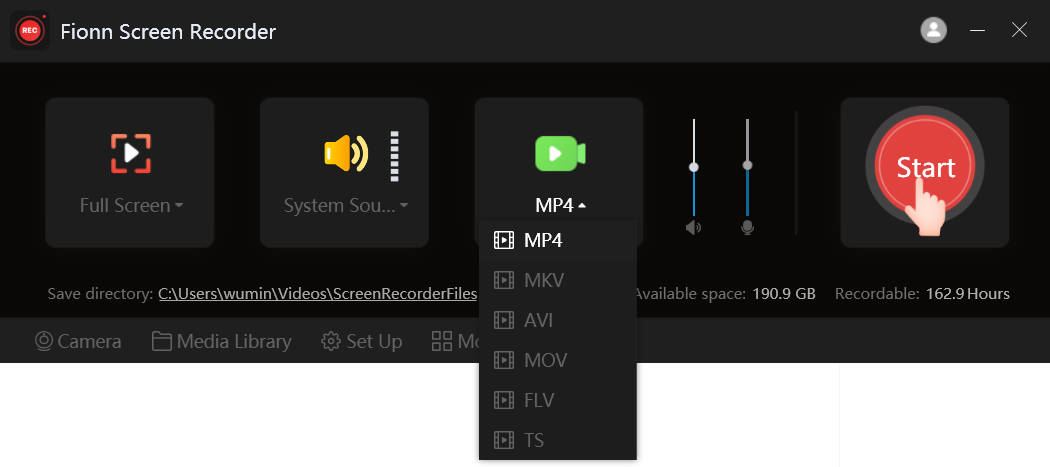
- Configure the output format and available recording settings.
- Start, pause, or stop recording.
- Open Media Library and verify the recorded video and voice.
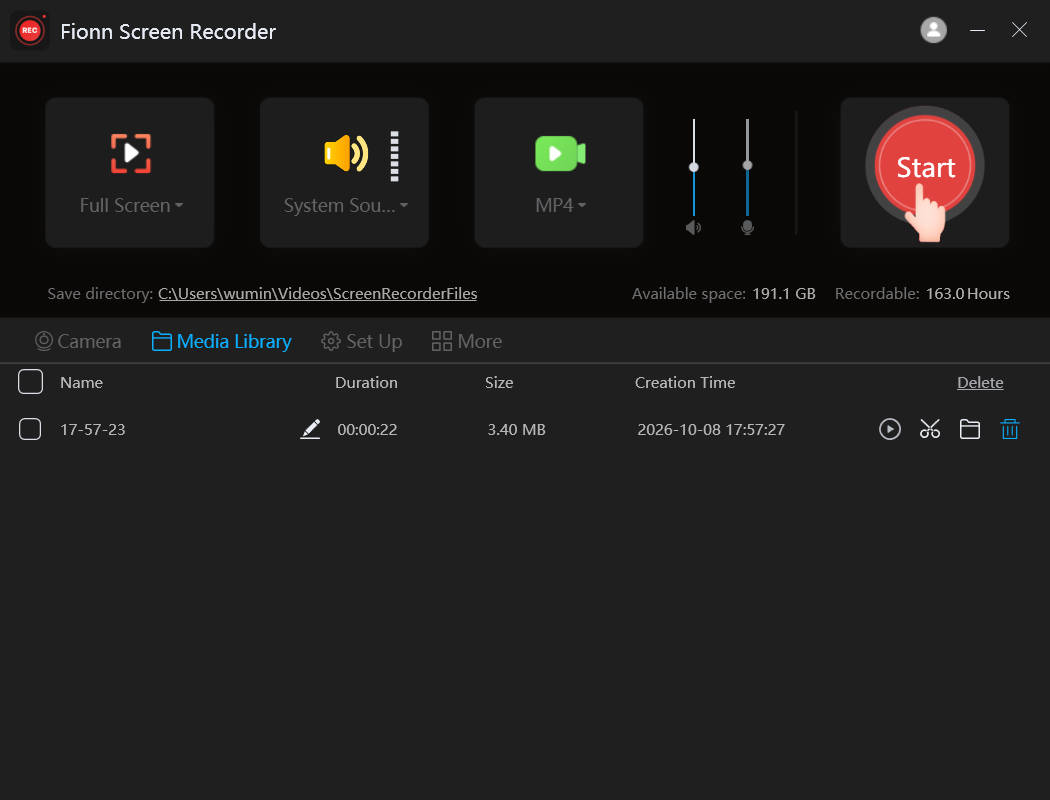
Verify: Play the video in Media Library and confirm that the selected screen content and intended voice are both included. The chosen microphone source must actually capture the intended voice.
Screen Recording Has Video but No Microphone Audio?
| What you notice | What to check |
|---|---|
| Video works, but voice is missing | Check the microphone toggle and input device. |
| Wrong microphone captured | Check Windows Input and recorder-specific input selection. |
| Voice is too quiet | Check microphone input volume and placement. |
| Recording has echo | Use headphones or prevent speaker output entering the microphone. |
| Bluetooth microphone behaves unexpectedly | Check the active Bluetooth input device and connection. |
| Saved or exported video is silent | Verify the actual saved file and its audio settings. |
Tips for Clear Screen-and-Microphone Recordings
- Choose the correct microphone first, then enable microphone recording in the selected tool.
- Use headphones when speaker playback could enter the microphone and create echo.
- Speak one sentence in a short test, save it, and verify both picture and voice.
- Close private tabs and notifications before selecting Full Screen.
Conclusion
To record screen and microphone Windows 11 or Windows 10 users should first select a recorder that matches the capture area, then choose the intended microphone, enable its recording control, and make a short test. Use Xbox Game Bar for supported app or game capture, PowerPoint for presentation narration, or Snipping Tool when its microphone control is available. For selectable screen, window, or region recording with microphone choices, try Fionn Screen Recorder . If the video has no voice, check the microphone toggle, Windows Input device, and the saved file before recording again.
Frequently Asked Questions
How do I record my screen and microphone together?
Select a recorder that supports microphone capture, choose the screen area, enable the microphone control, and start recording. Make a short test and play the saved video to confirm that both the screen and your voice were captured.
How do I choose the correct microphone?
Open Windows Settings → System → Sound → Input and select the microphone you want to use. Then check the recorder's own audio controls, because it may use a different selected input.
Why is my screen recording missing microphone audio?
The microphone control may be off, the wrong input may be selected, or the input level may be too low. Check those settings, record a brief test, and verify the saved file rather than only the recording preview.
Can Xbox Game Bar record my microphone?
Yes. Turn on the microphone in the Capture widget, or use
Windows + Alt + M
to toggle microphone capture while recording. Replay the clip because video can be recorded even when microphone capture is off.
Can I record system sound and my microphone together?
Yes, when the recorder offers a combined audio option. In Fionn Screen Recorder, select System Sound + Microphone before you begin.
How do I avoid microphone echo?
Use headphones so speaker playback does not enter the microphone. Also check that a nearby speaker or a second active microphone is not capturing the same sound.


