 Emily CarterScreen Recording
An AION 2 recording lag fix starts with a Windows capture test, not assumed game-specific settings. The saved video can show skipped motion, uneven frame pacing, or delayed audio when the recorder configuration or combined capture load cannot keep pace. Record the same short scene, change one variable at a time, and judge each result by the saved video rather than the game preview. This guide covers four recorder-side troubleshooting paths to help you produce a smooth saved video.
If you need a separate Windows recording workflow, Fionn Screen Recorder provides screen, window, and region capture options.
Symptoms
- The AION 2 game window looks smooth, but the saved video pauses or jumps.
- Both gameplay and the recording slow down when recording begins.
- Audio continues while the picture stutters, or the audio gradually loses sync.
- The issue occurs only with one recorder, which points to that recorder’s configuration or capture path rather than the game alone.
- Every recorder produces a choppy file, which suggests that the combined game-and-capture workload is too high for the current settings.
Quick Diagnosis Checklist
- Record and play one 20- to 30-second movement-heavy baseline clip. Play the saved or exported final file. If only that file stutters while gameplay stays smooth, continue to the recorder-specific method that matches the app you used.
- Check whether only one recording app is affected. Use Method 2 for Xbox Game Bar or Method 3 for OBS Studio. Use Method 1 when you want to compare Fionn Screen Recorder’s documented capture-selection workflow.
- Check whether gameplay and the recording both slow down. If they do, start with Method 4 before changing multiple recorder settings.
- Check the captured area.
If full-screen recording lags but a smaller area does not, use Method 1 to compare a different capture selection.
- Repeat the same test after a game or recorder update. Use the same scene and play the resulting saved or exported file before deciding whether the change helped.
Quick Method Comparison
| Method | What It Records | Final Output | Best For |
|---|---|---|---|
| Fionn Screen Recorder | Full screen, a window, or a selected region | Media Library playback and post-recording export; exact export control and file location are not specified here | Comparing capture area and output setup |
| Xbox Game Bar | A Windows game or app capture | MP4 in Videos > Captures | A quick built-in Windows comparison |
| OBS Studio | An OBS-configured recording | Saved recording; confirm the configured output-access route before relying on a specific path | An OBS recorder needing a hardware-aware starting configuration |
| Lower capture workload | The same test scene with one workload variable reduced | A comparison test file from the recorder in use | When gameplay and recorded video both slow down |
Method 1: Fix AION 2 Recording Lag with Fionn Screen Recorder
When to use: Use this method when you want to make a controlled short recording with a different capture selection or output format. The supplied workflow does not diagnose hardware performance; compare its resulting clip with your existing recording before drawing conclusions.
Step-by-step guide:
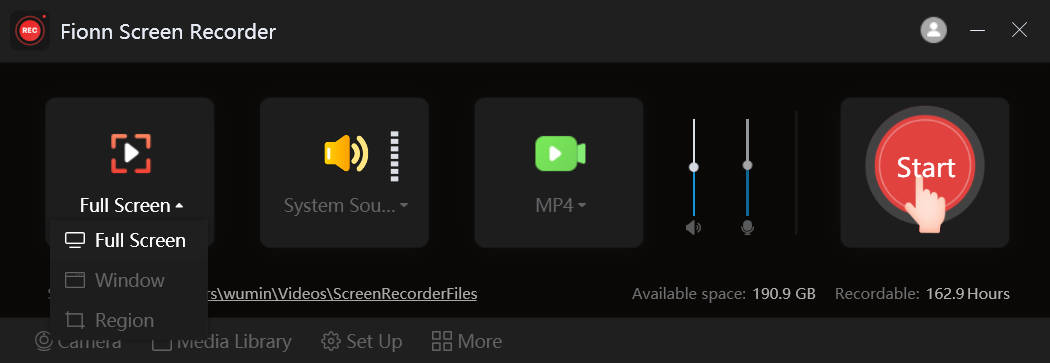
- Open Fionn Screen Recorder and choose the area you want to capture: Full Screen, Window, or Region.

- Choose whether to record system audio, microphone audio, both, or no sound.

- Select MP4 or another video format before you start recording.

- Click Start to begin recording, then use Pause or Stop when you are finished.

- Open Media Library to play, edit, locate, or delete your recorded videos.

How to verify: Play the short clip from Media Library and inspect fast movement. If it is smoother than the original, keep the capture choice that produced the better result. If it still stutters, continue with a recorder-specific method or reduce the workload.
Method 2: Record AION 2 with Xbox Game Bar
When to use: Use this method when you want a built-in Windows capture path for a game or app.
Step-by-step guide:
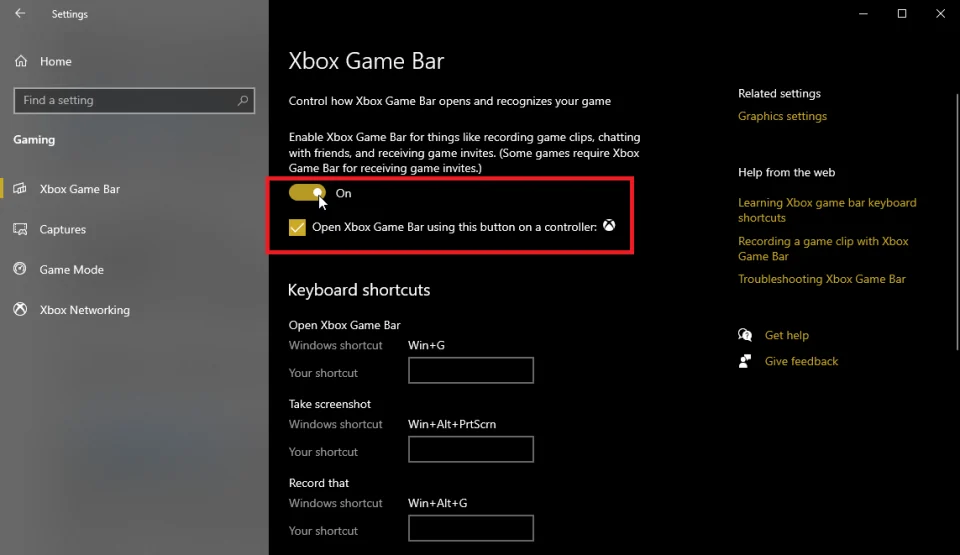
- Search Windows Settings for
Xbox Game Bar
and confirm it is enabled.
- Open AION 2 and press Windows + G to display Game Bar controls.
- Press Windows + Alt + R to start recording.
- Repeat the shortcut to stop recording, then open the saved MP4 in the Videos Captures folder.
How to verify: Play the MP4 from Videos > Captures and compare the same scene with the prior recording. Microsoft documents that this shortcut starts and stops a game or app recording and that captures are saved as MP4 files in Videos > Captures.
For Microsoft’s exact accessibility-oriented recording instructions, see Xbox Game Bar recording guidance .
Method 3: Use OBS Studio Auto-Configuration
When to use: Use this method when OBS Studio is the recorder that creates the lag, especially after a hardware or configuration change.
Step-by-step guide:
- Open OBS Studio.
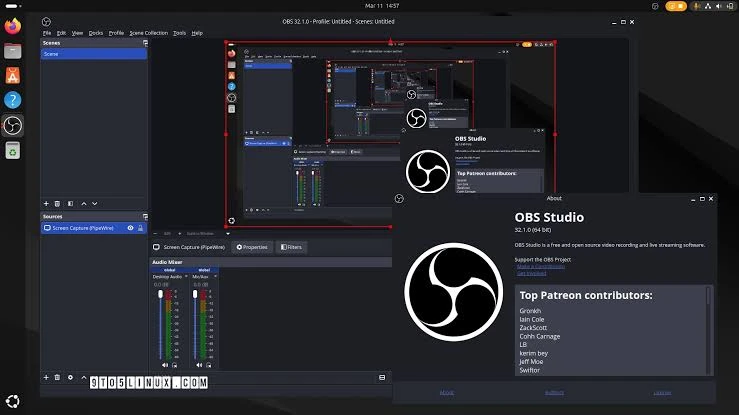
- Select Tools , then select Auto-Configuration Wizard .
- Choose the recording-focused setup and complete the wizard’s prompts.
- Record the same short AION 2 scene and review the saved file.
How to verify: If the test clip is smooth, retain the generated baseline. If it is not, compare a simpler scene or lower the capture workload before manually changing several OBS options at once.
OBS states that its wizard considers the intended use and hardware resources; its official Quick Start Guide explains where to run it.
Method 4: Lower the Capture Workload
When to use: Use this method when the game itself and the recorded file both become less responsive during capture.
This method tests Windows capture capacity; it does not prescribe an AION 2-specific graphics setting.
Step-by-step guide:
- Close nonessential applications that could be using processor, graphics, disk, or network resources.
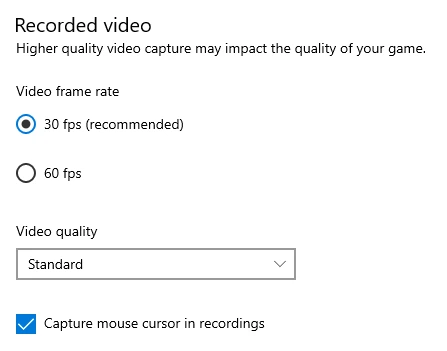
- Reduce either the game’s display workload or the recorder’s frame rate for the next test; do not lower both first.
- Record the same movement-heavy scene for the same duration.
- Keep the change only if the saved video improves without making the footage unsuitable for its purpose.
How to verify: The game should remain responsive while recording, and the saved clip should show fewer pauses in the same scene. This comparison separates a capture-capacity issue from a recorder-only issue.
Verify the Final Saved Video
- Locate or export the final file through the confirmed route for the recorder you used, then play that exact file.
- Playback is smooth during fast movement, not only on static menus.
- Gameplay remains responsive while recording is active.
- Audio begins with the video and remains aligned near the end of the test.
- The selected audio source is present in the final file.
- The successful setting produces the same result in a second test before a longer session.
Conclusion
For an AION 2 recording lag fix, first decide whether stutter is limited to one recorder or affects both gameplay and capture. Use a short, movement-heavy baseline clip, test the matching recorder path or reduce one workload variable, and play the resulting final file before keeping a change. This article diagnoses recorder-side Windows capture behavior, not AION 2-specific graphics settings or root causes. If no recorder produces a usable test, retain the clip, recorder name, and tested settings, then contact the recorder’s official support or the game developer. For another capture workflow, revisit Fionn Screen Recorder .
FAQ
Why is AION 2 smooth but my recording is laggy?
The capture process can be unable to keep pace even when the game display appears smooth. Test another recorder or reduce one workload setting to identify whether the issue is recorder-specific or affects the whole system during capture.
Does Xbox Game Bar save recordings as MP4?
Microsoft’s recording guidance says Xbox Game Bar saves recorded game or app clips as MP4 files in the Videos Captures folder.
Should I change frame rate or game settings first?
Change one setting first and record the same test scene. This makes it possible to tell which adjustment improved the saved video.
Can OBS Studio choose a starting configuration for recording?
Yes. OBS Studio’s Auto-Configuration Wizard is designed to create a starting setup based on the intended use and available hardware resources. Treat the result as a baseline and verify it with a real AION 2 test clip.
What are Fionn Screen Recorder’s non-member recording limits?
Non-members can save recordings up to 2 minutes at 720p. Use a different recorder or confirm available plan options if your required test or final recording exceeds either limit.


