 Emily CarterPrinter Drivers
An Epson L3350 Driver installation starts with the exact printer model, your Windows version, and the connection type. For the most direct manufacturer route, use Epson’s L3350 Series setup page. If Windows can already see the printer, add it through Settings instead. If you need help identifying a detected printer and matching a driver, Fionn Printer Driver provides an automated installation path for Windows 11 and Windows 10.
Before choosing a method, turn on the printer. For USB, connect it to the computer. For Wi-Fi, make sure the printer and Windows computer are on the same wireless network. A printed Windows test page is the practical confirmation that installation succeeded.
Before You Install
- Confirm the label on the printer identifies it as an Epson L3350 Series model.
- Check whether the computer runs Windows 11 or Windows 10.
- Decide whether you are using USB or Wi-Fi. Windows can normally install a directly connected, powered-on printer automatically.
- Keep an internet connection available when using an online setup page or searching for compatible drivers.
Quick Method Comparison
| Method | Best For | Efficiency | User Effort |
|---|---|---|---|
| Epson L3350 Series setup | Using Epson’s official computer setup route | Direct | Download and run the installer |
| Windows Settings | A USB or network printer that Windows can discover | Direct when detected | Low |
| Fionn Printer Driver | Scanning for a printer and matching a driver in one workflow | Automated scan | Low to moderate |
Method 1: Install from Epson’s L3350 Series Setup Page
Use this route when you want Epson’s own setup process. The official page is an entry point for the L3350 Series; select only software that the page explicitly offers for your Windows version.
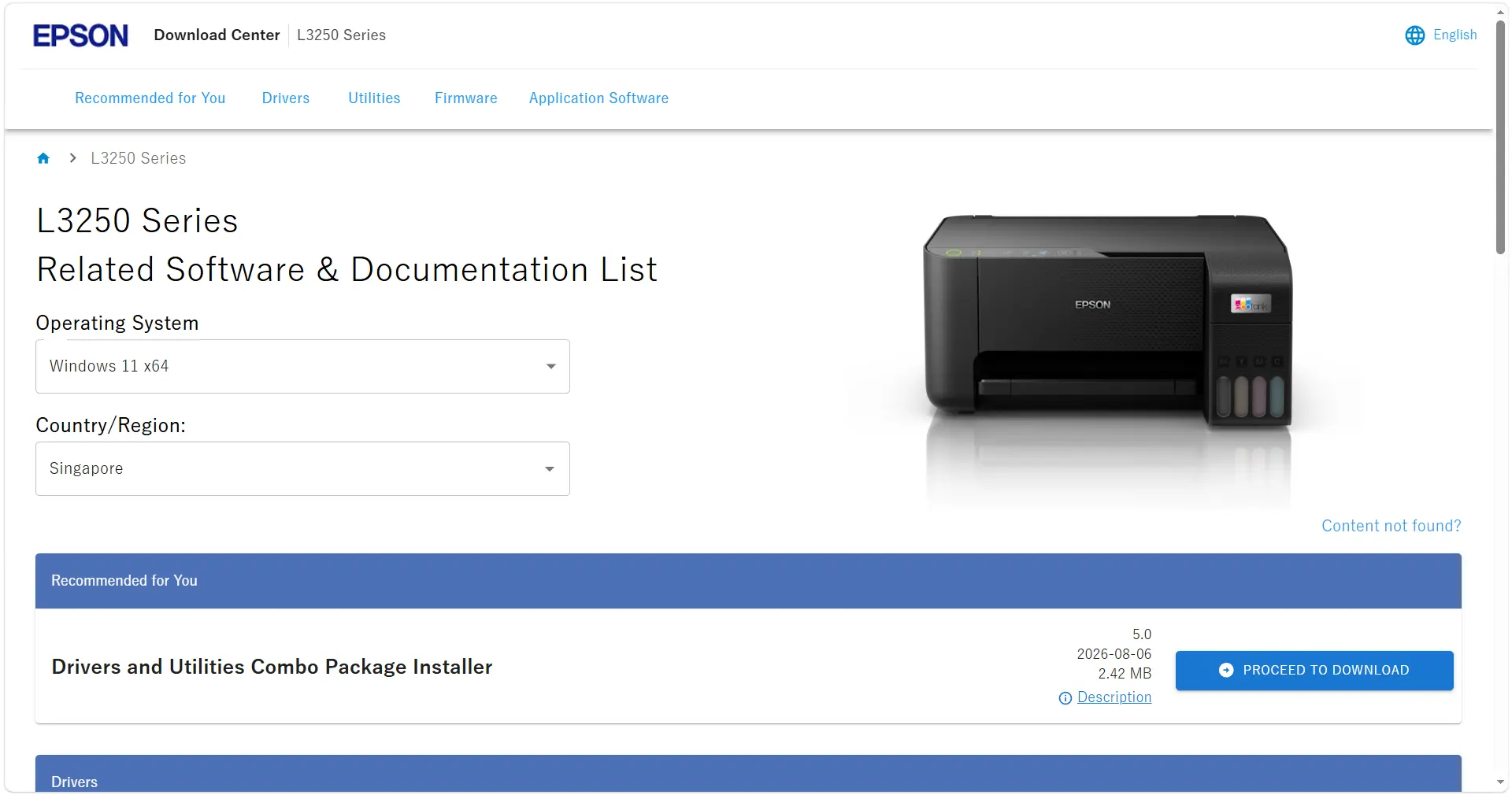
- Open Epson’s L3350 Series setup page .
- Select Download to obtain the essential computer software offered on the page.
- Run the downloaded file and follow its on-screen instructions.
- When setup reports that the product is ready, open Windows printer settings and print a test page.
If the setup page does not present a suitable option for your system, do not use a package intended for a different model or operating system. Move to Windows discovery or check Epson’s official support route for the exact model and Windows version.
Method 2: Add the Epson L3350 in Windows Settings
Choose this method when the printer is connected and Windows has not added it automatically. Microsoft’s printer-installation instructions apply to Windows 11 and Windows 10.
- For USB, connect the powered-on printer to the Windows computer. For Wi-Fi, connect the powered-on printer to the same network as the computer.

- Open Settings , then go to Bluetooth & devices > Printers & scanners in Windows 11, or Devices > Printers & scanners in Windows 10.
- Select Add device or Add a printer or scanner , then choose the Epson L3350 when it appears.
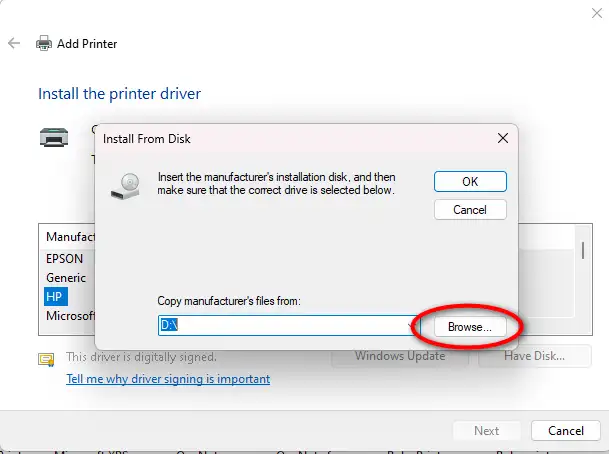
- If it is not found, select the option to add a new device manually and follow the Add Printer window.
- After installation, check Windows Update for driver updates and print a test page from the printer’s Windows settings.
Method 3: Install the Epson L3350 Driver with Fionn Printer Driver
This method is a practical option when you want the app to scan for the connected printer and display matching driver choices. Fionn Printer Driver supports Windows 11 and Windows 10, lists Epson among supported popular brands, and requires an internet connection to search for the latest compatible drivers.
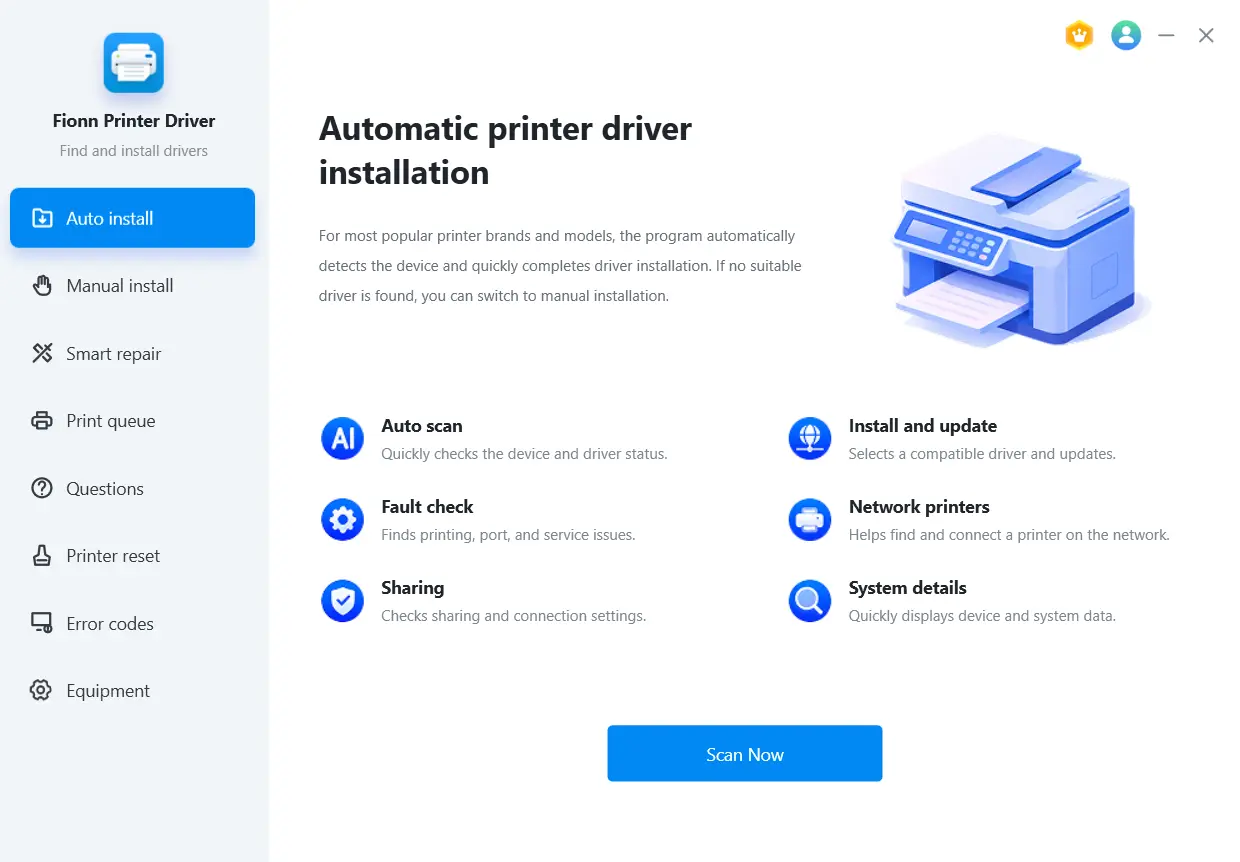
- Turn on the printer and connect it to the computer. Open Fionn Printer Driver, select
Auto install
in the sidebar, and click
Scan Now
.
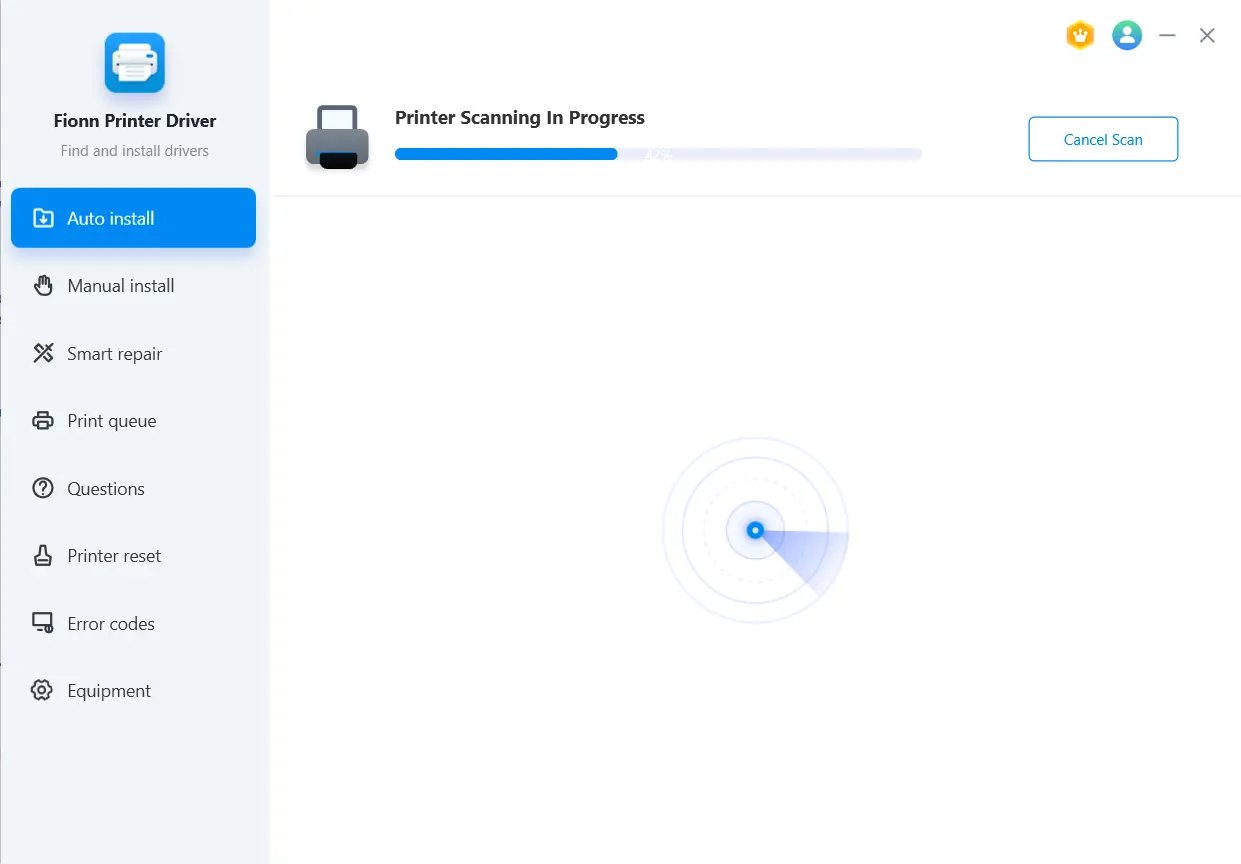
- Keep the printer connected while the scan runs. Wait for the detected printer and the driver list to appear.
- Confirm the printer’s exact model, then click
Install now
beside the matching driver. If no match appears, click
Search manually
and look up the full model name.
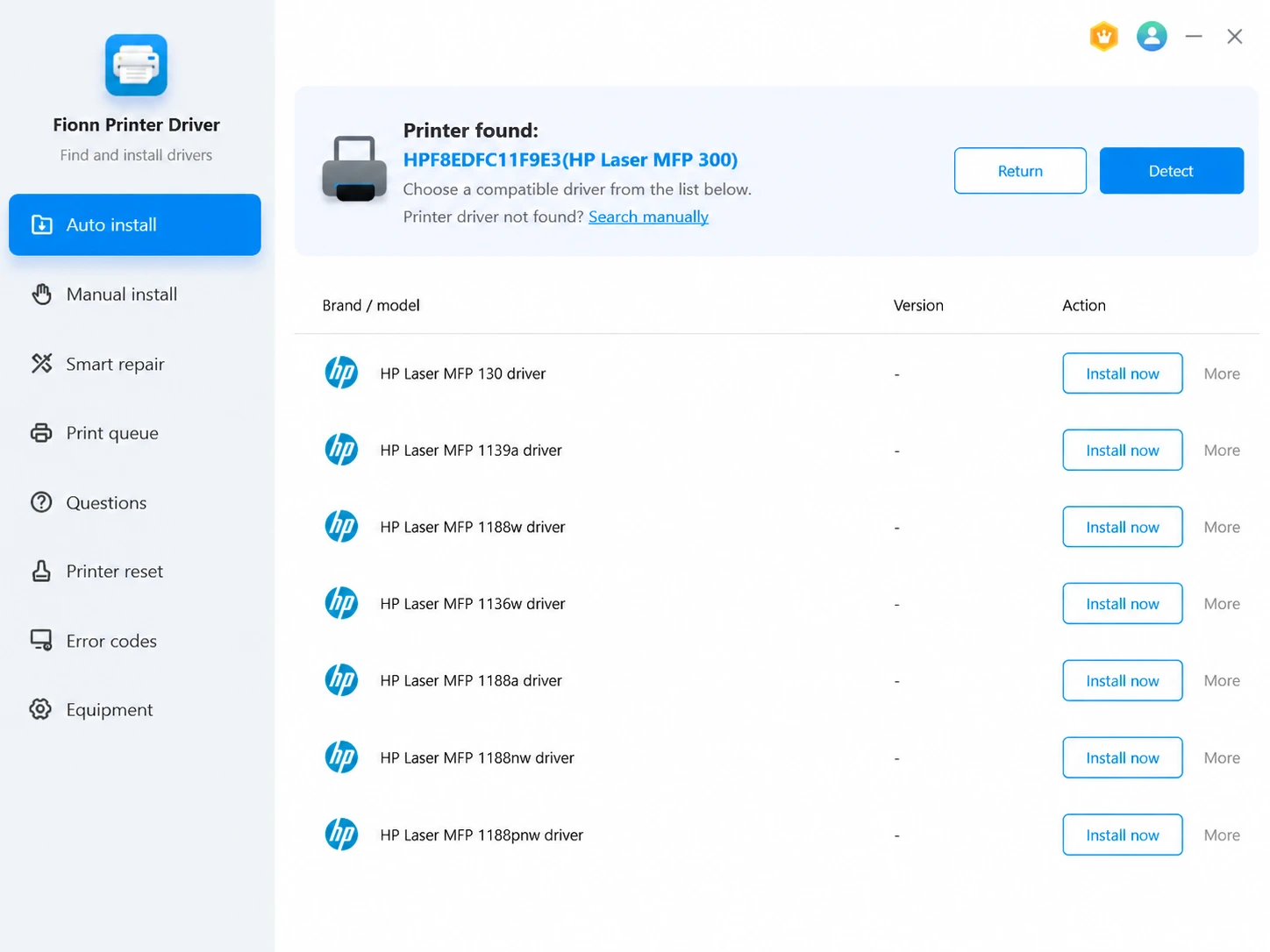
- When the dialog shows
Download Complete
, click
Install & Fix Drivers
and follow the prompts. After installation, print a Windows test page to confirm that the printer works.
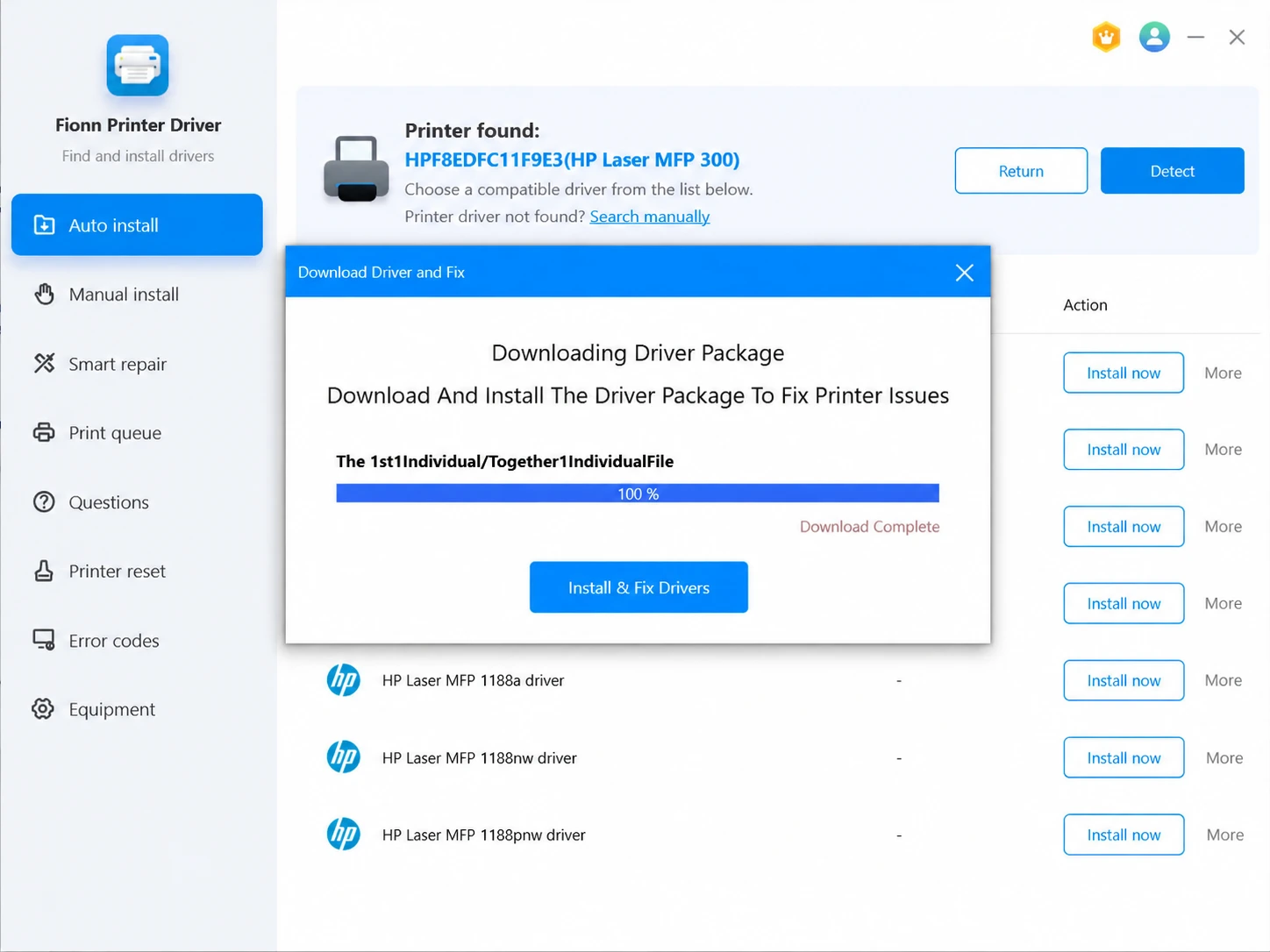
A completed download or installation prompt confirms that application step, not that the printer can print. The Windows test page remains the final check.
If the Printer Still Does Not Print
Use the symptom to choose the next check. If the Epson L3350 is not listed anywhere, recheck power and the USB or Wi-Fi connection, then repeat Windows discovery. If it is listed but jobs remain pending, inspect the print queue. If it is offline or unavailable, check the connection and printer status before replacing a driver. Fionn Printer Driver can check the driver, print service, connection status, ports, and unfinished or paused queue jobs.
Conclusion
Start with Epson’s L3350 Series setup page when you prefer the manufacturer route. Use Windows Settings when the connected printer is discoverable, and use Fionn Printer Driver when a scan-and-match workflow is more convenient. Whichever route you choose, confirm the exact model and connection first, then print a Windows test page. If the test page fails, focus on the connection, queue, service, or printer status rather than assuming the driver alone is the cause.
Frequently Asked Questions
Where can I download the Epson L3350 Driver?
Use Epson’s official L3350 Series setup page and select software only when it is explicitly offered for your Windows version. The page instructs computer users to download and run the essential software for the product.
Can Windows install an Epson L3350 without a separate download?
Often, yes. Microsoft says a directly connected, powered-on printer normally installs automatically. If it does not, use Printers & scanners and select Add device.
Why is my Epson L3350 not found over Wi-Fi?
For wireless setup, the printer and Windows computer must be connected to the same wireless network. Confirm that condition before searching again in Windows Settings.
How do I know the driver installation worked?
Print a test page from the printer’s Windows settings. A successful test page verifies the actual printing path, while an installer completion message only confirms that the installer finished.
Should I use a driver for another Epson model if I cannot find L3350?
No. Confirm the full model number and Windows version first. Installing a package intended for a different model can leave the printer unavailable or incomplete; use Epson’s official support route or Windows manual-add option instead.


