 Emily CarterPrinter Drivers
If you need an Epson L3210 Driver Windows 11 setup, first confirm that the printer is powered on and connected directly to the PC by USB. Then use Epson’s model support page for a manufacturer-provided download, or let Windows detect the connected printer. If the driver or printing environment is unclear, Fionn Printer Driver can scan printers, drivers, and related print issues. Finish with a Windows test page; a completed installation screen alone does not prove that the printer can print.
Before you start
- Confirm the model shown on the printer is Epson L3210 and that the PC runs Windows 11.
- Use a direct USB connection and turn the printer on before attempting discovery.
- Know whether the issue is a missing printer, an unavailable driver, or a printer that is installed but not printing.
Epson L3210 Driver Windows 11: Quick Method Comparison
| Method | Best For | Efficiency | User Effort |
|---|---|---|---|
| Epson Download Center | Getting a model-specific driver from the manufacturer | Direct | Choose the correct Windows option |
| Windows 11 Add device | A powered-on L3210 connected by USB | Fast when detected | Low |
| Fionn Printer Driver | Checking driver, connection, or print-service issues | Guided scan and repair | Low |
Method 1: Get the driver from Epson
Use this route when you want the manufacturer’s support entry for the L3210 Series or Windows has not installed the printer as expected.
- Open the
Epson L3210 Series Download Center
.
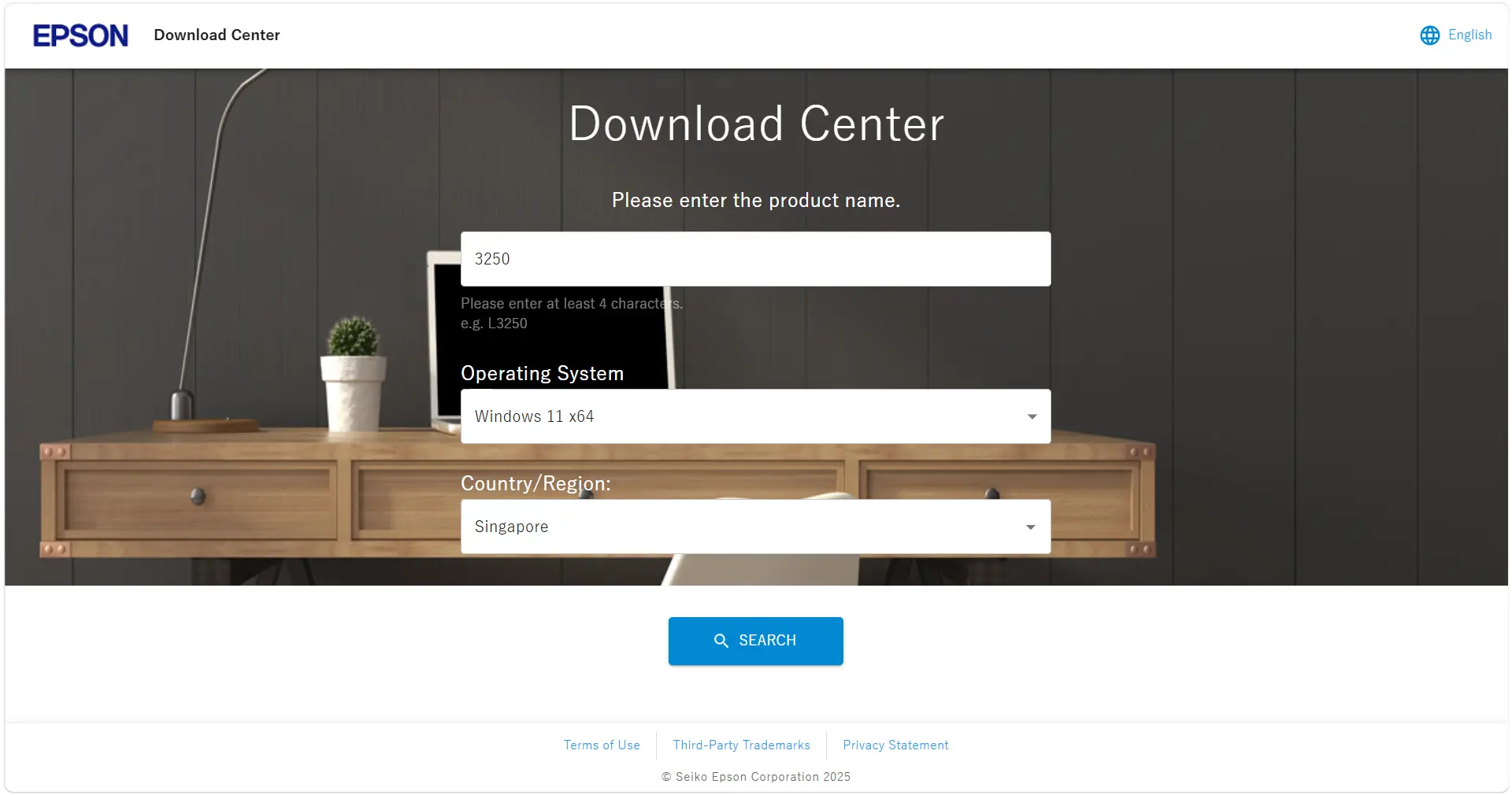
- Confirm the displayed model and select the Windows 11 option that matches your PC when Epson asks for operating-system details.
- Download and run only the driver or software package Epson lists for that combination, following its installer prompts.
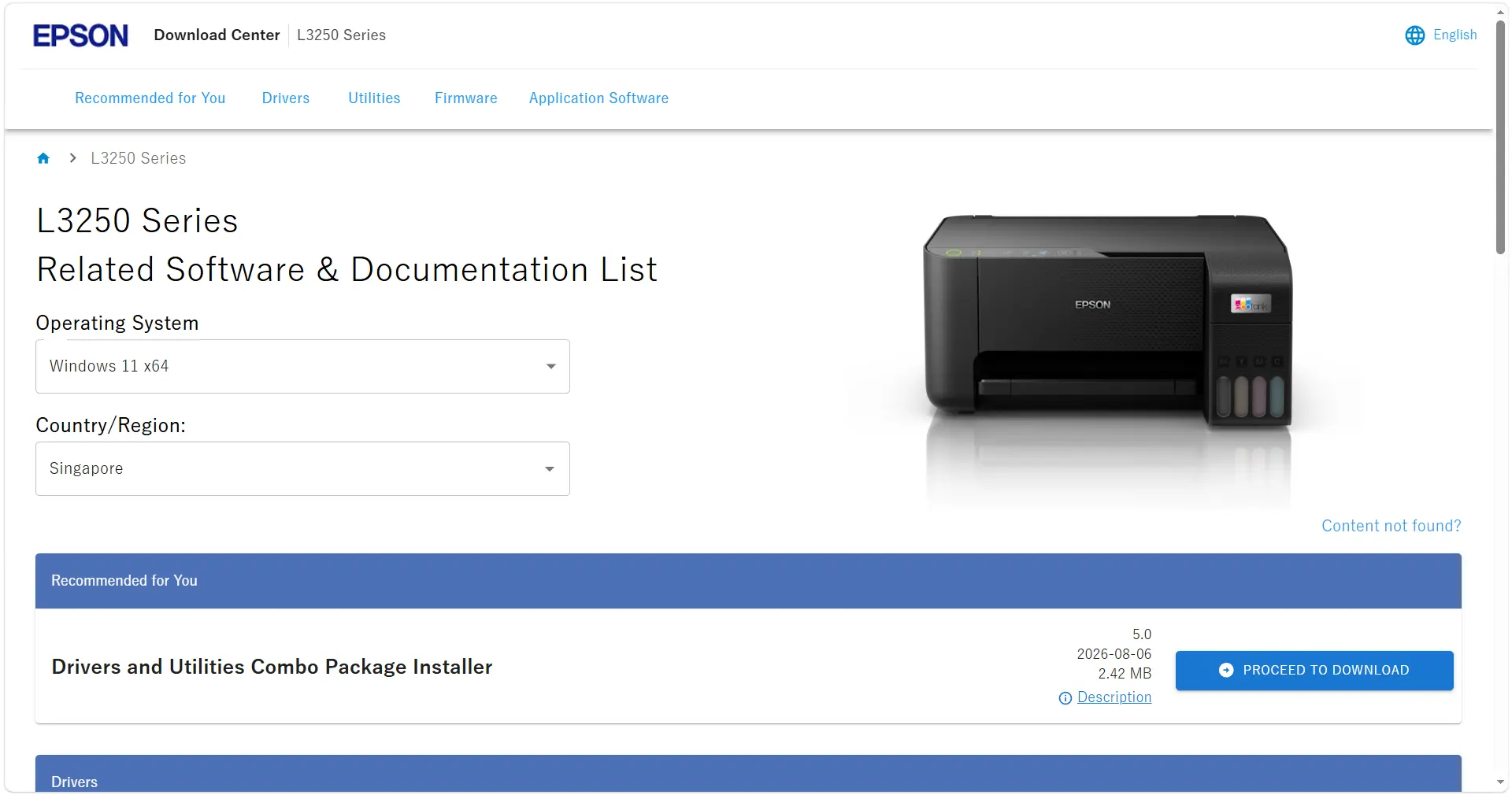
After the installation finishes, open the printer’s Windows settings and print a test page. If the device is not listed, use the Windows method below.
Method 2: Add the USB printer in Windows 11
Choose this method when the Epson L3210 is connected locally by USB. Windows normally installs a local or wired printer after it is connected and powered on.
- Connect the L3210 to the Windows 11 PC by USB and turn the printer on.
- Open
Settings > Bluetooth & devices > Printers & scanners.
- If the printer is not already listed, select Add device under Add a printer or scanner.
- If Windows cannot find it, select the manual-add option and follow the Add Printer window instructions for the connected device.
- After Windows adds the printer, check Windows Update for available printer-driver updates.
Open the installed printer’s settings and select Print a test page . A printed page is the success signal for this method.
Method 3: Install the Driver with Fionn Printer Driver
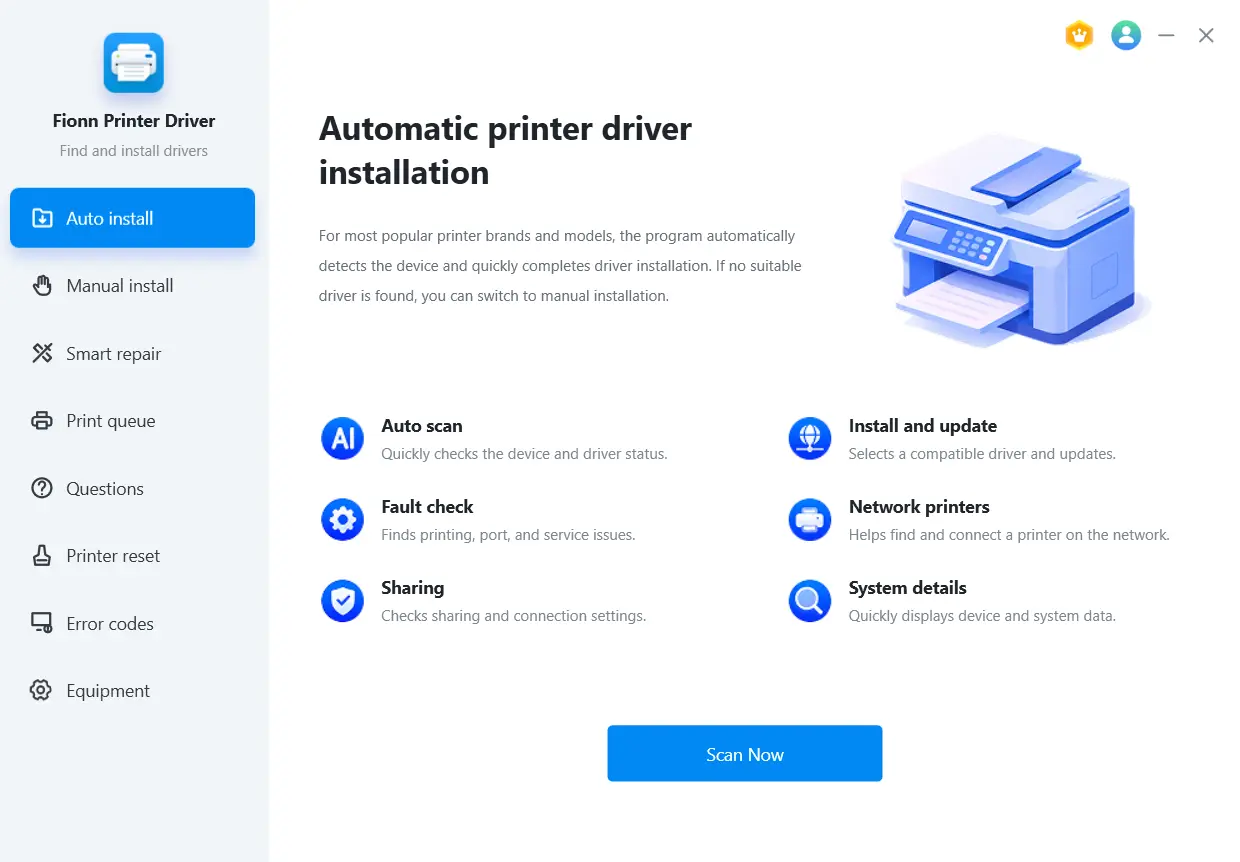
Use Auto install in Fionn Printer Driver to look for a matching driver. Check the exact printer model before installing.
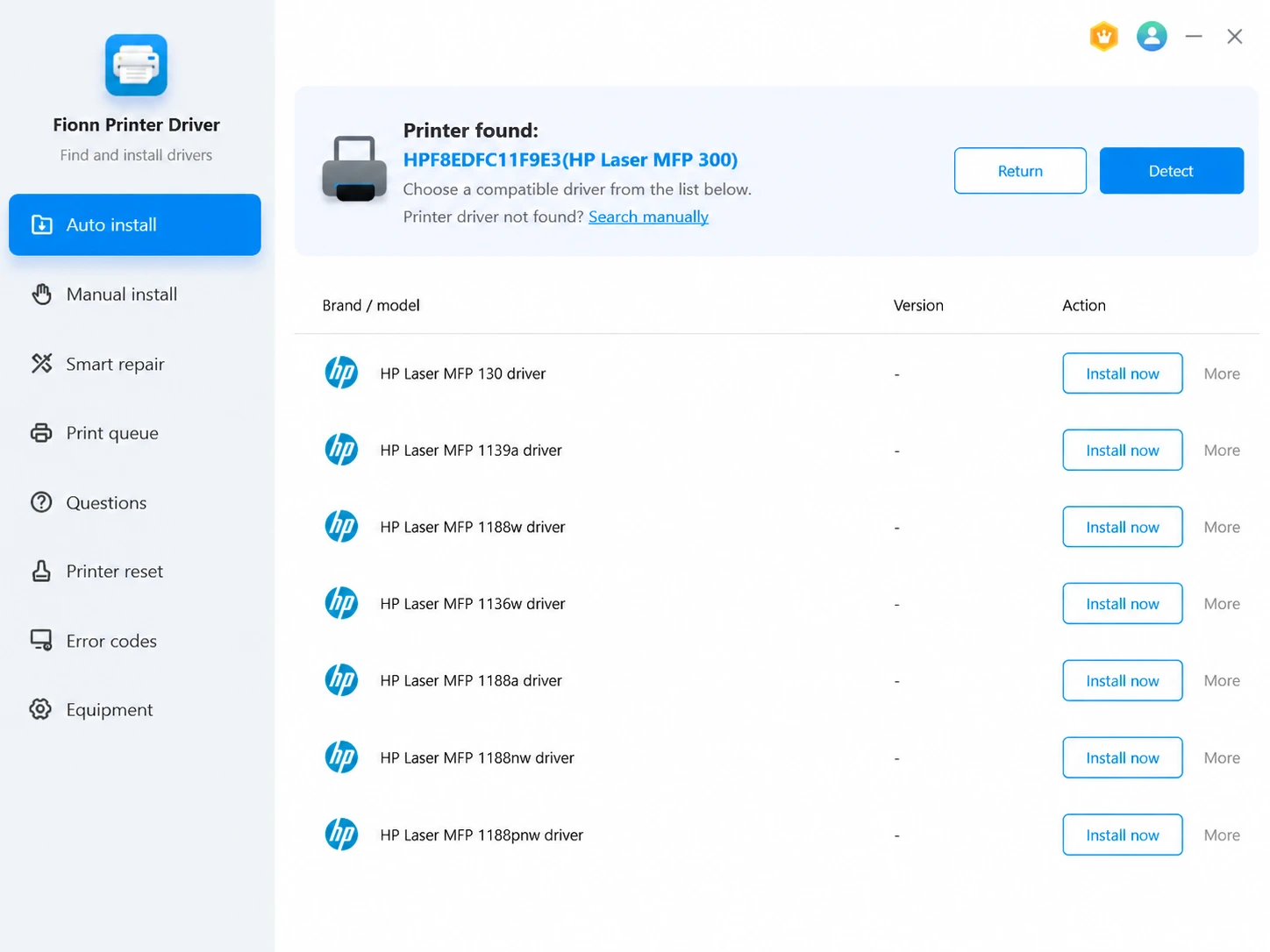
- Turn on your printer and connect it to your computer. Open Fionn Printer Driver, select Auto install in the sidebar, and click Scan Now.
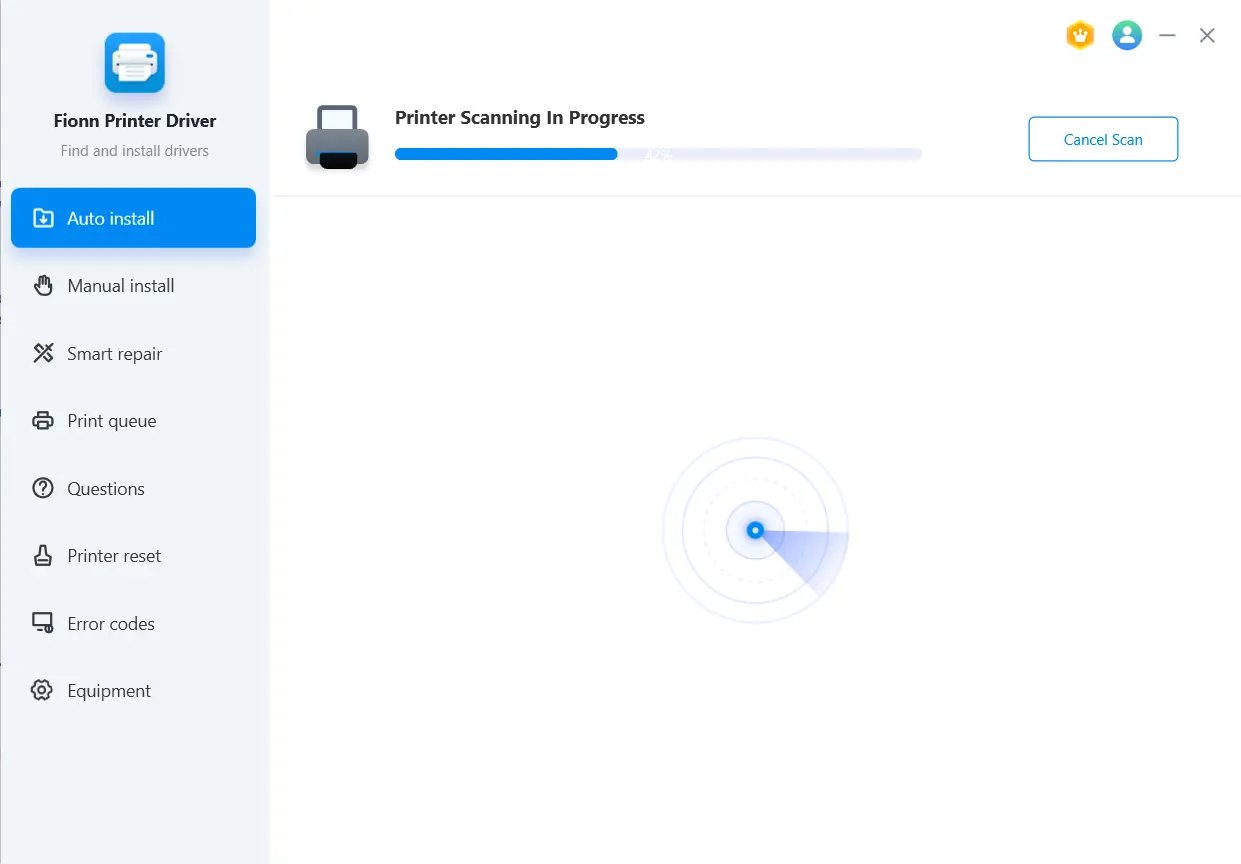
- Keep the printer connected while the scan runs. Wait for the detected printer and the driver list to appear.
- Confirm the printer’s exact model, then click Install now next to the matching driver. If you don’t see a match, click Search manually and look up the full model name.
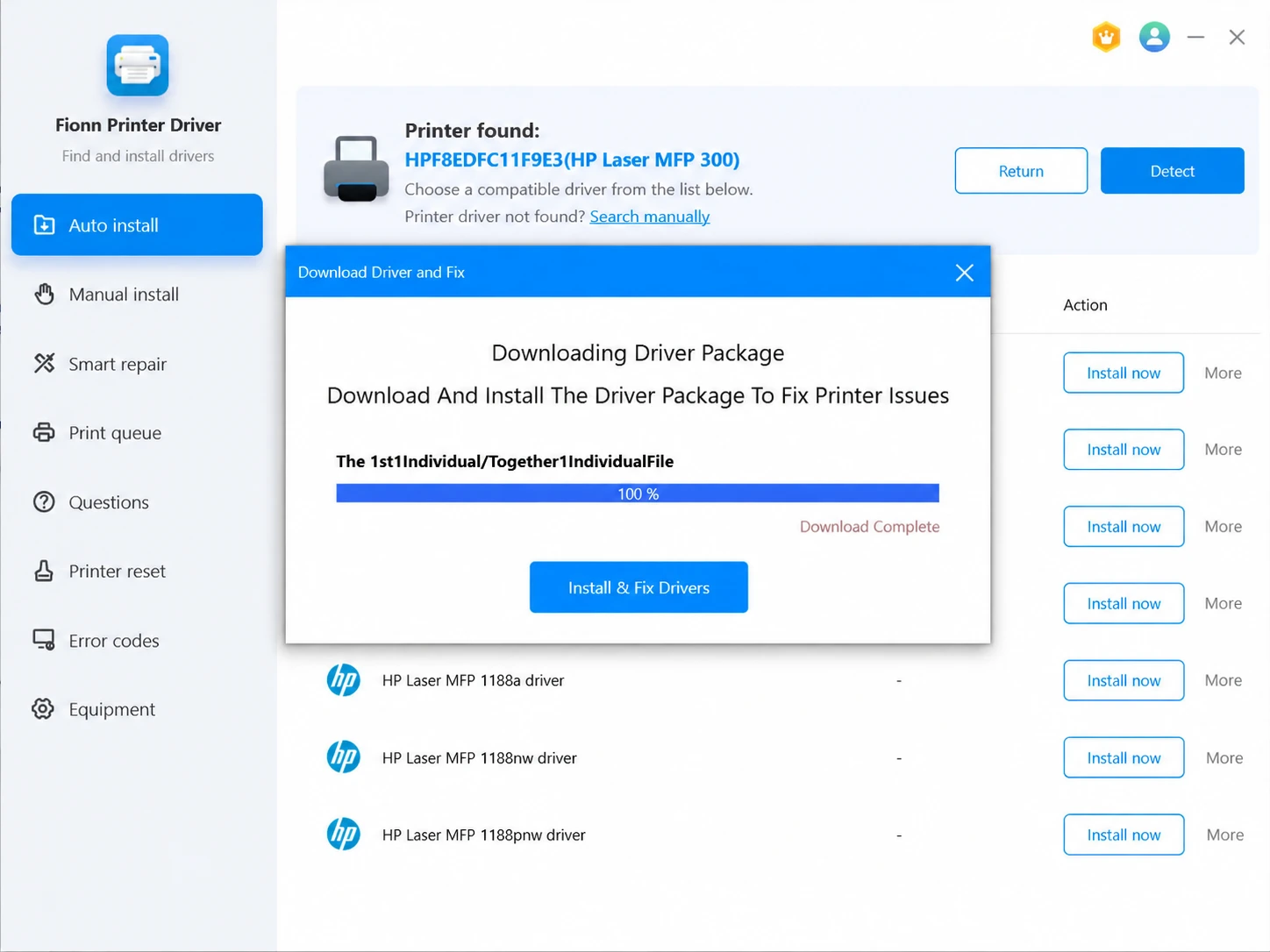
- When the dialog shows Download Complete, click Install & Fix Drivers and follow the prompts. After installation, print a test page from Windows to confirm the printer works.
If the printer is installed but will not print
When the L3210 appears in Windows but a job does not print, begin with the Windows 11 printer troubleshooter in the Get Help app. Check that the USB cable is firmly connected between the printer and PC. If jobs remain stuck, Microsoft also documents clearing spooler files and restarting the Print Spooler service.
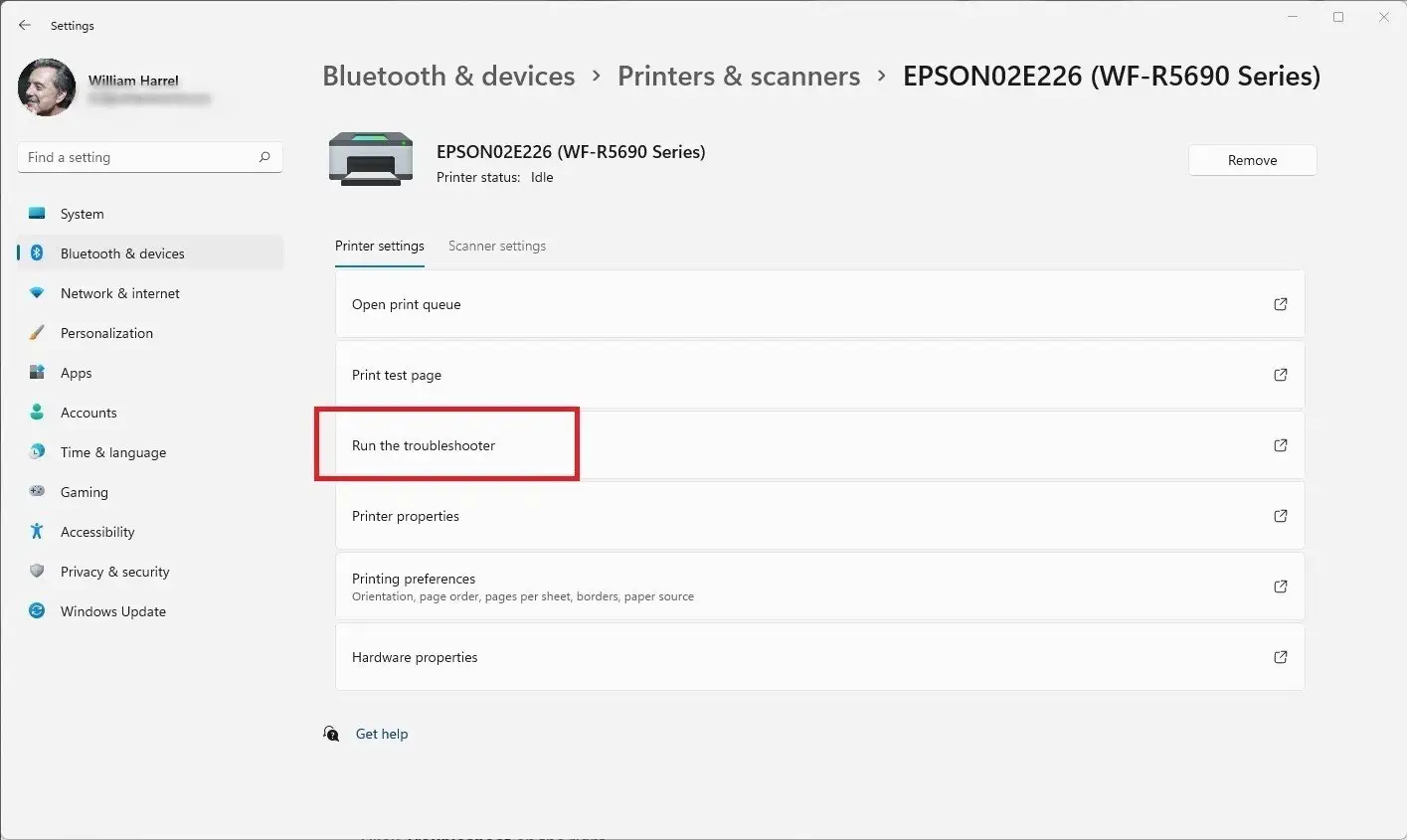
For an unavailable device or a connection error, check the printer’s power and USB connection before reinstalling anything. If a test page still fails after these checks, return to Epson’s support route for the correct model and Windows selection, or use the diagnostic method above.
Conclusion
For an Epson L3210 on Windows 11, start with Epson’s model support page when you need a manufacturer-provided download. Use Windows Settings when the USB-connected printer simply needs to be added. If the cause involves the driver, connection, or print service, Fionn Printer Driver provides a guided scan and repair path. In every case, print a Windows test page to verify the outcome. If it fails, check the USB connection, queued jobs, and the Windows printer troubleshooter before trying the installation again.
Frequently Asked Questions
Can Windows 11 install the Epson L3210 automatically?
Windows 11 normally installs a local or wired printer after it is plugged in and powered on. If the L3210 does not appear, go to Printers & scanners and select Add device.
Where can I get the Epson L3210 driver?
Use Epson’s L3210 Series Download Center and confirm the model, Windows version, and system architecture before downloading. Install only a package that Epson presents for that selection.
How do I verify that the driver installation worked?
Print a Windows test page from the installed printer’s settings. A successful page confirms that Windows can send output to the printer.
What should I do if the Epson L3210 is listed but jobs are stuck?
Run the Windows 11 printer troubleshooter in Get Help, check the USB cable, and, if needed, clear spooler files and restart the Print Spooler service. Then print a test page again.
Does Fionn Printer Driver guarantee that my Epson L3210 will print?
No. It can scan drivers and related printer conditions and start a suggested repair, but the final check is whether the Windows test page prints successfully.


