 Emily CarterPrinter Drivers
To install or repair an Epson L3110 driver on Windows, confirm the printer model and Windows version first. Then use Epson’s model-support route for an official package, let Windows discover a connected printer, or use Fionn Printer Driver when the cause is unclear.
The job is complete only when the Epson L3110 prints a Windows test page. An installer or repair tool showing completion is an intermediate result, not proof that the printer can receive a job.
Before You Start
- Check that the printer label says Epson L3110 .
- Identify your Windows version.
- Make sure the printer is powered on and connected to the PC or available on its intended network connection.
Choose the Right Method
| Method | Best For | Efficiency | User Effort |
|---|---|---|---|
| Epson Support | Finding an installation option for the exact model | Direct when Epson displays an option for your region and Windows selection | Review the model, region, Windows selection, and installer prompts |
| Windows Add device | A powered-on printer that is already connected and discoverable | Quick when Windows shows the Epson L3110 | Low; select the displayed printer and verify printing |
| Fionn Printer Driver | An unclear driver, queue, port, printing-service, or device-status cause | Can scan the printing environment before you choose a repair path | Review scan results and the suggested action |
Method 1: Install the Epson L3110 Driver from Epson Support
Use Epson Support when you need the manufacturer’s model-specific route or Windows does not find the printer. The supplied Epson page is a support entry point; confirm its displayed product, regional availability, and Windows selection before downloading anything.
- Open the Epson L3110 support page .
- Confirm that the displayed product and region match your printer.
- Select your Windows version.
- Download only an installation option Epson explicitly displays for that selection.
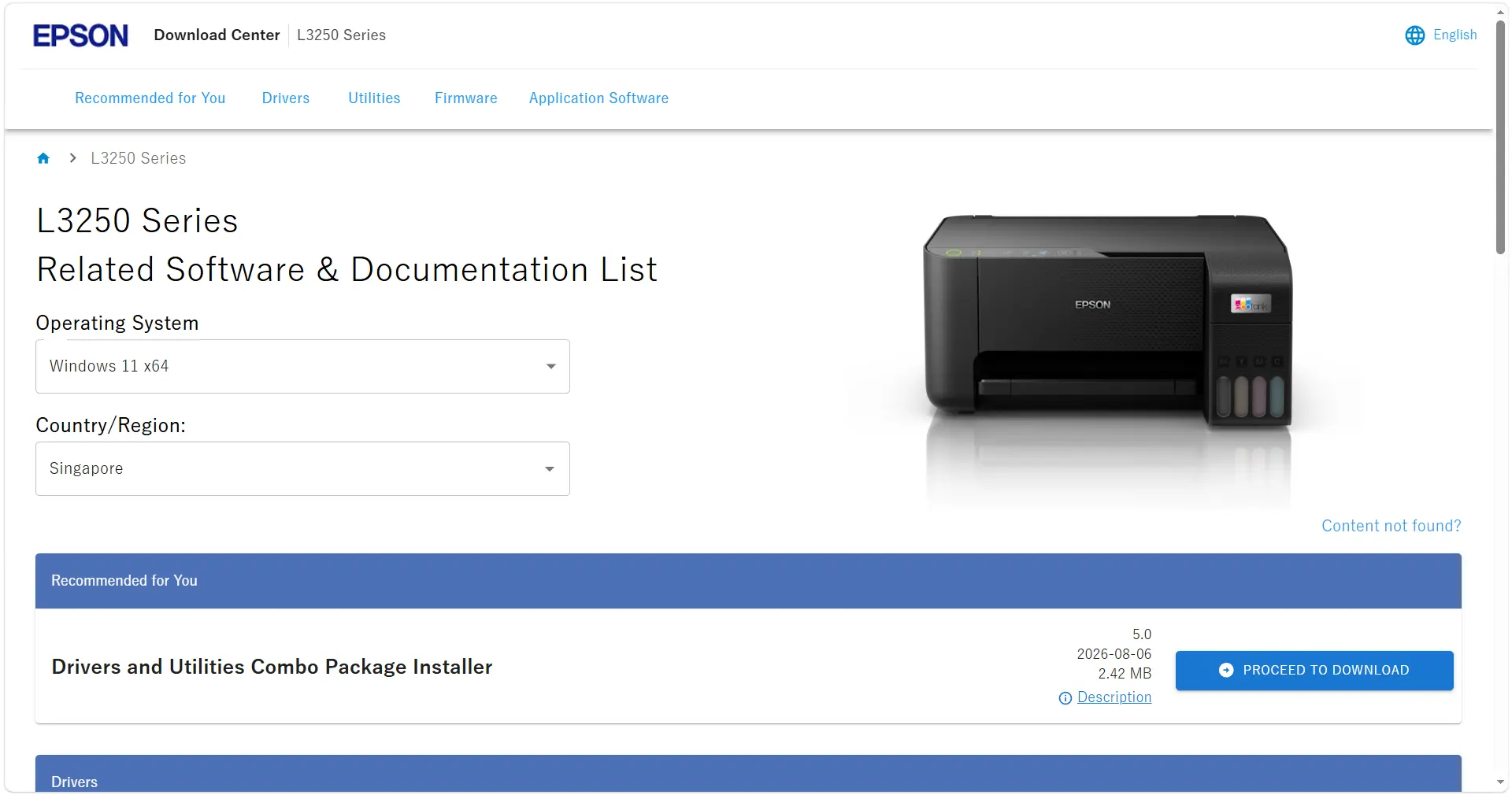
- Run the installer and follow its on-screen prompts.
- Continue to the shared test-page check below.
If installation finishes but the test page does not print, investigate the connection, queue, and printer status before trying another package.
Method 2: Add the Epson L3110 Through Windows
Use Windows discovery when the printer is powered on, connected, and available for discovery. Windows labels can vary by version, so use the printer controls shown in your installed version of Windows rather than assuming one path is universal.

- Open Windows Settings and go to
Printers & scanners. - Select Add device or the equivalent control shown in your Windows version.
- Choose the Epson L3110 if Windows displays it.
- Continue to the shared test-page check below.
If the printer is absent, check its connection and use the Epson Support route to confirm the correct model-specific installation option.
Method 3: Diagnose and Repair Epson L3110 Printing Issues with Fionn Printer Driver
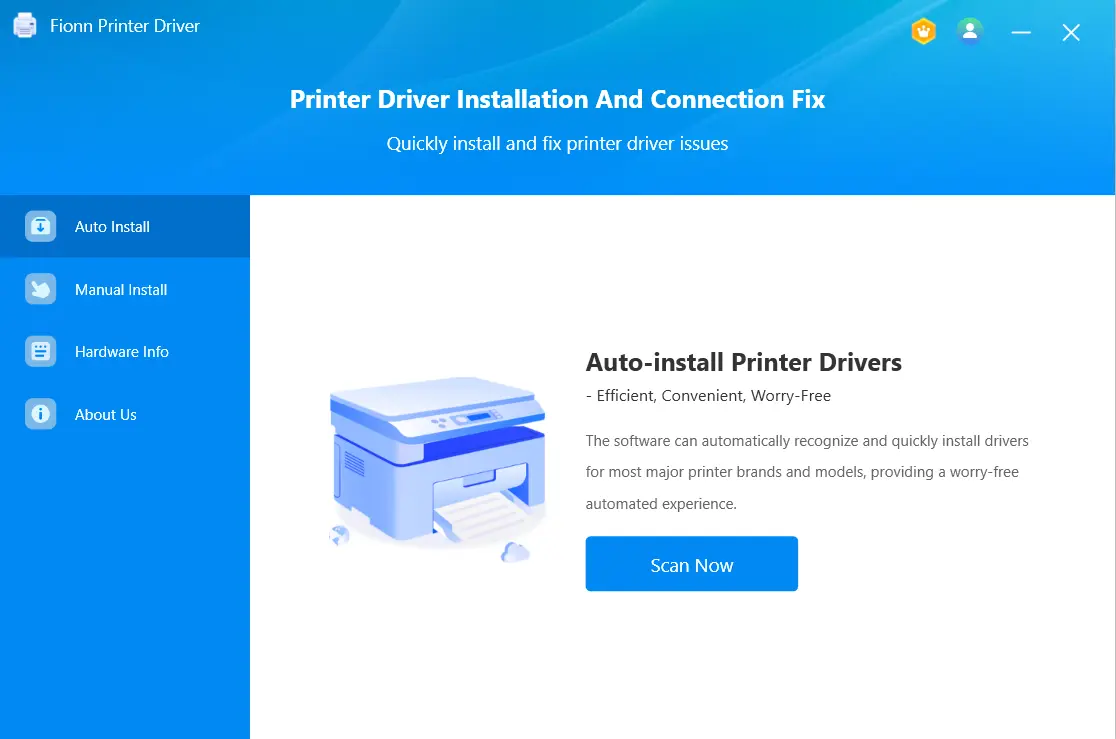
Fionn Printer Driver is a Windows tool, not Epson’s official driver source. It can scan the driver and printing environment, identify mainstream printer models, support manual brand-and-model matching, and inspect driver, printer-service, port, queue, and device-status conditions. This is most useful when you do not yet know whether the fault is the driver or another printing condition.
- Launch Fionn Printer Driver and click “Scan Now” to scan your computer for printer drivers and related issues.
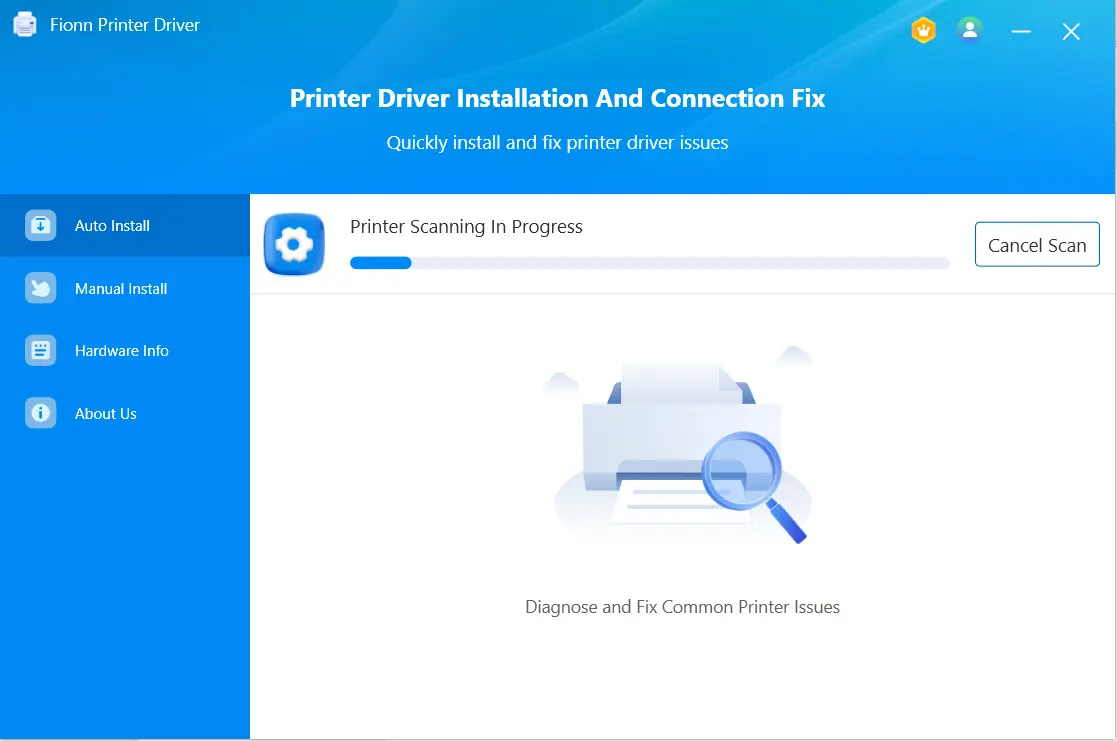
- Wait while Fionn Printer Driver scans your system for installed printers, drivers, and common printer issues.
- After the scan finishes, review the detected driver issue, then click “One-Click Fix” to start the suggested installation or repair.
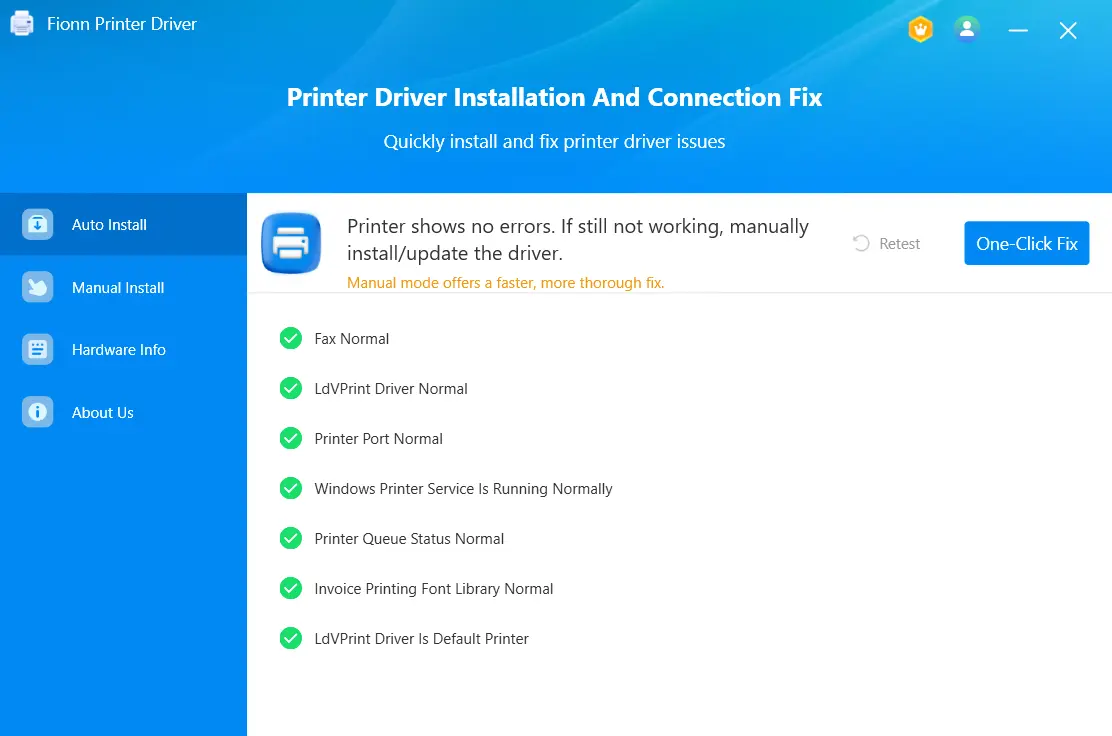
- Wait for the operation to finish and review its result. Then print a Windows test page to check whether the printer actually works.
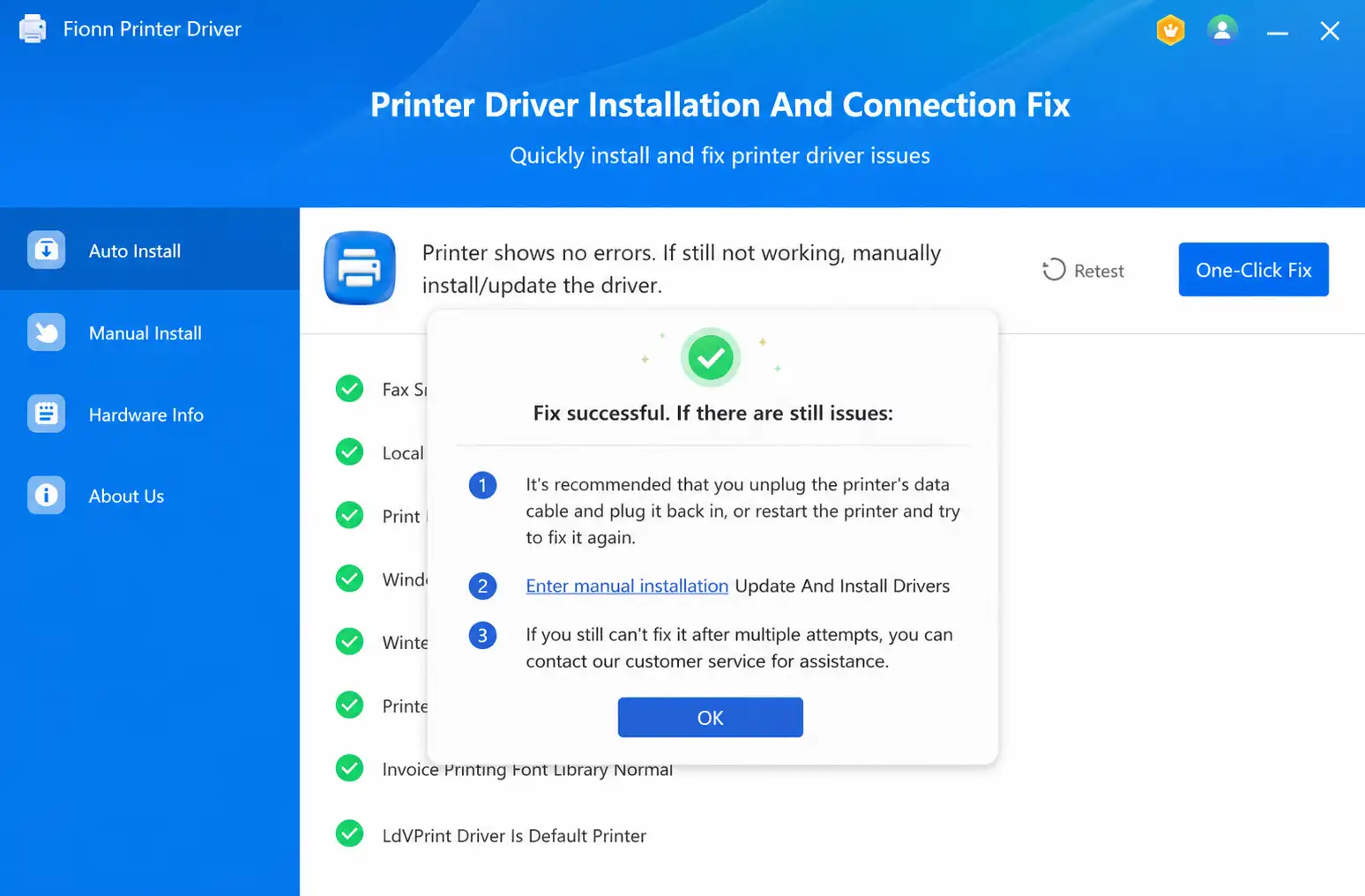
If automatic matching does not identify the intended device, enter Epson and L3110 to review local driver candidates before choosing one. If the repair reports completion but the test page fails, continue with the relevant connection, queue, printer-service, port, or device-status check.
Print a Windows Test Page and Confirm the Result
After any method, open the added Epson L3110 through the printer controls available in your Windows version and select the available Print Test Page control. The exact route and labels can differ between Windows versions.
A completed test page confirms that Windows can send a job to the Epson L3110. If the page fails, use the symptom-based checks below rather than treating installer or repair completion as proof that printing works.
Troubleshoot by Symptom
- Printer not found: confirm power and the intended connection, then retry Windows discovery or use Epson Support.
- Driver unavailable or incompatible: return to Epson Support and match the model and Windows selection. Fionn Printer Driver can also identify an unavailable driver and prompt a manual update.
- Job stuck or paused: inspect the printer queue for unfinished or paused jobs. Fionn Printer Driver can inspect queue conditions.
- Printer offline or still unable to print: check the connection, printer status, printing service, and port. A driver installation does not by itself correct paper, jam, supply, offline, service, port, or device-status conditions.
Conclusion
Use Epson Support for a model-specific installation option, Windows discovery for a connected printer that appears in Windows, or Fionn Printer Driver when the cause is unclear. In every case, treat a completed Windows test page as the completion criterion; if it fails, check the connection, queue, service, port, or device status next.
Frequently Asked Questions
Where can I get the Epson L3110 driver?
Use Epson’s support route for the exact L3110 model and your region. Confirm the model and Windows selection before downloading an option Epson displays.
Can Windows install the Epson L3110 without a manual download?
Windows can attempt to discover a connected printer through Windows Settings and
Printers & scanners
. The labels can vary by Windows version. If the printer does not appear, use the Epson Support route to check the model-specific option.
Why is the Epson L3110 offline after driver installation?
Offline status can be caused by the connection or printer condition rather than the driver. Check the connection and printer status, then use a test page to determine whether Windows can send a job.
What should I do if a print job is stuck?
Check the printer queue for unfinished or paused jobs. When the cause is unclear, Fionn Printer Driver can inspect queue conditions alongside the driver, printer service, and port.
How do I know the driver is working?
Print a Windows test page after adding or repairing the printer, using the printer controls shown in your Windows version. A completed page is the practical confirmation that Windows can send a job to the Epson L3110.


