 Emily CarterPrinter Drivers
To install the Canon PIXMA G2020 Driver, first confirm that the printer is a PIXMA G2020, connect it by USB, and choose either automated detection, Canon’s MP Driver package, or Windows device setup. Fionn Printer Driver is a practical first choice on Windows 10 or Windows 11 when you want the app to scan for the connected printer and present a matching driver. Whichever route you use, finish by printing a Windows test page.
The PIXMA G2020 series specification lists a Hi-Speed USB port. If the printer is not detected, check that it is powered on and directly connected before changing drivers. Canon recommends a certified Hi-Speed USB cable and suggests keeping the cable to about 3 meters (10 feet) or less.
Before You Install
- Confirm the printer label says PIXMA G2020 ; do not select a driver solely because another PIXMA model looks similar.
- Check your Windows version. Canon’s G2020/G2060 MP Driver page lists Windows 11 and Windows 10, along with several earlier Windows and Windows Server releases.
- Keep at least 1.5 GB of free disk space for driver installation, as listed in Canon’s G2020 manual.
- Connect the powered-on printer to the PC with USB. This model’s supplied specifications identify USB; this guide does not assume a wireless setup.
Quick Method Comparison
| Method | Best For | Efficiency | User Effort |
|---|---|---|---|
| Fionn Printer Driver | Finding a connected Canon printer and matching driver through a scan | Automated scan and selection | Low |
| Canon official MP Driver | Using Canon’s model-specific Windows package | Direct manufacturer route | Moderate |
| Windows Add device | A powered USB printer that Windows has not added automatically | Built-in device discovery | Moderate |
Method 1: Install the Canon PIXMA G2020 Driver with Fionn Printer Driver
Recommended for Windows 10/11: use this route when the printer is connected but you want help identifying the device and locating a driver candidate. The app supports Canon among popular printer brands and can automatically detect printers and drivers. Confirm the exact G2020 model before installing any listed match.
- Turn on the printer and connect it to the computer. Open Fionn Printer Driver, select
Auto install
in the sidebar, and select
Scan Now
.
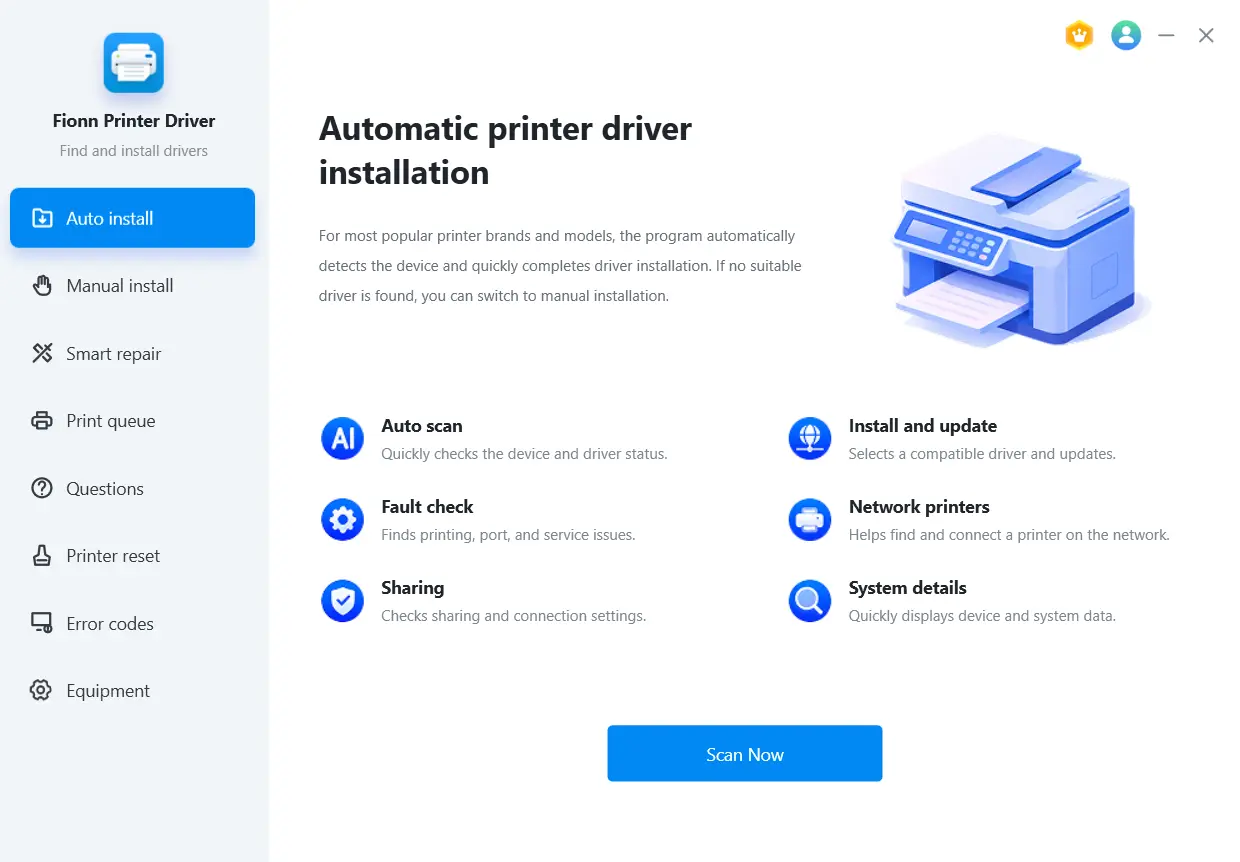
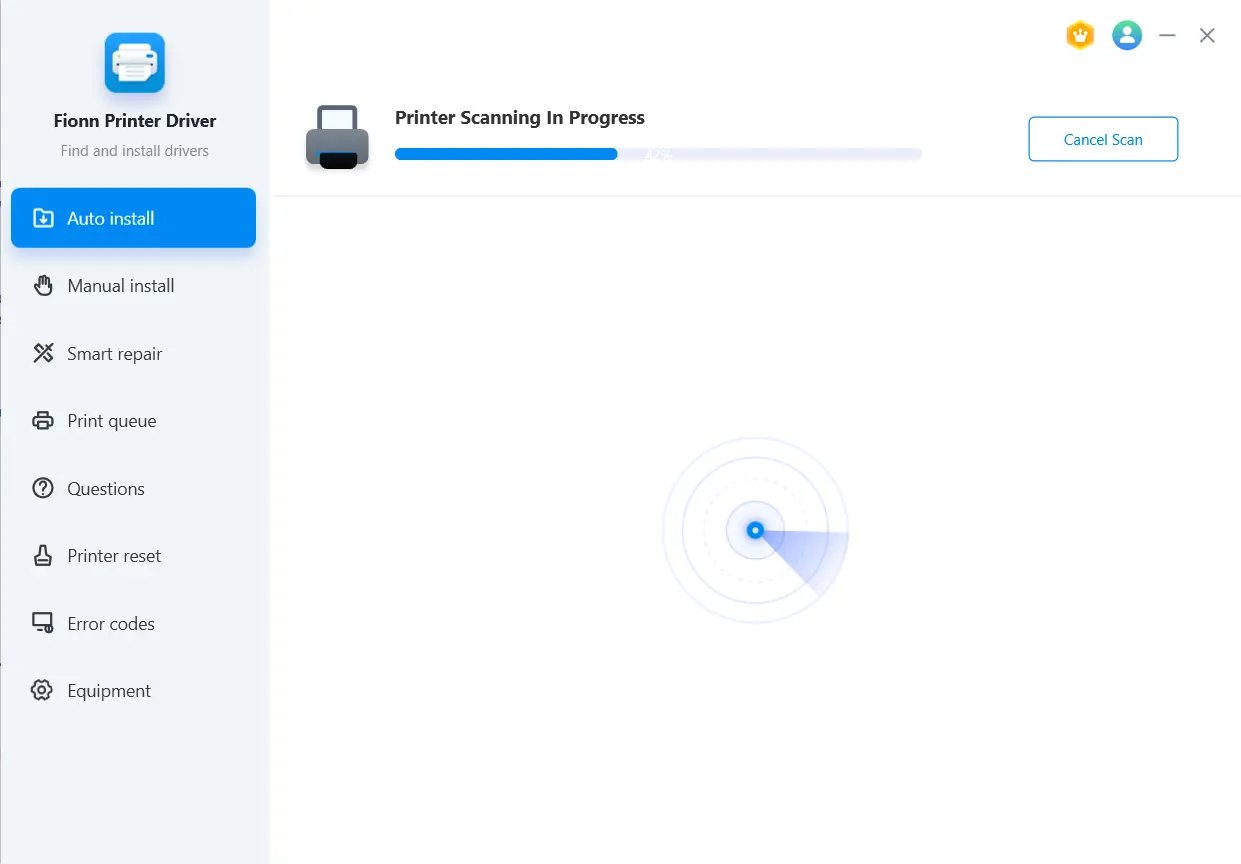
- Keep the printer connected while the scan runs and wait for the detected printer and driver list to appear.
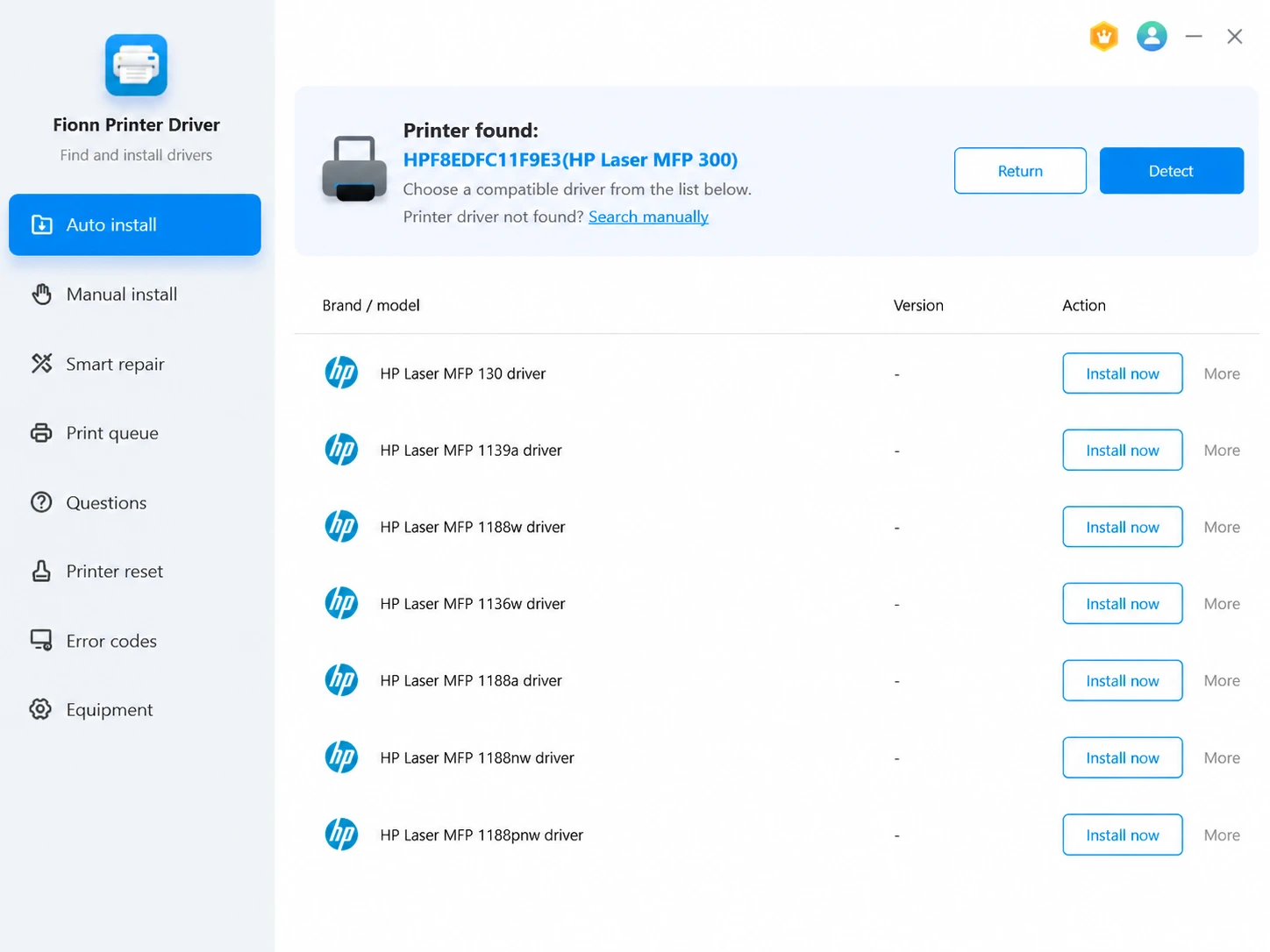
- Confirm the printer’s exact model, then select
Install now
beside the matching driver. If no match appears, select
Search manually
and search using the full model name.
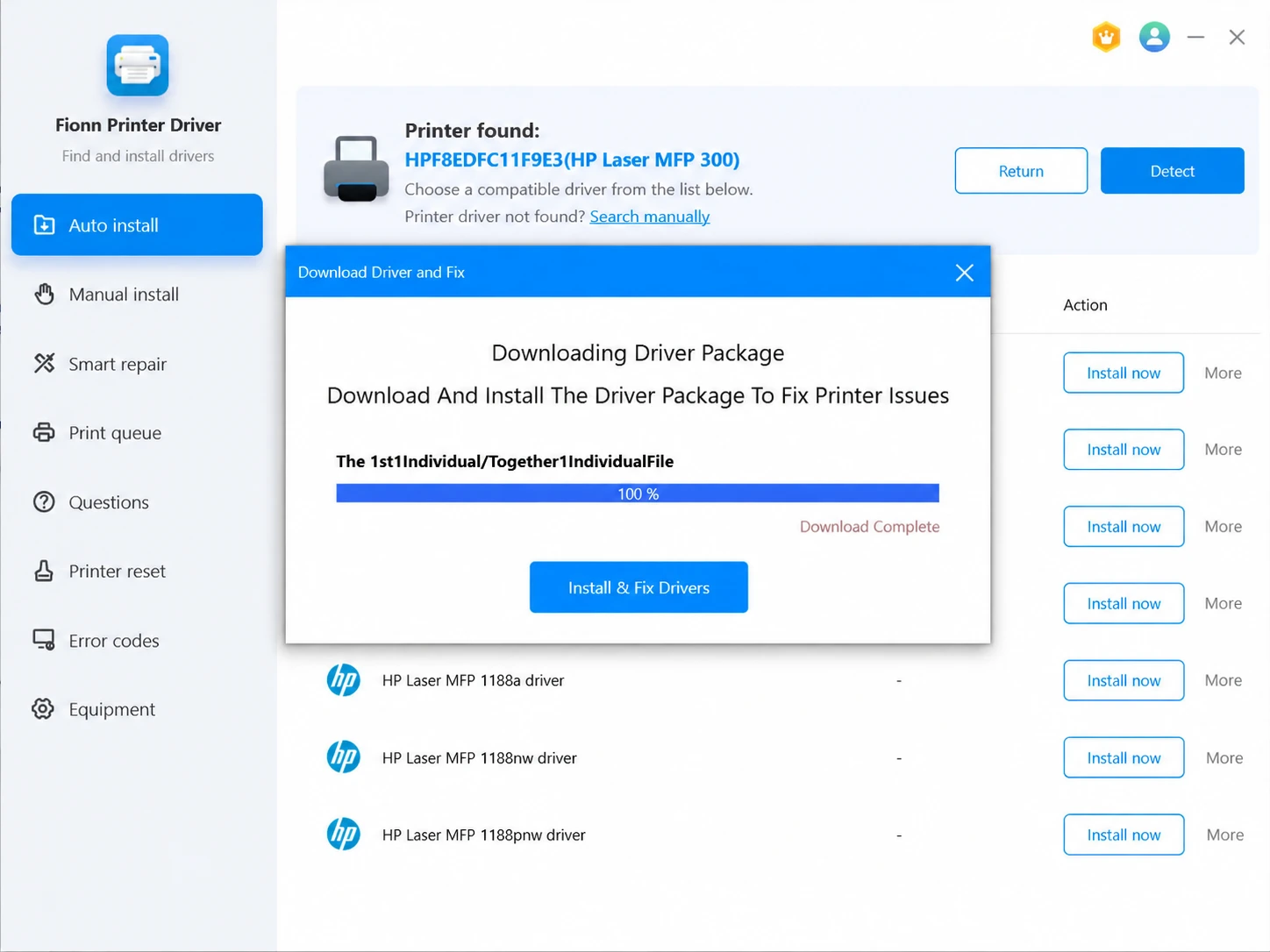
- When the dialog shows
Download Complete
, select
Install & Fix Drivers
and follow the prompts. After installation, print a Windows test page to confirm the printer works.
A detected device or completed download is only an intermediate result. Open the installed printer’s properties in Windows and use Print Test Page ; a printed page confirms that Windows can communicate with the printer.
Method 2: Install Canon’s Official MP Driver
Choose Canon’s route when you prefer the manufacturer-provided package. Canon currently lists the G2020/G2060 series MP Driver Ver. 1.04 for the PIXMA G2020 and G2060, and states that it provides printing and scanning functionality. Check the operating-system details on the support page before downloading.
- Open the
Canon PIXMA G2020 support page
and confirm that the listed model and Windows requirements apply to your computer.
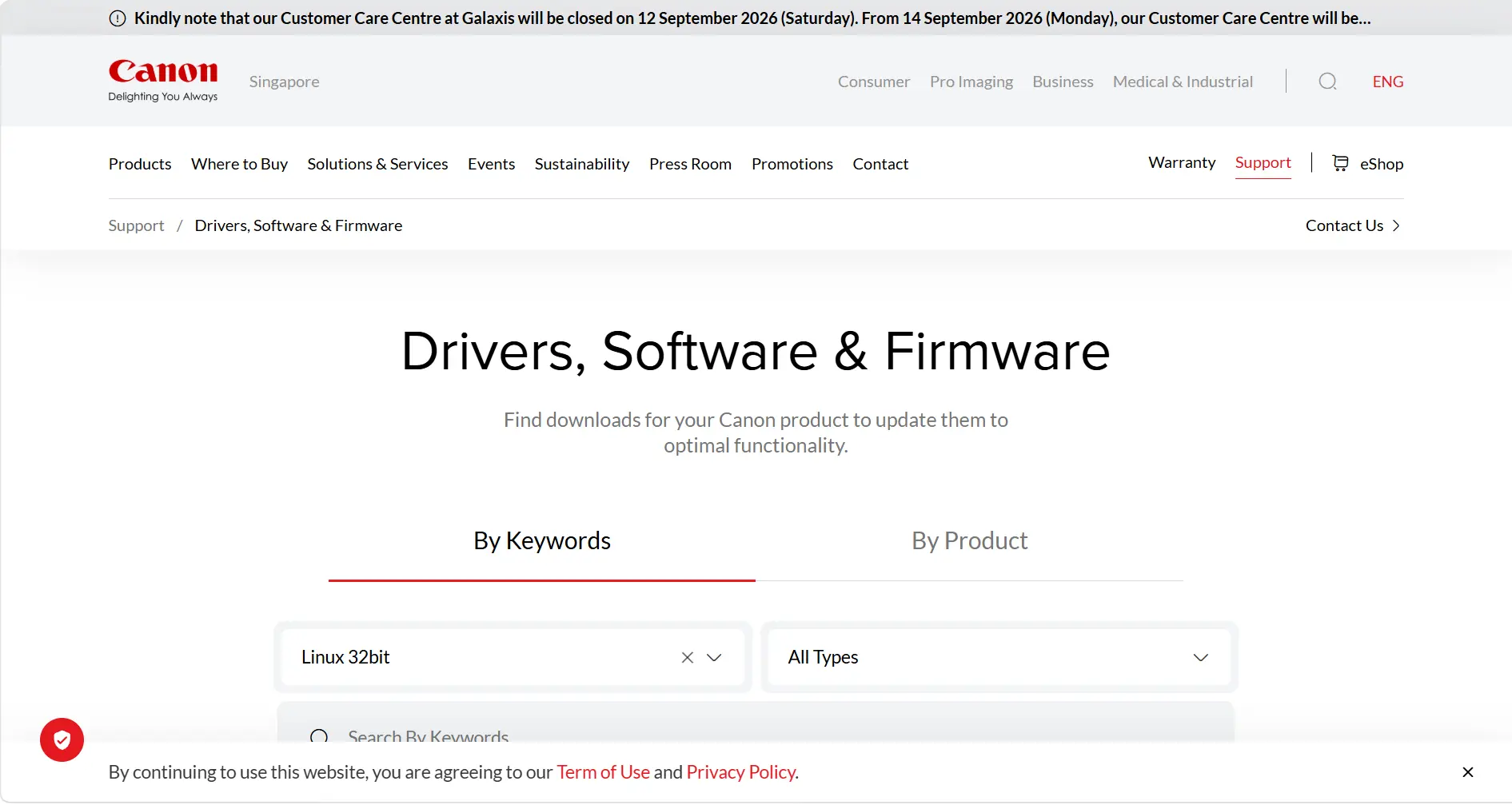
- Download the Canon driver file offered for that combination.
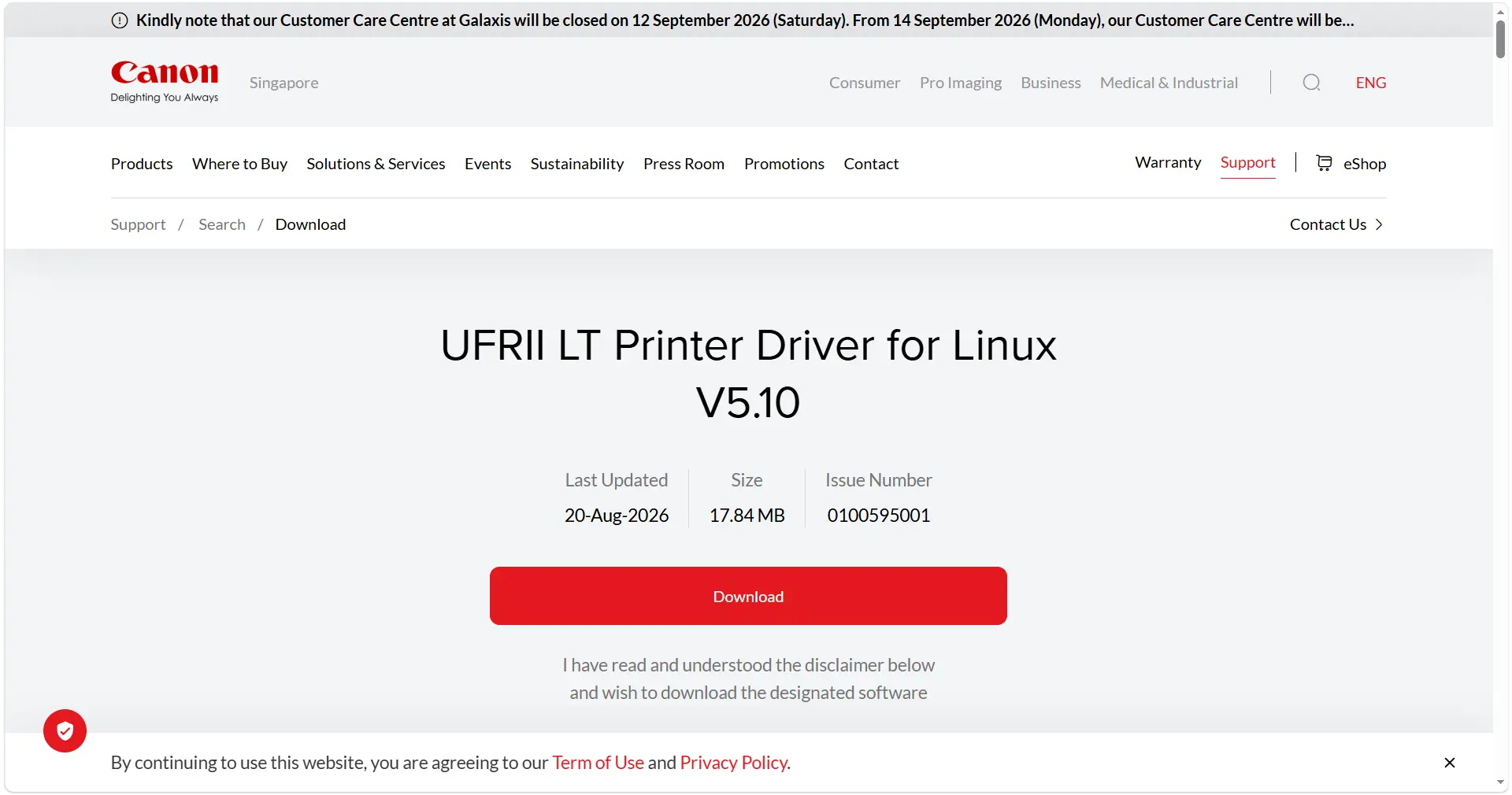
- Double-click the downloaded EXE file. Canon states that it decompresses and starts installation automatically.
- When installation ends, open the printer’s Windows properties and select Print Test Page .
Method 3: Add the Connected Printer in Windows
Use Windows Settings when the printer is connected and powered on but does not appear as an installed printer. This method adds the device; it does not replace Canon’s model-specific package when you need the full MP Driver functionality.
- Make sure the printer is powered on and connected to the Windows PC by USB.

- Open Settings , then go to Bluetooth & devices and Printers & scanners .
- Select Add device beside the printer you want to add.
- If Windows does not find it automatically, select the manual-add option and follow the Add Printer window instructions.
- After the printer is installed, open its properties and select Print Test Page .
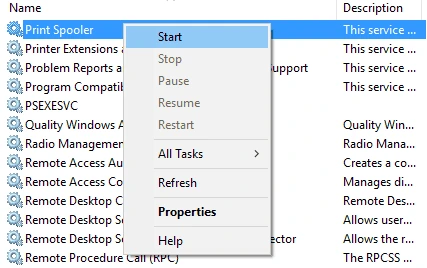
If the printer appears but jobs remain stuck, check for paused or unfinished jobs in the print queue. If several print attempts fail, Windows also documents restarting the Print Spooler service as a later troubleshooting step.
Conclusion
For a connected Canon PIXMA G2020 on Windows 10 or 11, start with automatic detection if you want assistance matching the printer, use Canon’s official MP Driver when you want the manufacturer package, or add the device in Windows when it is not listed. End with a test page rather than relying on an installation message. If the page does not print, recheck the USB connection and the queue, then use the applicable Canon driver route or Fionn Printer Driver to rescan the printer and driver.
FAQ
Does the Canon PIXMA G2020 Driver support Windows 11?
Canon’s G2020/G2060 series MP Driver page lists Windows 11 and Windows 10 among supported operating systems. Confirm the requirements shown on Canon’s page for your own Windows installation before downloading.
What is the official driver for the PIXMA G2020?
Canon lists the G2020/G2060 series MP Driver Ver. 1.04 for this model pair. Canon states that the package provides printing and scanning functionality.
Why is my G2020 not appearing in Windows?
First verify that the printer is powered on and connected by USB. Then use Windows Settings to add the device. If Windows does not discover it, use the manual-add option or install the matching Canon MP Driver.
How do I know the driver installation worked?
Print a Windows test page from the installed printer’s properties. Microsoft identifies a printed test page as confirmation that Windows can communicate with the printer.
Can I use a G2060 driver for a G2020?
Canon’s official MP Driver page lists both PIXMA G2020 and PIXMA G2060 as supported models. Still, verify the exact printer label and operating-system requirements on the Canon page before installation.


