 Emily CarterPrinter Drivers
If you need a Canon MF3010 scanner driver, first confirm the exact device, your Windows version, and whether it is connected by USB or available over a network. Use Canon’s model-support page to select only software offered for your device and operating system. Then check whether Windows lists the scanner and complete a real scan. Fionn Printer Driver can also check printer-side drivers and related printing issues, but its completion screen does not prove that scanning works.
For a USB-connected MF3010, start with Canon’s support route. If Windows should already detect the device, add or verify it in Printers & scanners . Finish by scanning a document, not merely by confirming that a driver installer ran.
Before you start
- Check the model label carefully: this guide is for Canon imageCLASS MF3010.
- Note whether the device is connected directly by USB or shared through another computer or network device.
- For wireless or network discovery, make sure the Windows PC and device are on the same wireless network when applicable.
Quick Method Comparison
| Method | Best For | Efficiency | User Effort |
|---|---|---|---|
| Canon official support | Selecting software for the exact MF3010 and Windows version | Direct | Moderate |
| Windows device setup | Confirming discovery of a connected scanner | Quick when Windows detects it | Low |
| Fionn Printer Driver workflow | Checking printer-side drivers and related printer issues | Guided | Low |
Choose Canon’s page when you need model-specific software choices. Choose Windows setup when the device is already connected and you want to see whether the scanner is available. The Fionn workflow is a separate printer-driver check; use a scan afterward to confirm scanner functionality.
Method 1: Use Canon’s Official MF3010 Support Page
Use this route when you need to obtain software for the exact Canon imageCLASS MF3010. The page is the appropriate place to confirm your operating system and see the installation options Canon offers for that combination.
- Open the
official Canon imageCLASS MF3010 support page
.
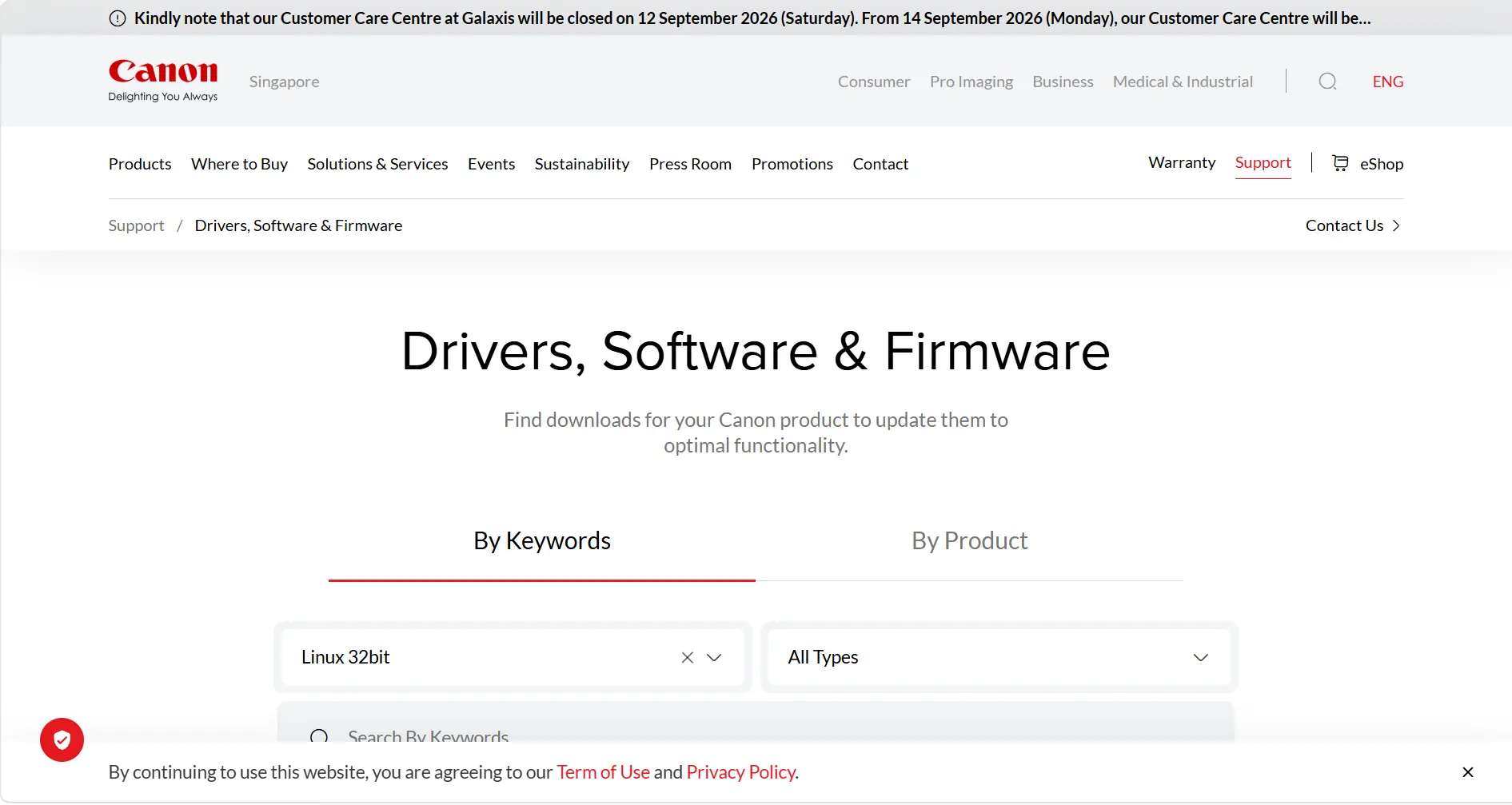
- Confirm that the displayed model is imageCLASS MF3010.
- Select your Windows version on the Canon support page.
- Download and install only a package that Canon explicitly offers for that model and Windows version.
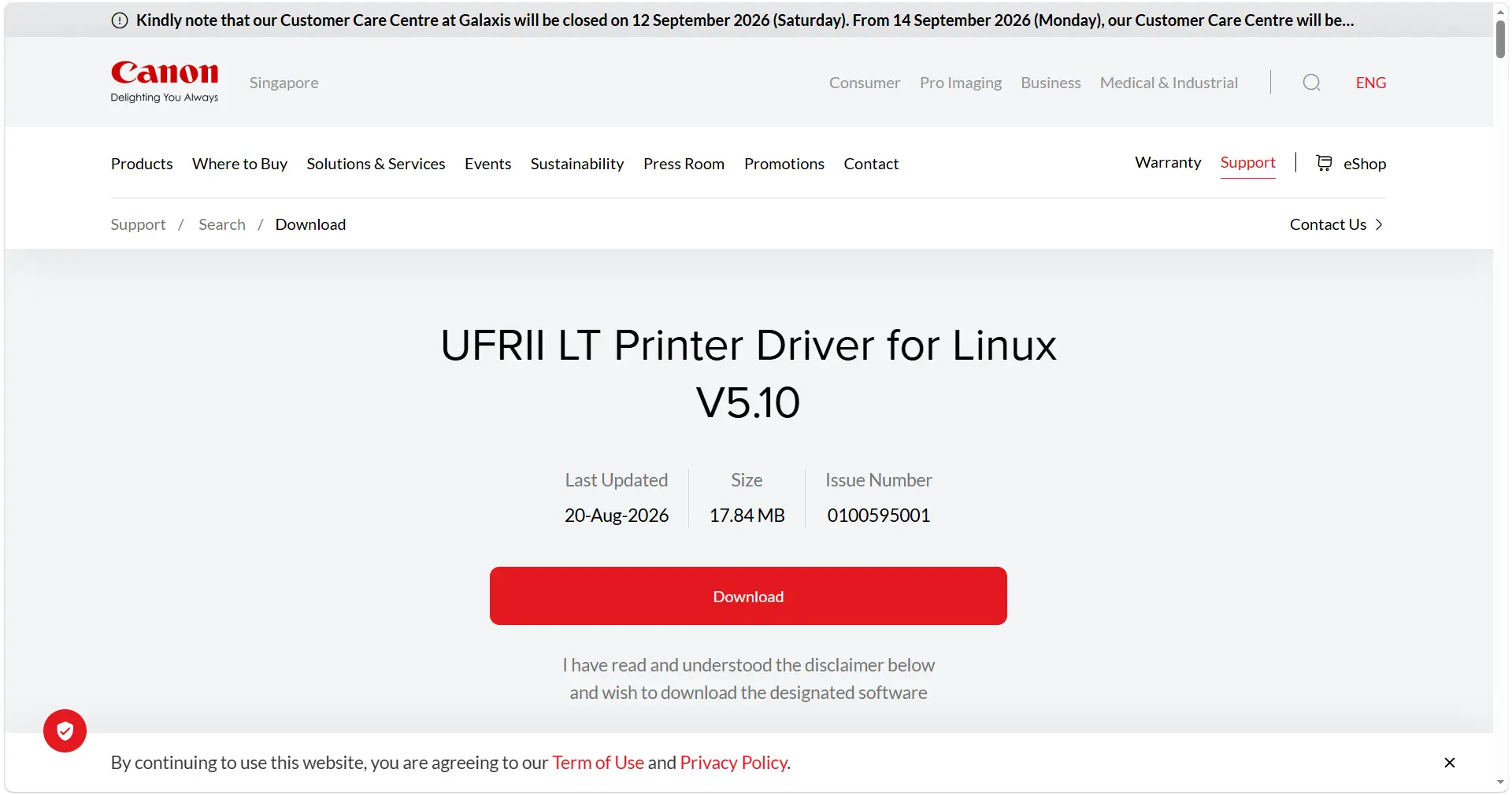
- After installation, open Windows settings and check whether the scanner is listed.
A successful result is that the MF3010 appears in Windows and can be selected for a scan. If Canon does not offer a suitable option for your Windows version, do not substitute an unverified package; use Canon support for model-specific guidance.
Method 2: Add the MF3010 Scanner in Windows
Use this method when the MF3010 is powered on and connected, but you need to confirm Windows discovery. Microsoft states that Windows normally discovers and installs locally connected and network scanners.
- Connect the MF3010 to the Windows PC by USB and turn it on.
- Open
Settings > Bluetooth & devices > Printers & scanners
.
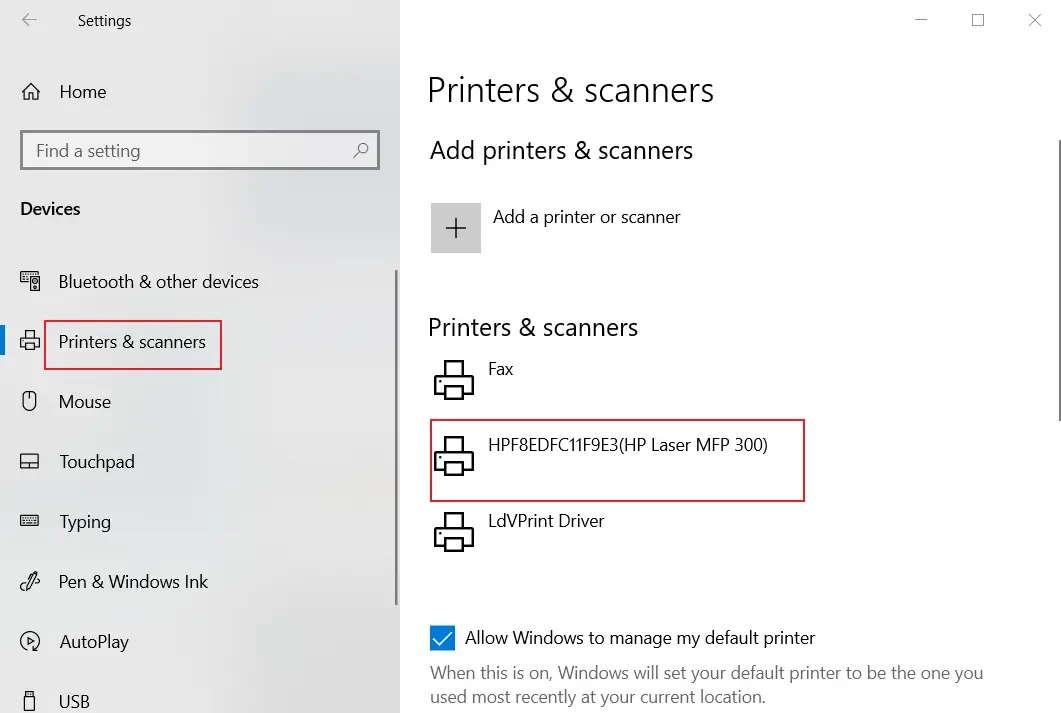
- Check whether the MF3010 is listed; for a multifunction device, open its device page and look for scanner settings.
- If the scanner is available, use Microsoft’s scanner setup guidance to continue setup for the connection type.
- Open Windows Scan and scan a document or picture.
The scan is the verification step. Microsoft documents that Windows Scan can scan a picture or document after the scanner is installed. If the MF3010 is not listed, return to Canon’s support page and confirm the selected software matches the device and Windows version.
Method 3: Check Printer-Side Drivers with Fionn Printer Driver
Use this separate workflow if the MF3010 also has printing problems or you want a guided check of printer drivers and related printer issues. Fionn Printer Driver is a Fionn product. It can recognize many mainstream printer brands and models, install drivers, and check related printer conditions; this workflow does not replace the scanner verification above.
- Launch Fionn Printer Driver and click
Scan Now
to scan your computer for printer drivers and related issues.
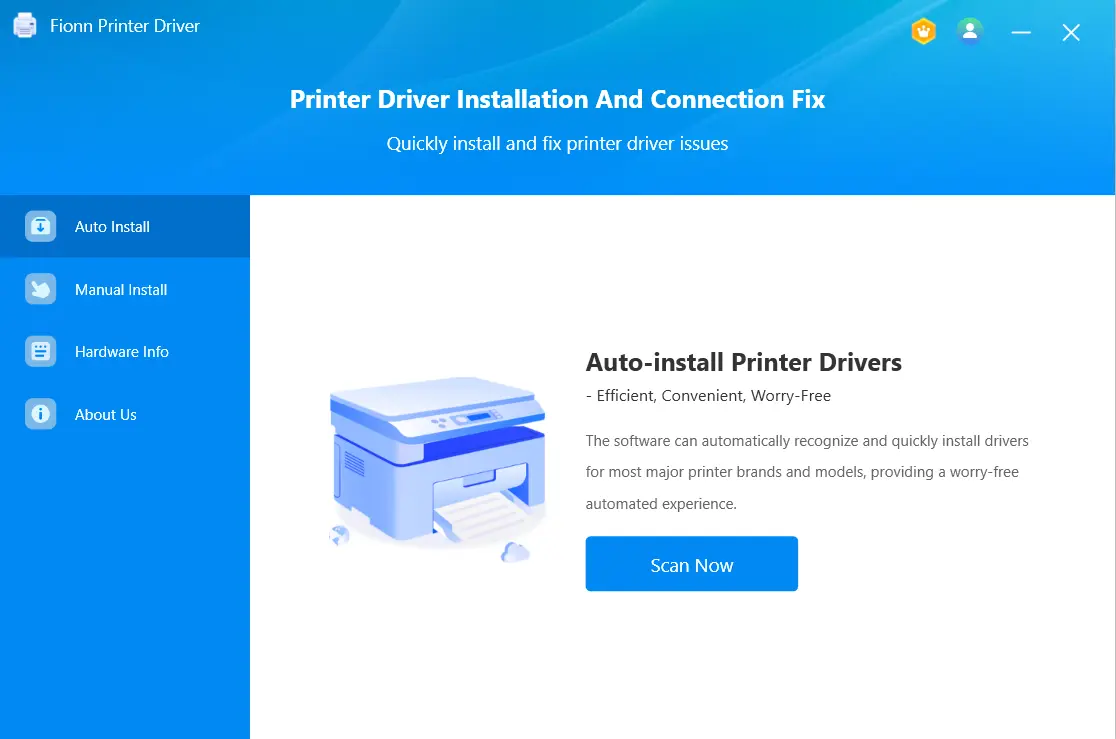
- Wait while Fionn Printer Driver scans your system for installed printers, drivers, and common printer issues.
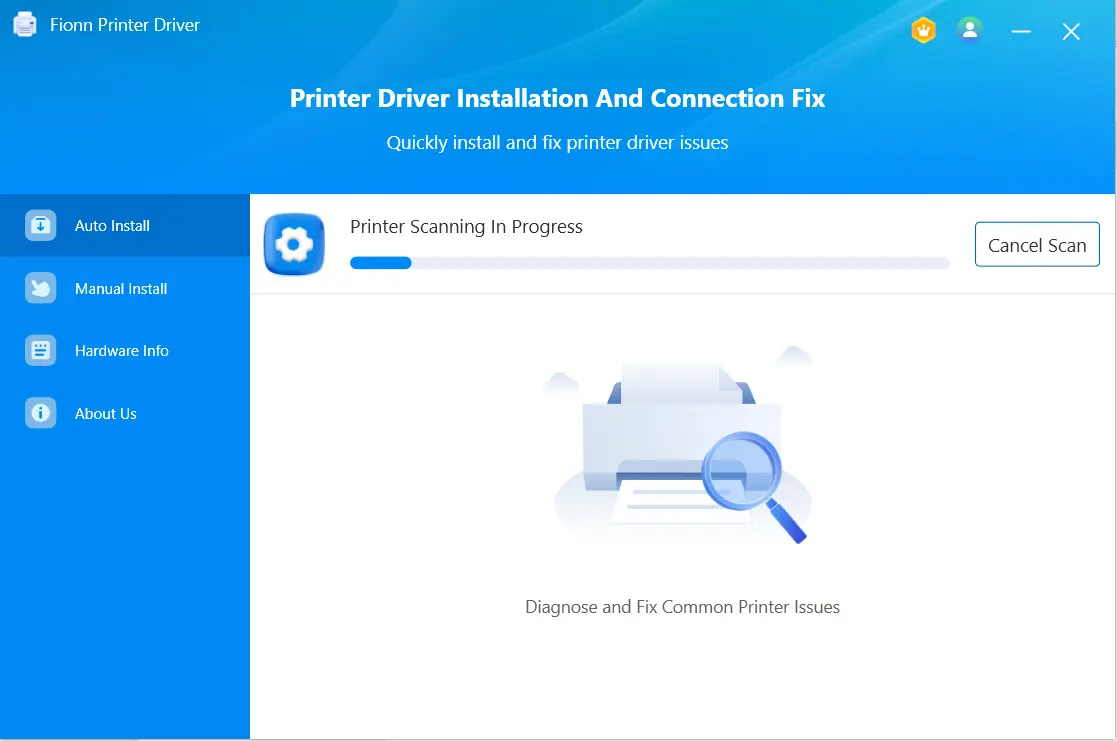
- After the scan finishes, review the detected driver issue, then click
One-Click Fix
to start the suggested installation or repair.
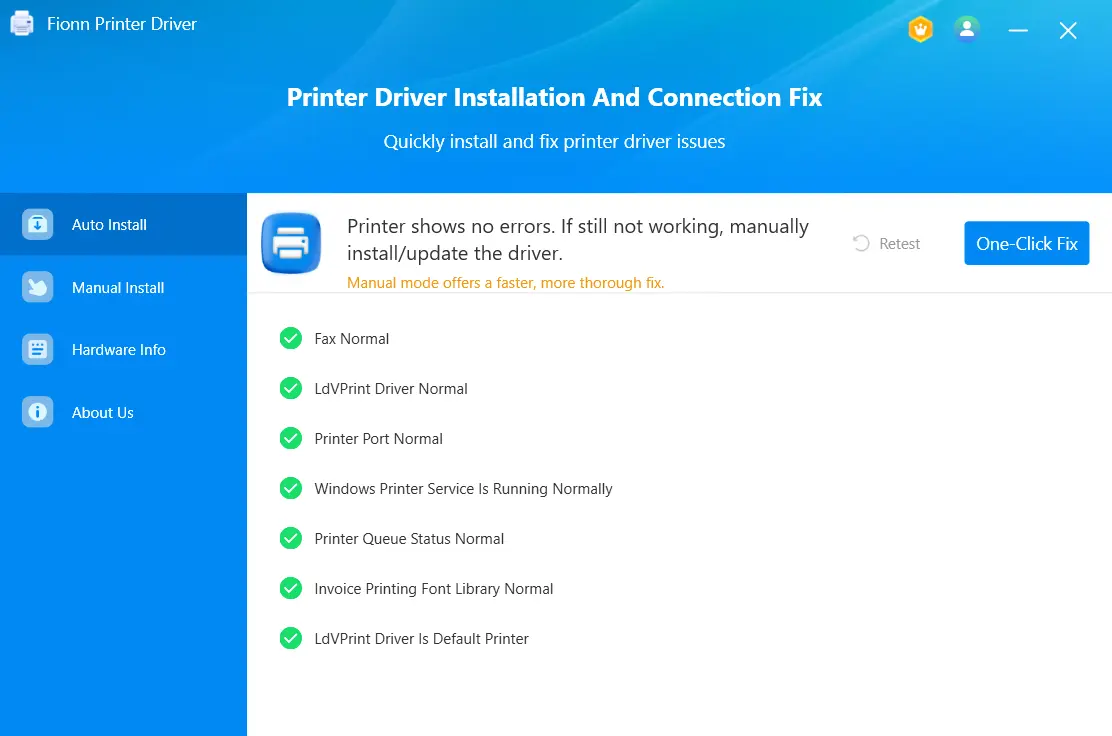
- Wait for the operation to finish and review its result. Then print a Windows test page to check whether the printer actually works.
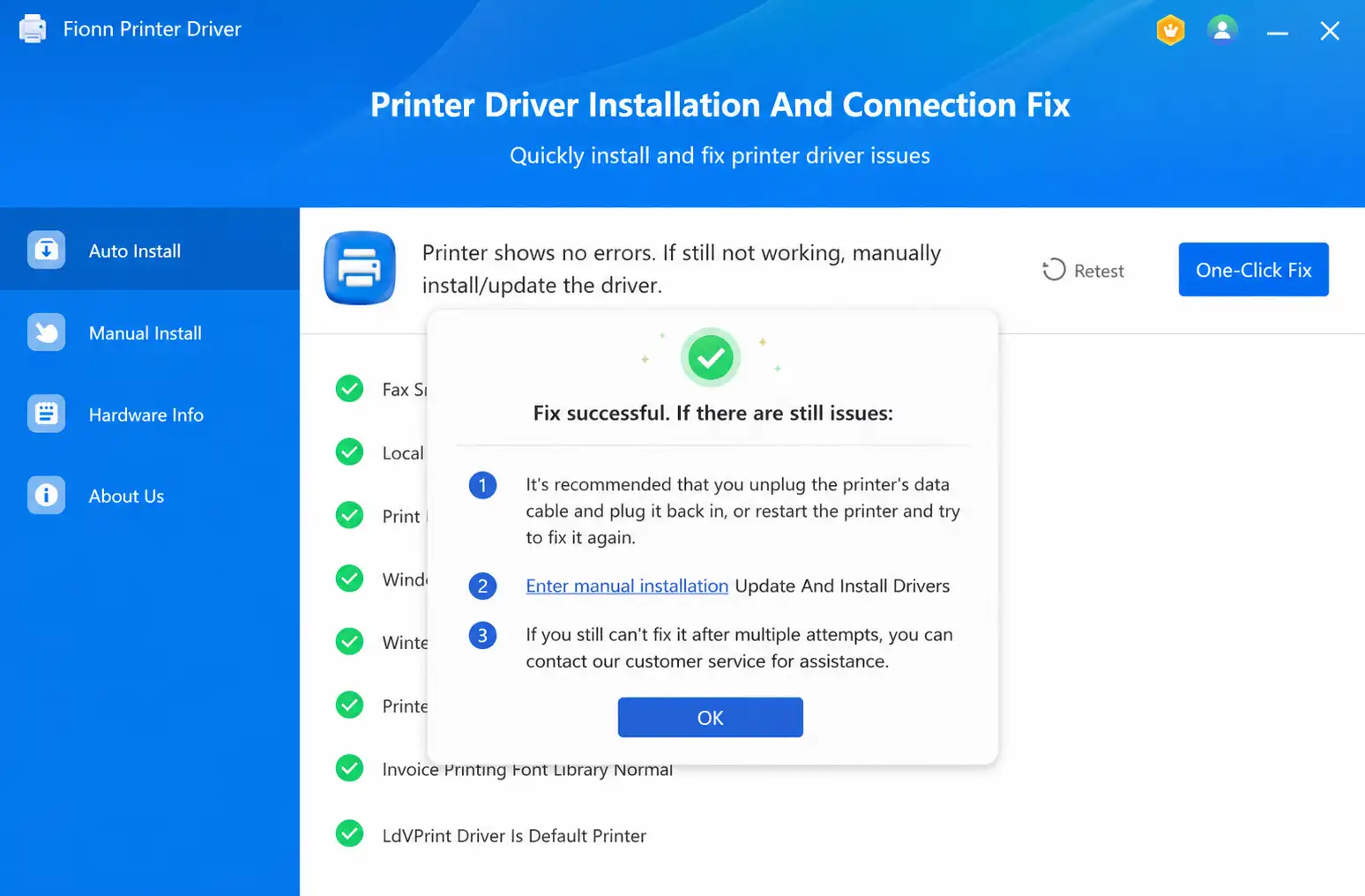
After this workflow, print a Windows test page for the printer function and use Windows Scan for the scanner function. If printing succeeds but scanning does not, the scanner still needs the Canon or Windows setup path above.
Conclusion
Start at Canon’s MF3010 support page to match the model and Windows version, then use Windows to confirm the scanner is listed and complete a real scan. Use Fionn Printer Driver when you also need help checking printer-side drivers or related printing issues. If the MF3010 is still absent from Windows, recheck the physical connection and seek Canon’s model-specific support rather than installing a package intended for a different device.
FAQ
Where should I download a Canon MF3010 scanner driver?
Use Canon’s official imageCLASS MF3010 support page. Confirm the model and Windows version there, then install only software Canon explicitly lists for that combination.
Why does the MF3010 appear as a printer but not as a scanner?
Microsoft notes that a scanner included in a multifunction device may appear as a printer. Open the device page in Printers & scanners and look for scanner settings, then verify availability with Windows Scan.
How do I verify that the scanner is working?
Confirm that the MF3010 is listed in Windows, then scan a picture or document with Windows Scan. A successful scan is stronger evidence than a completed driver installation.
What should I check for a USB-connected MF3010?
Make sure the device is connected to the Windows PC by USB and powered on. Then check Printers & scanners. If it is not listed, use Canon’s support route to confirm the correct model and Windows version.
Does a successful printer test page prove the scanner works?
No. A Windows test page verifies the printer function. Complete a separate document or picture scan to verify the scanner function.


