 Emily CarterPrinter Drivers
A Brother HL-L2350DW driver lets Windows communicate with the printer. Start by confirming the full model name, your Windows version, and whether the printer uses USB or Wi-Fi. For a USB setup, connect the printer to the PC and turn it on. For Wi-Fi, place the printer and PC on the same wireless network. Then choose the method that matches your situation and print a Windows test page to confirm the result.
If the printer is already installed but cannot print, do not assume the driver is the only cause. A paused queue, offline status, connection issue, or Windows print service can produce similar symptoms.
Quick Method Comparison
| Method | Best For | Efficiency | User Effort |
|---|---|---|---|
| Fionn Printer Driver | Automatic model detection and driver matching | Guided scan and installation flow | Low |
| Brother Support | Choosing a model-specific official download | Direct when Windows version is known | Moderate |
| Windows Settings | Adding a connected or network-discoverable printer | Convenient when Windows finds the printer | Low to moderate |
Method 1: Install the Brother HL-L2350DW Driver with Fionn Printer Driver
Fionn Printer Driver is a practical choice when you want the app to scan for the connected printer and present a driver match. It can recognize many mainstream printer brands and models, supports automatic and manual installation modes, and can download driver packages for installation and repair.
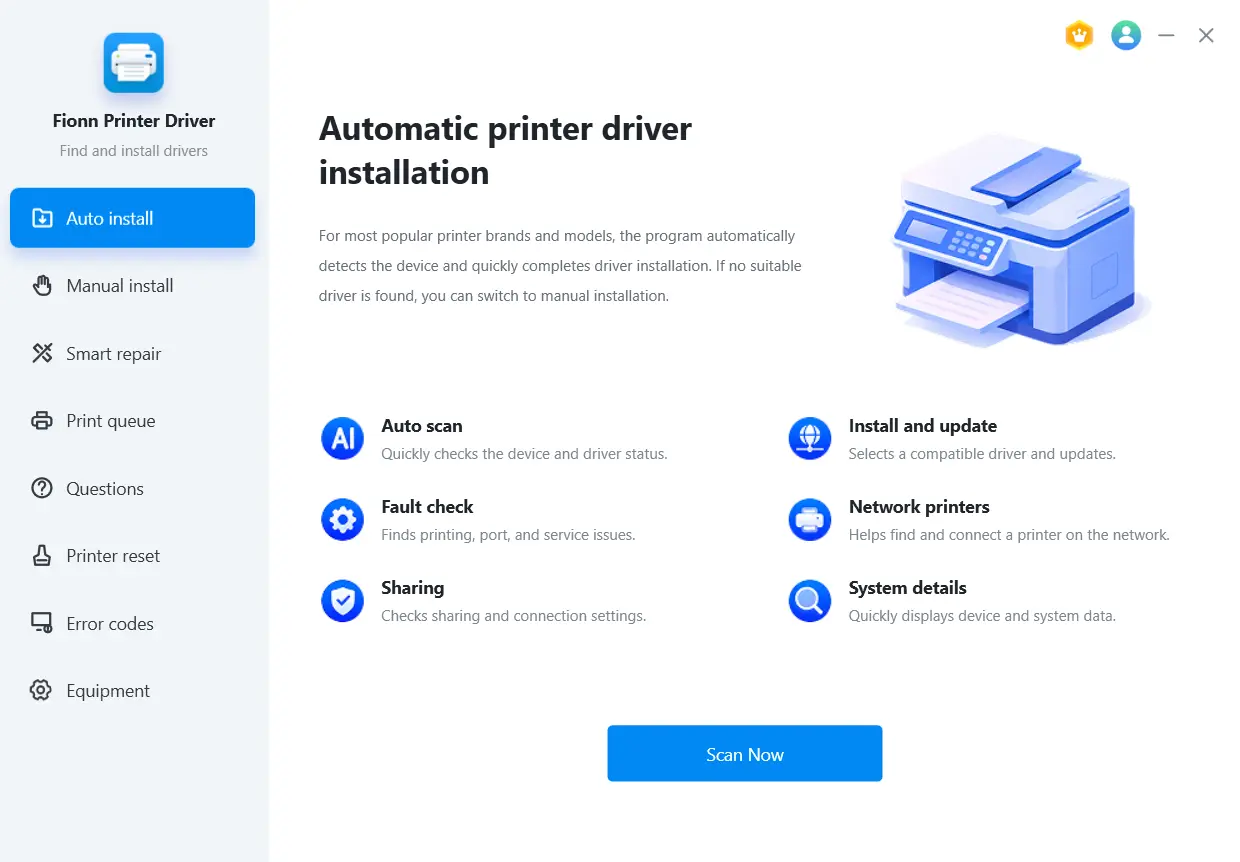
- Turn on the printer and connect it to the computer. Open Fionn Printer Driver, select
Auto install
in the sidebar, and click
Scan Now
.
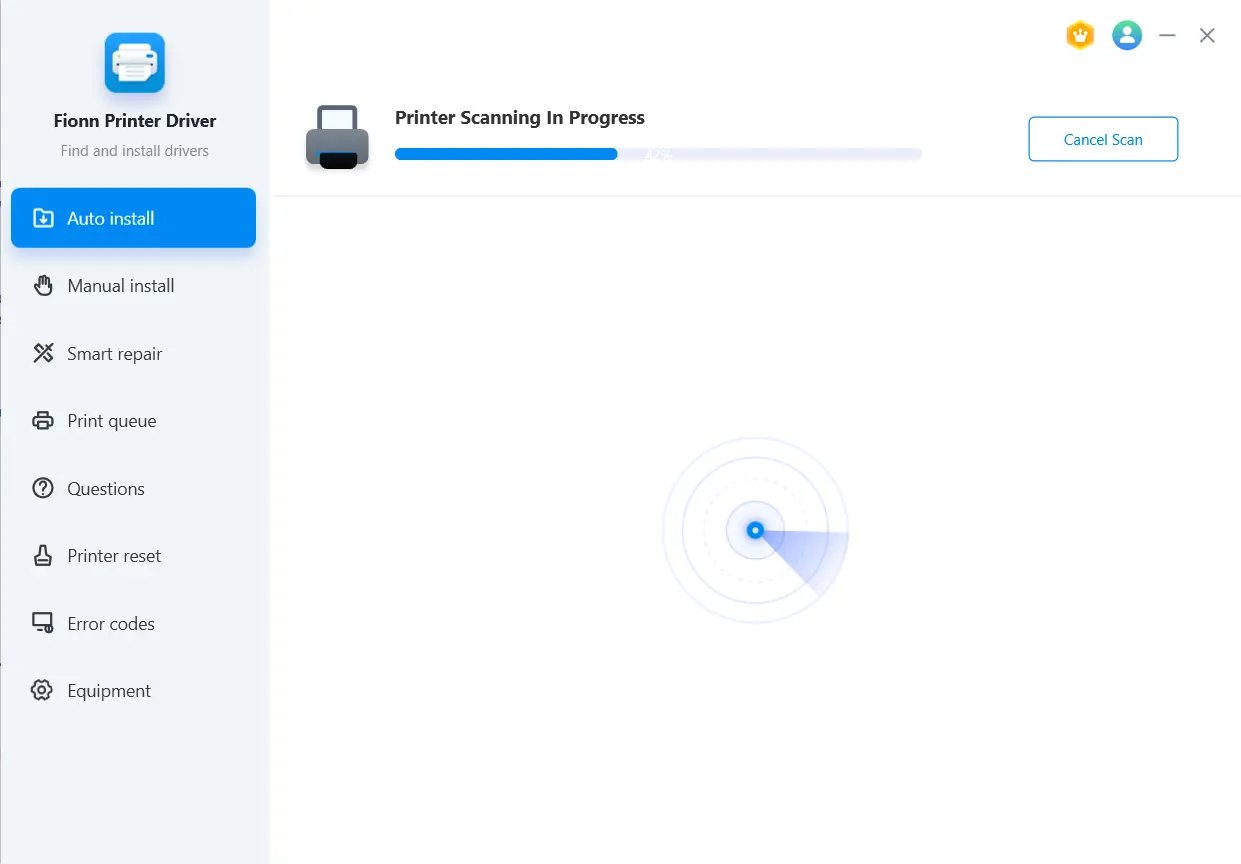
- Keep the printer connected while the scan runs. Wait for the detected printer and driver list to appear.
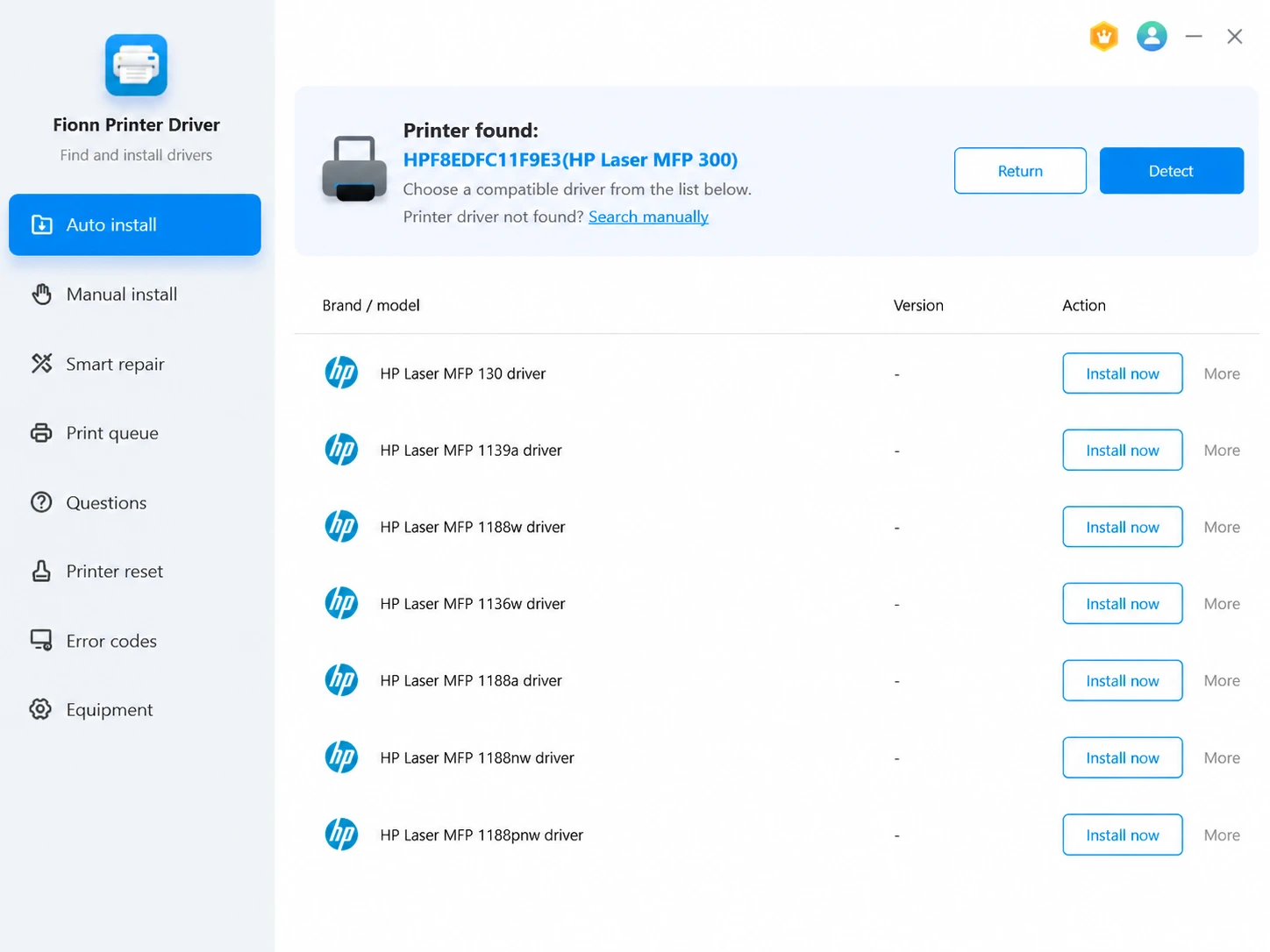
- Confirm the printer’s exact model, then click
Install now
beside the matching driver. If no match appears, click
Search manually
and look up the full model name.
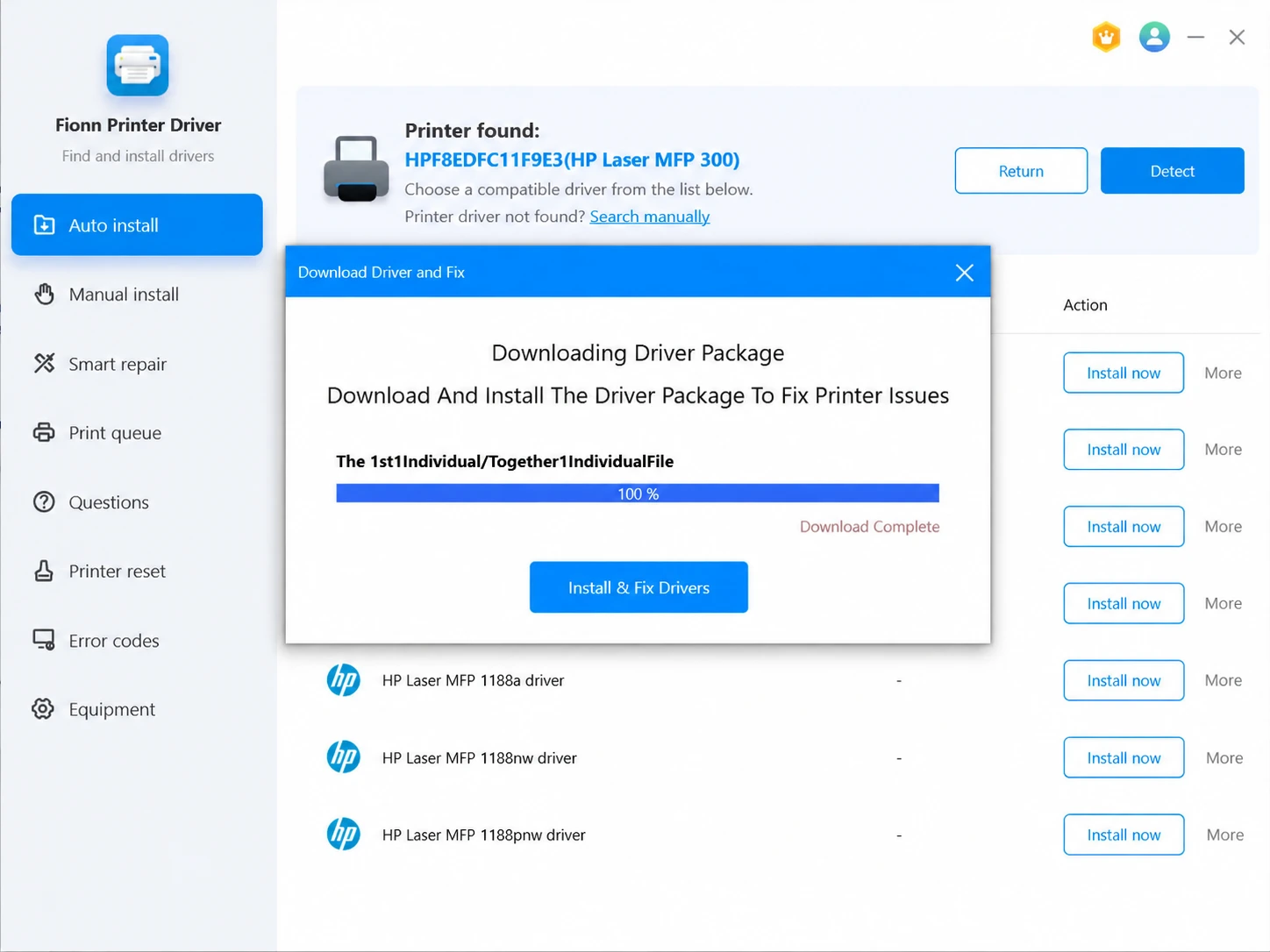
- When the dialog shows
Download Complete
, click
Install & Fix Drivers
and follow the prompts. After installation, print a test page from Windows to confirm the printer works.
If the test page does not print, check whether the printer is offline, whether its queue has paused jobs, and whether the connection is still active before trying another driver.
Method 2: Download the Driver from Brother Support
Use this route when you prefer Brother’s model-specific download page or need to select the installation scope yourself. Brother provides an official HL-L2350DW Support & Downloads page with drivers, utilities, and firmware. Its Windows download selector lists Windows 11 and Windows 10 32-bit and 64-bit options.
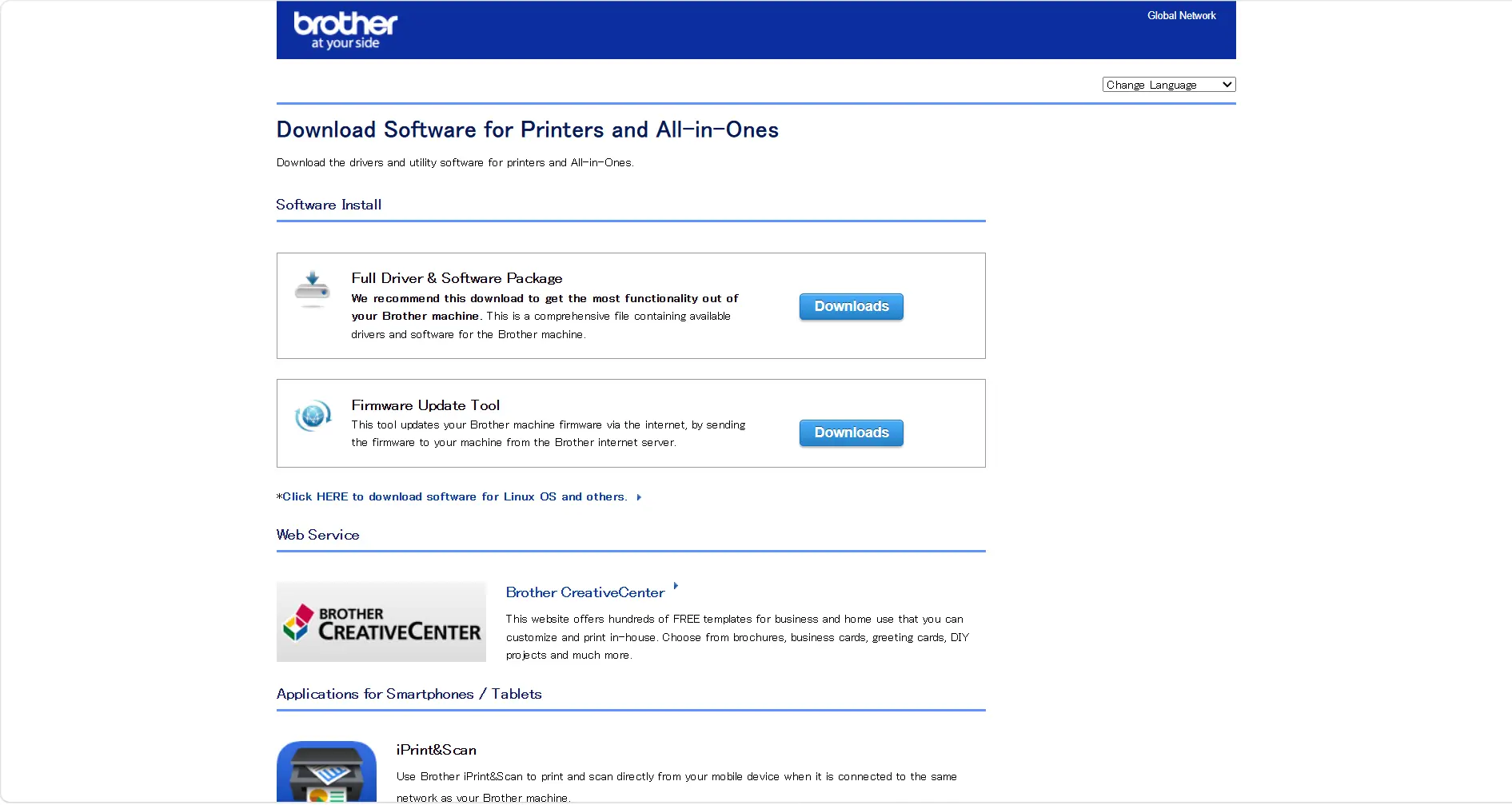
- Open Brother’s HL-L2350DW downloads page and select the Windows version installed on the PC.
- Choose the Full Driver & Software Package when you need the available drivers and Brother software, or choose Printer Driver for a driver-only installation.
- Run only the package Brother offers for the selected model and Windows version, then follow its on-screen instructions.
- Open Windows printer settings and print a test page after installation.
On Windows 11, Brother’s download page lists a standalone Printer Driver version 1.12.0.0 dated August 12, 2026. Package availability and instructions can differ by selected operating system, so make the selection on the official page rather than reusing a file from another Windows version.
Method 3: Add the Printer Through Windows Settings
Use Windows Settings when the printer is connected and you want Windows to discover it. Microsoft notes that a directly connected printer normally installs automatically. This is also the preferred path on Windows on ARM PCs unless the manufacturer provides ARM-specific guidance.
- For USB, connect the HL-L2350DW to the PC and turn it on. For Wi-Fi, confirm that the printer and PC use the same wireless network.
- Open Settings , then go to Bluetooth & devices and Printers & scanners .
- Select
Add device
beside Add a printer or scanner, then select the Brother printer when it appears.

- If it is not found, select The printer that I want isn’t listed , choose the manual-add option, and follow the Add Printer window.
- Confirm that the printer appears in the installed-printers list, then print a test page.
Choose the Next Check by Symptom
- Printer not found: Recheck the USB connection or confirm that both devices are on the same Wi-Fi network, then try Windows Settings again.
- Driver installs but printing fails: Check for offline status and paused or unfinished print jobs. These can block printing even after a driver installs.
- Network printer has the wrong address: Brother provides a Network Connection Repair Tool that can locate and update the machine IP address in the printer driver.
- Windows sees the printer but features are unavailable: Return to Brother Support and verify that the package matches the exact model and Windows version.
Conclusion
For an automated matching flow, use Fionn Printer Driver and confirm the model before installation. Choose Brother Support when you want the official model-specific package, or use Windows Settings when the printer is already connected and discoverable. In every case, the completion check is the same: the HL-L2350DW appears in Windows and successfully prints a test page. If it still fails, focus next on the connection, queue, offline state, and print service rather than repeatedly reinstalling drivers.
Frequently Asked Questions
Where can I download a Brother HL-L2350DW driver?
Use Brother’s official HL-L2350DW Support & Downloads page. Select the installed Windows version first, then choose the available driver-only or full software option that fits the setup.
Does the HL-L2350DW support Windows 11?
Brother’s download selector lists Windows 11 for the HL-L2350DW. Select Windows 11 on the official page to view the applicable downloads and instructions.
Should I use the Full Driver & Software Package or Printer Driver?
Choose the Full Driver & Software Package when you need the available drivers and Brother software. Choose Printer Driver when you only need the printer driver.
Why is my Brother HL-L2350DW not found in Windows?
For USB, make sure the printer is powered on and connected to the PC. For Wi-Fi, make sure both devices are on the same wireless network. Then use Add device in Windows Settings; if discovery fails, use the manual-add option.
How do I know the driver installation worked?
Confirm that the printer appears in Windows Printers & scanners and print a test page. An installer completion message alone does not verify communication with the printer.


