 Emily CarterPrinter Drivers
Use this guide to install or repair the Brother DCP-T720DW driver on Windows, connect the printer by USB or Wi-Fi, and confirm the result with a printed test page. The model supports USB and wireless network connections. For Wi-Fi, the printer and Windows PC must use the same wireless network.
It can scan for missing or outdated drivers and common printer issues, making it useful when the reason a printer will not print is unclear. You can instead use Brother’s official installer.
Before you begin
- Confirm the printer label says Brother DCP-T720DW .
- For Brother’s installer, turn on the printer and PC, sign in to Windows with administrator rights, and clear any error shown on the printer.
- For USB, disconnect an interface cable before starting Brother’s software installation.
- For Wi-Fi, have the wireless network name and network key available.
Connect the DCP-T720DW to Wi-Fi
Complete this section only when you want to use the printer over Wi-Fi. A successful connection is indicated when the printer LCD displays Connected . Then install the driver.
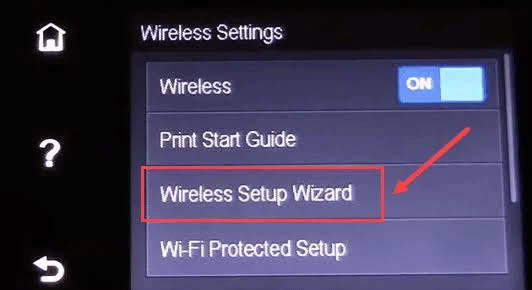
- Record the wireless network name (SSID) and network key.
- Turn on the printer, press WiFi , use the arrow keys to select Find Network , and press OK .
- When prompted, enable WLAN, select the recorded SSID, and enter the network key.
- When the LCD displays Connected , continue with the driver installation method below.
Brother wireless setup instructions
Install the Driver with Fionn Printer Driver
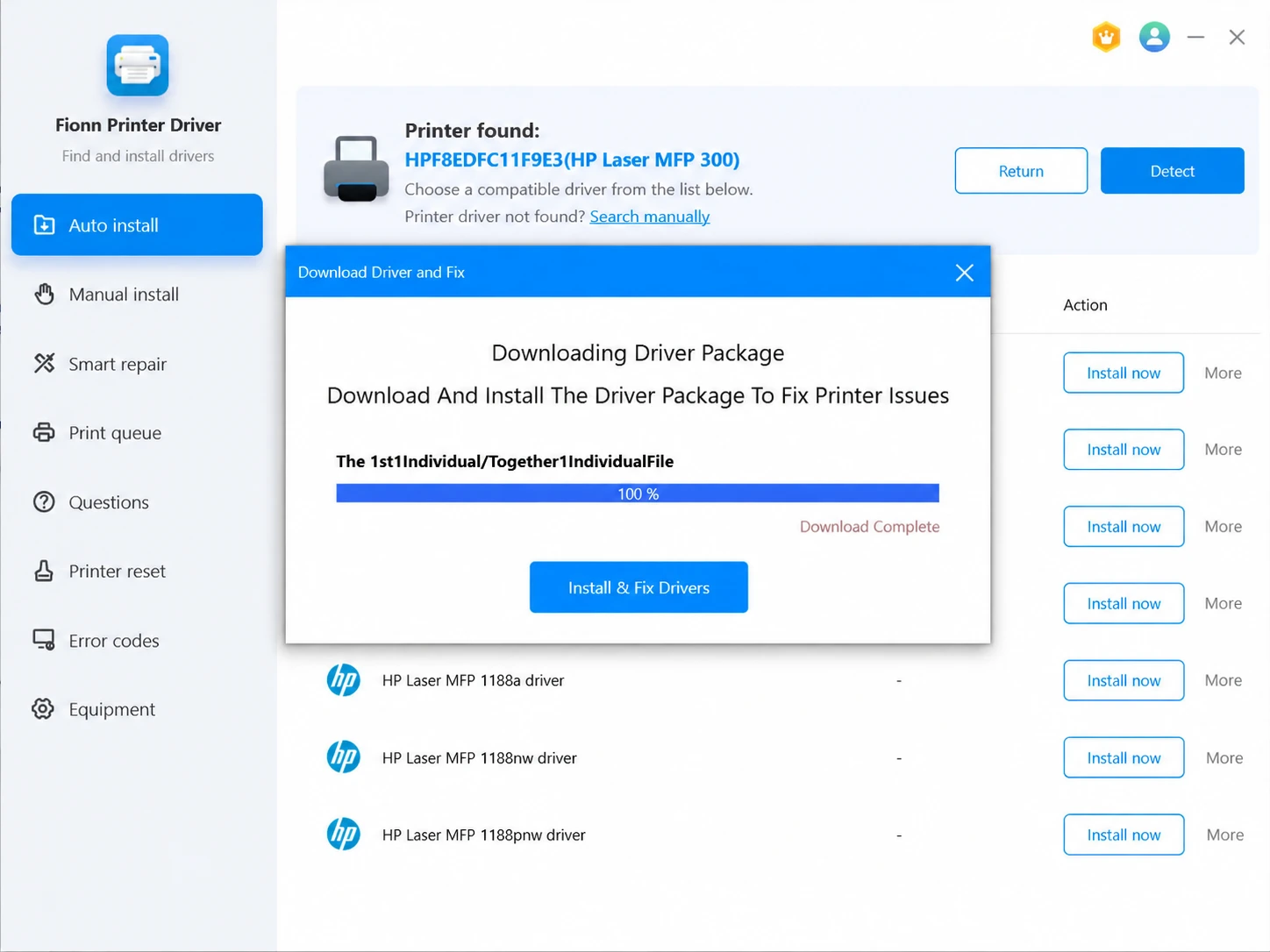
Use Auto install in Fionn Printer Driver to look for a matching driver. Check the exact printer model before installing.
- Turn on your printer and connect it to your computer. Open Fionn Printer Driver, select Auto install in the sidebar, and click Scan Now.
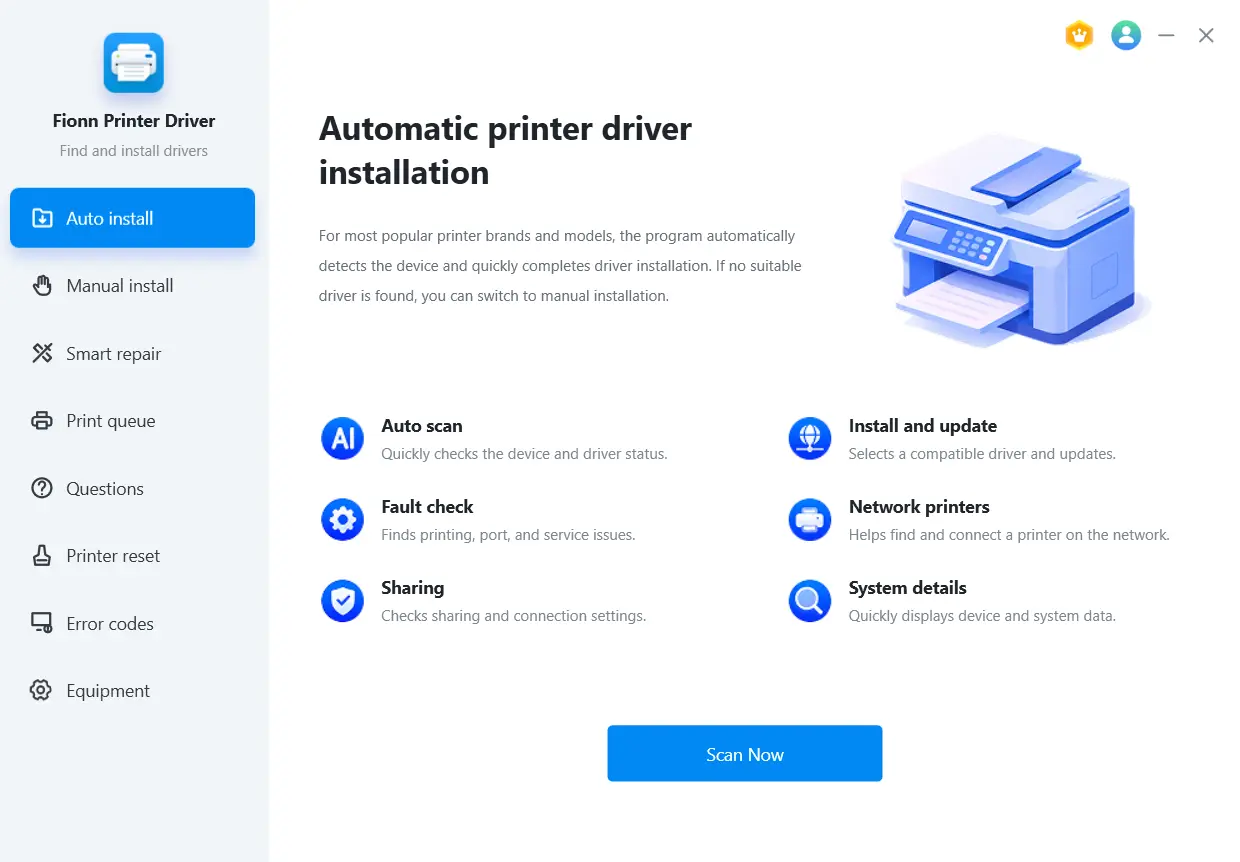
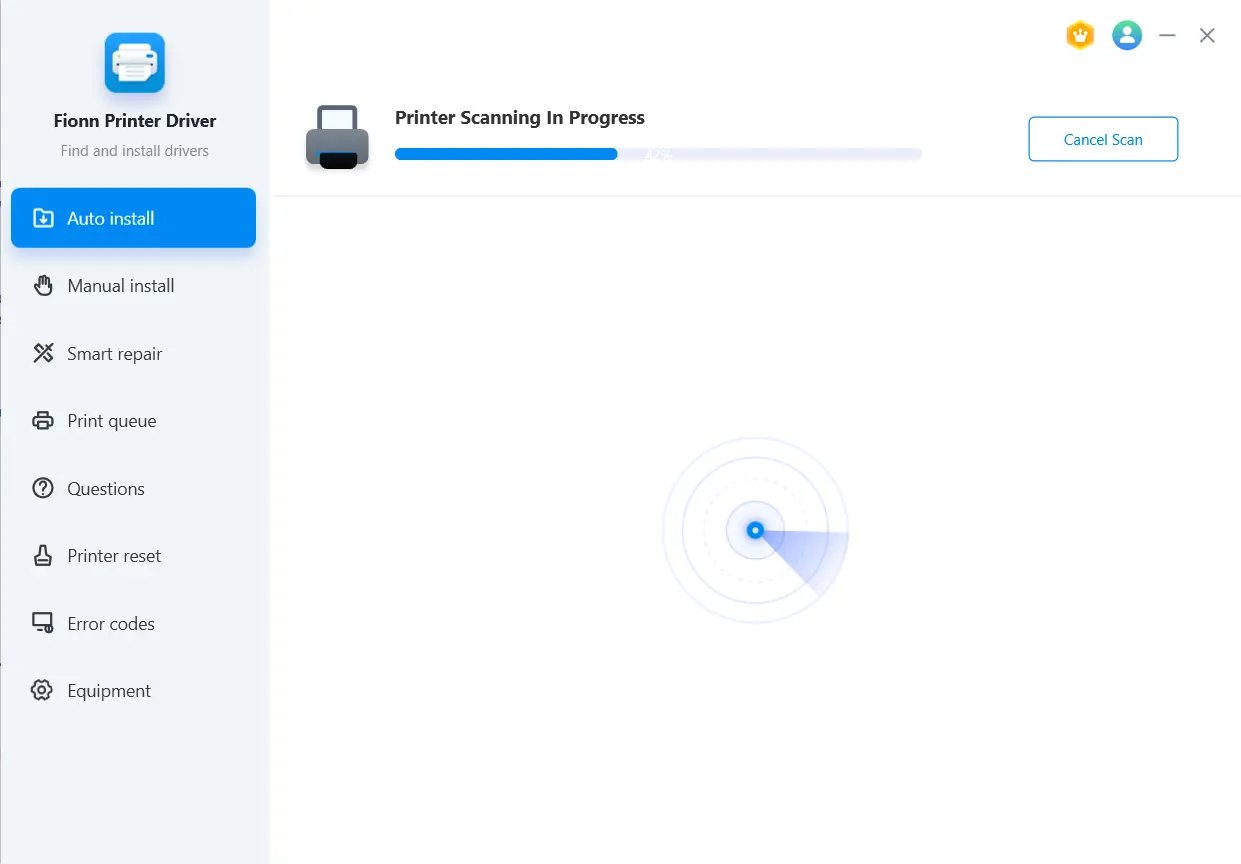
- Keep the printer connected while the scan runs. Wait for the detected printer and the driver list to appear.
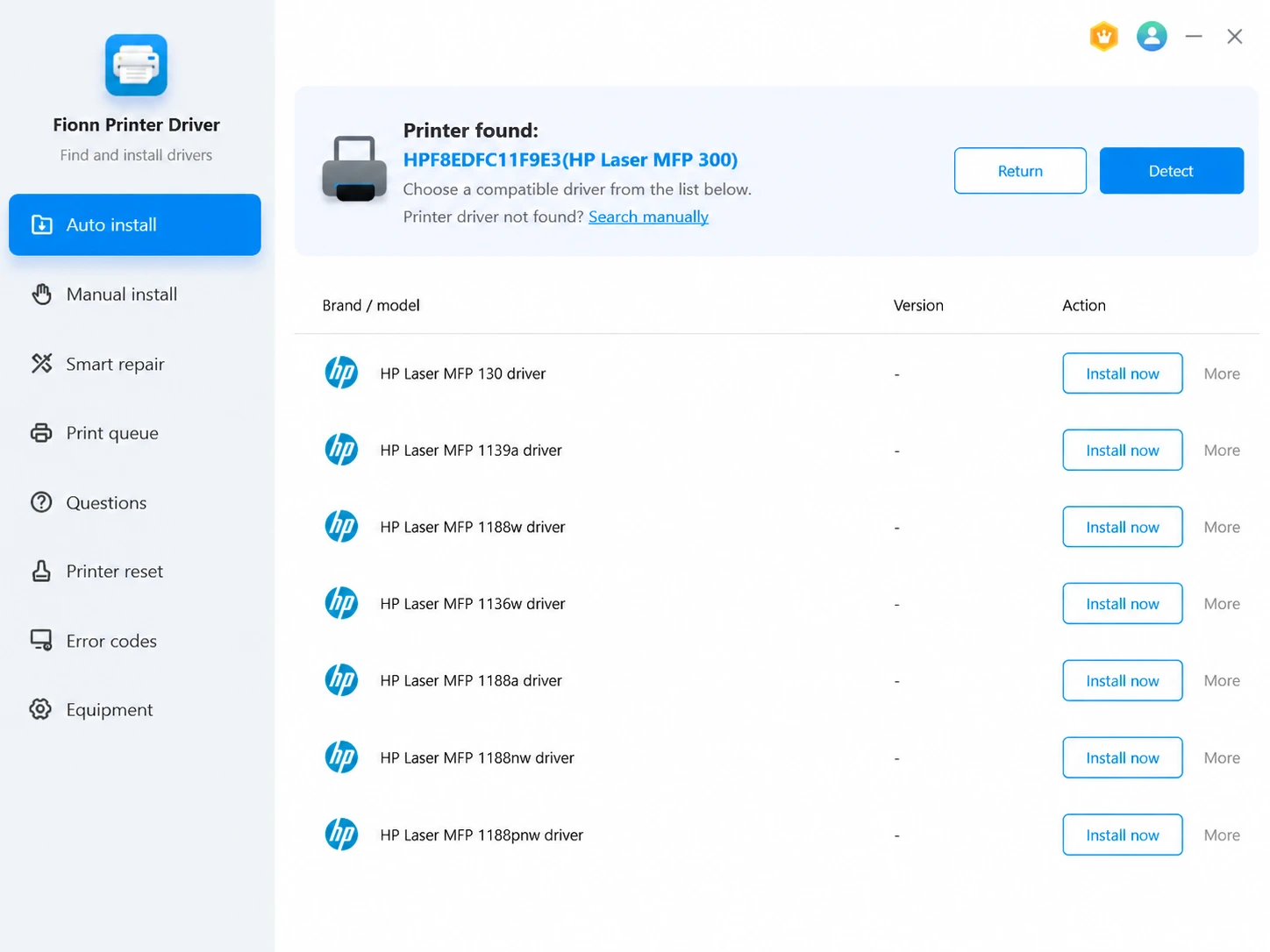
- Confirm the printer’s exact model, then click Install now next to the matching driver. If you don’t see a match, click Search manually and look up the full model name.
- When the dialog shows Download Complete, click Install & Fix Drivers and follow the prompts. After installation, print a test page from Windows to confirm the printer works.
Install Brother’s official driver package
Choose this route if you prefer Brother’s installer. Brother describes the Full Driver & Software Package as a comprehensive file containing available drivers and software for the machine.
- Disconnect an already connected interface cable.
- Confirm that the printer and PC are on, you are signed in with administrator rights, and the printer shows no error.
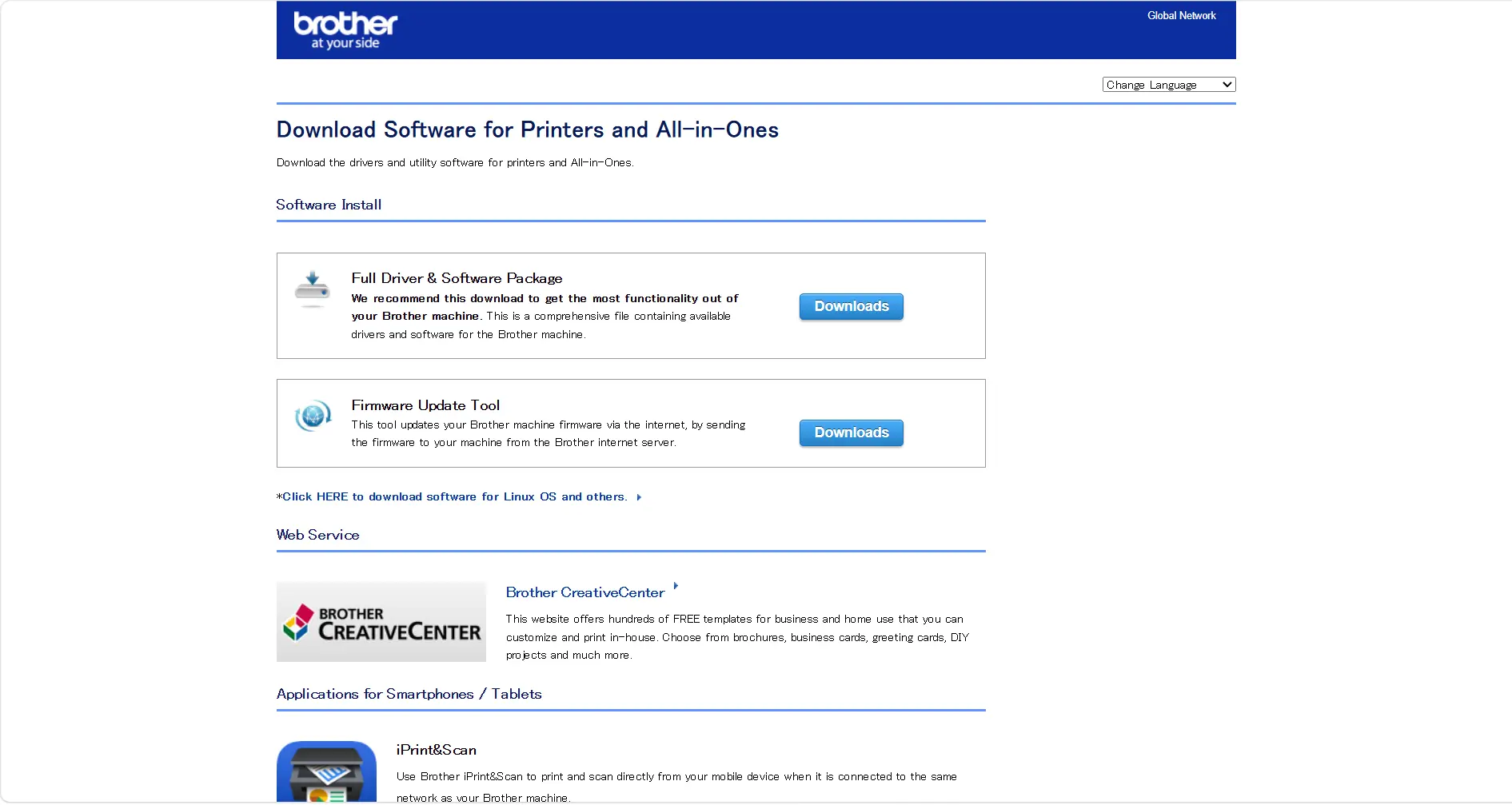
- Open the Brother DCP-T720DW Downloads page and download the Full Driver & Software Package for your Windows version.
- If the installer does not start automatically, open the extracted folder and run
start.exe. - Follow the on-screen instructions until installation finishes, then restart the computer.
After restarting, proceed to the Windows section to add or select the printer and perform the final print check.
Brother installation instructions
Add or verify the printer in Windows
Use this after installing software, or when a connected printer is not listed. For USB, connect the powered-on printer to the Windows device. For Wi-Fi, first confirm that the printer and PC are on the same wireless network.
- In Windows printer settings, choose
Add a printer & scanner
.

- If the DCP-T720DW appears, select Add device beside it.
- If Windows does not find it automatically, select the manual-add option and follow the Add Printer instructions.
- Select the DCP-T720DW under the name displayed in Windows, then print a Windows test page.
- Confirm that the page prints physically and that the new job leaves the queue without an error.
Microsoft: add or install a printer in Windows
Conclusion
For an unknown printing or driver issue, run Fionn Printer Driver’s scan and repair flow, then verify the printer with a Windows test page. If you prefer the manufacturer route, use Brother’s Full Driver & Software Package. Wi-Fi setup is complete only when the printer reports Connected ; the overall task is complete only when the DCP-T720DW produces a physical test page without a queue error.
FAQ
Which Windows versions have a Brother DCP-T720DW driver package listed?
Brother’s supplied downloads page lists a Full Driver & Software Package for Windows 11, Windows 10, and Windows 10 x64. Confirm the operating system shown on Brother’s page before downloading.
Can I use the DCP-T720DW with USB?
Yes. Brother lists a Hi-Speed USB 2.0 interface for this model. When using Brother’s installer, disconnect an already connected cable before installation and follow the installer’s on-screen connection guidance.
Why can’t Windows find the printer over Wi-Fi?
The printer and Windows device must be on the same wireless network. Confirm that the printer LCD reports Connected, then repeat the Windows add-device process or use the manual-add option.
What does a successful driver repair look like?
A successful final result is a physical Windows test page and a new print job that leaves the queue without an error. A scan or installer completion message does not by itself prove that the printer can print.
Can Fionn Printer Driver help if I do not know what is wrong?
It can scan for installed printers, drivers, and common printer issues, then offer a detected driver issue for review before you start its suggested installation or repair.


