 Emily CarterPrinter Drivers
Use the official Brother package to install or reinstall the Brother DCP-L2520D driver on Windows. Then print a Windows test page: that is the practical check that Windows can communicate with the printer. If the cause of a printing problem is unclear, Fionn Printer Driver is an optional guided diagnostic and repair tool.
Before you start
- Confirm that the printer label says Brother DCP-L2520D .
- For a USB connection, turn the printer on and check that it has no displayed error.
- Keep administrator access available if you need to remove an existing Brother installation.
Install the official Brother DCP-L2520D driver
This is the primary route for a new installation or a clean reinstall. Brother’s downloads page lets you select the Windows operating-system family and version, so use the package shown for your own selection.
- Open the Brother DCP-L2520D Downloads page .
- Select Windows , then select the Windows version installed on your computer.
- Choose the
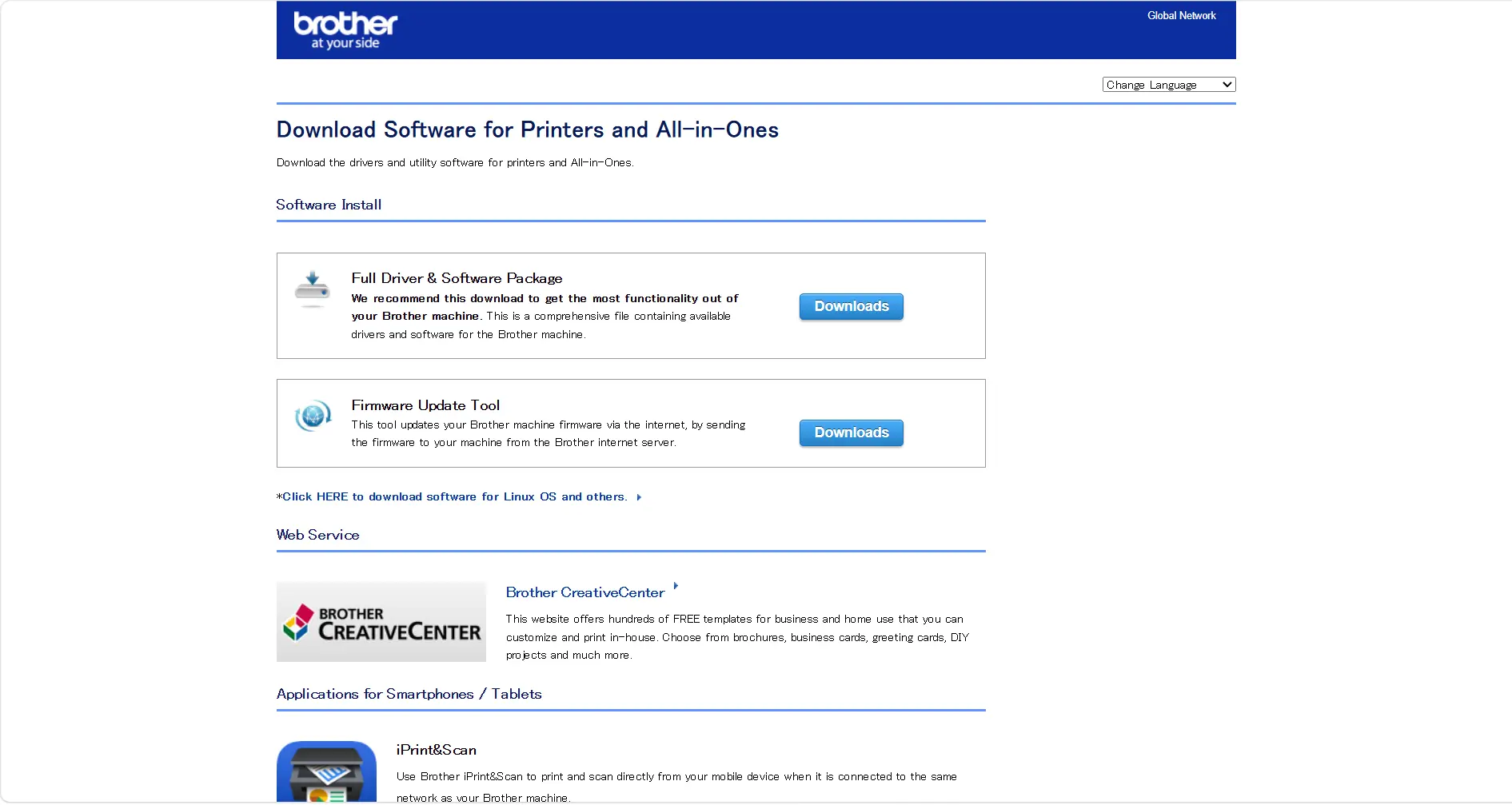
Full Driver & Software Package
shown for that selection and follow the instructions on its download page.
- If Windows 11 directs you to Brother’s protected-print-mode FAQ, complete the documented setting change before retrying the installation.
- After installation, continue to the Windows test-page check below.
Brother’s Windows 11 download listing identifies the Full Driver & Software Package as the comprehensive file containing available drivers and software for the machine. If Brother drivers are already installed and you are reinstalling, Brother directs you to uninstall the current software and drivers first.
Source: Brother Full Driver & Software Package listing .
Optional guided diagnosis with Fionn Printer Driver
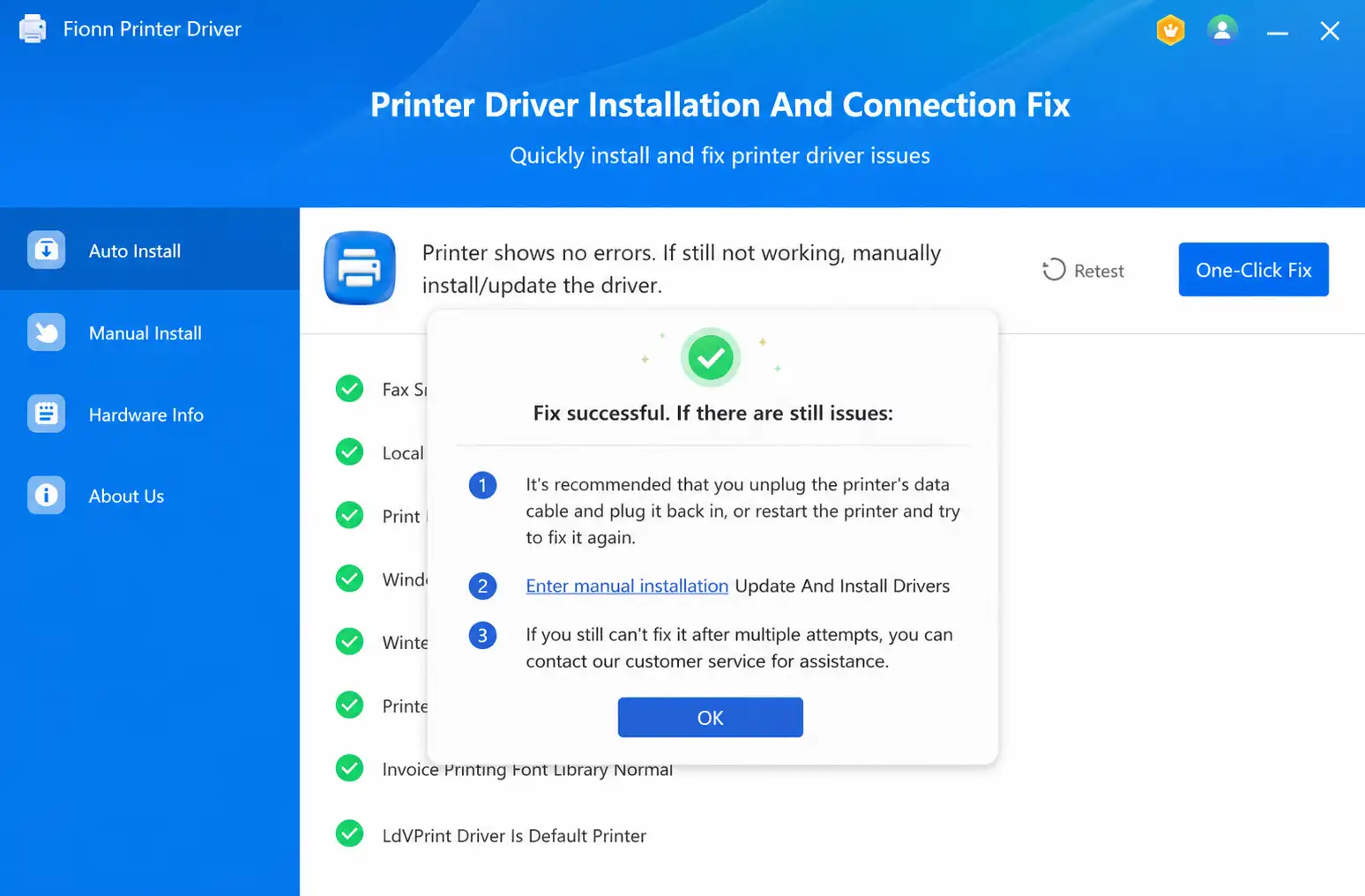
Use this optional route when you do not know whether the issue is the driver, printer port, Windows Printer Service, queue, or printer status. Fionn Printer Driver can identify many mainstream printer brands and models, download driver packages, perform installation or repair, and check related Windows and printer conditions. This is a Fionn product recommendation.
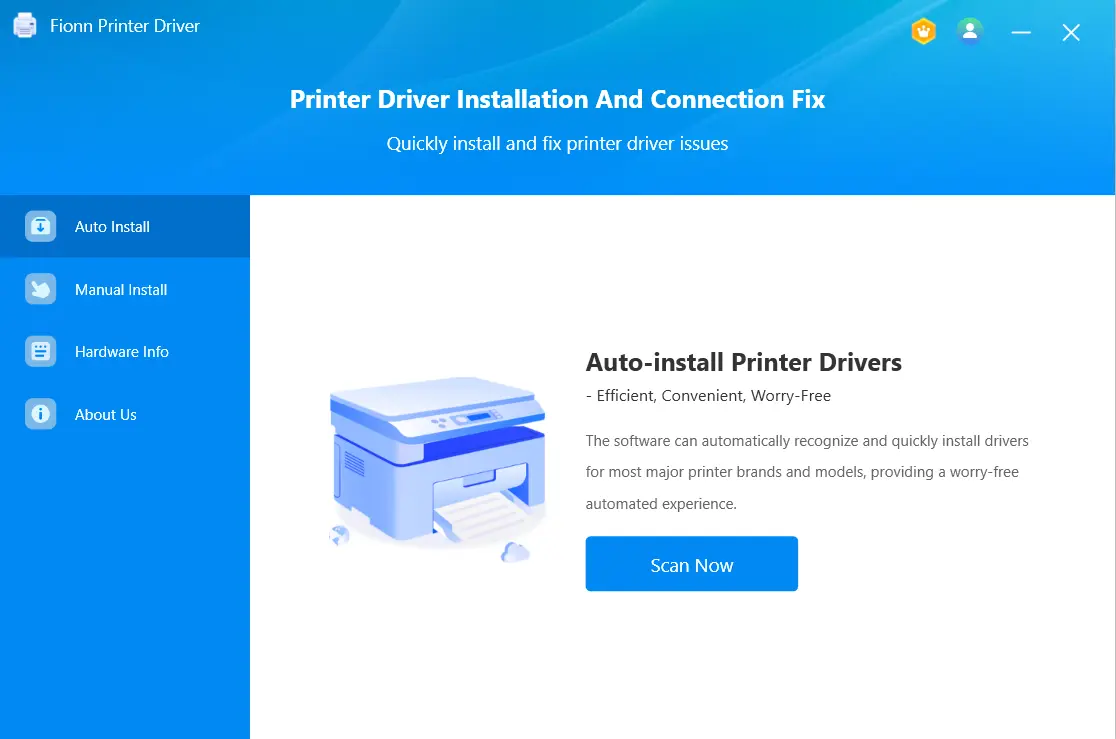
- Launch Fionn Printer Driver and click “Scan Now” to scan your computer for printer drivers and related issues.
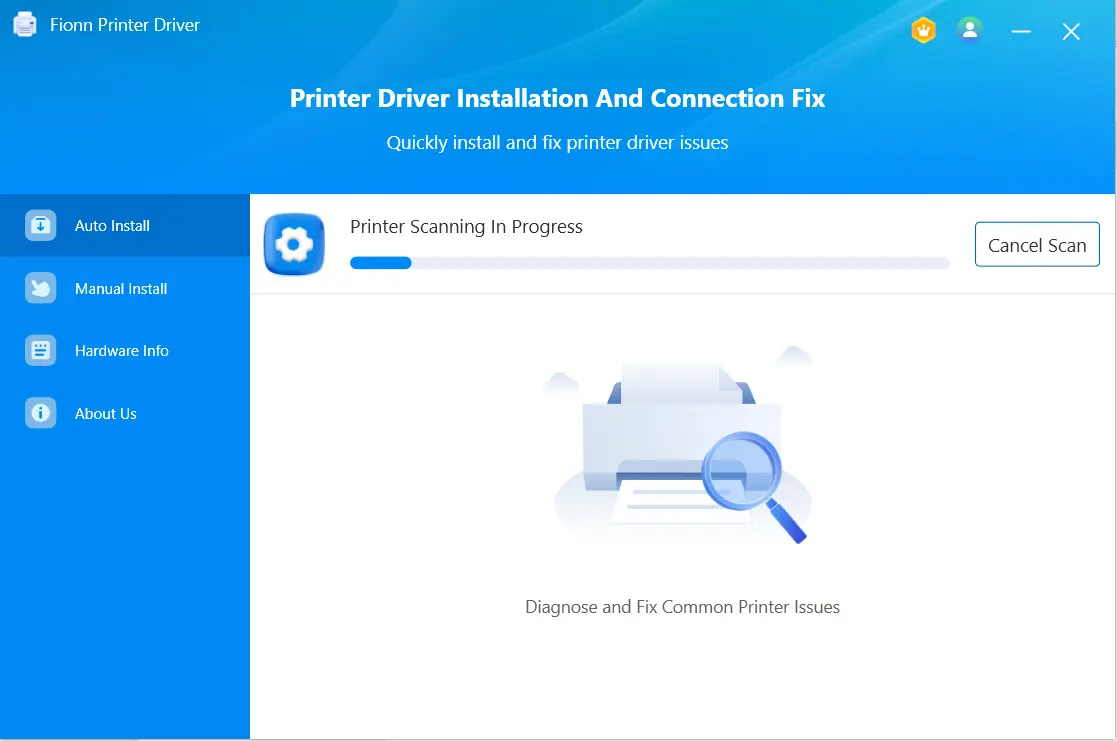
- Wait while Fionn Printer Driver scans your system for installed printers, drivers, and common printer issues.
- After the scan finishes, review the detected driver issue, then click “One-Click Fix” to start the suggested installation or repair.
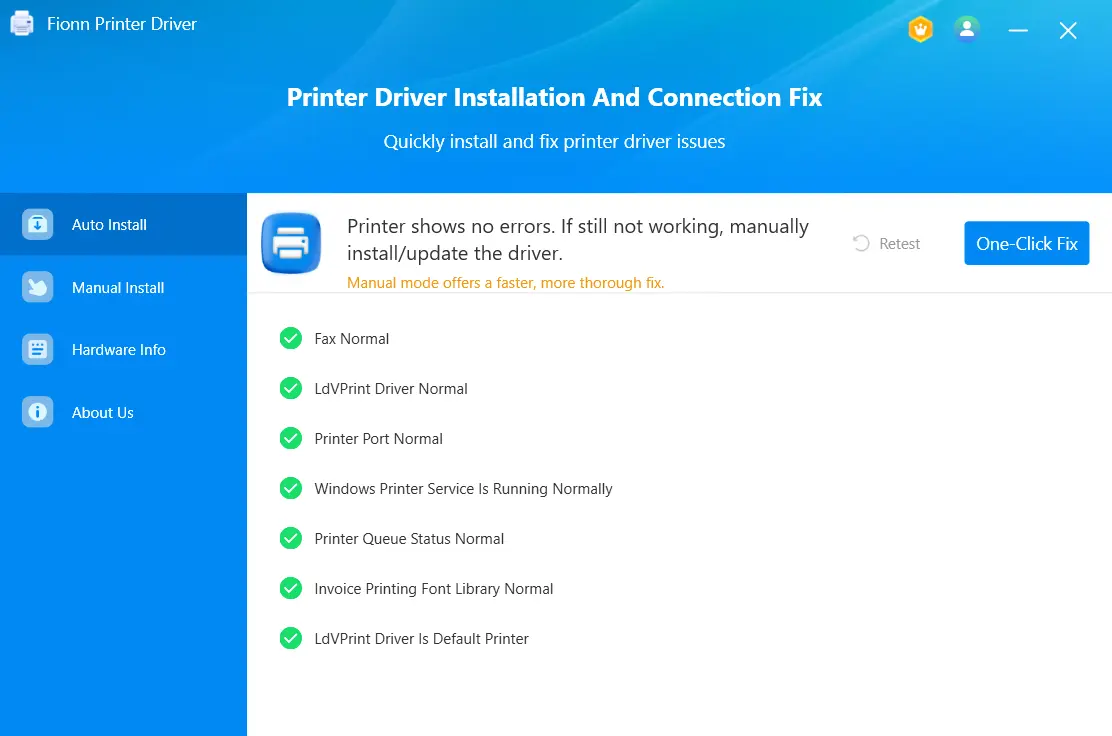
- Wait for the operation to finish and review its result. Then print a Windows test page to check whether the printer actually works.
Verify printing with a Windows test page
Do this after either installation route. A printed test page confirms that Windows can communicate with the printer.
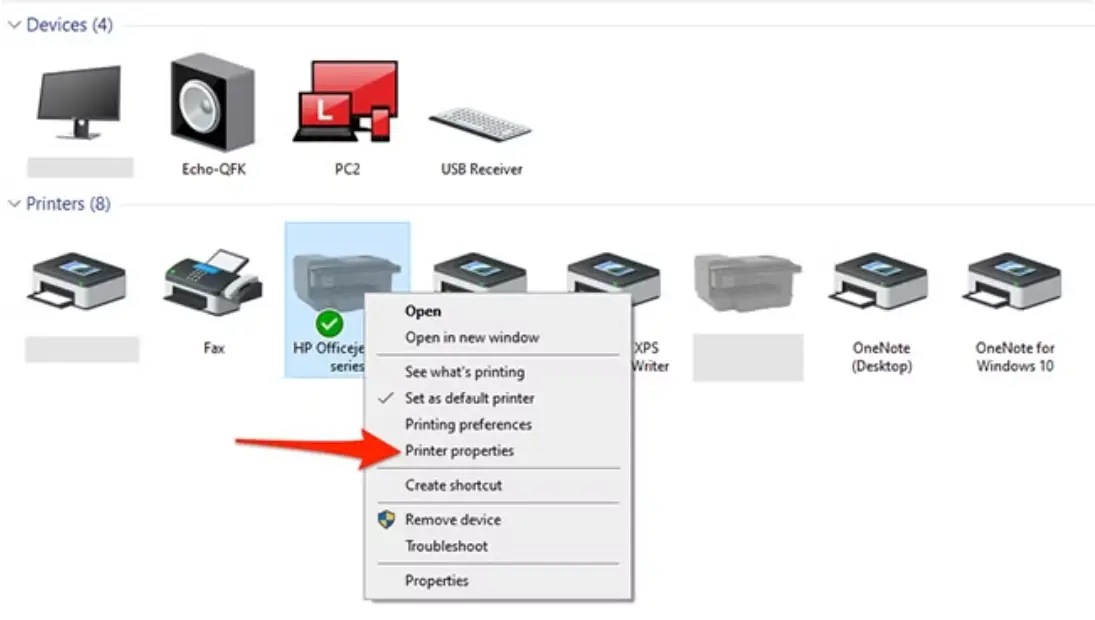
- Select the installed Brother printer in Windows.
- Select Printer properties .
- On the General tab, select Print Test Page .
- Confirm that the test page prints. If it does not, use the relevant checks below before attempting another reinstall.
Source: Microsoft: fix printing problems .
Fix USB and Windows 11 installation issues
These checks apply when the DCP-L2520D is connected by USB and cannot print, or when Windows 11 prevents the Brother installation from working as expected.
- Make sure the printer is on, and resolve any displayed printer error or sleep state.
- Disconnect and reconnect the USB cable at both ends. If it is connected through a USB hub, connect the printer directly to the computer.
- Confirm that the cable is in the printer’s USB port, not another port on the machine.
- In the application’s Print window, select the Brother driver for the printer.
- If the printer is missing or the issue remains, remove the existing Brother driver, download the latest Full Driver & Software Package from Brother, and reinstall it.
Brother states that an Idle status for the selected printer indicates the driver is working correctly. In Windows 11 protected print mode, Windows can print through the Microsoft IPP Class Driver, but Brother says only basic printing functions are available; turn off protected print mode only if you choose to use Brother’s documented installation path.
Sources: Brother USB troubleshooting ; Brother Windows protected print mode guidance .
Conclusion
For the Brother DCP-L2520D driver, start with Brother’s official package matched to your Windows version. If the printer still cannot print over USB, check power, errors, the direct cable connection, and the selected Brother driver before reinstalling. Fionn Printer Driver can be useful when the fault is unclear, but the task is complete only when the Windows test page prints.
FAQ
Where can I download the Brother DCP-L2520D driver?
Use Brother’s official DCP-L2520D Downloads page. Select Windows and your installed Windows version, then choose the package Brother presents for that selection.
How do I know the driver is working?
Brother identifies an Idle printer status as an indication that the driver is working. Print a Windows test page for the direct communication and output check.
Why can’t my USB-connected DCP-L2520D print?
Confirm that the machine is powered on and error-free, reconnect the USB cable at both ends, bypass any USB hub, and make sure the Brother driver is selected in the application. If the issue remains, reinstall Brother’s Full Driver & Software Package.
Can Windows 11 protected print mode affect the Brother driver?
Yes. Brother says some Brother drivers and applications are unavailable while protected print mode is enabled. Windows may use the Microsoft IPP Class Driver in that mode, with only basic printing functions available.


