 Emily CarterPrinter Drivers
If Windows Cannot Connect to Printer 0x0000011b appears while you add a shared printer, start by confirming that the host PC is available and sharing is enabled. Then reconnect the printer from the affected client using its share path. The error can be associated with network settings, sharing configuration, driver mismatches, or Windows security changes. Work from the quickest checks to the manual reconnection steps below.
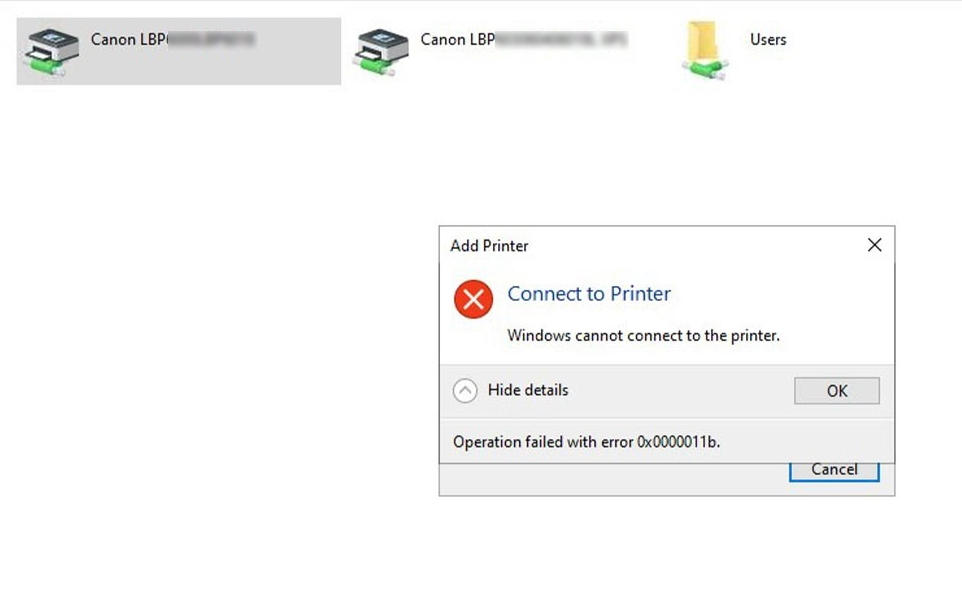
This guide is for a printer shared from another Windows computer or a print server—not a printer connected directly to the affected PC. Microsoft’s shared-printer guidance applies to Windows 10 and Windows 11, though Windows 10 version 22H2 reached end of updates in 2025; use a supported Windows release where possible.
Symptoms
- Adding a network-shared printer fails and shows
0x0000011b. - The printer was previously installed but no longer opens or accepts print jobs.
- The client can see the host computer but cannot connect to its shared printer.
- Windows asks for administrator or host-PC credentials during driver installation.
The scope matters. If multiple client PCs cannot connect, inspect the host PC, sharing settings, and network first. If only one client fails, reconnect that client’s queue and confirm its access to the host.
Quick Diagnosis Checklist
- Can the client reach the host?
In File Explorer, enter
\\ComputerName. If the host does not open, make sure both PCs are on the same local network, the host is powered on, and network discovery and file and printer sharing are enabled. Then use Method 2. - Is the printer shared and working locally? On the host, confirm the printer can print locally and that Share this printer is selected. Record the exact share name before reconnecting the client in Method 2.
- Does Windows request elevation? Use administrator credentials. Windows normally requires administrator privilege to install drivers through Point and Print; do not weaken that protection just to complete a connection.
- Is the fault limited to one client or is the driver status unclear? Use the Fionn method to scan the local printer, driver, and common printer issues, then review the result before attempting a repair.
Quick Method Comparison
| Method | Best For | Efficiency | User Effort |
|---|---|---|---|
| Fionn Printer Driver | Checking local driver and printer conditions before repair | Guided scan and repair flow | Low |
| Manual shared-printer reconnection | A known host and share name, especially one affected client | Direct Windows connection path | Moderate |
Method 1: Diagnose and Fix 0x0000011b with Fionn Printer Driver
Fionn Printer Driver is a practical diagnostic option when the client’s driver state or local printing environment is uncertain. It can scan installed printers, drivers, and common printer issues, but it does not replace correcting host sharing, credentials, or network access.
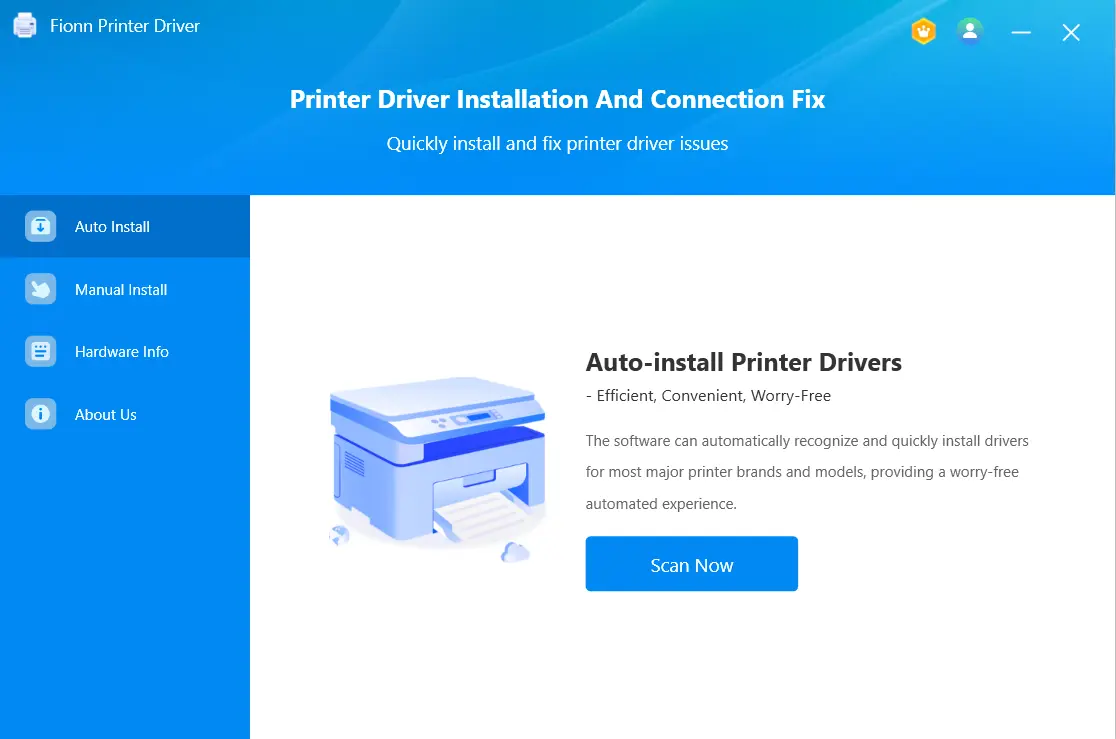
- Launch Fionn Printer Driver and select
Scan Now
to scan the computer for printer drivers and related issues.
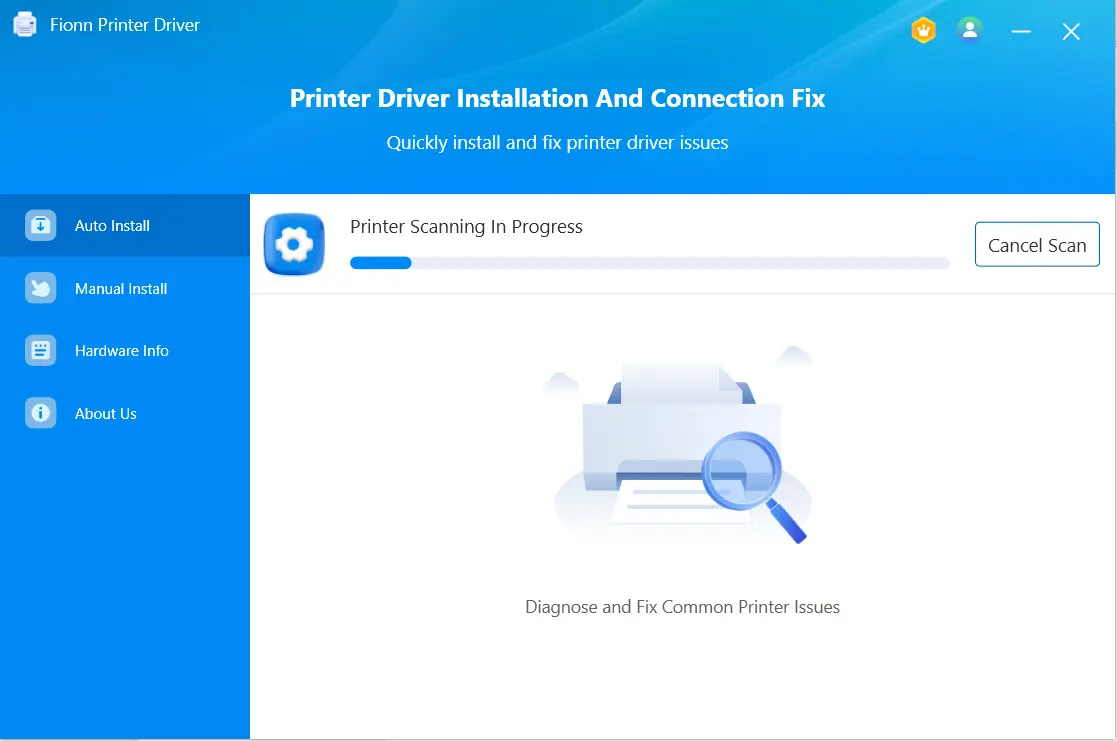
- Wait while Fionn Printer Driver scans installed printers, drivers, and common printer issues.
- After the scan finishes, review the detected driver issue, then select
One-Click Fix
to begin the suggested installation or repair.
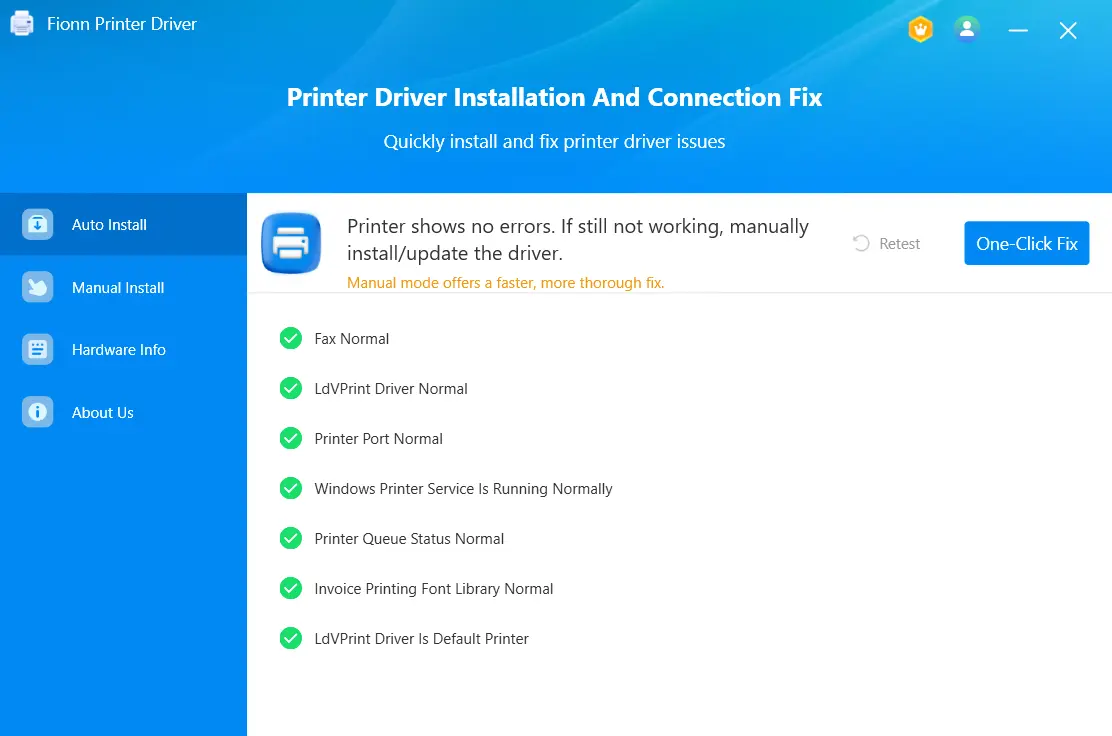
- Wait for the operation to finish and review its result. Then print a Windows test page to check whether the printer works.
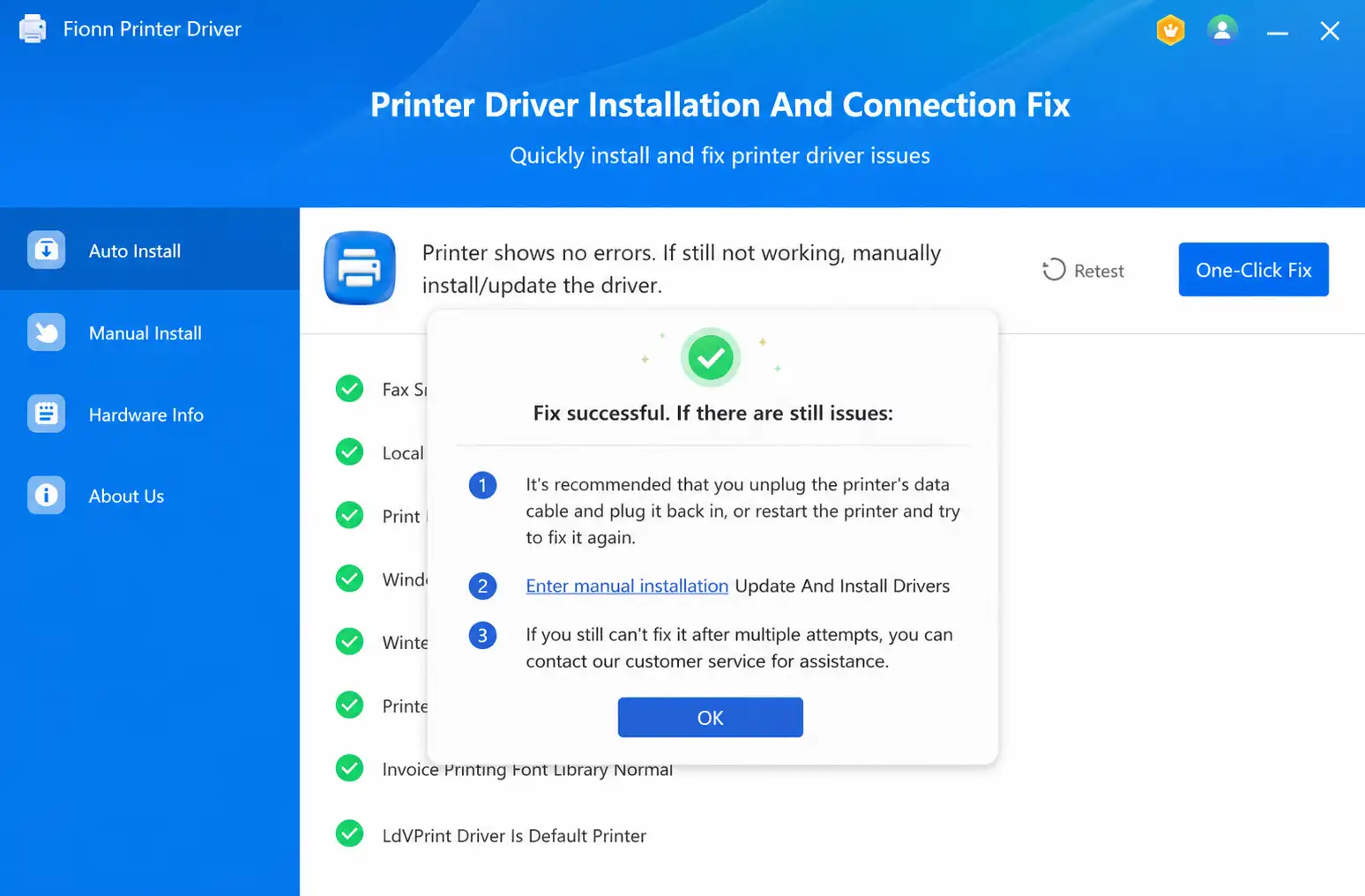
A useful result is a completed scan followed by a repair result you can review. If the shared queue still cannot be added, continue with the Windows reconnection procedure because the failure may be on the host, network, or shared-printer path.
Method 2: Remove and Add the Shared Printer by Its Path
Use this method when you know the host computer name and printer share name, or when a previously installed shared queue now returns 0x0000011b. These steps follow Microsoft’s documented shared-printer connection path.
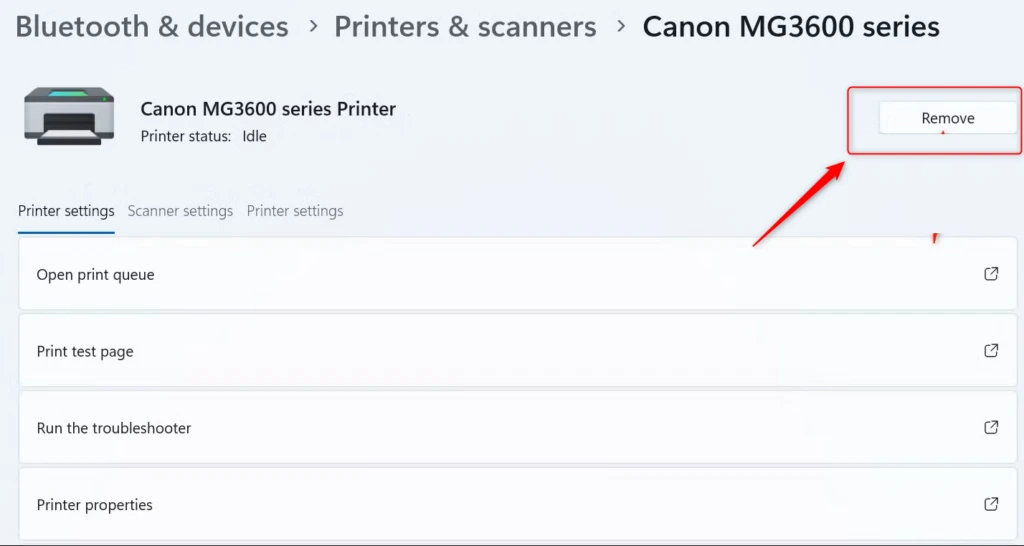
- On the client, open
Settings > Bluetooth & devices > Printers & scanners
, select the shared printer, and choose
Remove
.
- Restart the client PC.
- Return to
Printers & scanners
, select
Add device
, and choose
Add manually
if the printer is not listed.

- Select Select a shared printer by name .
- Enter the printer path in this format:
\\ComputerName\PrinterShareName.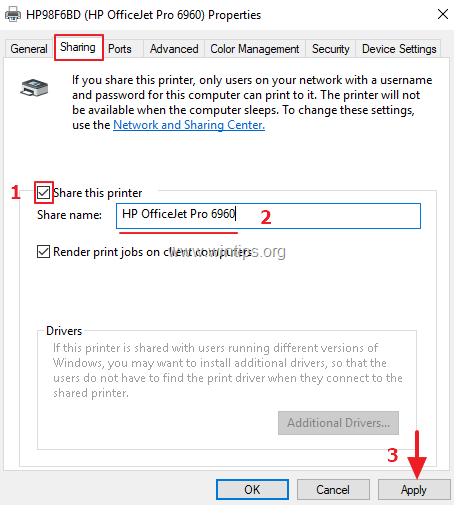
- Complete the Windows prompts. If the name-based path fails, retry with the host IP address and the same share name, and provide valid host-PC credentials if requested.
For the host-side sharing checks and client connection details, see Microsoft’s shared-printer connection troubleshooting instructions .
Verification Checklist
- The host opens from the client in File Explorer using
\\ComputerName. - The shared printer appears in Printers & scanners on the client.
- The connection process completes without the 0x0000011b message.
- Open the printer’s properties and select Print Test Page on the General tab.
- A physical test page prints; this confirms that Windows can communicate with the printer.
If the connection succeeds but jobs remain queued, inspect the Print Spooler service and clear stalled jobs using Microsoft’s printer connection and printing troubleshooting guidance .
Conclusion
For Windows Cannot Connect to Printer 0x0000011b, first confirm the host and sharing prerequisites, then remove and manually reconnect the client queue with
\\ComputerName\PrinterShareName
. Use administrator credentials when a driver install requires them, and confirm the repair with a Windows test page. When the driver or local printer state is unclear,
Fionn Printer Driver
can help scan and repair documented local printer issues. If the error continues across several clients, ask the network or printer administrator to review the host’s sharing configuration and Windows RPC/firewall settings.
FAQ
What does 0x0000011b usually mean?
It is commonly reported when a Windows client cannot connect to a shared printer. Microsoft identifies network settings, sharing configuration, driver mismatches, and Windows security changes as possible contributors, so the error does not identify one single cause.
Where do I find the shared-printer path?
On the host PC, open the printer’s Sharing settings, enable sharing if needed, and note the share name. Combine it with the host computer name as
\\ComputerName\PrinterShareName
.
Why does Windows ask for administrator credentials when I add the printer?
The shared printer may need to install or update a driver. By default, Windows updates released from August 2021 require administrator privilege for Point and Print driver installation. Ask an administrator to approve the prompt rather than disabling the default protection.
Should I change Windows to RPC over Named Pipes?
Not as a normal first response. On Windows 11 version 22H2 and later, shared-print communication changed and RPC over TCP is the default. Microsoft says RPC over Named Pipes remains available but is not recommended when TCP is an option. An administrator should instead check that RPC Endpoint Mapper port 135 and the required server RPC port range are not blocked.
How do I know the printer is truly fixed?
A completed installation alone is not enough. Print a Windows test page from the affected client. A page that reaches the printer confirms Windows can communicate with it on that client path.


