 Emily CarterPrinter Drivers
A Printer Driver Unavailable After Windows Update message usually means Windows can still see the printer, but the installed driver no longer matches the current Windows installation or cannot be used.
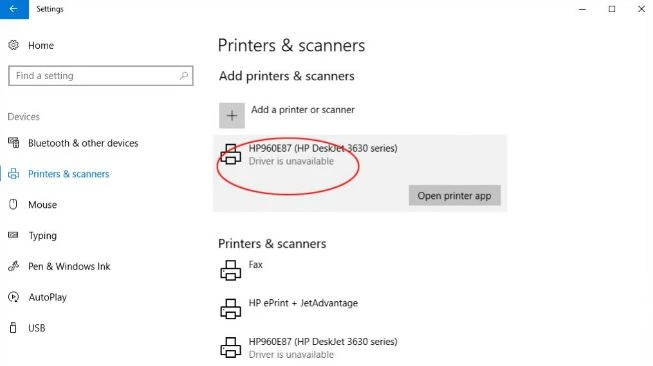
Microsoft notes that compatibility problems can follow a Windows upgrade or update, or occur when a driver was not designed for the installed Windows version. Start by identifying whether Windows can update the listed printer; use a matching manufacturer driver when Windows cannot supply one.
If you prefer a guided scan of the printer, driver, and common printing conditions, Fionn Printer Driver is the recommended option in this guide. It can detect missing or outdated printer drivers and offers driver installation and repair tools for Windows.
Symptoms
- Windows lists the printer, but its status says Driver is unavailable .
- The printer was working before a recent Windows update and no longer prints afterward.
- A print job does not complete because Windows cannot use the installed printer driver.
- The problem affects one printer while other Windows applications continue to work normally.
This issue is usually limited to the affected printer and its driver. If the printer is physically offline, out of paper, or has a paused queue, resolving the driver message may not by itself restore printing.
Quick Diagnosis Checklist
- The printer appears in Windows and the issue began after an update: use the Windows update route in Method 2 first.
- You know the exact printer model but Windows cannot provide a suitable driver: obtain the matching package from the printer manufacturer. The package must match both your Windows version and 32-bit or 64-bit system type.
- You are unsure which driver is missing or outdated: use Method 1 to scan for a detected driver issue and apply the offered repair.
- The failure began immediately after a driver update: Microsoft says a driver rollback can help when the Roll Back Driver button is available in the printer’s Device Manager properties.
Quick Method Comparison
| Method | Best For | Efficiency | User Effort |
|---|---|---|---|
| Fionn Printer Driver | Identifying a missing or outdated driver and checking related printing conditions | Guided scan and repair | Low |
| Windows driver update | A listed printer that stopped working after a Windows update | Uses the Windows update channel | Low to moderate |
| Manufacturer driver package | Windows cannot find a suitable driver for a known model | Model-specific | Moderate |
Method 1: Fix Printer Driver Unavailable After Windows Update with Fionn Printer Driver (Recommended)
Use this route when you need help identifying an unavailable, missing, or outdated driver rather than manually comparing driver packages. Fionn Printer Driver supports Windows 11 and Windows 10, and an internet connection is required when searching for the latest compatible drivers.
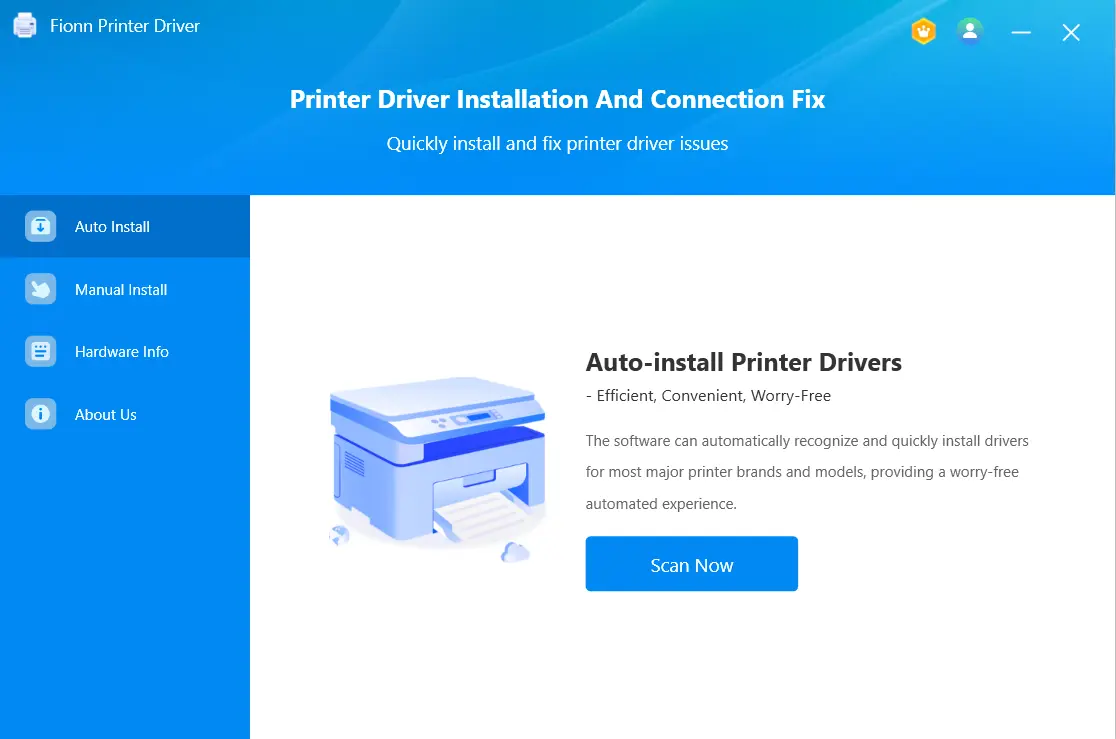
- Launch Fionn Printer Driver and select
Scan Now
to scan the computer for printer drivers and related issues.
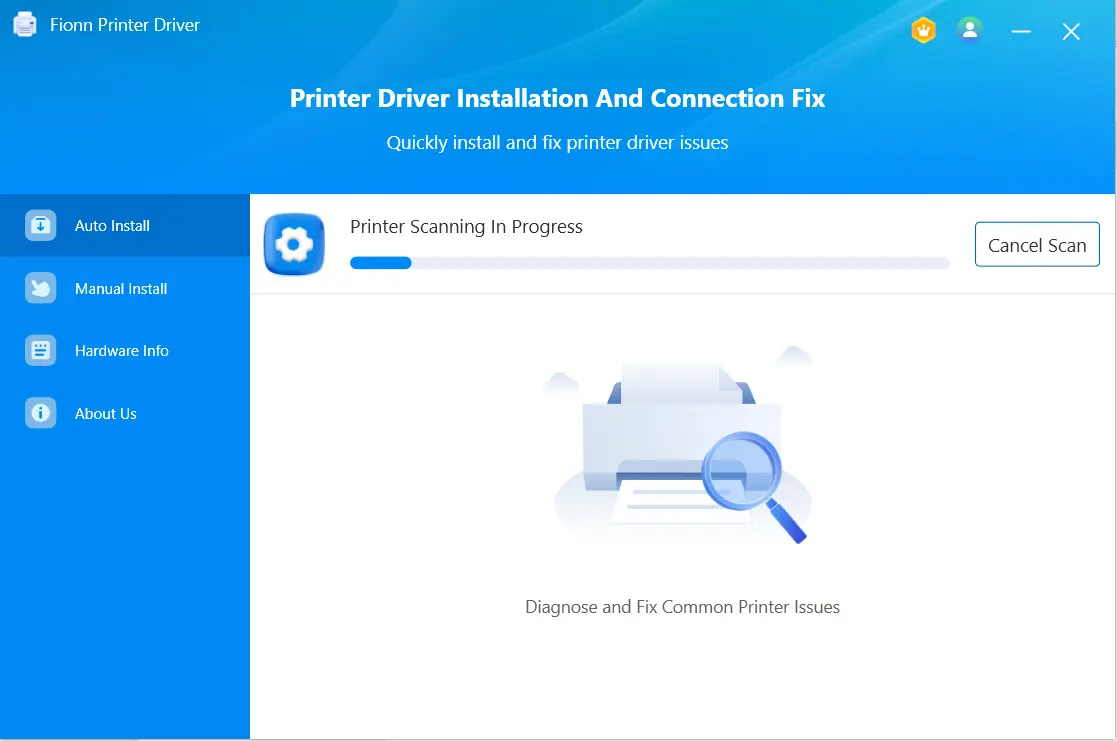
- Wait while Fionn Printer Driver scans installed printers, drivers, and common printer issues.
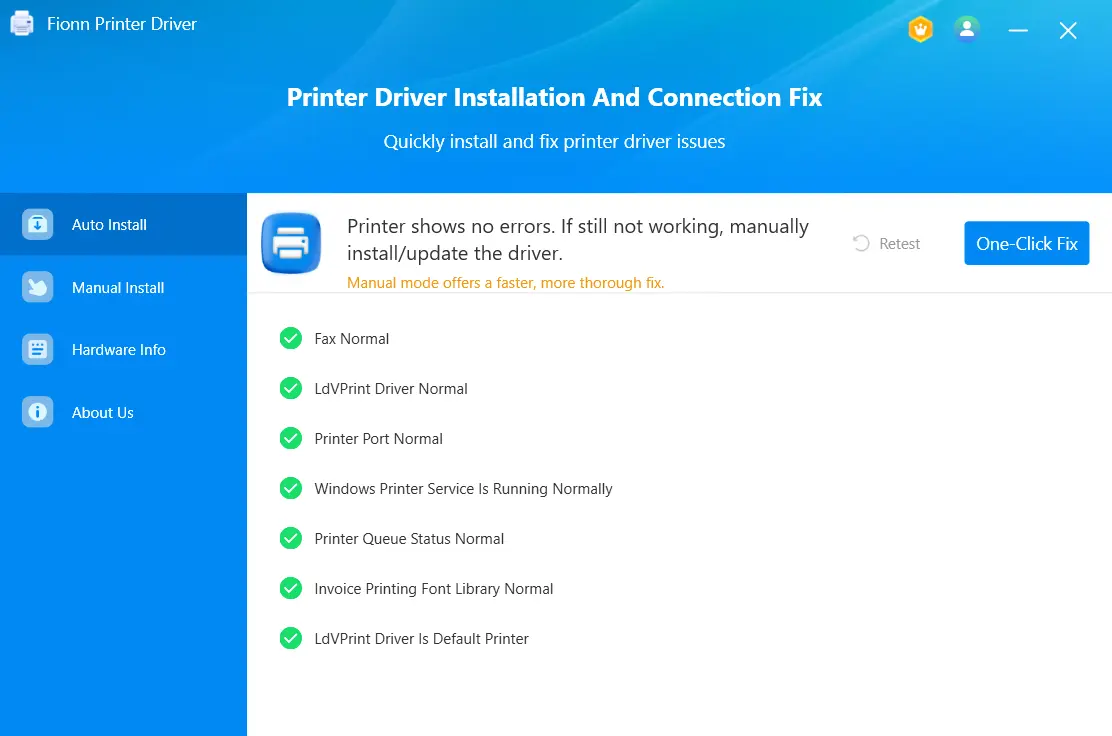
- After the scan finishes, review the detected driver issue, then select
One-Click Fix
to start the suggested installation or repair.
- Wait for the operation to finish and review its result. Then print a Windows test page to check whether the printer actually works.
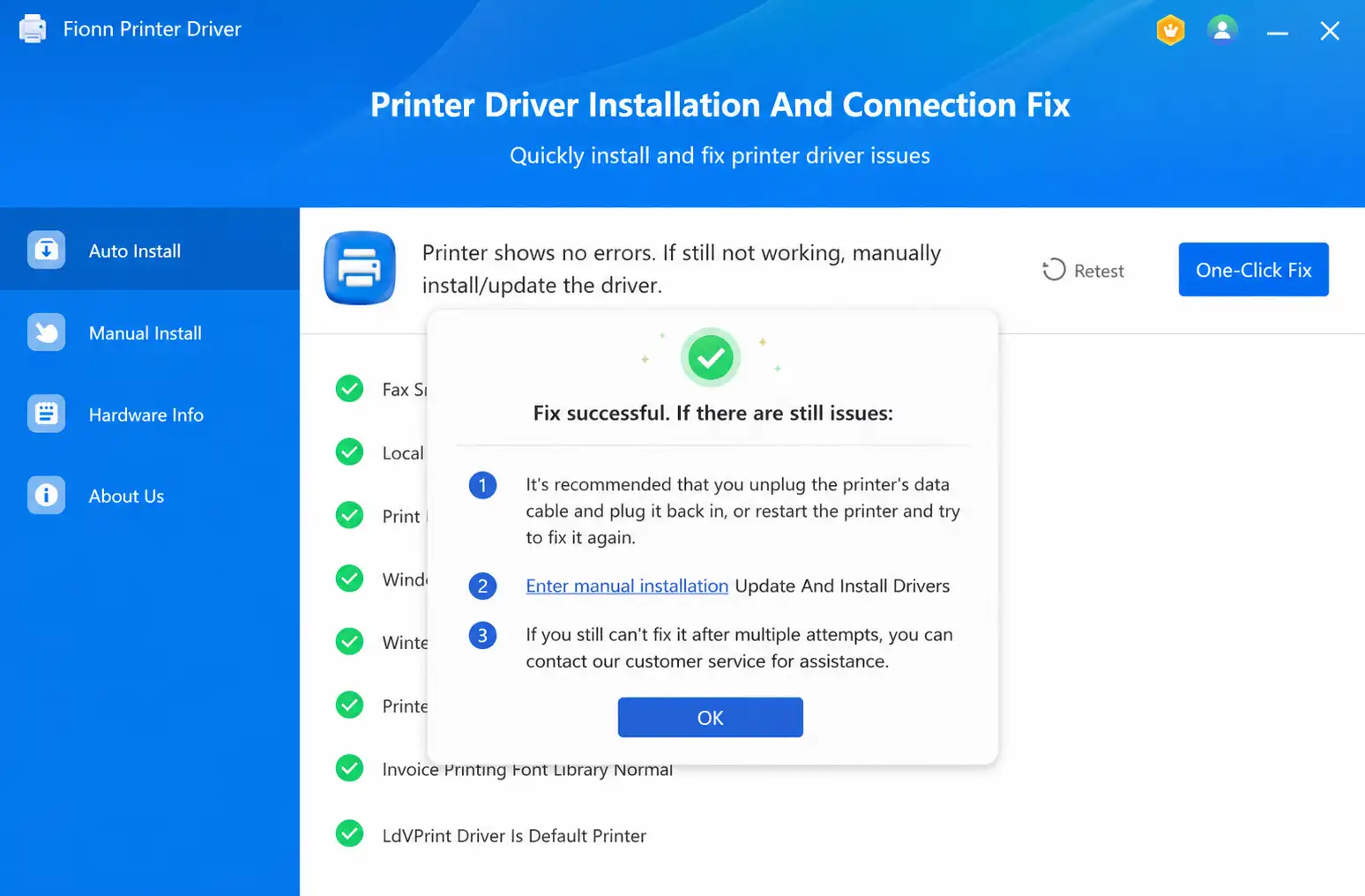
A successful result is a completed repair result followed by a Windows test page that prints. If the test page still fails, check the printer’s queue, connection, and device status before repeating the repair.
Method 2: Update the Listed Printer Driver Through Windows
Use this method when Windows still lists the printer and the unavailable-driver message appeared after an update. Microsoft recommends Windows Update as the channel for downloading, installing, and updating printer drivers.
- Select the affected printer in Windows and open its Manage page.
- Select Update driver .
- Follow the on-screen instructions to complete the driver update.
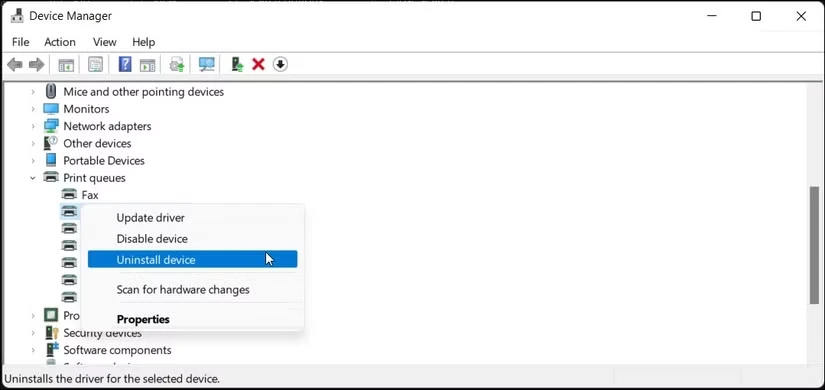
When the update completes, try printing again. If Windows cannot find a suitable driver, visit the Microsoft guidance for printer-driver compatibility issues , then obtain a package for the exact printer model from its manufacturer’s support site. Install the package that matches your Windows version and system type, then restart the PC.
Verification Checklist
- The printer is still listed in Windows without the Driver is unavailable status.
- The printer name matches the expected model.
- A Windows test page completes and appears in the print queue without an error.
- A normal document prints after the test page.
- If printing still fails, the printer is not offline, paused, or blocked by a pending print job.
Conclusion
For a printer driver that becomes unavailable after a Windows update, first use a guided scan if you need help identifying the driver problem, then use Windows’ driver update path when the printer is listed. If Windows cannot provide a compatible driver, install the manufacturer package that matches the exact model and Windows system type. Fionn Printer Driver can simplify the scan-and-repair path, but a successful Windows test page and a normal document are the practical proof that printing has been restored. If neither route works, contact the printer manufacturer or Microsoft Support with the printer model and Windows version.
FAQ
Why did my printer driver become unavailable after a Windows update?
A Windows update can expose a compatibility issue with the installed driver. Microsoft also identifies drivers not designed for the installed Windows version as a cause of printer-driver compatibility problems.
Should I use Windows Update or the printer manufacturer’s driver?
Start with Windows Update when the printer is listed and a compatible update may be available. Use the manufacturer package when Windows cannot find a suitable driver, making sure it matches the exact printer model, Windows version, and system type.
Can I roll back a printer driver after an update?
Yes, when the problem began after a recent driver update and the option is available. In Device Manager, expand Printers or Print queues, open the printer’s Properties, select the Driver tab, and choose Roll Back Driver.
How do I know the repair worked?
Print a Windows test page first, then print a normal document. Both jobs should complete without the unavailable-driver message or a queue error.


