 Emily CarterPrinter Drivers
Print Spooler Error 0x000006BA usually means Windows cannot reach the RPC service path needed for printing. Start with the print queue and Print Spooler service, then address persistent queue files, printer drivers, or shared-printer connectivity. A successful repair is confirmed by a Windows test page, not merely by the disappearance of an error message.
Microsoft documents these spooler procedures for Windows 11 and Windows 10. The Print Spooler manages print jobs; when it fails, documents can remain queued and the printer can become unresponsive. Read Microsoft's Print Spooler guidance .
Symptoms
- Error 0x000006BA appears, often alongside “The RPC server is unavailable.”
- Documents remain in the print queue or new jobs do not start.
- The printer is unresponsive in multiple applications, which points to a Windows printing-path issue rather than one app.
- A printer shared from another computer or print server fails while a locally connected printer may still work.
RPC communication failures can display “The RPC server is unavailable.” For a shared printer, the failure may be between the client and the computer hosting the shared printer, not the printer hardware itself.
Quick Diagnosis Checklist
- If jobs are visibly stuck, cancel them and use Method 1.
- If cancellation does not empty the queue, use Method 2. Clearing spool files is intended for that situation.
- If the spooler keeps failing, the printer does not print after a restart, or duplicate drivers exist, use Method 3.
- If you want one Windows tool to scan printer drivers and related issues before applying a suggested repair, use Method 4.
- If only a shared printer fails on Windows 11 version 22H2 or later, have the network or print-server administrator review the RPC conditions in Method 3.
Quick Method Comparison
| Method | Best For | Efficiency | User Effort |
|---|---|---|---|
| Restart spooler | Visible stuck jobs | High for a temporary queue stall | Low |
| Clear spool files | Jobs that will not cancel | High for a locked queue | Medium |
| Check driver and connection | Repeated failures or no output | Targeted | Medium |
| Fionn Printer Driver | Scanning drivers and related printer issues | Guided | Low |
Method 1: Restart the Print Spooler and Clear Queued Jobs
Use this first when print jobs are stuck or printing hangs. It removes visible pending jobs and restarts the Windows service that processes them.
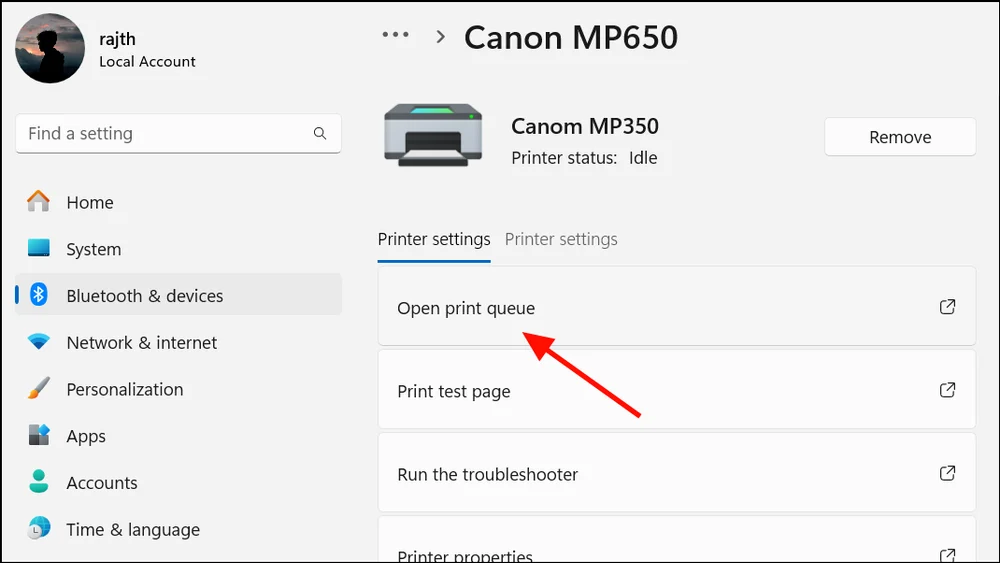
- Open the printer queue and cancel each listed print job.
- Press
Windows
+
R
, enter
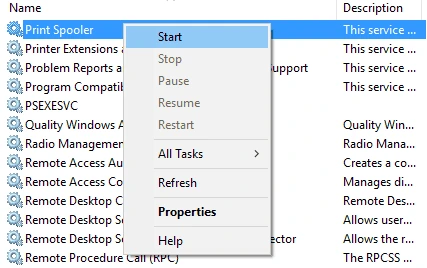
services.msc, and press Enter. - Find
Print Spooler
, right-click it, and select
Restart
.
- Send the document again.
If the job prints or leaves the queue normally, the spooler path is working again.
Method 2: Clear Spool Files When Jobs Will Not Cancel
Use this only when the normal cancellation step does not clear the queue. This removes pending spool files, so record any job details you need before proceeding.
- Open
services.msc, locate Print Spooler , and stop the service.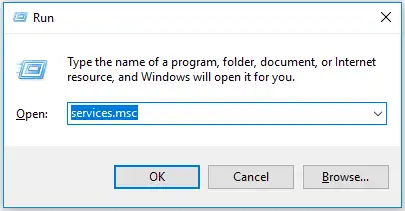
- Open File Explorer and go to
C:\Windows\System32\spool\PRINTERS. - Delete the files inside the
PRINTERSfolder.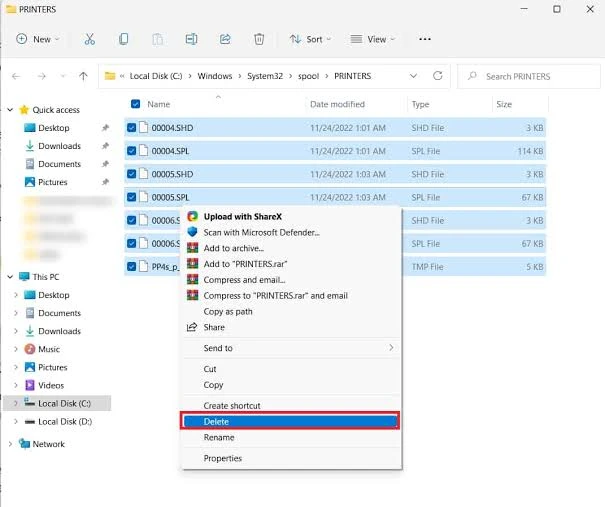
- Return to Services and start Print Spooler .
- Restart the PC and printer, then submit a new print job.
Method 3: Check Drivers, Connections, and Shared-Printer RPC Access
Use this when the error returns after a queue reset, when the printer remains unresponsive, or when only a shared printer fails.
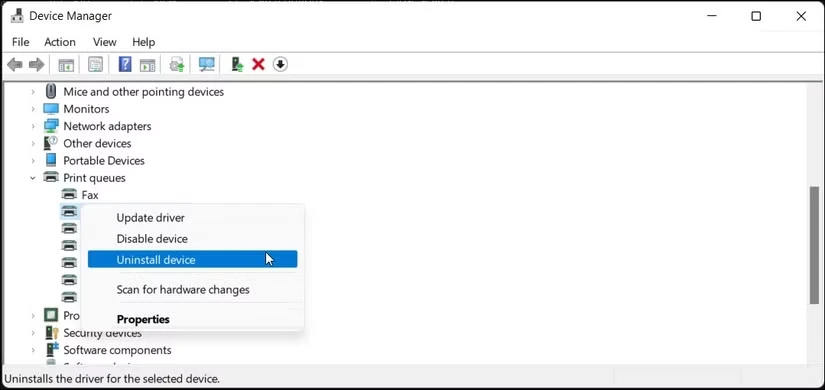
- Open Device Manager, expand
Print queues
or
Printers
, and remove unnecessary, old, or duplicate printer drivers.
- Install the current driver for the exact printer model from the manufacturer’s official website.
- For a USB printer, check the cable connection. For a wireless printer, confirm that the PC and printer are on the same network.
- For a printer shared by a server or another computer, ask the administrator to confirm that RPC Endpoint Mapper port 135 and the required RPC ports are permitted.
- Print a Windows test page.
On Windows 11 22H2 and later, shared-print communication uses RPC over TCP by default. Microsoft documents port 135 and the applicable RPC port range as relevant network requirements. See Microsoft's shared-print RPC guidance .
Method 4: Fix Print Spooler Error 0x000006BA with Fionn Printer Driver
Recommended for a guided check: Fionn Printer Driver is a Windows tool that can scan printer drivers and related issues, including printer service, port, queue, and device-status checks. It can be useful when the cause is unclear or when you want to review detected driver issues before repair.
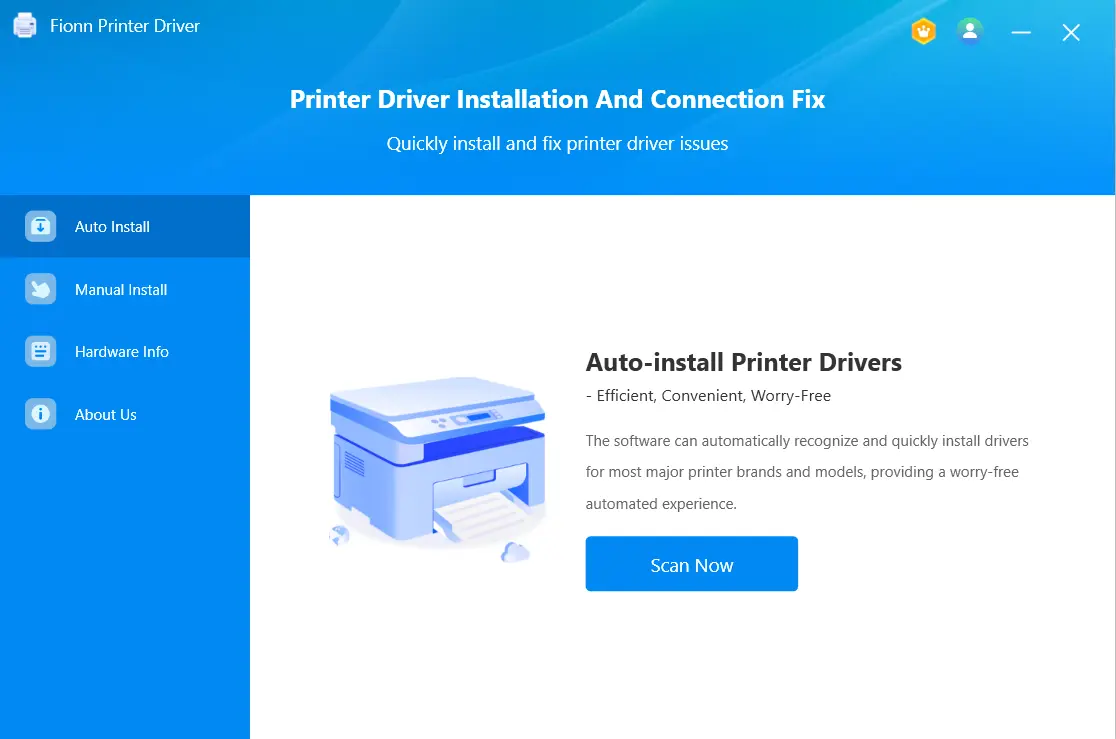
- Launch Fionn Printer Driver and click “Scan Now” to scan your computer for printer drivers and related issues.
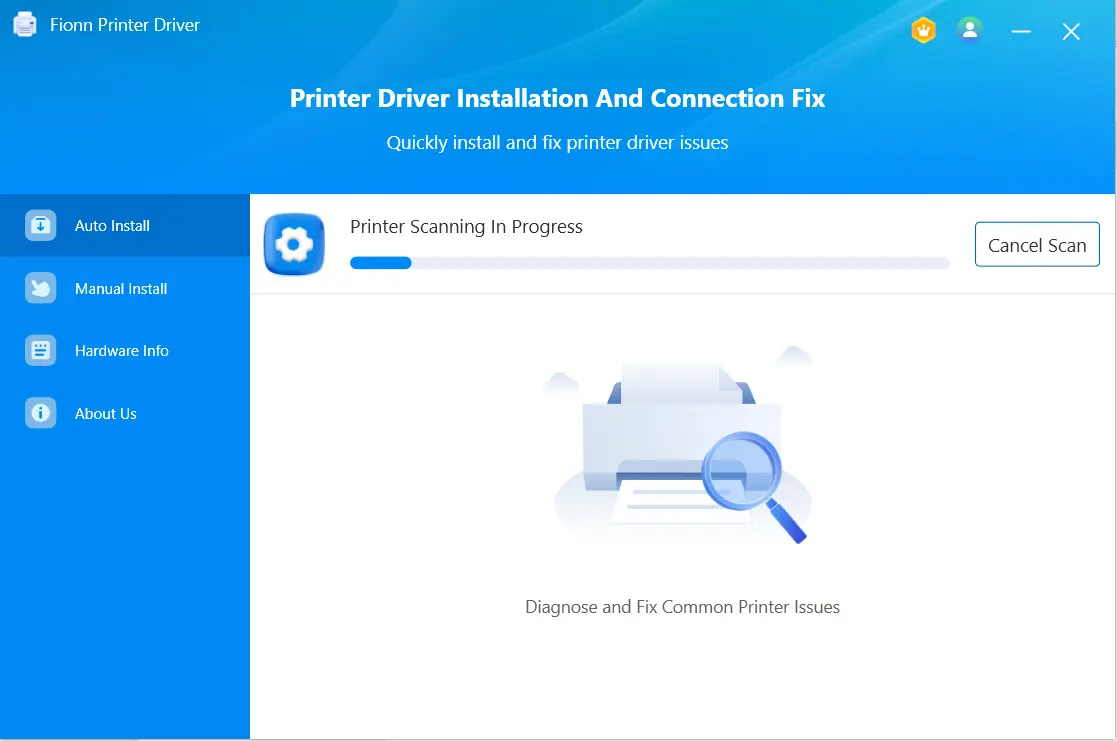
- Wait while Fionn Printer Driver scans your system for installed printers, drivers, and common printer issues.
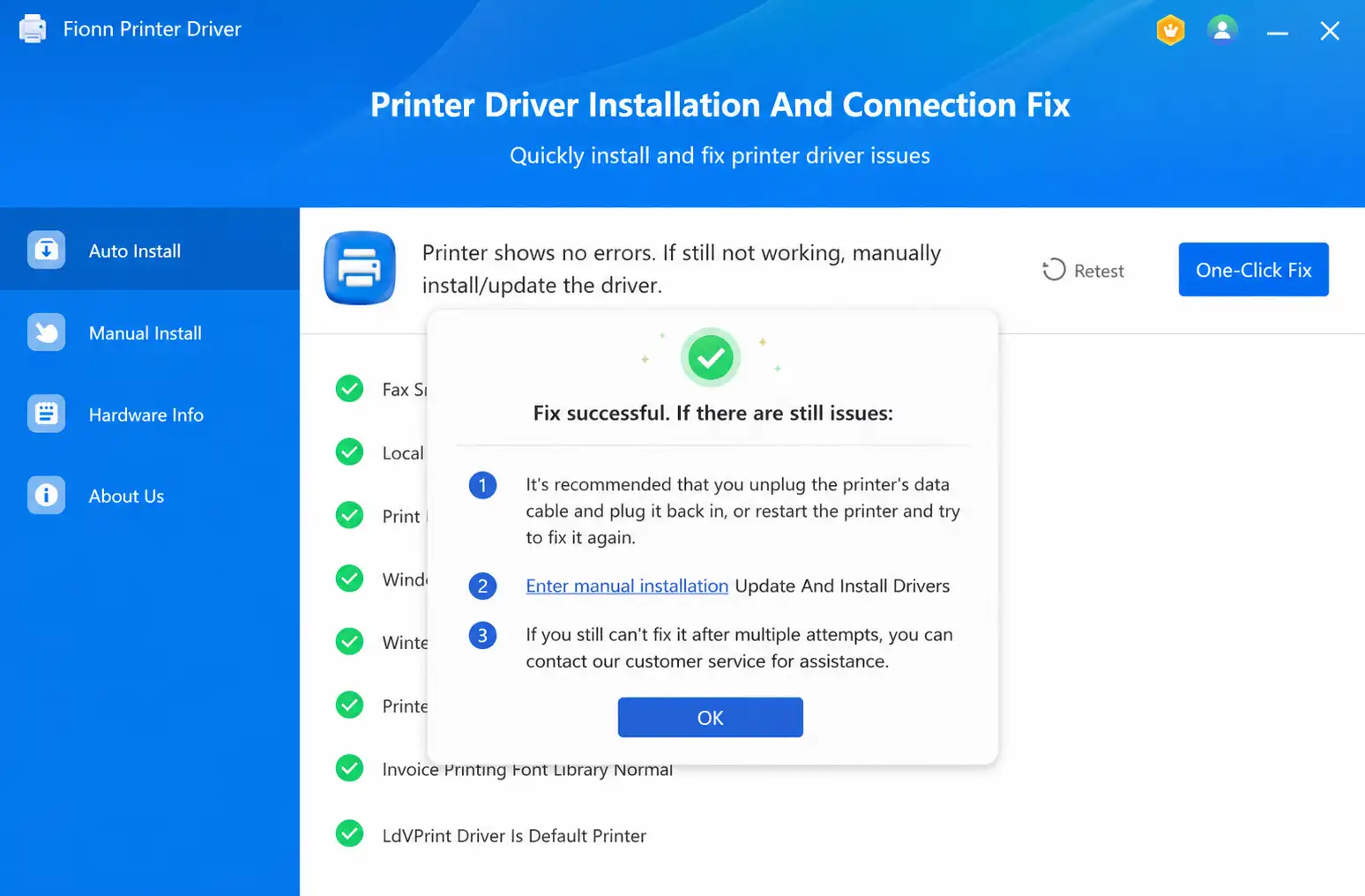
- After the scan finishes, review the detected driver issue, then click “One-Click Fix” to start the suggested installation or repair.
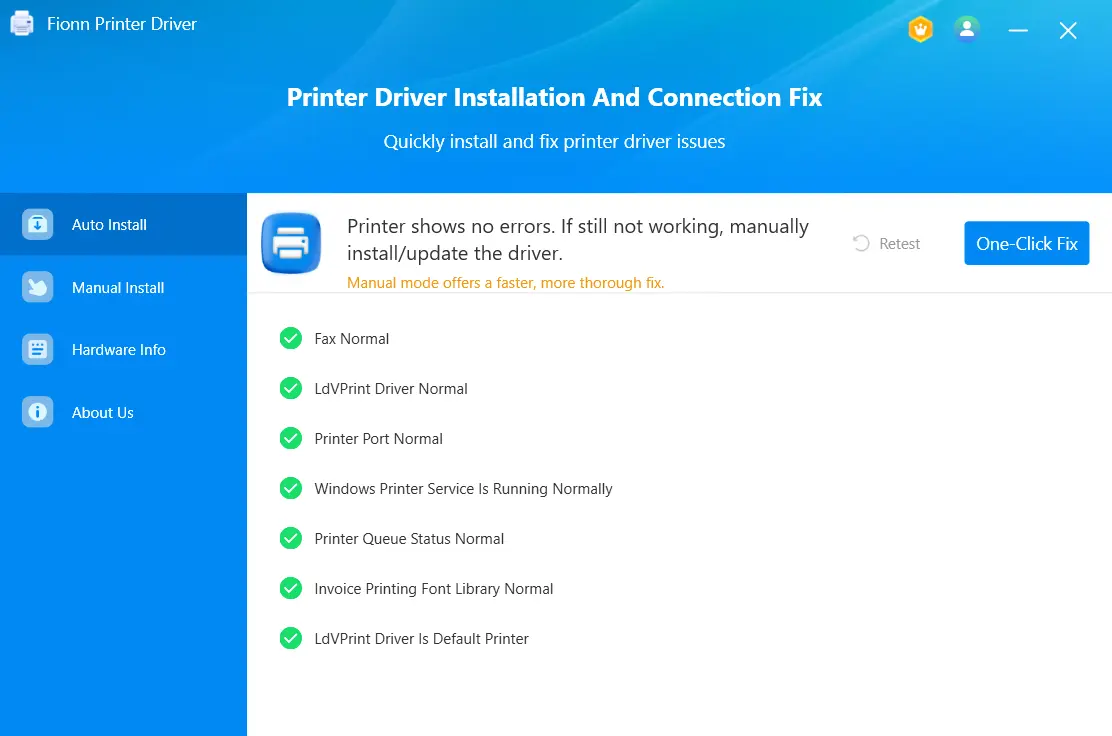
- Wait for the operation to finish and review its result. Then print a Windows test page to check whether the printer actually works.
Verification Checklist
- The Print Spooler service is running in Services.
- The printer queue has no paused or stuck jobs.
- A newly submitted job leaves the queue instead of remaining pending.
- A Windows test page prints successfully.
- For a shared printer, the client can print after the host or server connection is available.
Conclusion
For Print Spooler Error 0x000006BA, begin by cancelling stuck jobs and restarting Print Spooler. Clear spool files only when normal cancellation fails, then investigate duplicate drivers, printer connections, and shared-printer RPC access if the error returns. Fionn Printer Driver is a practical guided option when you need to scan drivers and related printer issues. If a test page still fails, contact the printer manufacturer or your organization’s print-server administrator with the error code and the affected printer details.
FAQ
What does error 0x000006BA mean when printing?
It is commonly associated with the RPC message “The RPC server is unavailable.” In printing, that can prevent Windows from communicating through the services or network path required to process a job.
Should I clear the spool folder immediately?
No. Cancel jobs first and restart Print Spooler. Microsoft documents manual spool-folder clearing for cases where cancellation does not clear the queue.
Can a printer driver cause the Print Spooler to crash?
Yes. Microsoft identifies conflicting drivers as a common cause of spooler crashes. Remove unnecessary, old, or duplicate entries, then install the current driver for the exact printer model from the manufacturer.
Why does the error affect only my shared printer?
A shared printer depends on communication between the client and the computer or server sharing it. On supported Windows 11 shared-print setups, blocked RPC connectivity can prevent printing even when the local PC and printer appear normal.
How do I know the repair worked?
Confirm that the spooler is running, the queue clears, and a Windows test page prints. A cleared error dialog alone is not enough to prove that printing works.


