 Emily CarterDLL Errors
An X3DAudio1_7.dll Missing message can indicate a DirectX or game prerequisite problem. Start with Microsoft’s legacy DirectX runtime package, then test the original app or game. If only one application fails, its own repair or reinstall path is also relevant. If several DLL or runtime symptoms appear, Fionn DLL Fixer can scan, repair detected issues, and recheck after a restart.
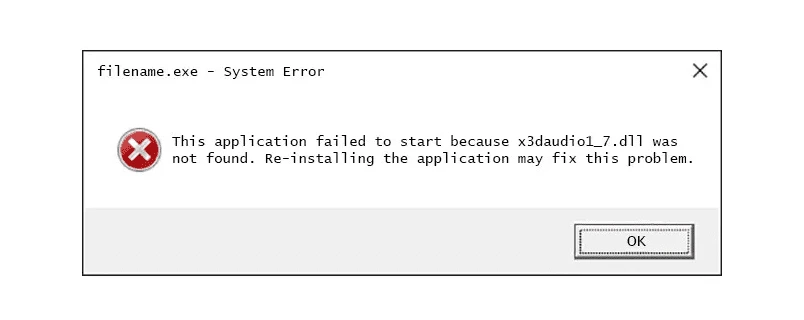
Choose a Recovery Path for X3DAudio1_7.dll Missing
| Path | Use it when | What to verify |
|---|---|---|
| Microsoft legacy DirectX runtime | The error names X3DAudio1_7.dll or another X3DAUDIO*, D3DX*, or XINPUT* dependency. | The affected app opens without the original error. |
| Fionn DLL Fixer | The cause is unclear or more than one DLL or runtime issue is reported. | The original app launches after repair and any requested restart. |
| App repair or reinstall | Only one app or game fails, especially when the displayed DLL path is in its installation folder. | That app reaches its normal start screen. |
Install the Microsoft Legacy DirectX Runtime
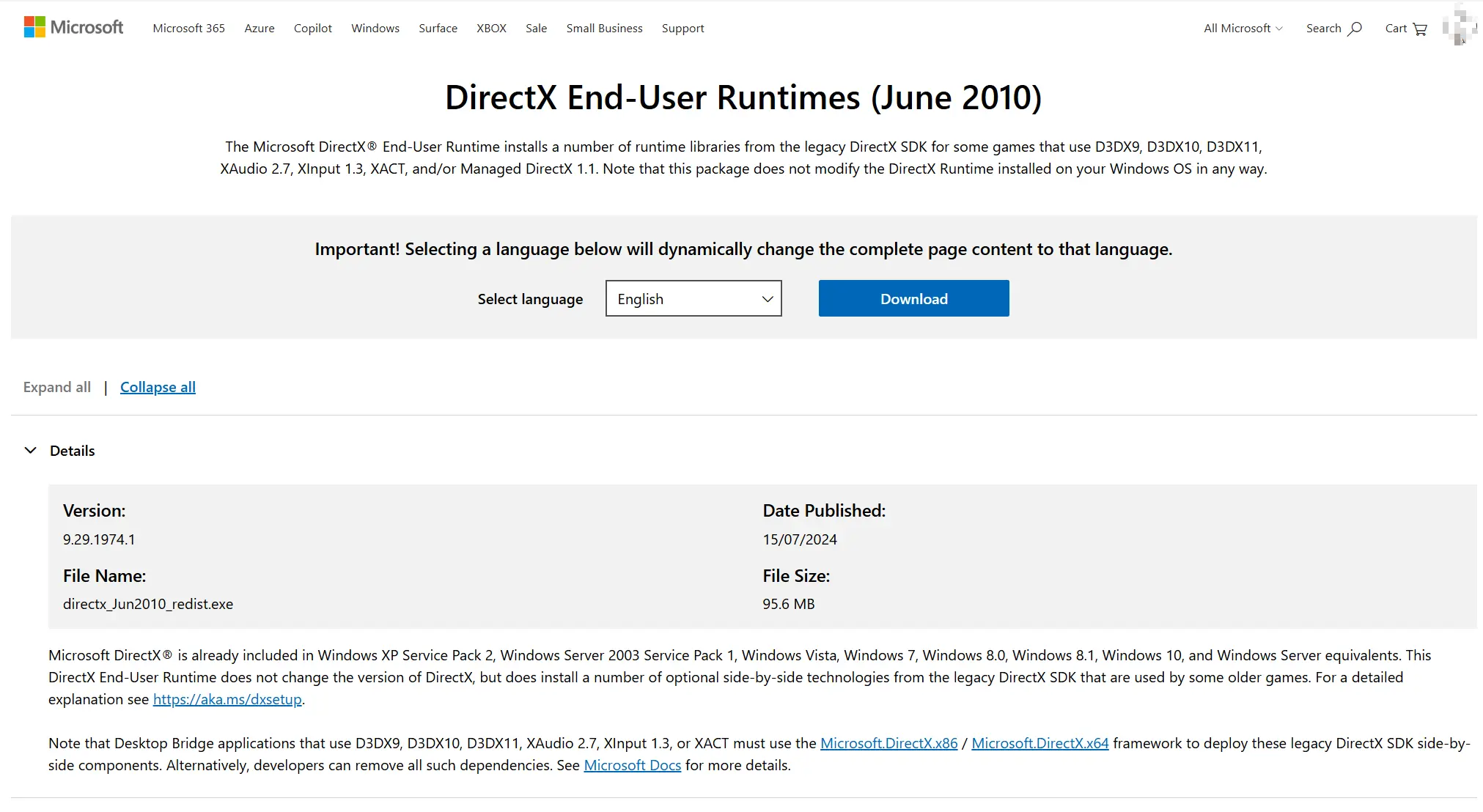
Microsoft documents its DirectX End-User Runtimes (June 2010) package as installing legacy DirectX SDK runtime libraries used by some games. A Microsoft Q&A answer identifies the package as a possible resolution for an application failure caused by a missing X3DAUDIO1_7.DLL. The supplied documentation does not expressly confirm that this exact DLL is included, so treat the launch test below as the deciding result.
- Open the
Microsoft DirectX End-User Runtimes (June 2010) download page
and select
Download
.
- Select Run to start installation immediately, or select Save to install it later.
- Restart Windows if the installer requests a restart.
- Launch the affected app or game and check whether the original error dialog is gone.
Scan for Related Issues with Fionn DLL Fixer
Use this route when the missing-file message is accompanied by other DLL or runtime symptoms, or when the source of the failure remains unclear. On Windows 10 and Windows 11, Fionn DLL Fixer can scan for DLL and system issues, repair detected issues, and recheck afterward. It creates a system restore point before repairs begin. The free edition shows three free attempts; VIP unlocks DLL, DirectX, runtime, and system-repair benefits.
- Launch Fionn DLL Fixer. The software automatically scans your PC for DLL and system issues and displays the detected results when the scan is complete.
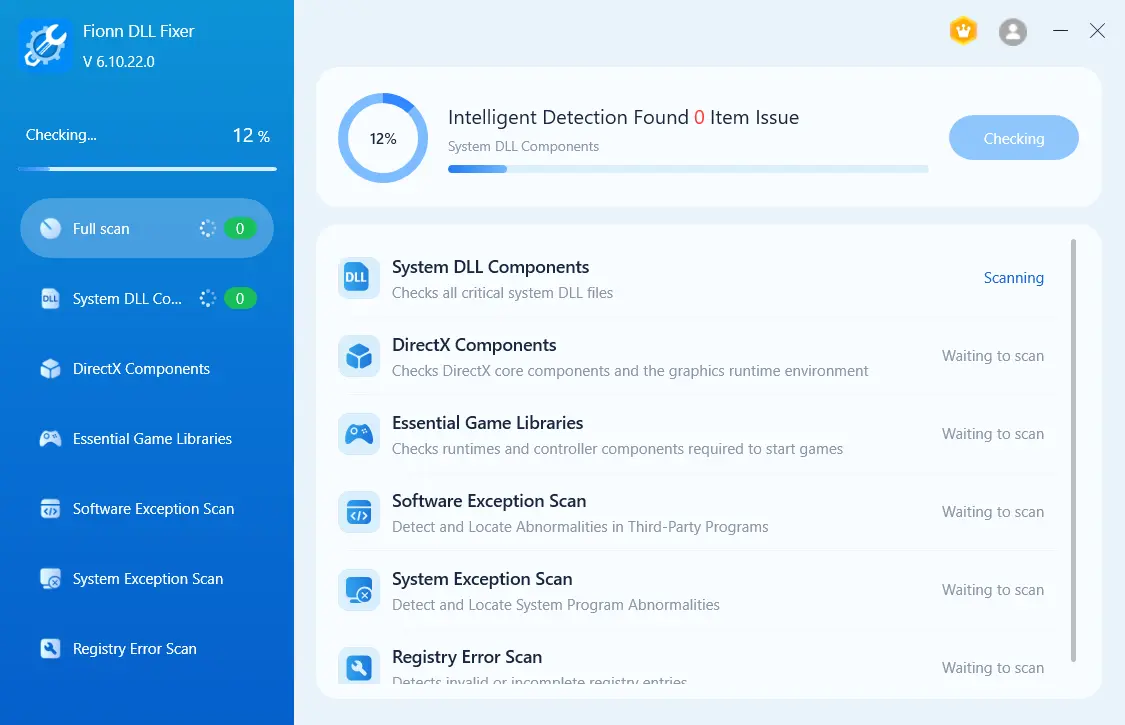
- After the scan finishes, click
Repair
to start fixing all detected DLL and system issues automatically.
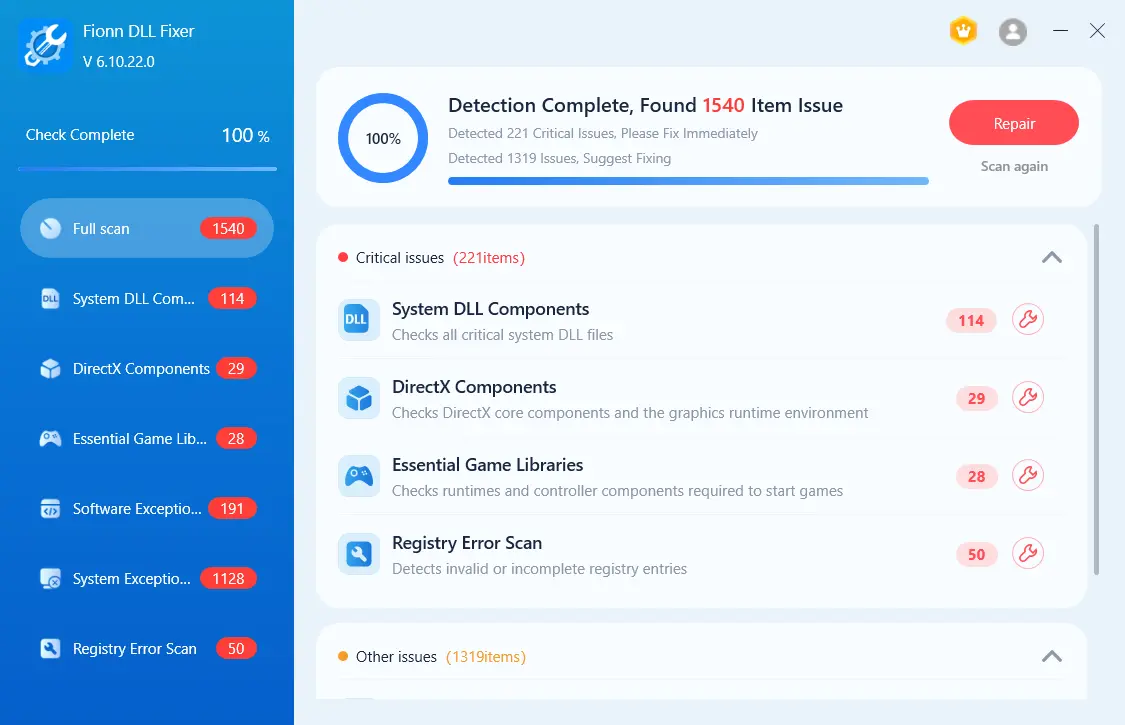
- Wait while the repair is in progress. During this process, the button changes to
Fixing
until all issues have been repaired.
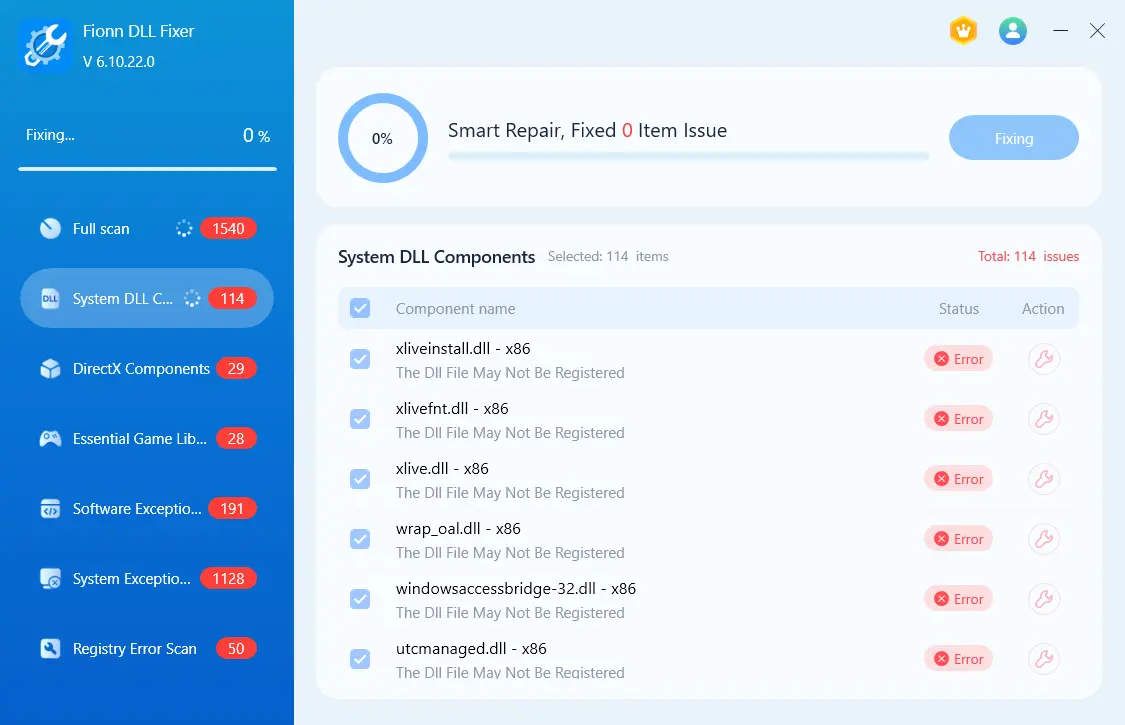
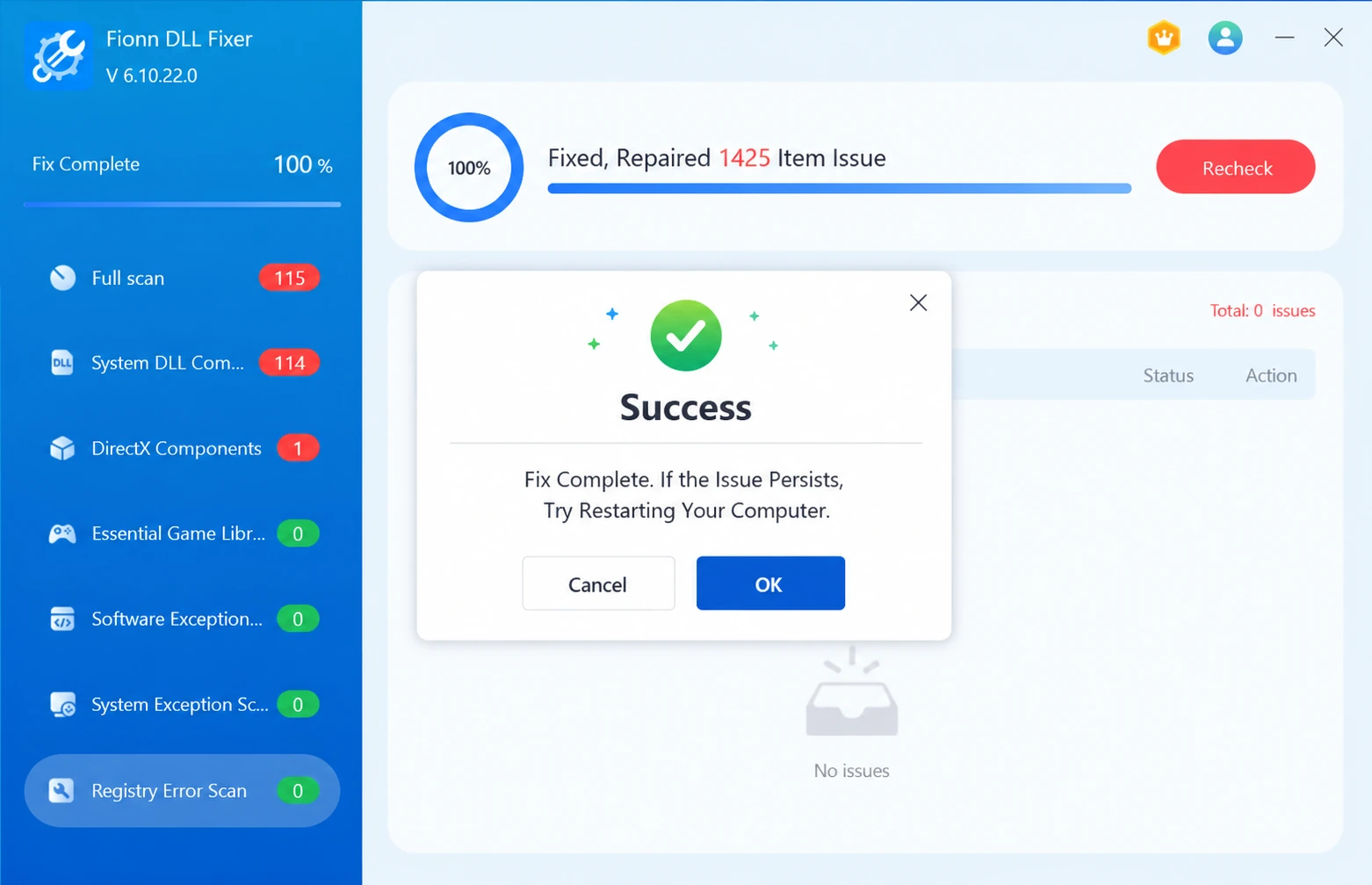
- When the repair is complete, click
OK
in the confirmation dialog. If prompted, restart your computer before checking whether the problem has been resolved.
- If the issue still persists after restarting, click
Recheck
to perform another scan. If new issues are found, click
Repair
again to fix them.
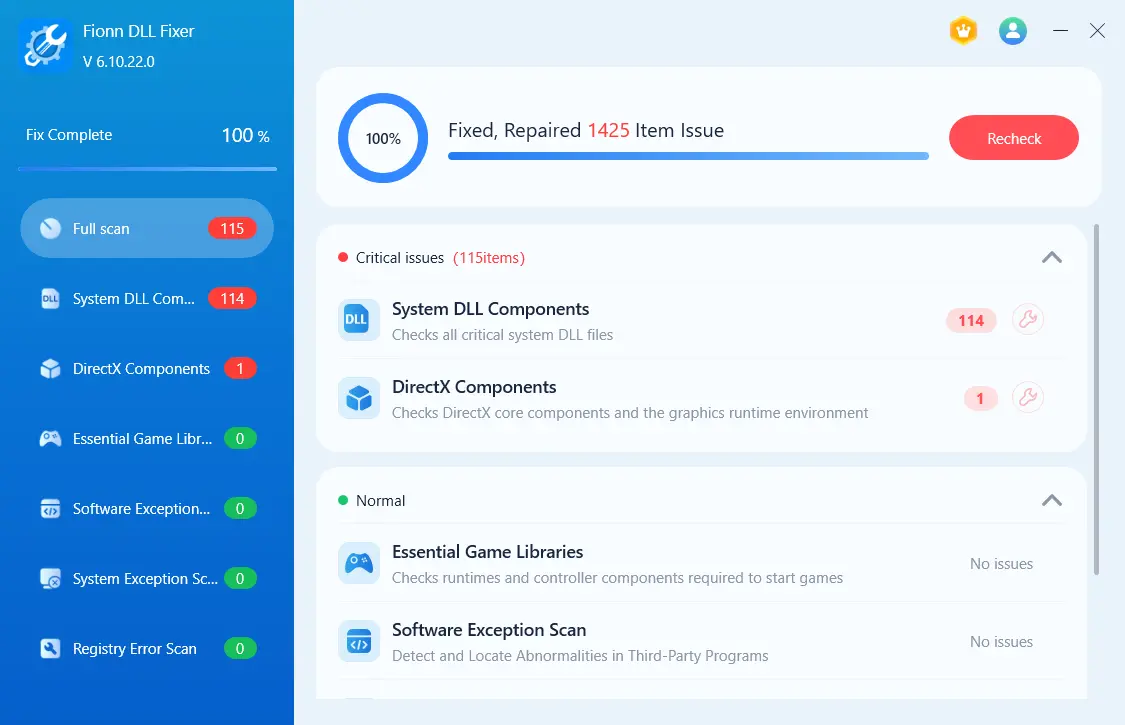
After any requested restart, open the original application. A completed repair in the tool is an intermediate result; success for this task is the application launching without the X3DAudio1_7.dll Missing message.
Source: Fionn DLL troubleshooting guidance.
Repair or Reinstall the Affected App
Choose this path when the failure is limited to one app or game, particularly if the displayed DLL path is inside that program’s installation folder. It restores that application’s own files and prerequisites from its original source.
- Close the affected application and save any projects or local data that its publisher says removal could delete.
- Use the application’s maintenance or repair option if it provides one.
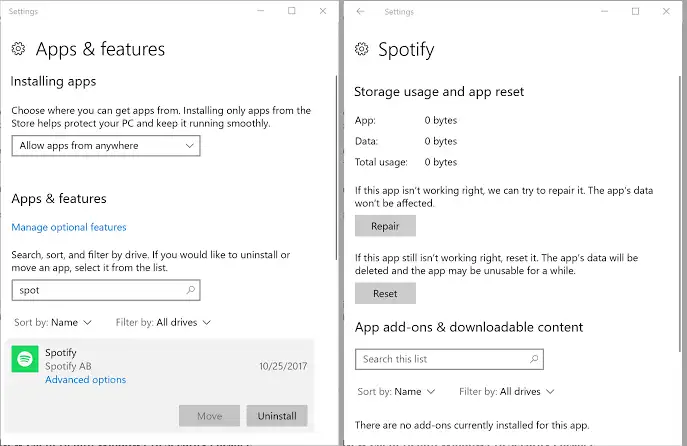
- If repair is unavailable or does not work, uninstall the application through Windows Settings and reinstall it from its original publisher or store source.
- Launch the same application again and check whether it reaches its normal start screen without the original missing-DLL message.
Source: Fionn DLL troubleshooting guidance.
Conclusion
Install Microsoft’s legacy DirectX runtime, then launch the affected app to see whether the original message is gone. If the issue affects only one application, use its official repair or reinstall path. When related DLL or runtime symptoms make the cause unclear, scan and repair with Fionn DLL Fixer, restart if prompted, and test the original app again. If it still fails, give the app publisher the exact DLL name, complete error text, and failure timing.
Frequently Asked Questions
Should I download X3DAudio1_7.dll by itself?
No. Avoid unverified standalone DLL-download sites. Use Microsoft’s legacy DirectX runtime package or restore the affected application from its original publisher or store source.
Why can this happen on a current Windows PC?
Some apps and games use legacy DirectX SDK runtime libraries. Microsoft’s package installs several legacy libraries without changing the DirectX Runtime version already installed in Windows.
What if the Microsoft runtime installation does not fix the error?
If one program alone fails, repair or reinstall it from its original publisher or store source. If multiple DLL or runtime issues occur, scan for related detected issues and then test the original application again.
How do I know the issue is fixed?
Restart if requested, then open the same app or game that showed the error. The original X3DAudio1_7.dll Missing dialog should not return, and the app should reach its normal start screen.


