 Emily CarterDLL Errors
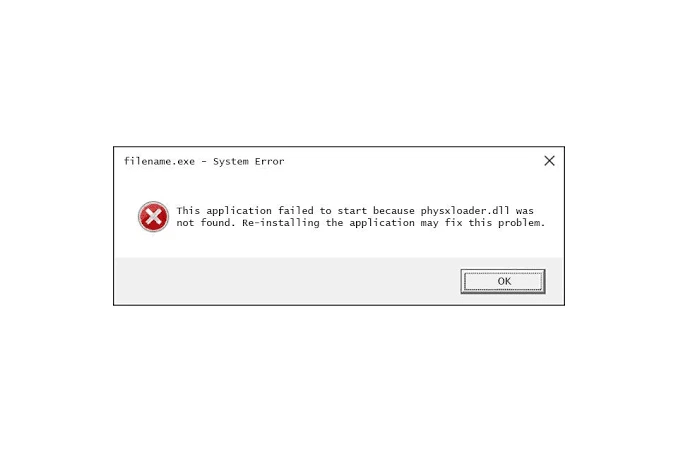
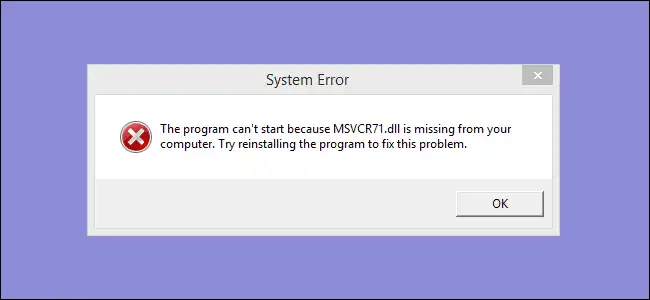
A PhysXLoader.dll missing or cannot-load error can mean that a game needs a PhysX runtime, is finding an incompatible DLL, or cannot load another dependency. The filename alone does not tell you which case applies.
Start by saving the complete error message. Then check the game's requirements and choose a route below. If it specifies a PhysX runtime, use the official NVIDIA package rather than downloading a loose DLL.
Quick Start: Which Fix Should You Try?
| Your situation | Start here | What to check afterward |
|---|---|---|
| You do not know which DLL or dependency is failing. | Method 1: run a general DLL check. | Review the results, then test the game. |
| The game requires the standard PhysX runtime. | Method 2: get the official NVIDIA package. | Confirm installation completes and retry the failing action. |
| An older game matches NVIDIA's Legacy conditions. | Method 3: check Legacy PhysX. | Confirm the game's requirements before choosing a historical package. |
| You already tried a repair or installation. | Use the troubleshooting table near the end. | Follow the next step for the actual error you now see. |
A scan can help investigate general DLL problems. The game's requirements determine which PhysX package it needs.
Before You Start: Save These Details
Keep a short record so you can tell whether a fix changes the problem:
- Error: the full message and any file path it names.
- Game: its name and version, whether it worked before, and recent updates.
- Computer: your Windows version and system architecture.
- Previous changes: any DLLs you copied manually and where you put them.
Match the DLL to the application, not just Windows. A 32-bit process cannot load a 64-bit DLL, and a 64-bit process cannot load a 32-bit DLL. A 64-bit Windows installation may run applications with different dependency requirements.
If available, check the game's documentation for its process architecture. Microsoft explains this in its process interoperability documentation.
Method 1: Check DLL Issues with Fionn DLL Fixer
Use this if: you want a guided check for general DLL and dependency problems on Windows 10 or 11.
Fionn DLL Fixer checks for missing, damaged, and version-mismatched DLLs, as well as dependency-loading problems. Review the detected issues before proceeding with a repair.
If you want guided general diagnosis, start from the official product page and follow the workflow below. After repair, return to the affected game and test the original failure.
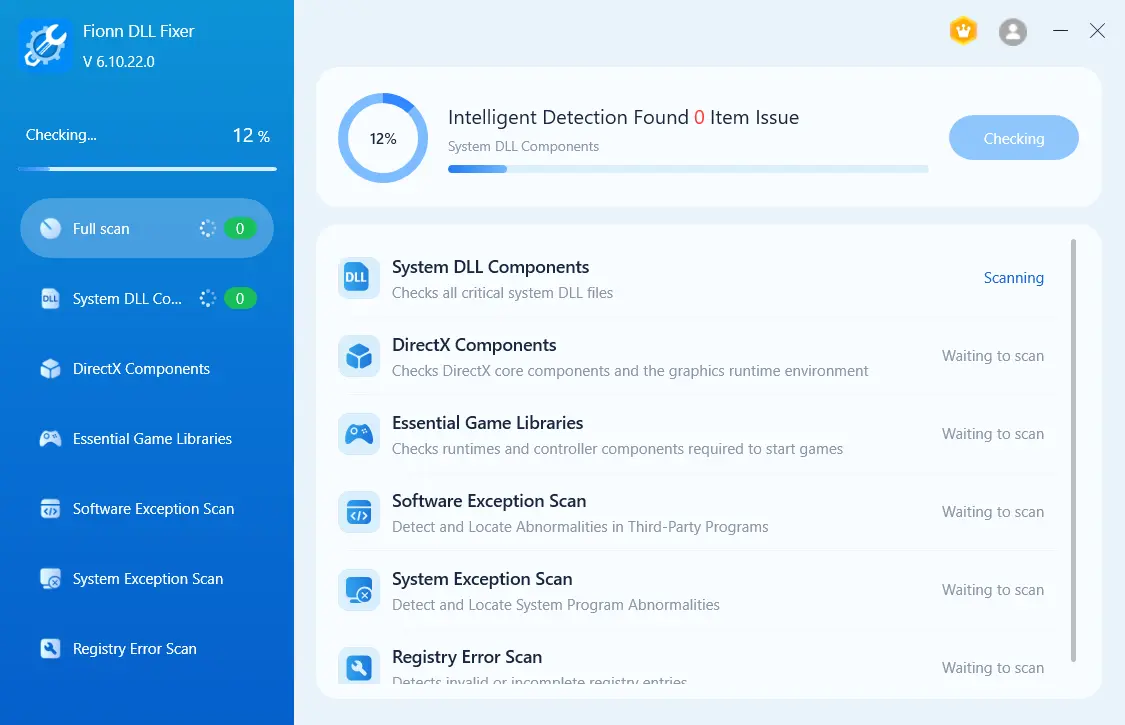
- Launch Fionn DLL Fixer. The software automatically scans your PC for DLL and system issues and displays the detected results when the scan is complete.
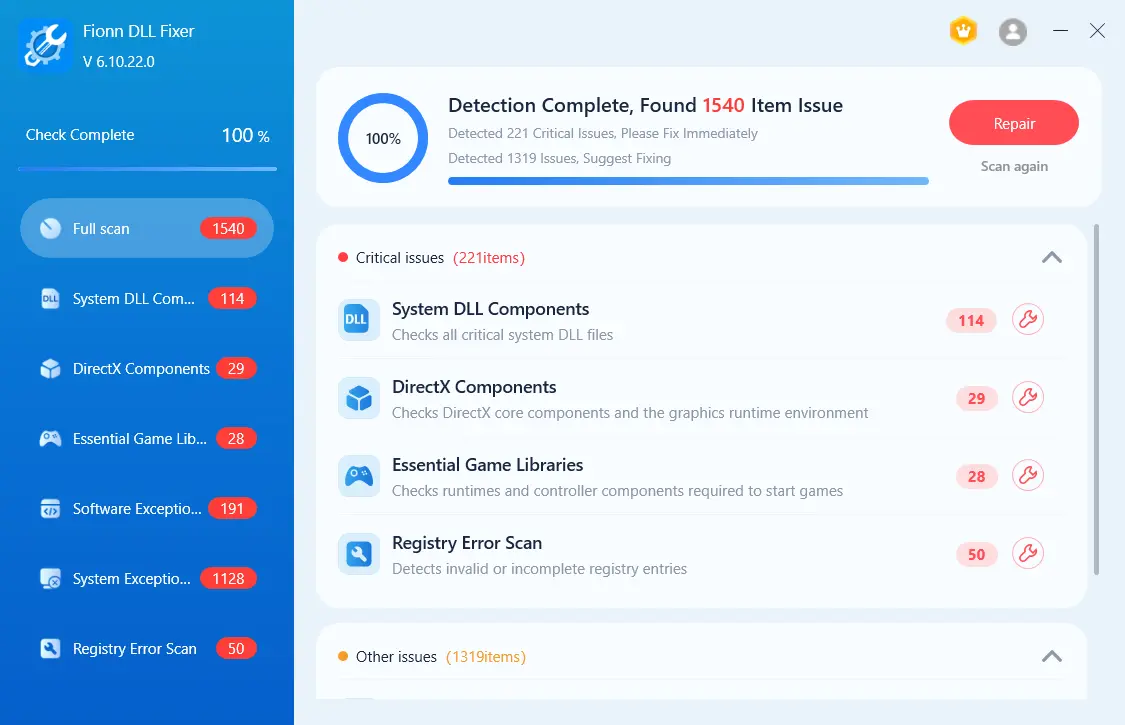
- After the scan finishes, click Repair to start fixing all detected DLL and system issues automatically.
- Wait while the repair is in progress. During this process, the button changes to Fixing until all issues have been repaired.
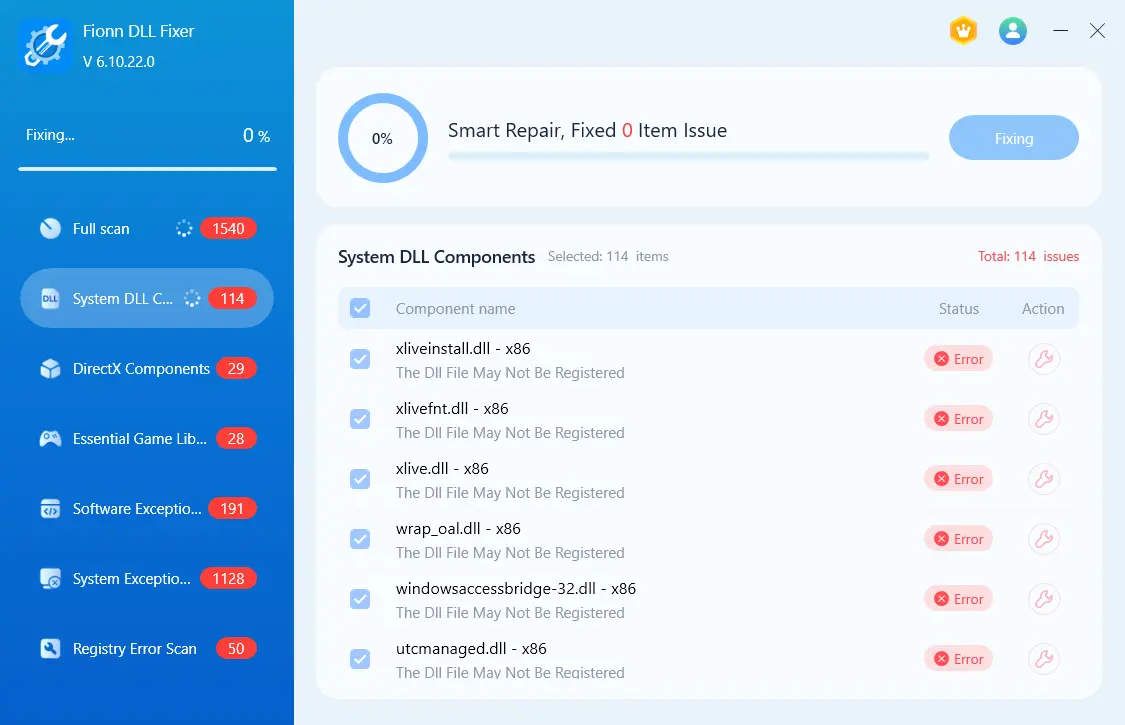
- When the repair is complete, click Ok in the confirmation dialog. If prompted, restart your computer before checking whether the problem has been resolved.
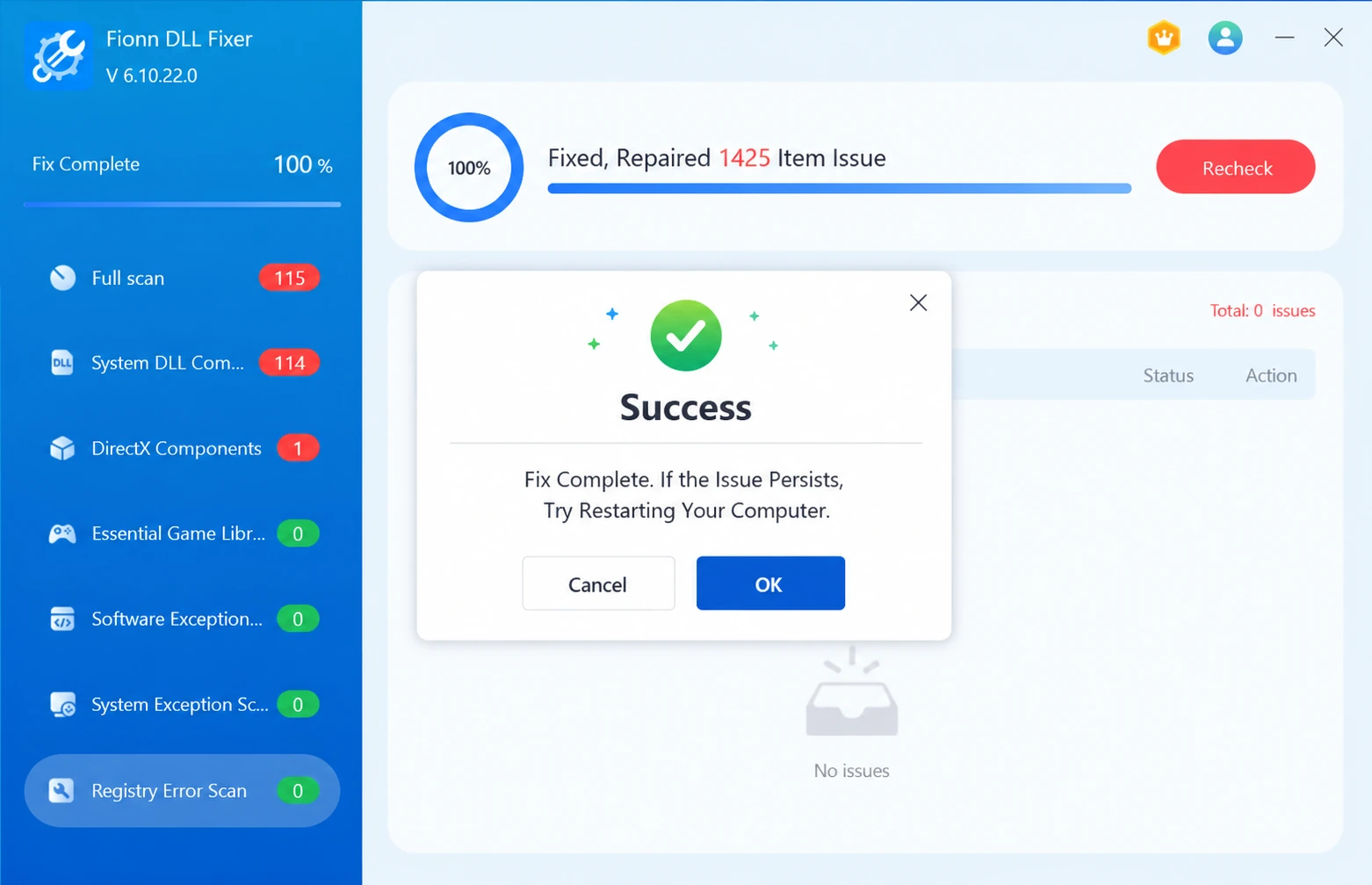
- If the issue still persists after restarting, click Recheck to perform another scan. If new issues are found, click Repair again to fix them.
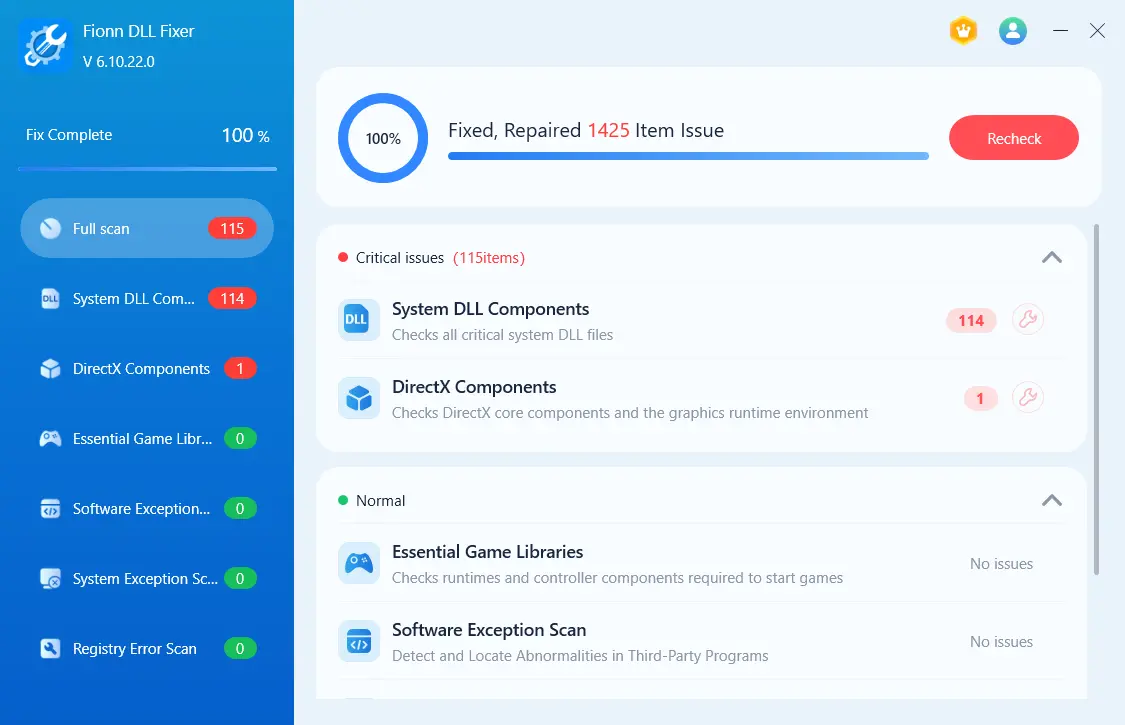
Check the result: reopen the affected game and repeat the action that failed. The repair has solved your problem only if the original error disappears and that action works normally.
Limit: general repair does not guarantee recovery of PhysXLoader.dll or a game-specific or Legacy dependency. A repair confirmation or clean rescan is not a substitute for testing the game.
If the same error remains after repair and rechecking, continue with the application's runtime requirements rather than repeating the same repair indefinitely.
Method 2: Get the Official PhysX Runtime
Use this if: the game's requirements call for the standard PhysX runtime.
NVIDIA provides a standalone PhysX System Software installer. The linked page lists version 9.26.0703, released August 28, 2026, matching the PhysX version bundled with NVIDIA Release 615 GA1 drivers.
- Open the official download page. Use NVIDIA PhysX System Software.
- Check the supported systems. Compare the page with your computer and the game's requirements. It lists Windows 10 32-bit and 64-bit, Windows 11 64-bit, and Windows 11 ARM64.
- Download and follow the installer. Select Download Now, then follow the instructions shown by the installer.
- Test the game. After installation completes, relaunch it and repeat the action that produced the error.
If installation is blocked: save the exact message. If the installer says the same or a newer version is already installed, get game-specific guidance before uninstalling or downgrading. If installation fails, do not assume the runtime was installed successfully.
ARM64 Support and GPU Acceleration Are Separate Questions
The package adds Windows 11 ARM64 installation support, including required 32-bit and 64-bit PhysX runtime files and registry entries on supported ARM64 systems. This does not mean every older game will run on ARM64. Check the game's own platform requirements.
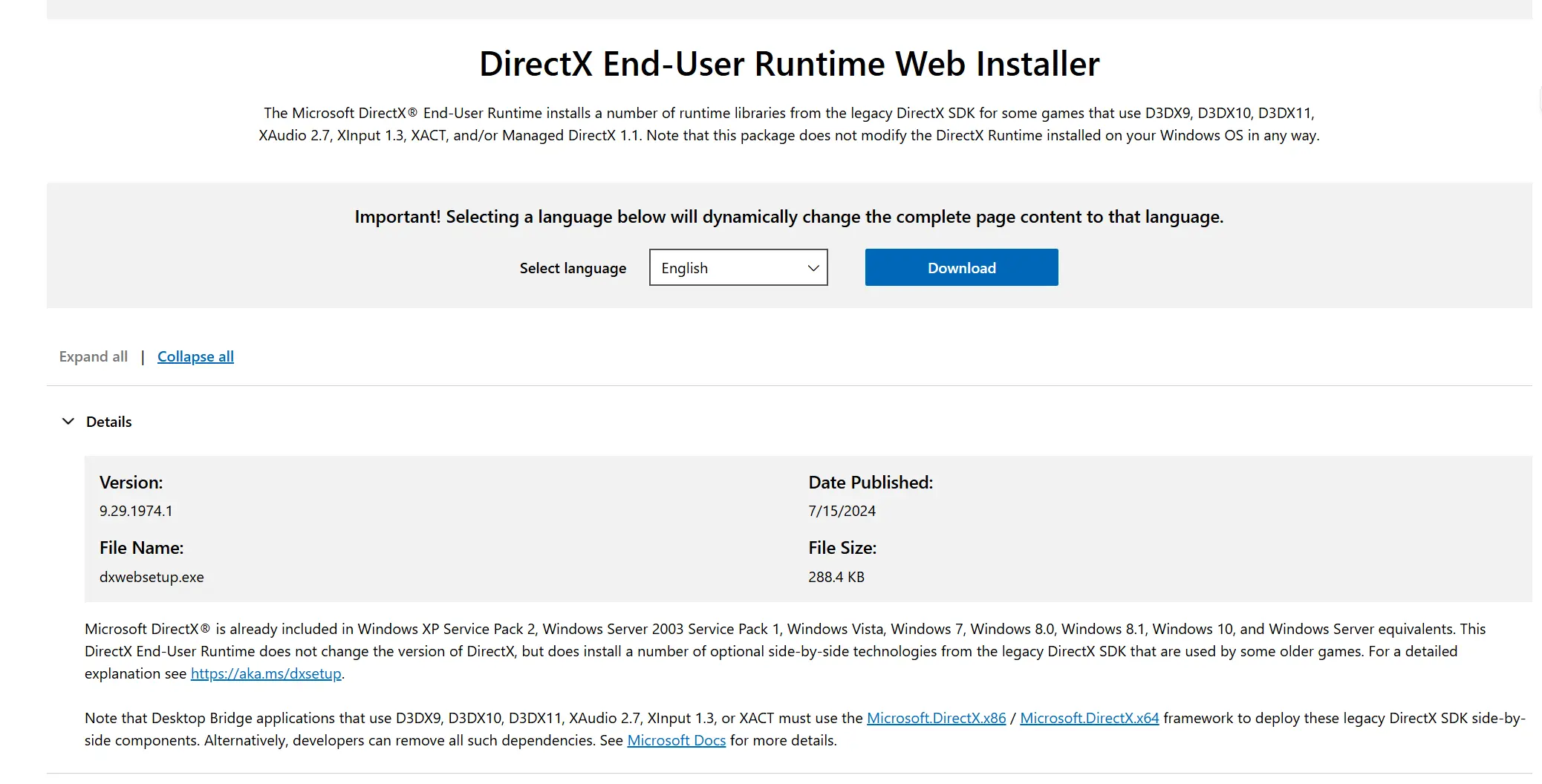
GPU acceleration is another separate issue. NVIDIA limits PhysX acceleration on Blackwell and later GPUs to 64-bit games and selected 32-bit games. That condition does not explain every missing-DLL error.
Avoid choosing a file by name alone. A matching filename does not confirm its version, architecture, dependencies, or loading location. Use the package required by the game.
Method 3: Check Legacy PhysX for an Older Game
Use this if: an older game's requirements match NVIDIA's Legacy guidance. Game age alone is not enough to choose this package.
NVIDIA describes games released around the end of 2007 and earlier that worked with PhysX System Software 9.12.0613 but stopped working with later versions.
- Historical SDK coverage: versions 2.7.0 and earlier, plus 2.7.2.
- Execution: these historical SDKs run on the CPU only.
- Legacy package: version 9.13.0604, dated July 18, 2013.
- Check the game's dependency instructions. Compare them with the SDK coverage and older-version regression condition above.
- Read the official Legacy page. NVIDIA's PhysX Legacy page lists examples including Ghost Recon Advanced Warfighter, Cell Factor, Gears of War, Pirates of the Burning Sea, Switch Ball, and Velvet Assassin.
- Download only when the requirements match. Select Download Now on that page. Follow applicable installation guidance, then test the original failing action.
Unsure about compatibility? Ask the game publisher which runtime it supports on your Windows version. The standard package's Windows 10, Windows 11, and ARM64 support does not establish the same support for Legacy PhysX.
Still Not Working? Match the Result to the Next Step
A DLL can exist on your drive without being the copy the game loads. Different versions may be stored in different locations, and dependent DLLs have their own searches. Microsoft's DLL search-order reference explains why copying a file may not resolve the error.
| What happened | What to do next |
|---|---|
| The same error returns. | Confirm the game's runtime requirement and whether the repair or installation actually completed. |
| PhysXLoader.dll exists, but cannot load. | Check the application's architecture and the path named in the error. |
| A different DLL is now named. | Save the new message and investigate that dependency separately. |
| The installer fails or blocks installation. | Keep its exact message and seek guidance for that installer state. |
| Only one older game still fails. | Check its specific runtime requirements and the Legacy conditions. |
If the game needs local-file recovery, follow the publisher's instructions for that game and launcher. Do not assume that verifying game files also reinstalls PhysX.
What to Send to Support
- The game name and version.
- The full error message and any named file path.
- Your Windows version and architecture.
- Each repair or installation you tried, including the result.
- Whether the game reaches its opening screen and which action still fails.
- Any manually copied DLLs, with their source and destination.
Frequently Asked Questions
Does this error always mean PhysXLoader.dll is missing?
No. It can also involve an incompatible copy or another dependency that cannot load. Keep the complete message and check the game's requirements before replacing files.
Where should I download PhysXLoader.dll?
Use the official NVIDIA runtime package required by the game. Choose the standard or Legacy page according to its requirements. A loose DLL does not establish that all required dependencies are present.
Should I choose a 64-bit DLL because I have 64-bit Windows?
The application's process architecture determines which DLL it can load. Check that requirement rather than selecting a loose file solely from your Windows architecture.
Does every old game need Legacy PhysX?
No. Compare its requirements with NVIDIA's SDK coverage, game examples, and stated regression condition. Check Legacy compatibility separately from the standard package.
Do I need an NVIDIA GPU, and will an ARM64 installation run my game?
Runtime installation, game compatibility, and GPU acceleration are different questions. NVIDIA says the Legacy page's historical SDKs run on the CPU only. ARM64 runtime support does not guarantee game compatibility; check the game's requirements.
What if DLL repair completes but the game still fails?
Test again after any prompted restart. If the error remains after rechecking, move to the game's runtime or game-specific requirements. Avoid repeating the same repair indefinitely.
Final Check
After a relevant repair or runtime installation, repeat the exact action that failed. If it still fails, send the publisher the error message and your results before making further file replacements.


