 Emily CarterDLL Errors
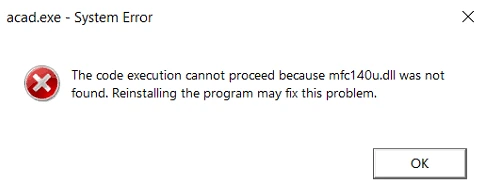
If an app will not open because mfc140u.dll was not found , check its DLL dependencies, repair the matching Microsoft Visual C++ runtime, or repair the app itself. This guide walks you through those three options.
Already have instructions from the app's publisher? Start there. After each repair, reopen the app and try the action that failed. Stop once it works normally.
Which method should you try?
| Your situation | What to try |
|---|---|
| You want help identifying DLL or runtime problems | Method 1: use Fionn DLL Fixer to scan and check the results |
| The app specifies a Visual C++ runtime, or that package needs repair | Method 2: install or repair the matching Microsoft package |
| The app still fails after its runtime requirements are addressed | Method 3: repair the app's own installation |
| The Microsoft installer will not finish | Use the installer-error table below |
What is mfc140u.dll?
It is a Unicode Microsoft Foundation Class (MFC) library used by some Windows applications. Microsoft identifies the file in its MFC redistribution documentation .
The library can be supplied through a Visual C++ Redistributable or included with the app itself. That is why fixing this error may require either runtime repair or application repair.
The message alone does not tell you which installation is at fault. Keep its full wording, especially if another DLL or error code appears after a repair.
Before you start
- Save the error: note the app's name, version, and complete message.
- Save your work: a repair may require a restart.
- Check permissions: have administrator access available for runtime installation.
- Check the app's architecture: use its documentation or ask its publisher whether it needs x86, x64, or ARM64 components.
To check Windows itself, open Settings > System > About . Read the Windows version and system type. See Microsoft's device information guide .
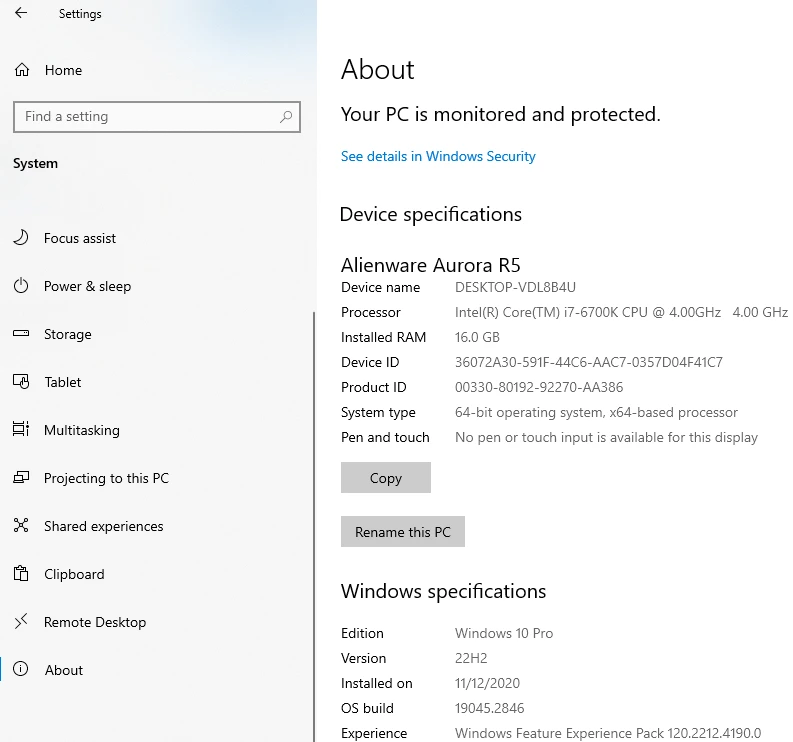
Important: 64-bit Windows does not mean every app is 64-bit. A 32-bit app needs x86 runtime components even on a 64-bit PC.
Method 1: Check DLL problems with Fionn DLL Fixer
Use this if: you want a guided check for missing, damaged, or mismatched DLLs and runtime components.
Fionn DLL Fixer supports Windows 10 and 11. It offers scanning, repair, and a recheck. If your application vendor specifies a runtime package, follow that instruction first.
Download the tool from its official product page, then follow these steps:
- Launch Fionn DLL Fixer. The software automatically scans your PC for DLL and system issues and displays the detected results when the scan is complete.
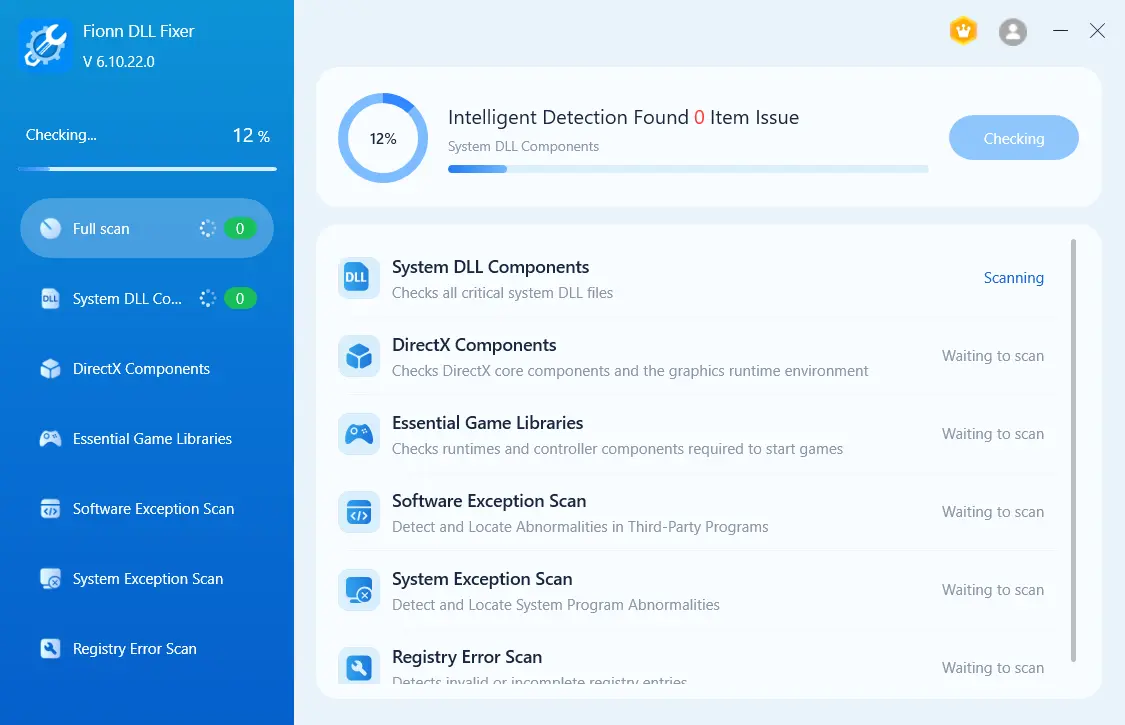
- After the scan finishes, click
Repair
to start fixing all detected DLL and system issues automatically.
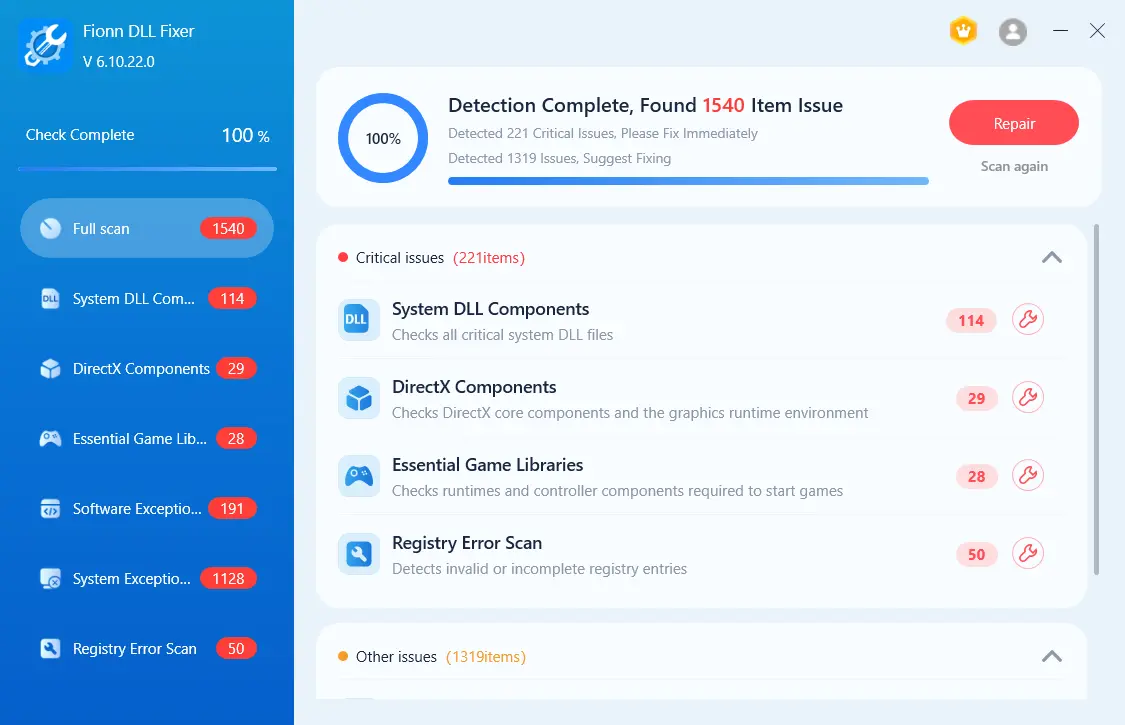
- Wait while the repair is in progress. During this process, the button changes to
Fixing
until all issues have been repaired.
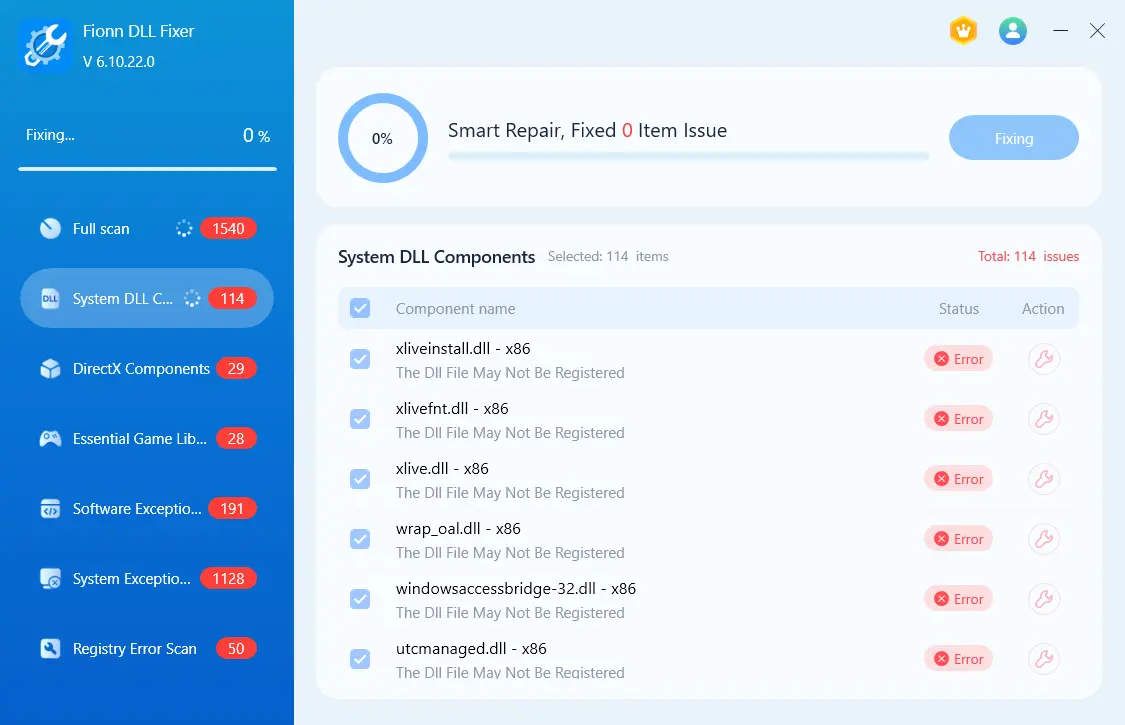
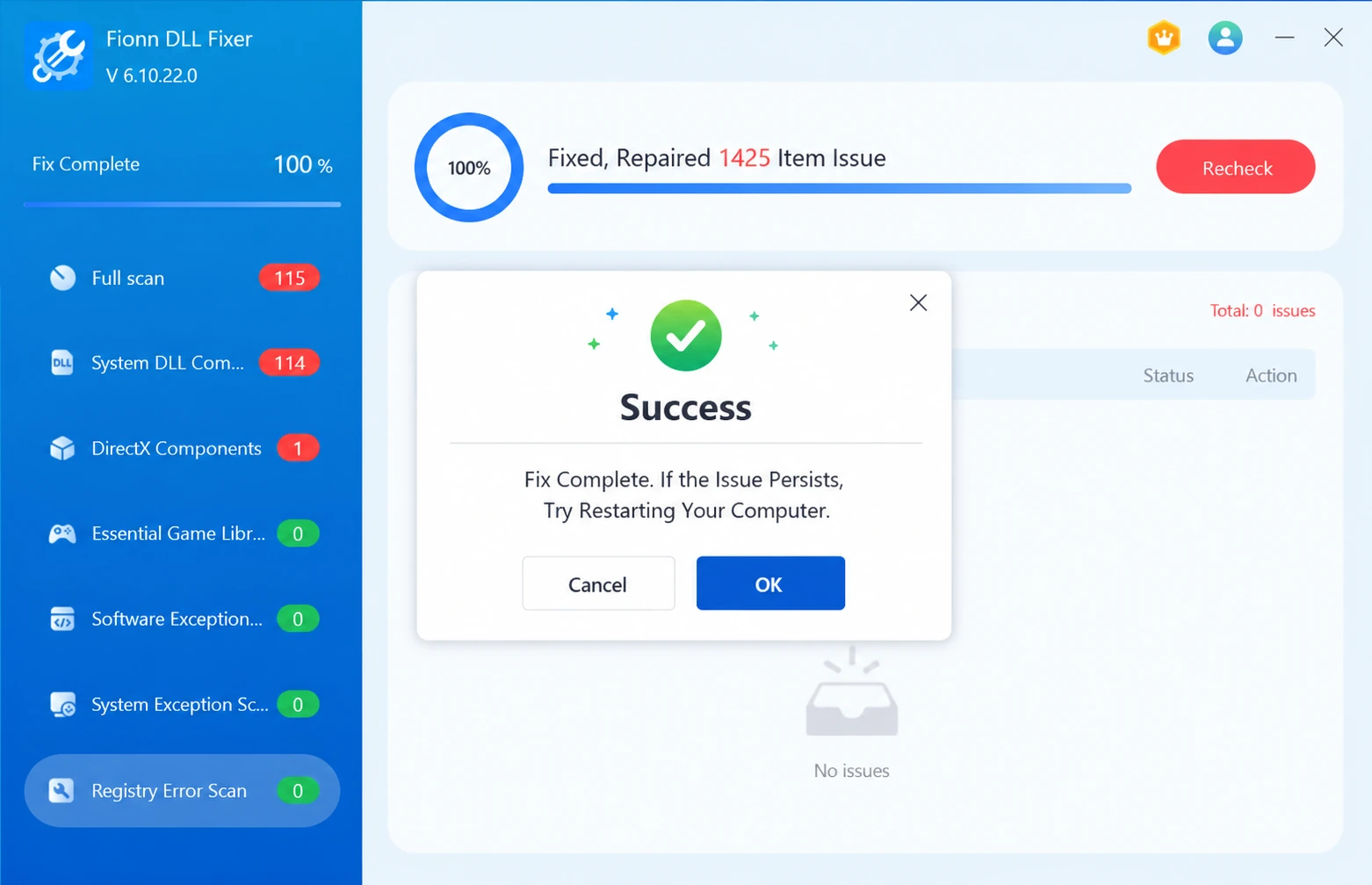
- When the repair is complete, click
Ok
in the confirmation dialog. If prompted, restart your computer before checking whether the problem has been resolved.
- If the issue still persists after restarting, click
Recheck
to perform another scan. If new issues are found, click
Repair
again to fix them.
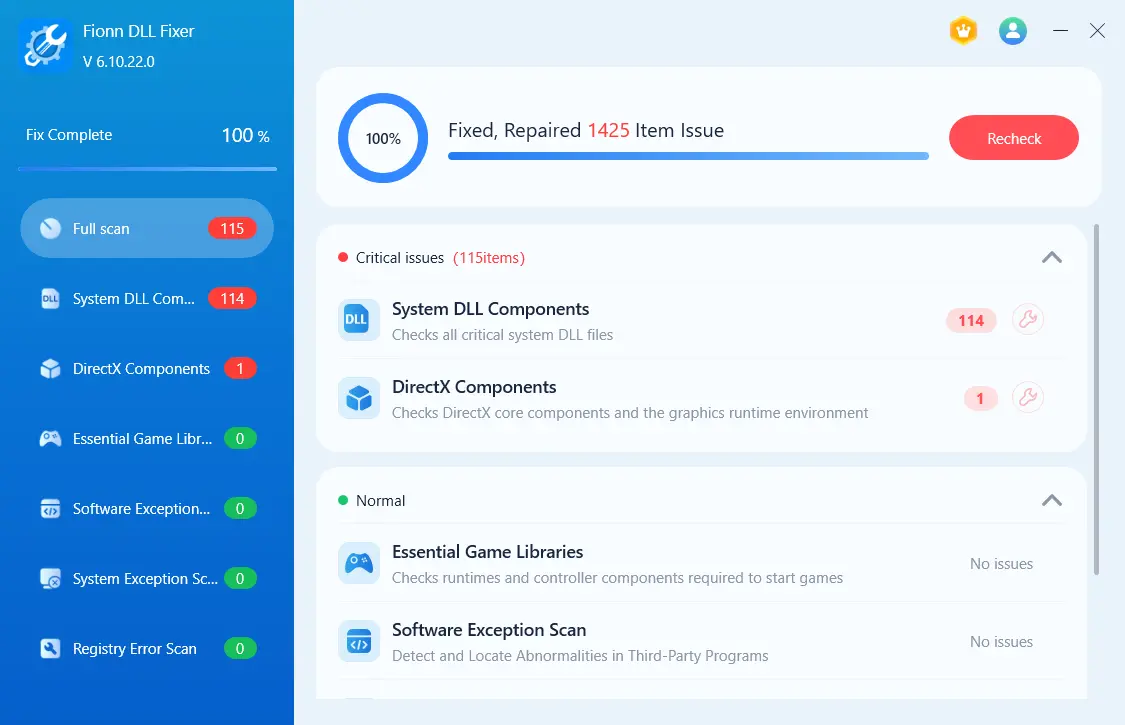
Check the result: reopen the affected application and repeat the action that failed. A completed repair or clean recheck does not guarantee that every application-specific problem is resolved.
Before a paid repair: check your current in-app allowance. The free version shows three free attempts; VIP unlocks DLL, DirectX, runtime, and system repair entitlements.
Method 2: Install or repair the Microsoft Visual C++ runtime
Use this if: the app's requirements identify Visual C++ components, or an existing runtime installation needs repair.
Choose the package for the app's architecture , not just your Windows architecture. If the requirement is unclear, check with the app's publisher before downloading.
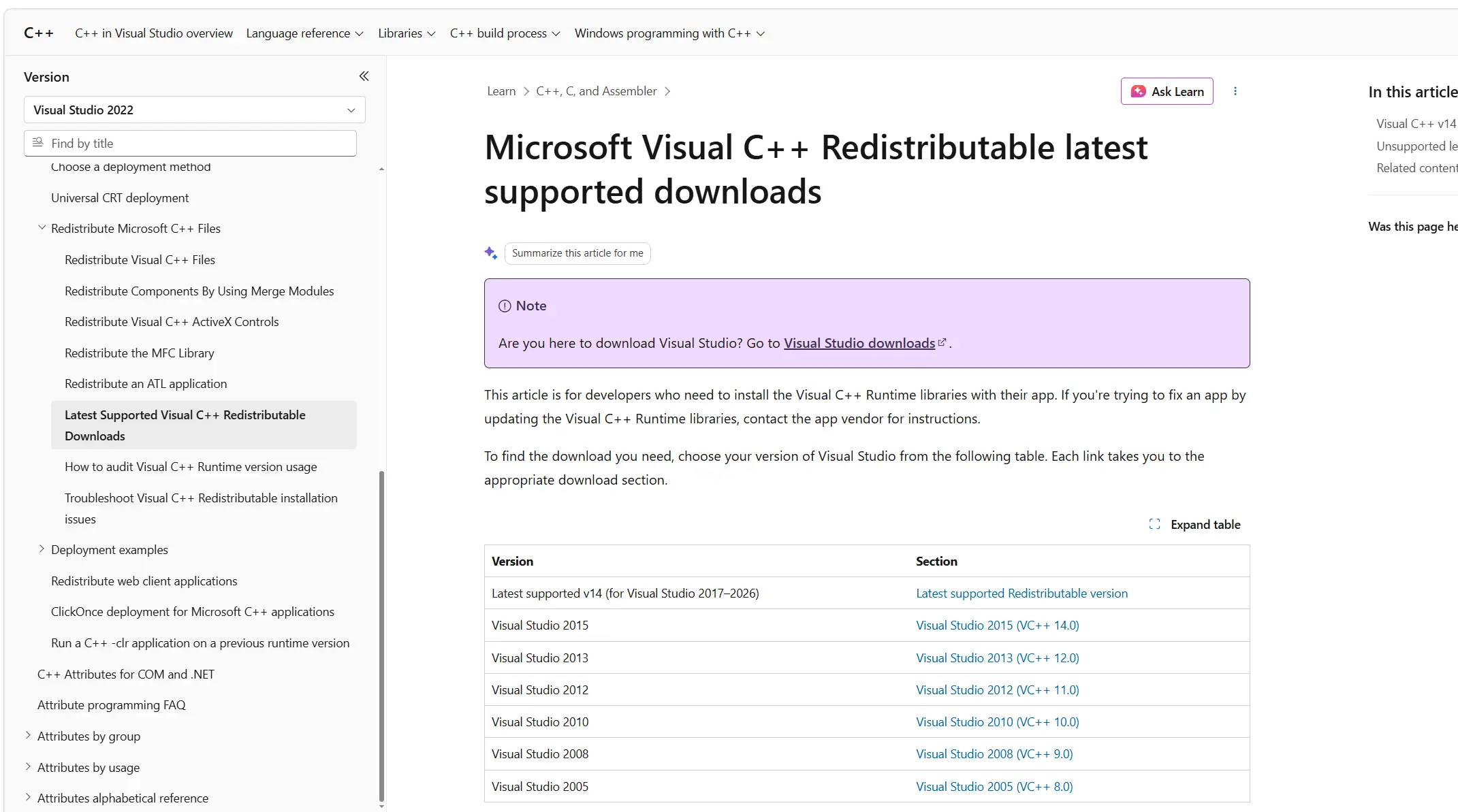
- Open Microsoft's supported Visual C++ Redistributable downloads page .
- Download the required x86, x64, or ARM64 package from Microsoft.
- Run the installer and approve the administrator prompt if requested.
- Choose Install for a new installation, or Repair when the matching installed package offers it.
- Complete the prompts, restart if requested, and test the affected app.
Which version?
Follow the publisher's requirement and Microsoft's current v14 guidance. Do not choose an old installer solely because the DLL name contains
140
. The runtime must be at least as recent as the build tools used to create the app.
Optional: use the command line
You can use the normal installer window. If you prefer Command Prompt, open it in the folder containing the downloaded installer. For a confirmed x64 application, use one of these commands:
To install:
vc_redist.x64.exe /install
To repair an existing installation:
vc_redist.x64.exe /repair
For another architecture, use its corresponding installer filename. Microsoft documents these switches in its redistribution instructions .
Still failing? Continue with app repair. Installing the shared runtime may not replace dependencies stored in the app's own folder.
Method 3: Repair the affected application
Use this if: the app still fails after you have addressed its runtime requirements. Not every app offers a repair button; use the route available for yours.
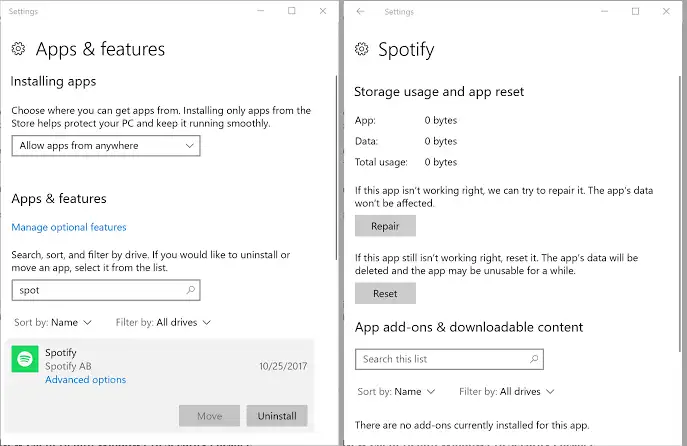
Option A: repair through Settings
- On Windows 11, open Settings > Apps > Installed apps . On Windows 10, open Settings > Apps > Apps & features .
- Find the affected app. Open its three-dot menu on Windows 11, or select it on Windows 10.
- Choose Advanced options , if available.
- Select Repair if offered, then follow the prompts.
Option B: repair through Control Panel
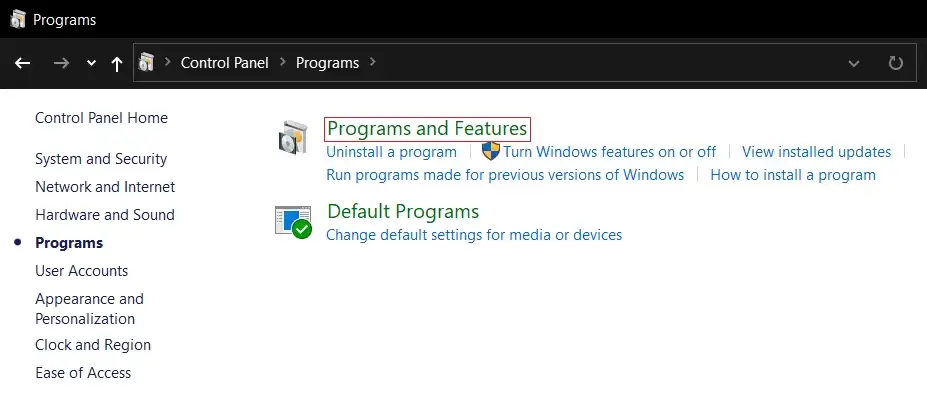
- Open
Control Panel > Programs > Programs and Features
.
- Right-click the affected program.
- Select Repair , or Change if Repair is unavailable, and follow its instructions.
These routes follow Microsoft's application repair instructions . If neither is available, ask the app's publisher for its supported repair procedure.
Check the result: reopen the app and repeat the original task.
If the runtime installer fails
First, record the installer's exact message and error code. This is a separate problem from the app's original mfc140u.dll error.
| Message or code | Next step |
|---|---|
| A newer runtime is already installed | Check the installed package and its repair option. Do not assume the runtime is missing. |
| Error 5: access or permission problem | Right-click the official installer, choose Run as administrator, and retry. |
| Error 32: files in use | Close running software. If files remain locked, restart and retry. |
| Error 1603 or another unexplained failure | Collect installation logs. This general failure does not identify one DLL as the cause. |
| Error 1714: an older version cannot be removed | Use the logs to identify the affected version, then follow Microsoft's version-specific recovery instructions. Do not uninstall every runtime. |
If setup still fails, install pending Windows updates, restart, and retry. For further investigation, use Microsoft's runtime installation troubleshooting guide .
Collect logs for support
- From the Microsoft guide, download the Visual Studio and .NET Log Collection Tool.
- Run
Collect.exeand extract%TEMP%/vscollect.zip. - Search the VC Redist logs for
Error,Failed, orSystem Error. - Send support the logs, target runtime version, and previously installed version if you were upgrading.
Standalone runtime setup logs are normally created in
%TEMP%
. Microsoft also documents the
/log filename.txt
switch for choosing a log file.
If mfc140u.dll is still not found
If both runtime repair and app repair fail, ask the app's publisher to check its installation and locally deployed dependencies. Avoid guessing which DLL to replace.
Send the following details so support can investigate:
- The complete current error message and the action that triggers it.
- The app's name, version, and installation source.
- Your Windows version and the app's architecture, if confirmed.
- The runtime package you installed or repaired, plus any setup errors and logs.
- The result of the app repair.
How to confirm a fix: after any required restart, open the original app and complete the task that failed. If a new message appears, save it before trying the next repair.
FAQ
Should I install x86 or x64 on a 64-bit PC?
Match the application. A 32-bit app needs x86 components even on 64-bit Windows. Check the app's requirements if you are unsure.
Why does the error remain after installing Visual C++?
The package may not match the app's requirements, or the app may have damaged local dependencies. Confirm the required package, then try the app's own repair procedure.
Does “repair complete” mean the problem is fixed?
It means the repair operation finished. Test the original app and the task that failed to confirm the result.
Should I uninstall all Visual C++ packages first?
No. Different apps can require different runtime versions. The specific recovery procedure for error 1714 is not a general instruction to remove every package.
What to do next
Choose the method that fits your situation, make one change, then test the app. If it still fails, keep the exact error and repair results for the app's publisher.


